
Sell Tickets from the Auctria dashboard.
Selling Tickets in Auctria
Admission Ticket items can be sold from the main Event Dashboard's Tickets menu. This is the recommended method for organizers to sell admission tickets directly to guests and correctly register the tickets.
Sell a Ticket
- From your Auctria dashboard, click Tickets on the left sidebar.
- Click Sell Tickets.
- Select the ticket item you want to sell.
- Set the purchaser for the sale. See Setting the Purchaser below.
- If the ticket item includes multiple admissions (like a table of 8), assign each ticket to a guest. See Assigning Tickets below.
- If you've set up Meal Choices with your admission tickets, select each guest's choice. See Select a Meal Choice below.
- Choose your payment method under Payment Details. See Select a Payment Method below.
- Click Record Sale to complete the transaction. See Record Sale below.
Sell Tickets from the Sales dashboard
You can also click Sales (left sidebar) → Record Sales to sell tickets.
Setting the Purchaser
Click Choose Participant at the bottom of the Order Details section.
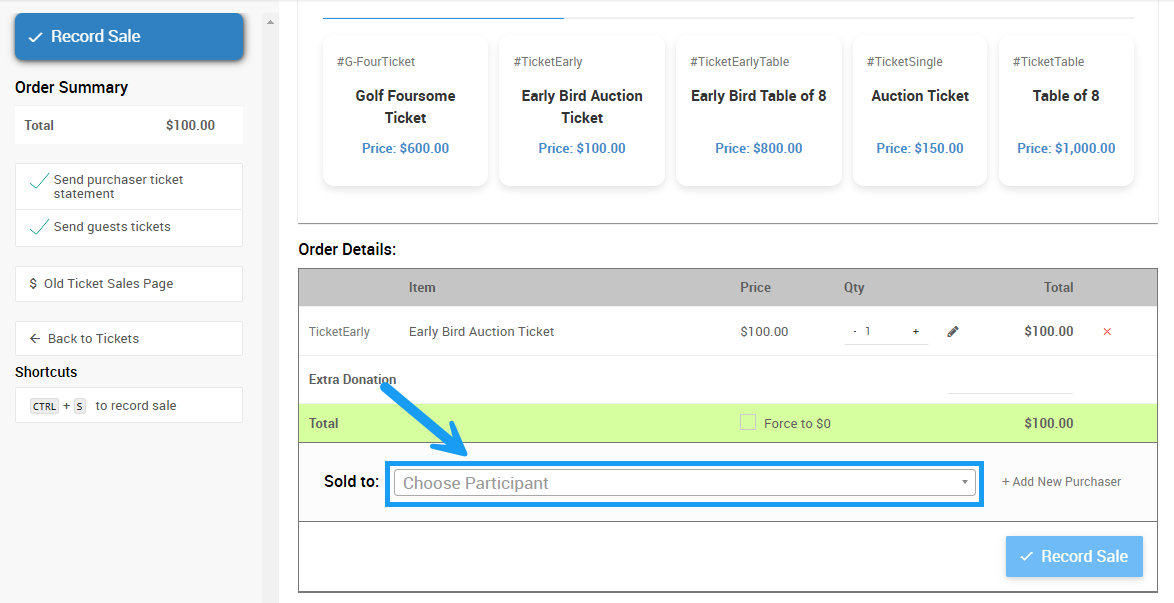
An example from a demonstration event.
Choose an Existing Participant
Begin typing the name of an existing participant and select their name from the drop-down list to choose them as the purchaser. Then, choose whether the purchase is being made as an Individual or a Company.
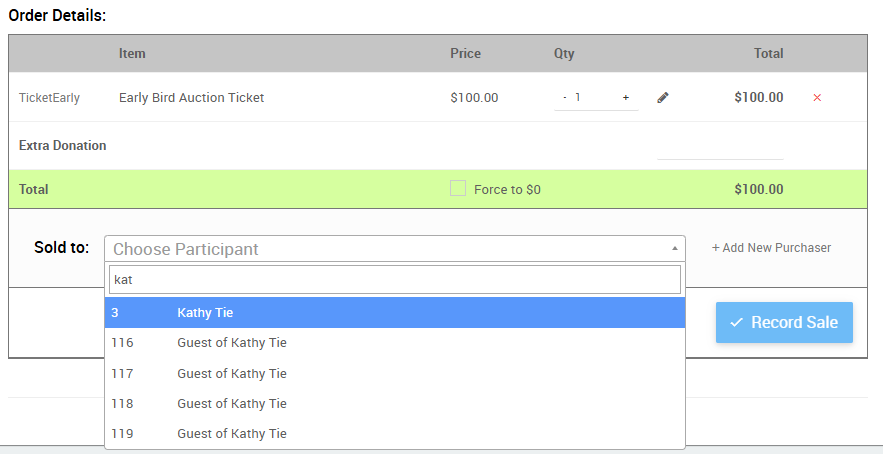
An example from a demonstration event.
Add a New Purchaser
Click Add New Purchaser to create a new participant record if the purchaser isn't already in the system.
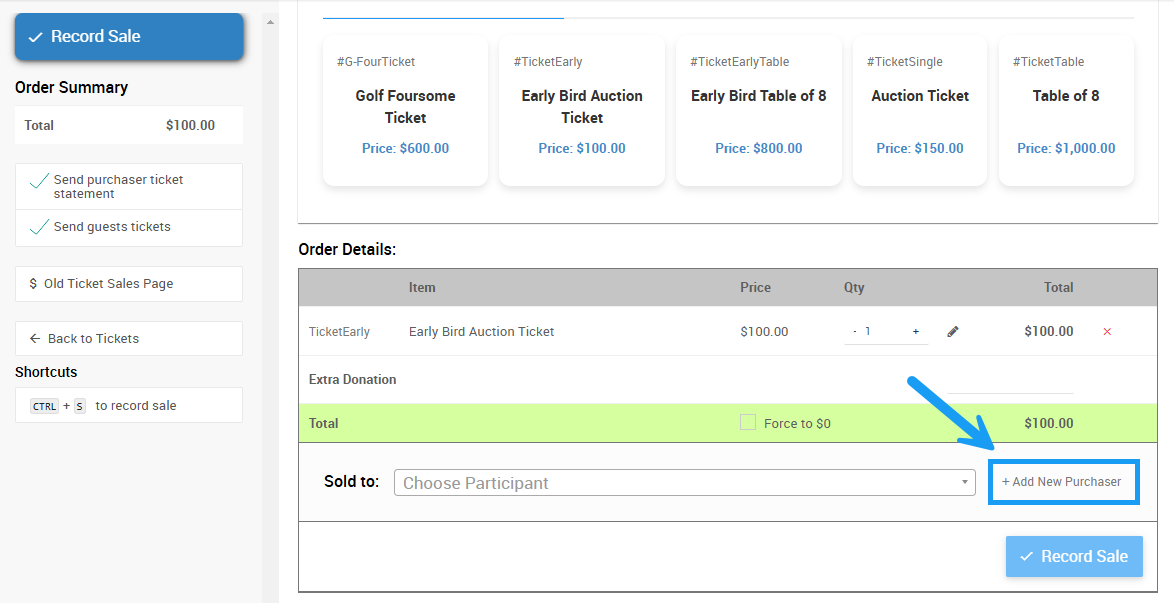
An example from a demonstration event.
Enter their details in the Add Guest pop-up.
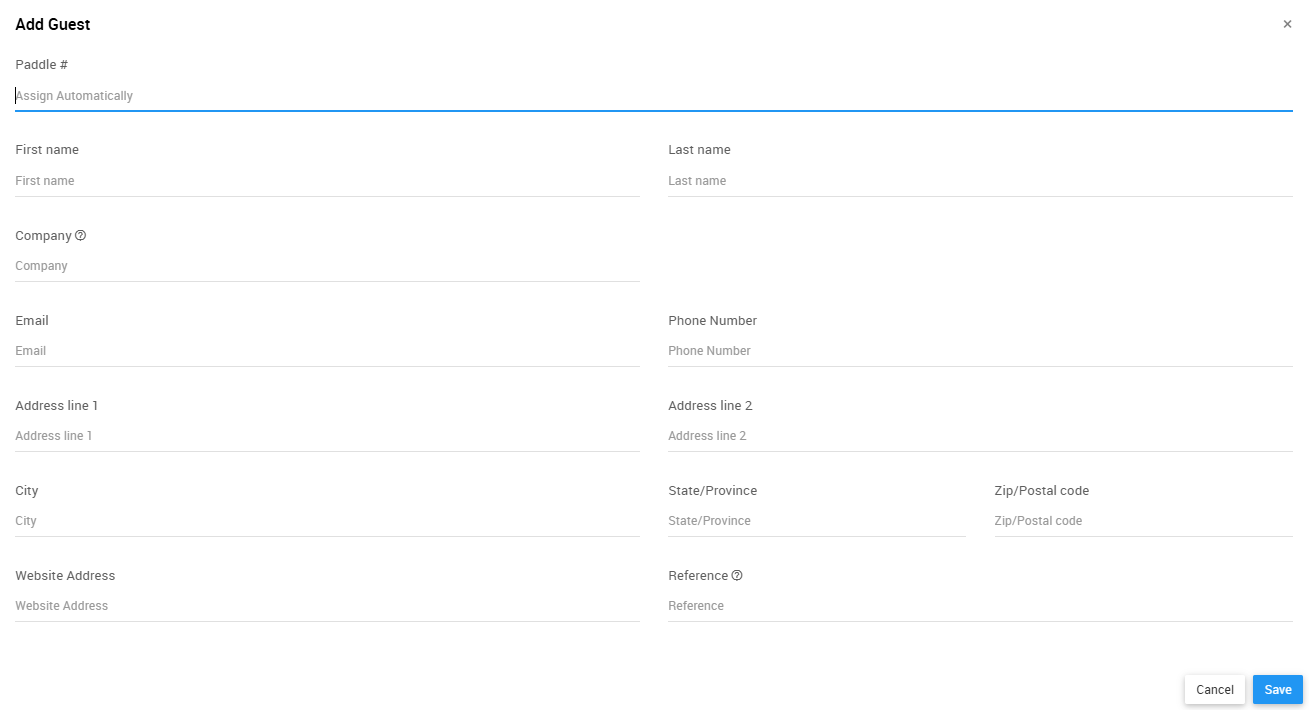
An example from a demonstration event.
Assigning Tickets
If your ticket item includes multiple admissions, the page lists the tickets available to assign based on the quantity entered and the ticket item's configuration. Choose one of the following assignment options:
- Assigned to the purchaser and another guest — assigns a ticket to the purchaser and a guest who isn't linked to the purchaser.
- Assigned to the purchaser and their partner — assigns a ticket to the purchaser and a guest who is linked to the purchaser (they share a Paddle#).
- Tickets are assigned to other guests, the purchaser is not attending — assigns no ticket to the purchaser, and lets you enter new guest information for each ticket.
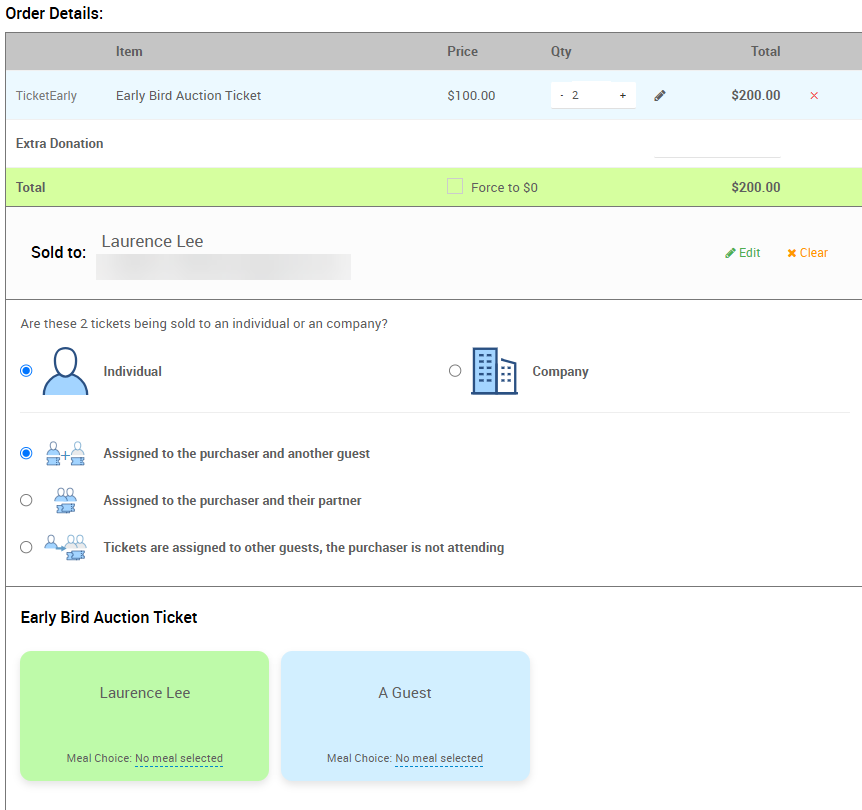
An example from a demonstration event.
Click an A Guest block to choose an existing participant, or enter new guest details and assign the ticket to the new guest. Leave a block as-is to enter guest information later.
Use unique email addresses for each guest
A purchaser can only assign a single ticket to themselves. Email addresses are optional by default, but supply a unique one for each guest whenever possible.
Select a Meal Choice (Optional)
If you've set up Meal Choices with your admission tickets, click the Meal Choice drop-down and select the guest's choice.
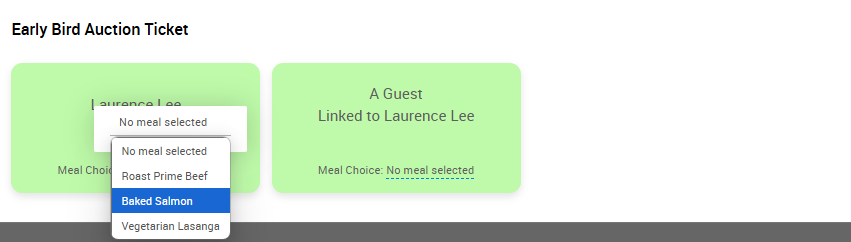
An example from a demonstration event.
Select a Payment Method
Select your preferred payment method from the Payment Details section. If the guest has a Registered Credit Card on file, it's listed as one of the tabs in this section. Otherwise, enter the card details and check Register card with participant to save it to their record for future use.
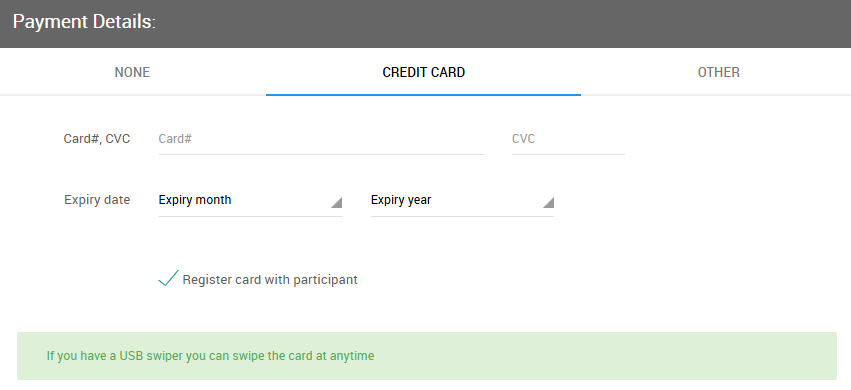
An example from a demonstration event with the Credit Card tab selected.
Record Sale
Click Record Sale, on the left side of the dashboard or at the bottom of the page, to complete the transaction.
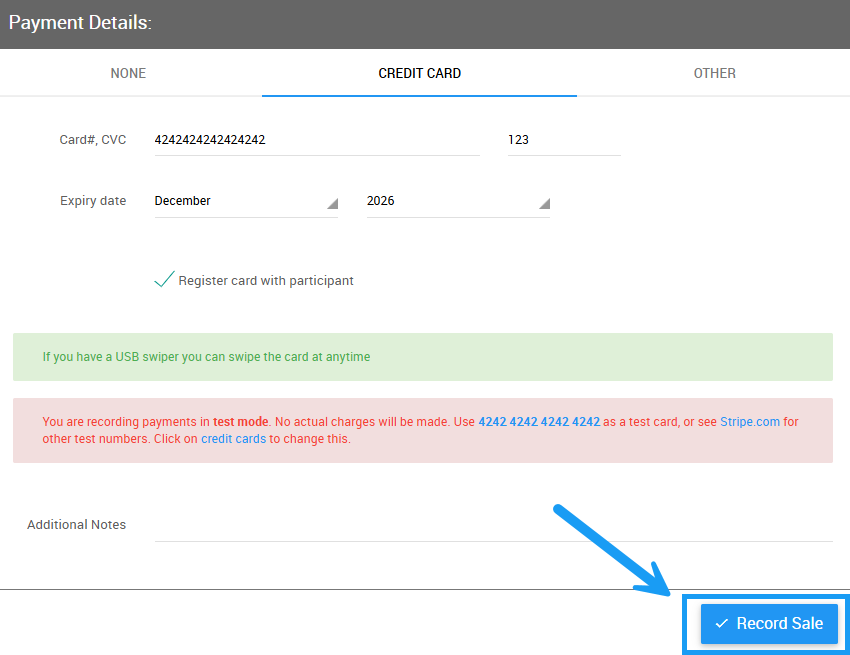
An example from a demonstration event.