
An overview of how you can transfer Ticket items in Auctria.
Auctria allows event organizers to transfer event tickets between participants with the Transfer Ticket function.
The Transfer Ticket function can be accessed through the Tickets and Participant Details dashboards.
Transfer Ticket Function
The Transfer Ticket function allows an organizer to reassign a ticket to a new or existing participant.
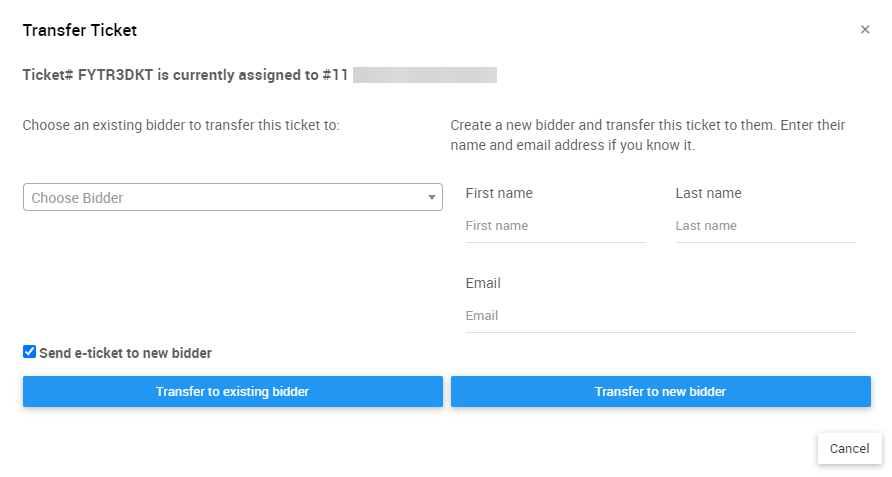
The Transfer Ticket window.
The left side of the Transfer Ticket window lets you choose an existing participant to assign to the selected ticket. Enter their Paddle# or start typing their name in the Choose Participant drop-down to populate this field.
The right side of the window lets you assign the selected ticket to a new participant. This new participant record is created as a Guest of the initial purchaser of the ticket.
The Transfer Ticket window lets you send an E-Ticket to the recipient of the transferred ticket by keeping the Send e-ticket to new participant checkbox checked.
If you leave the information on the right blank and click Transfer to new participant, the system generates a blank guest participant record and assigns the ticket to it. You can enter information for the new participant at a later time.
New participants become guests
If a ticket is transferred to a new participant, that participant is created as a Guest of the initial ticket purchaser.
Tickets Dashboard Transfer
You can access the Transfer Ticket function from the Tickets dashboard by navigating to the list of tickets.
You can view a list of the tickets purchased for your event by clicking the # of tickets block, or by clicking Ticket Details on the left sidebar of the Tickets dashboard. From there, select the Ticket# of the ticket you want to transfer.
If the ticket you're transferring appears in the Recently sold tickets panel, double-click the entry to open its Ticket Details.
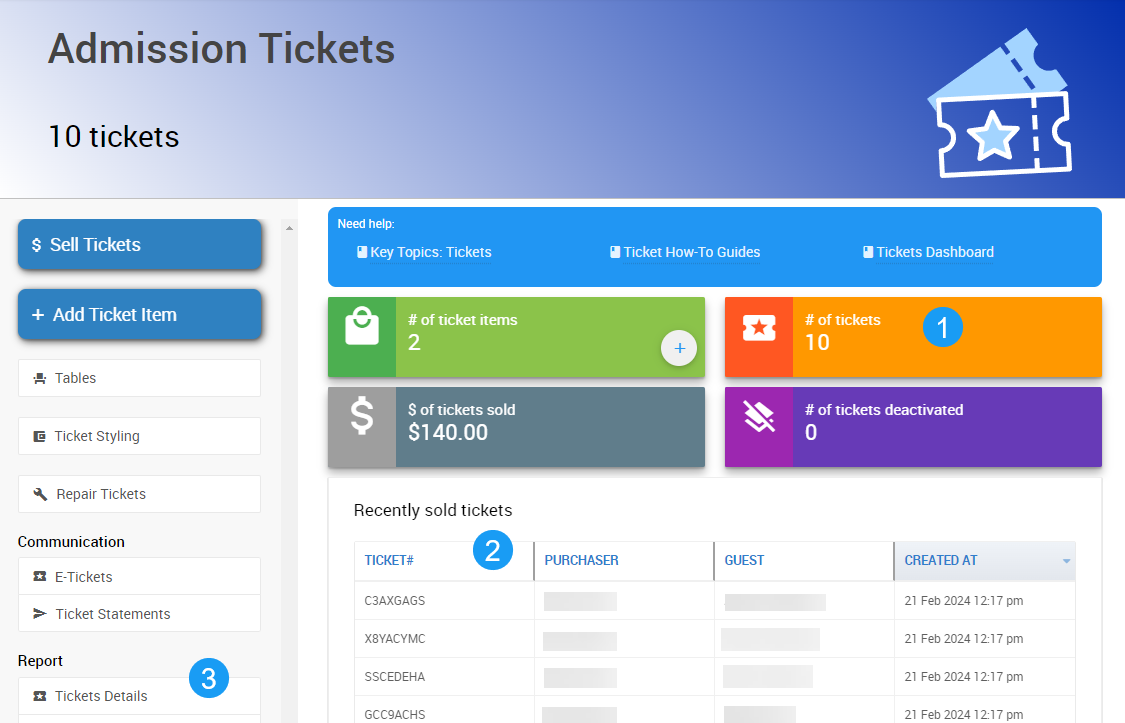
1. The # of tickets block.
2. The Recently sold tickets panel.
3. The Ticket Details link.
Use the Transfer Ticket button on the left side of the Ticket Details dashboard to transfer the ticket. This opens the Transfer Ticket window.
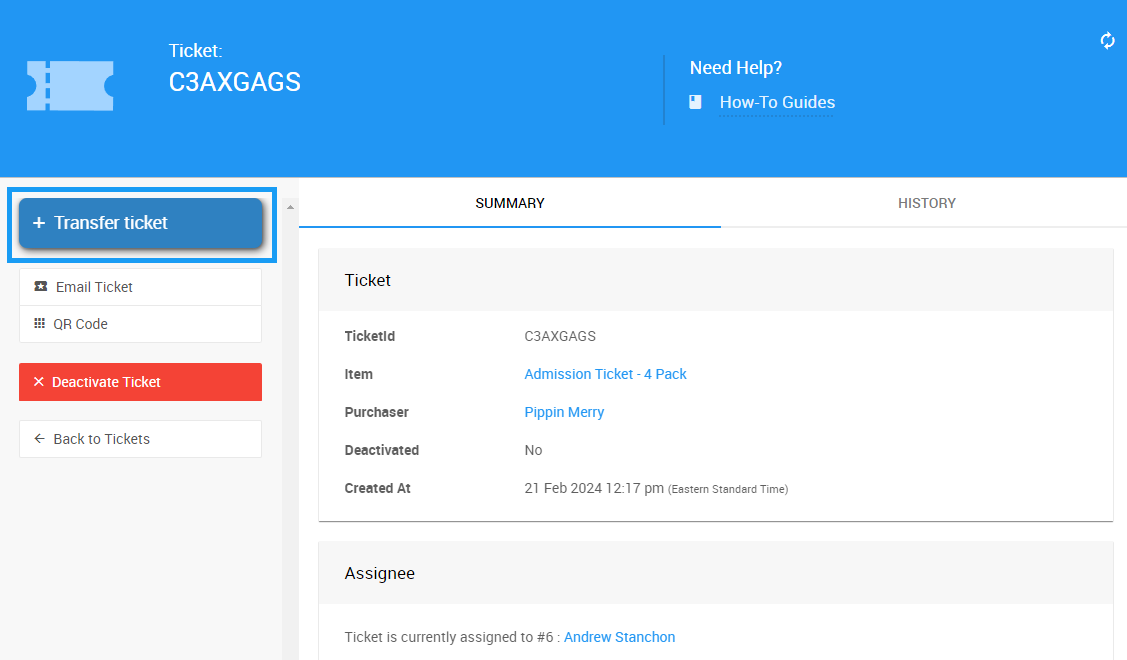
The Transfer Ticket button in an example Ticket Details dashboard.
Participant Details Transfer
You can also access the Transfer Ticket function from Participant Details by navigating to the Tickets tab.
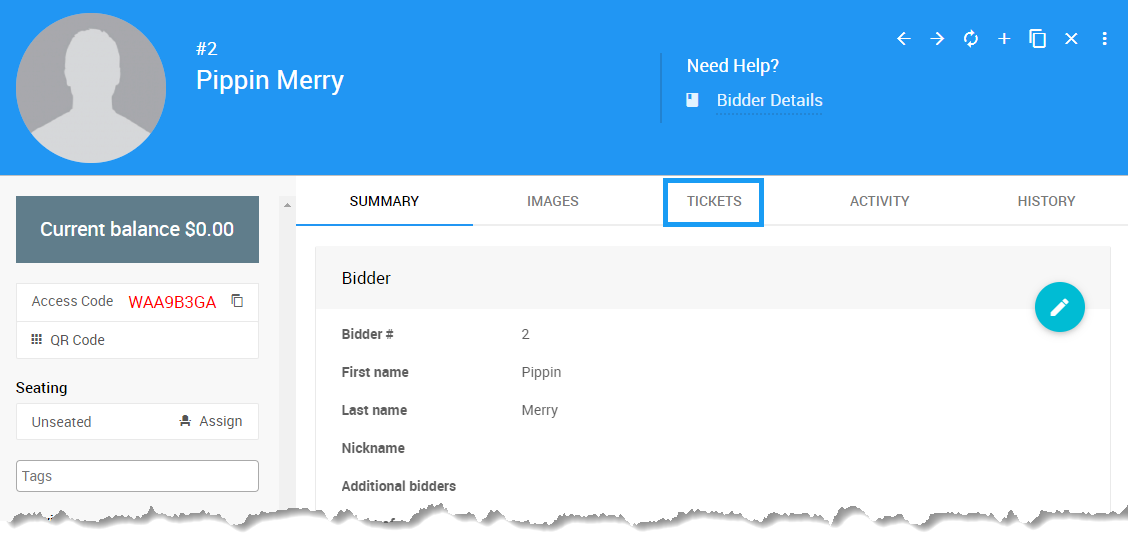
An example from a demonstration event.
The Tickets Assigned and Tickets Purchased panels display any tickets for the current event that are assigned to, or have been purchased by, the selected participant.
Click Transfer Ticket beneath the ticket you want to transfer.
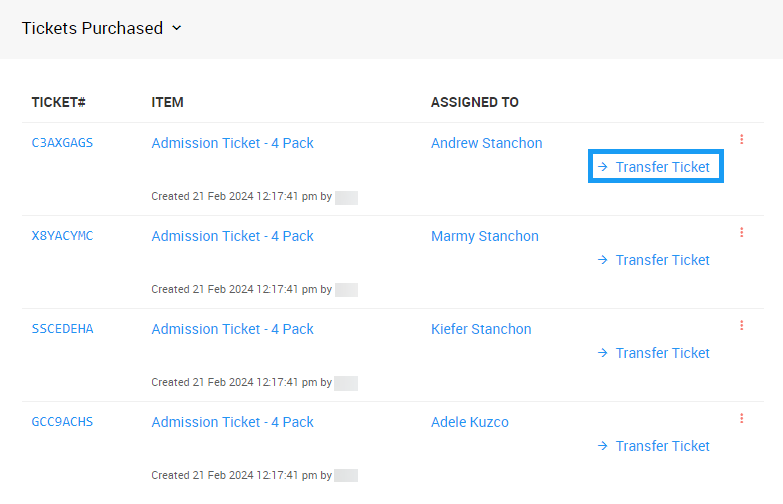
An example from a demonstration event.
You can also click the options button on the right and select Transfer Ticket to open the Transfer Ticket window.
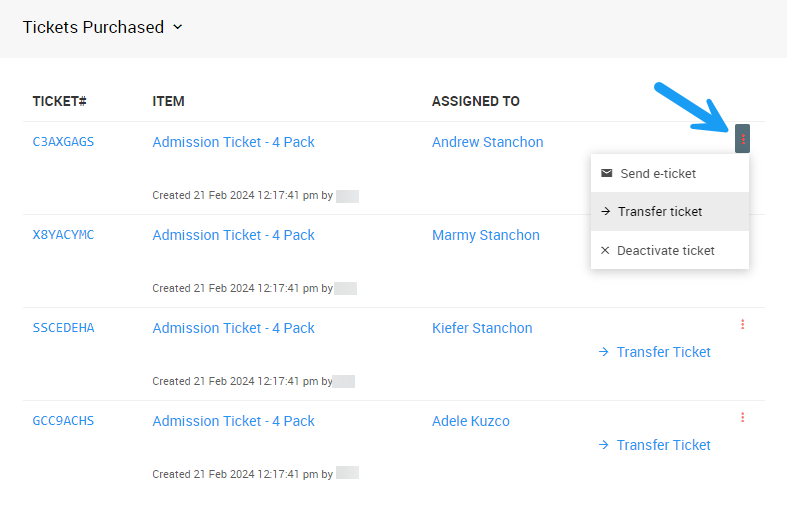
An example from a demonstration event.
If a ticket is assigned to this participant, you'll find it listed under the Tickets Assigned panel. From here, you can transfer the ticket, or click Create new participant & assign ticket in the options menu to create a new guest record.
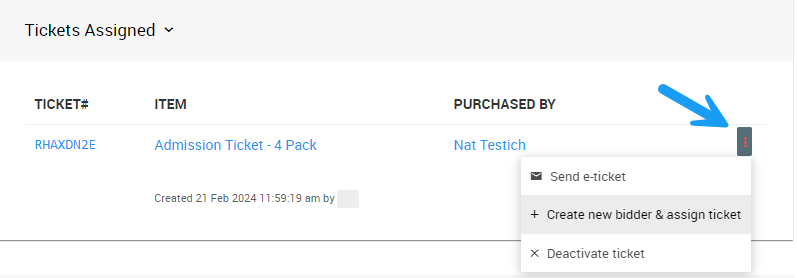
An example from a demonstration event.
Participant Ticket Transfer
Event participants can transfer their own tickets from their E-Ticket, or from their My Account page on the event website.
See Ticket Hub for more information.