
Learn how to use conditions to control which items appear in your Item Catalog.
The Item Catalog element can be filtered using conditions to include or exclude specific items.
To access these settings, select the Item Catalog element and click Configure next to the Items Displayed property in the Editor sidebar. This opens the Select Items window.
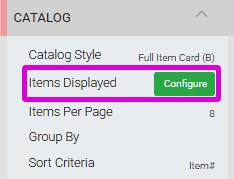
The Configure button in the Catalog settings panel in the Editor sidebar.
Adding Conditions
In the Select Items window, click Add Condition to open the conditions picker. Select a condition to add it to the catalog. See the Conditions Reference below for details on each option.
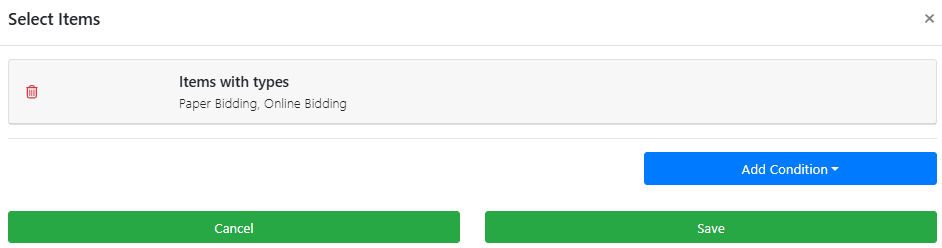
An example of the Select Items window from a demonstration event.
Multiple conditions
Multiple conditions can be applied to a single catalog. When more than one condition is set, an item must meet all of the conditions to be displayed.
Conditions Reference
| Condition | Description |
|---|---|
| All Items | Displays all items in the event. Default when inserting an Item Catalog. |
| Items with types | Filters by Item Types. The default for this condition shows Paper Bidding Type, Live Bidding Type, and Online Bidding Type — the same configuration used by the Auction Catalog pre-built section. |
| Items matching tags | Filters by tags associated with items. The Raffle Tickets pre-built section uses this condition with the RAFFLE tag. |
| Items without tags | Displays items that have no tags. |
| Item categories | Filters by Item Categories associated with items. |
| Items in Raffle | Displays items from a specific raffle. Requires additional configuration — see below. |
| Items matching search term | Filters by a search term found in the item title. |
| Items open for bidding | Displays items currently open for bidding. |
| Items closed for bidding | Displays items currently closed for bidding. |
| Items marked 'Show in default web purchase element' | Displays items with this option enabled in their Item Details. Used by the Ticket Sales pre-built section. |
| Items marked 'Highlight' | Displays items with Highlight item enabled in Item Details. |
| Admission Ticket Items | Displays admission ticket items only. |
| Raffle Tickets | Displays all raffle ticket items. |
| For Sale Items that are not tickets | Displays For Sale items that are not tickets. |
| Sponsorship Items | Displays items with Is sponsorship enabled in Item Details. |
| For Sale Items that are not sponsorships | Displays For Sale items that are not sponsorships. |
| Scheduled Events | Displays items with Is event enabled in Item Details. |
| Choose specific items | Select specific individual items to display in the catalog. |
Items in Raffle
The Items in Raffle condition requires selecting a specific raffle after the condition is added:
- Click the Items in Raffle row to open its secondary configuration panel.
- The panel displays the raffles currently created for your event. See Introduction to Raffles for more information.
- Click a raffle to select it and complete the condition setup.
- Click Save.