
Learn how to add and edit text content on your event website using the Text element.
The Text element adds a block of editable text to a column. When first added, it displays Lorem ipsum placeholder text — replace this with your own content. The Text element is also used in the Email Manager and works the same way there.

An example of the Text element on an event webstie in Edit mode.
Adding a Text element to a page
Drag the Text element from the Website Editor Sidebar (under Column) into a column space.
Text Settings
Clicking a Text element opens the Text settings panel in the Website Editor Sidebar.
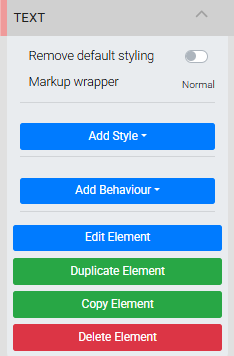
The Text settings panel in the Editor sidebar.
| Setting | Description |
|---|---|
| Remove default styling | Removes any text styling applied by the site's Theme settings, letting the element render without inherited styles. |
| Markup wrapper | Controls the HTML wrapper applied to the text block. Options are Normal, Block, and None. |
Editing Text
Double-click the Text element to open the Edit Content window. Make your changes and click Save when done.
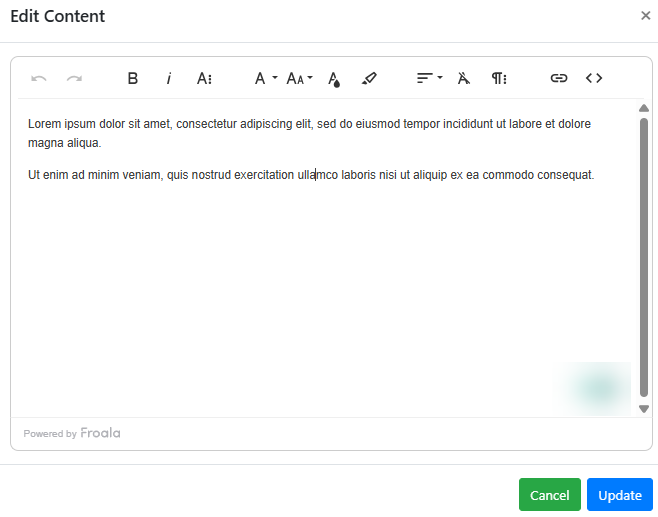
An example from a demonstration event.
Shift+Enter vs Enter
Pressing Enter starts a new paragraph, adding a blank line above the new line. Pressing Shift+Enter moves to a new line without the extra spacing.
Pasting from Microsoft Word
Text copied from Microsoft Word is accepted as plain text (without any formatting) in the Edit Content window.
See Common Element Actions for more details on managing the Text element.