
This page briefly overviews where to add or modify your in-person event Admission Ticket items.
Admission Tickets
Admission Tickets in Auctria represent either a single admission or multiple admissions for your event. You can use them for individual guests or entire groups.
For example, a "Table for Eight" ticket might include admission for up to 8 guests. Set Tickets Per Sale to 8, and Auctria creates 8 participant records for each guest, sharing or separate Paddle#s as you choose.
Note
Auctria may also create a unique Table# to group guests together at your event.
Admission tickets only
Only use this page to create tickets that represent event admissions, including sponsorship tickets. Don't use it for raffle tickets or drink tickets — these don't grant event admission.
Add a Ticket
The easiest way to add a new ticket item is through Add Ticket Item on your Tickets dashboard. This ensures the ticket is properly categorized as a "For Sale" item and includes the correct number of participants.
- From your event dashboard, click Tickets → Add Ticket Item.
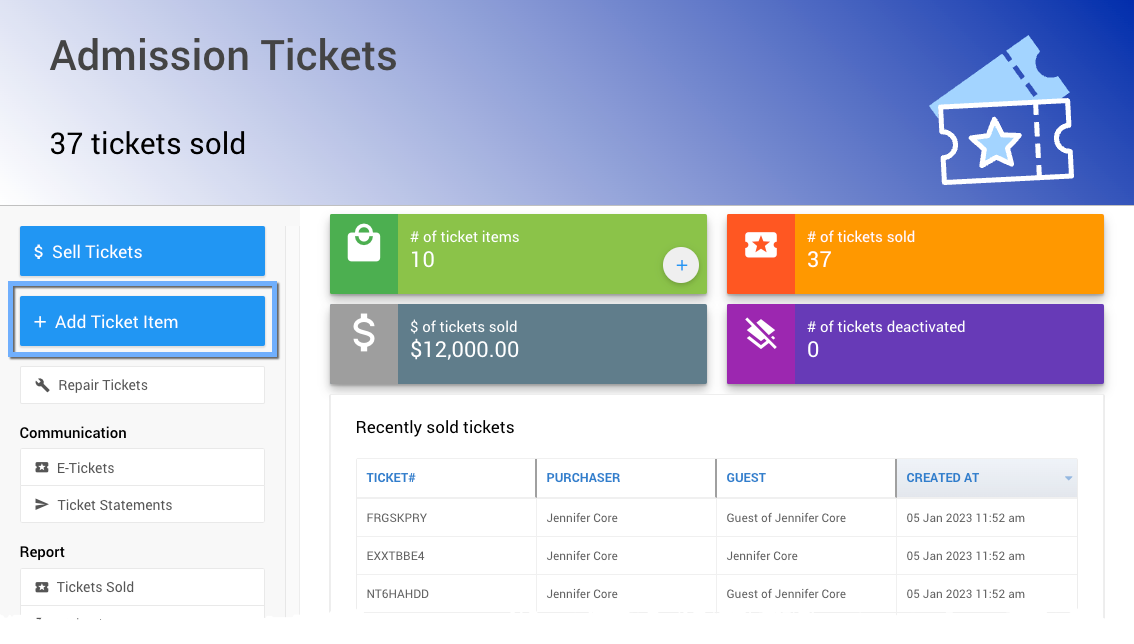
An example Tickets Dashboard from a demonstration event.
- Fill in the ticket's details on the Add Ticket page:
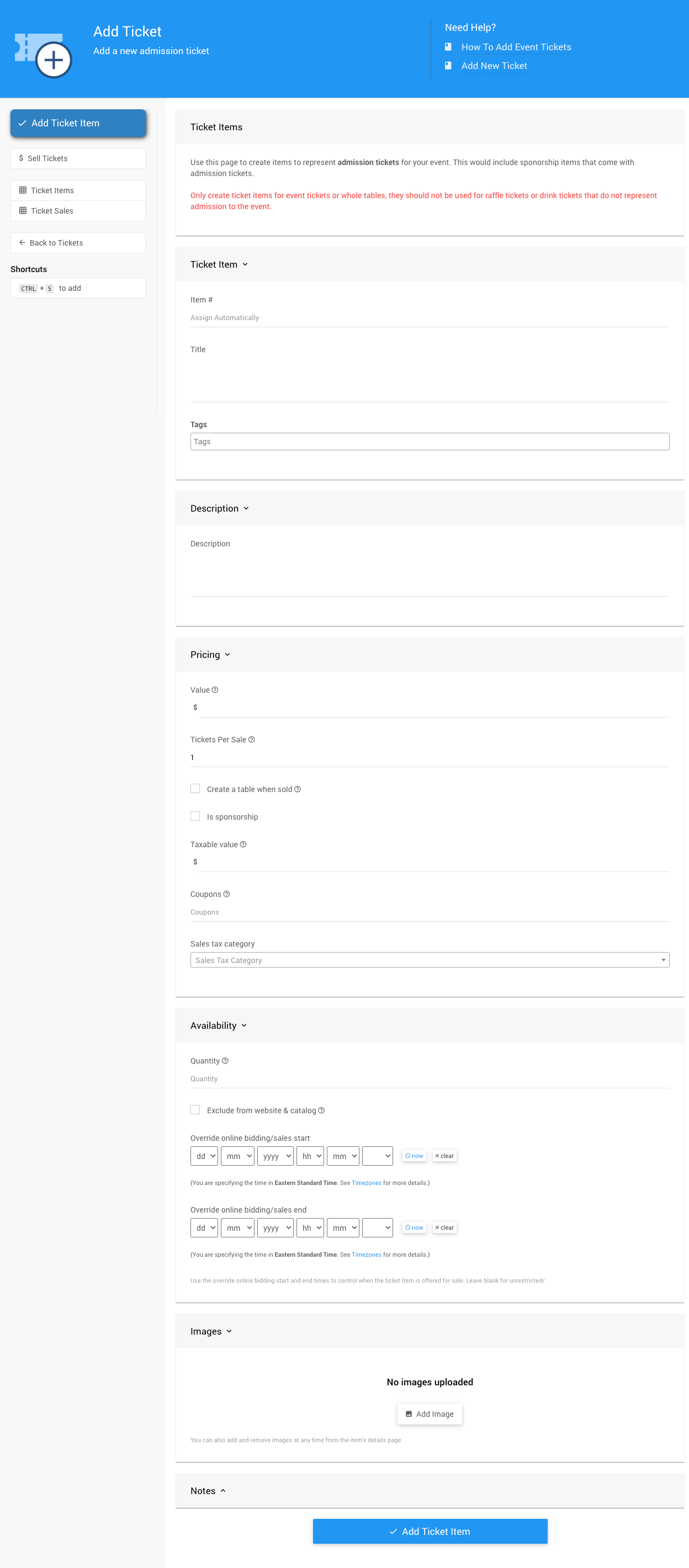
An example Add Ticket page from a demonstration event.
| Field | Description |
|---|---|
| Ticket Item Title | How the ticket appears on your website (e.g., "Early Bird Ticket"). |
| Pricing Value | The price of the ticket. |
| Tickets Per Sale | The number of admissions this ticket grants (e.g., 1 for an individual, 8 for a table). |
| Availability Quantity | How many tickets are available for sale. Leave blank or set to 0 for unlimited availability. |
- Click Add Ticket Item to save your new ticket.
Use meaningful item numbers
Assign a meaningful Item#, like EARLYBIRD, instead of the default system-generated number. This makes tickets easier to find and manage later.
Edit a Ticket
- Locate the ticket item in the All Items report, or under the Tickets dashboard.
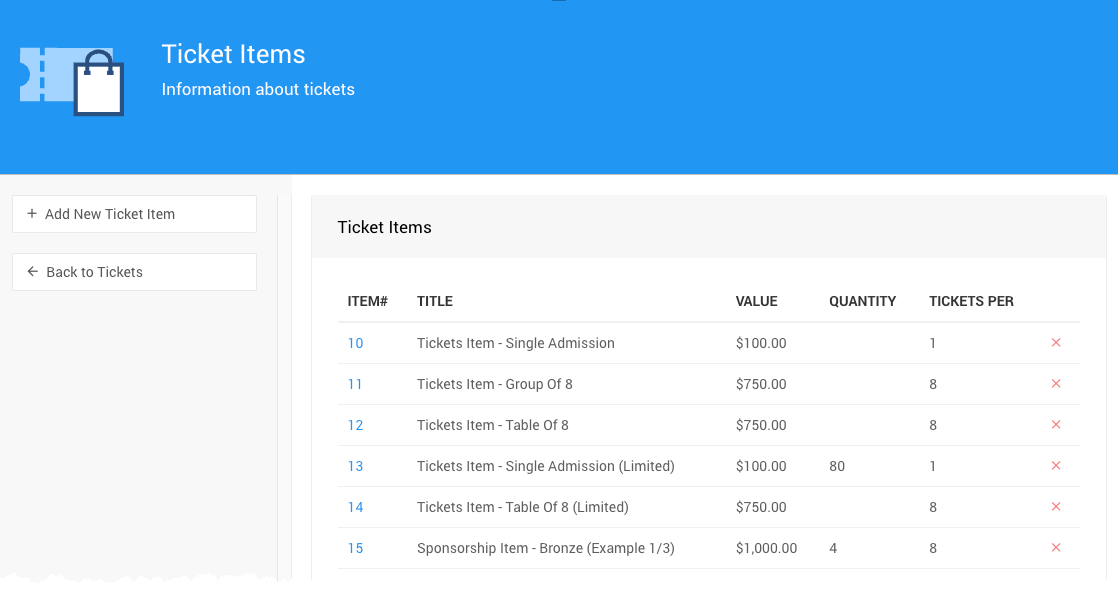
An example All Items report from a demonstration event.
- Hover over the ticket's Item# and click Details, or double-click the Item#, to view and edit the ticket's details.
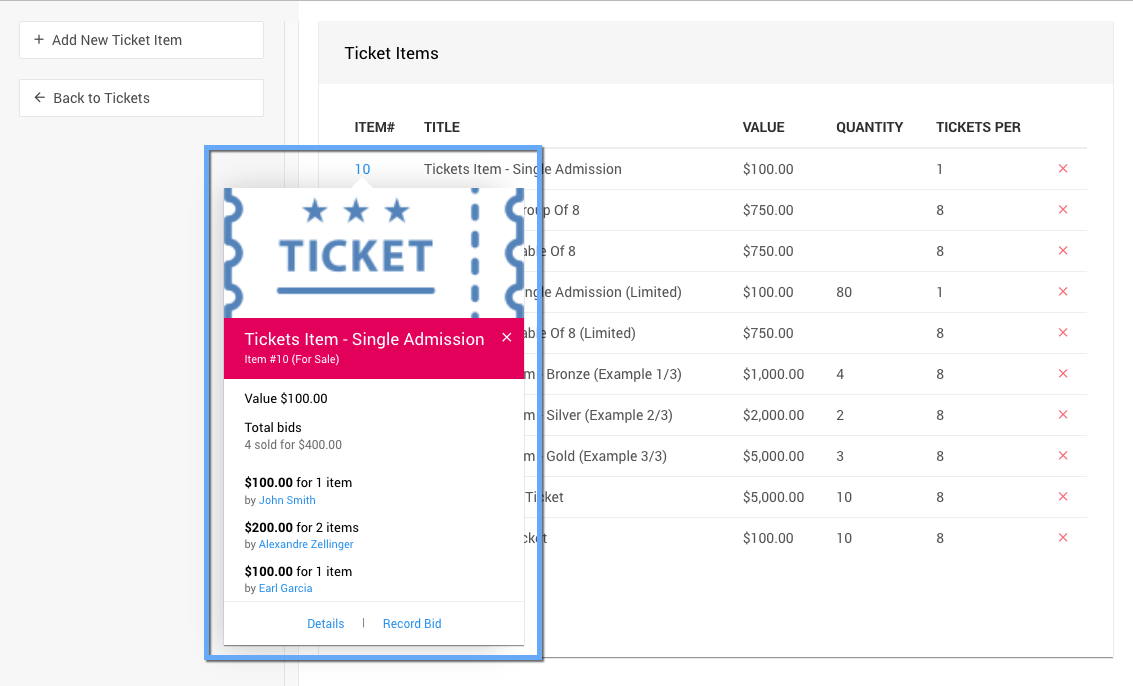
An example from a demonstration event.