
Learn how to create event admission tickets for different event dates and times.
Different Time & Multi-Day Tickets
Some events require multiple ticket options, even when they happen on the same day. For example:
- A golf tournament in the morning and a dinner in the evening.
- VIP tickets that allow early entry before general admission.
You can create separate Admission Tickets for different time slots or different days. This gives your guests flexibility and helps you manage attendance more smoothly.
Create Different Time & Multi-Day Tickets
You'll start by creating a ticket item as usual, then enable it as a Scheduled Event to assign specific details for that day.
Add a New Ticket Item
- Go to Tickets in the left sidebar.
- Click Add Ticket Item.
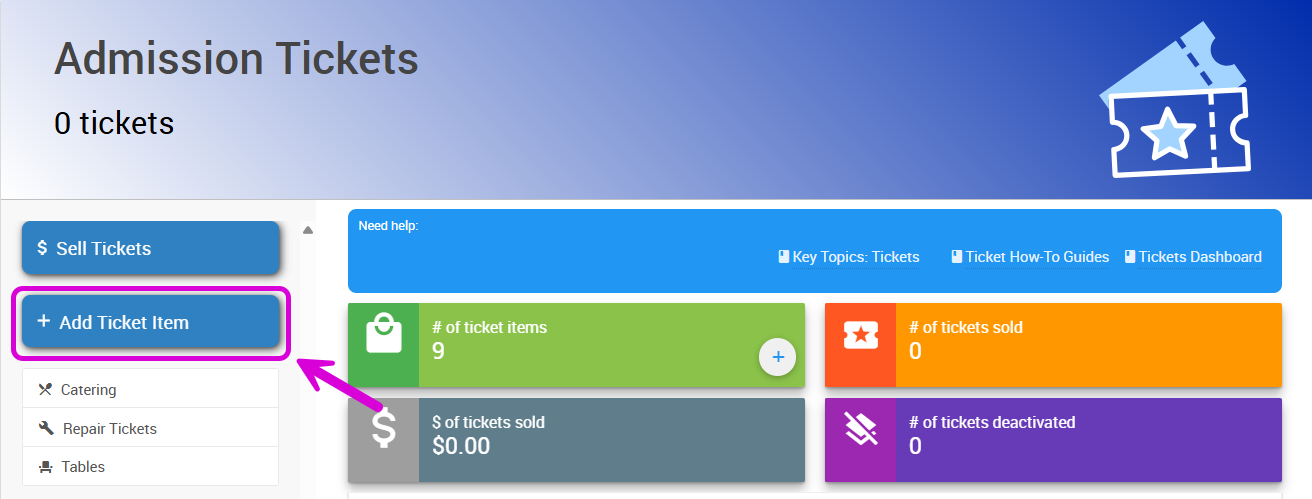
The Add Ticket Item button on the Tickets page.
- Fill in the basic details for this day's ticket, including the Name (e.g., "VIP Dinner", "Friday Golf", "General Admission") and Value.
- Click Add Ticket Item to save.
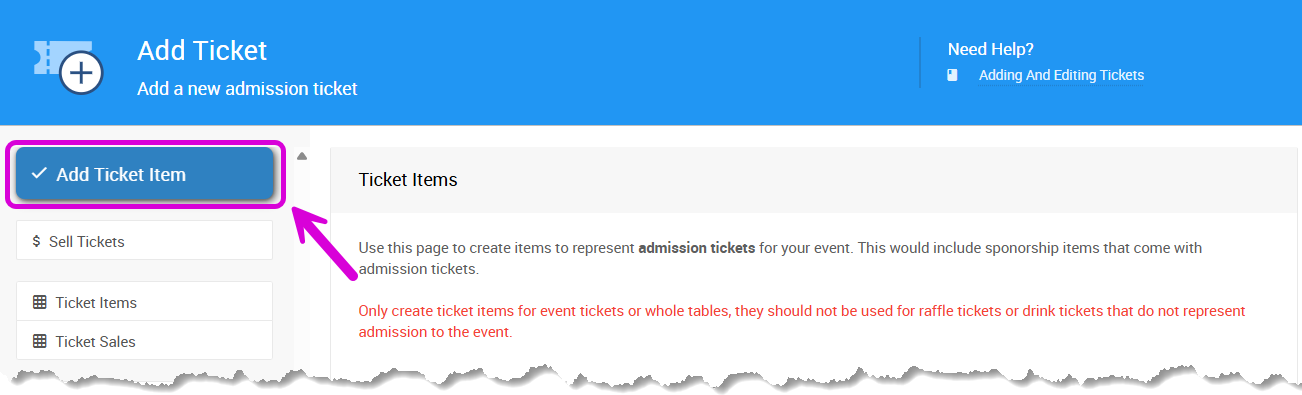
An example from a demonstration event.
Turn the Ticket Into a Scheduled Event
- Back on the Tickets page, click the ticket block to view your list of items.
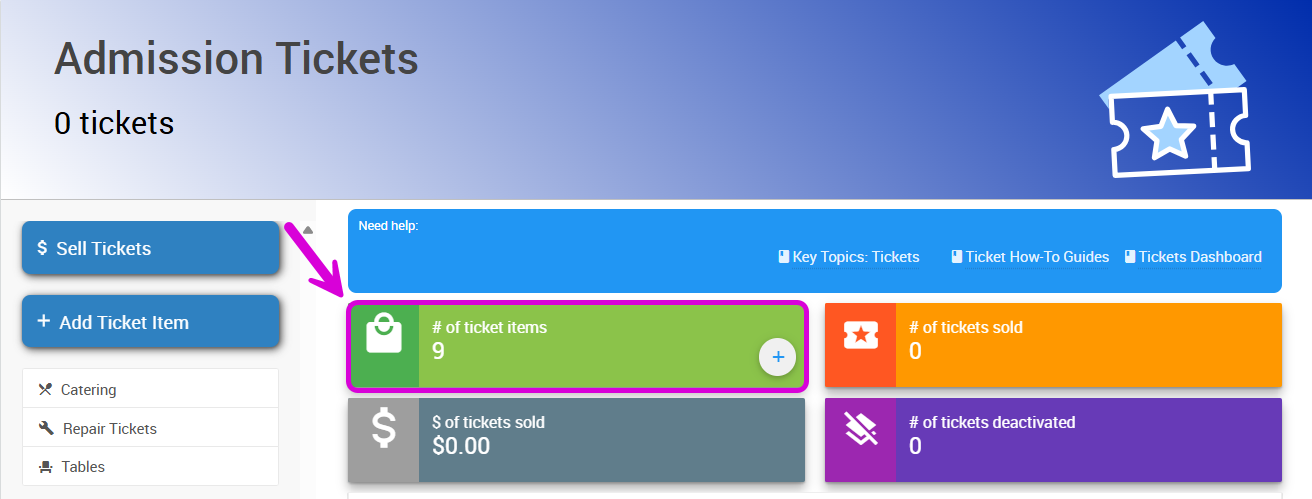
An example from a demonstration event.
- Click the item number next to the ticket name to open the Item Details page.
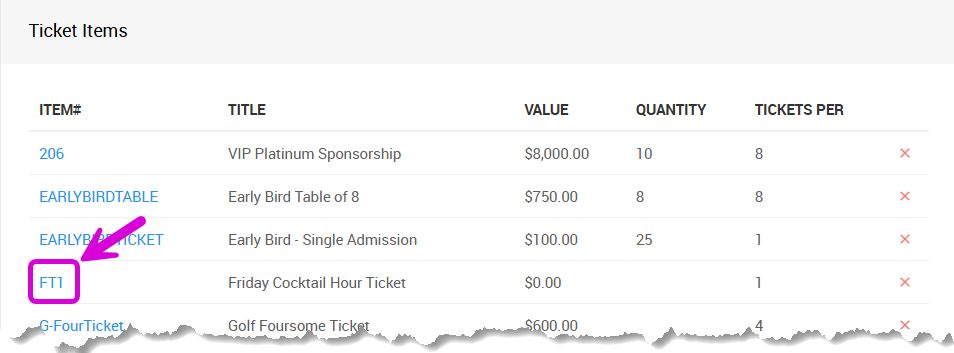
An example from a demonstration event.
- Scroll to the Options section and click the pencil icon to edit.
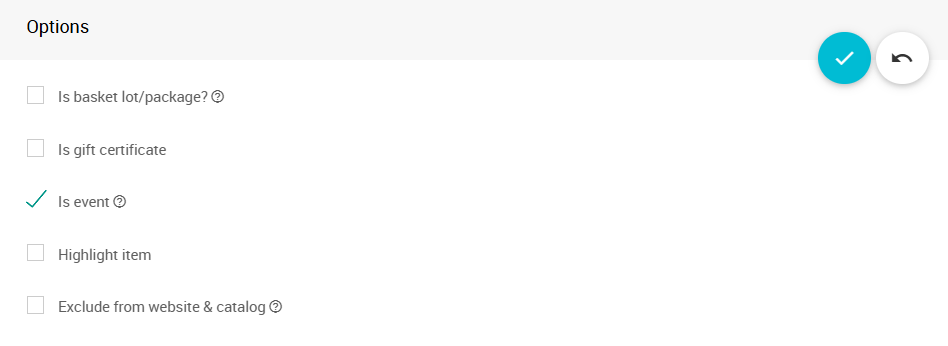
An example Options section from a demonstration event.
- Check Is Event, then click the checkmark button to save.
Add Event Details
Once the ticket is marked as an event, a Scheduled Event section appears below Options.
| Field | Description |
|---|---|
| Start Time | The date and time this ticket's event begins. |
| Location | Where this ticket's event takes place. |
| Notes | Any relevant details or description for guests. |
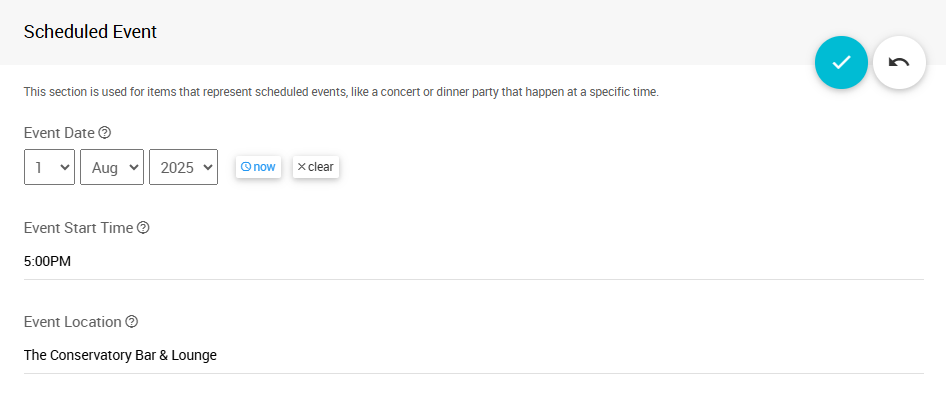
An example from a demonstration event.
These details automatically appear on your guests' e-Tickets, so they know exactly where and when to show up.
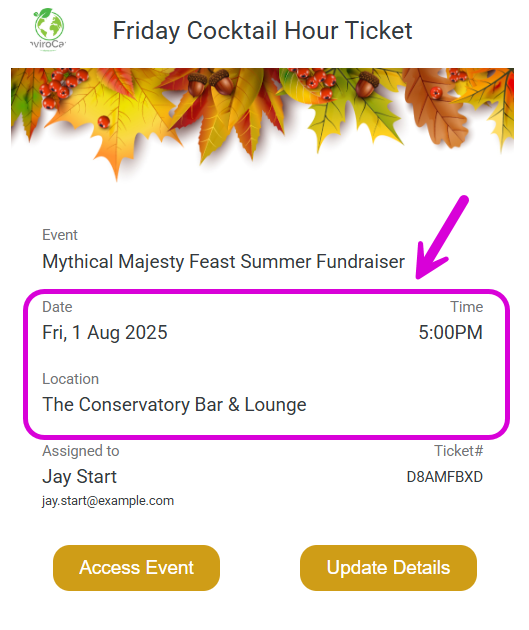
An example from a demonstration event.
A Note About Ticket Settings
If you set specific fields under Ticket Settings — like meal choices or guest information — those settings apply to all Admission Tickets, regardless of date or time.
Tip
For example, if you add a meal choice dropdown in Ticket Settings, it appears on both your Golf Ticket and Dinner Ticket.