
Learn how to embed an interactive map on your event website using the Map element.
The Map element embeds an interactive Google Map into a column. Use it to show your event venue or any other relevant location. When first added, it defaults to Ottawa, ON — update the location to match your event.
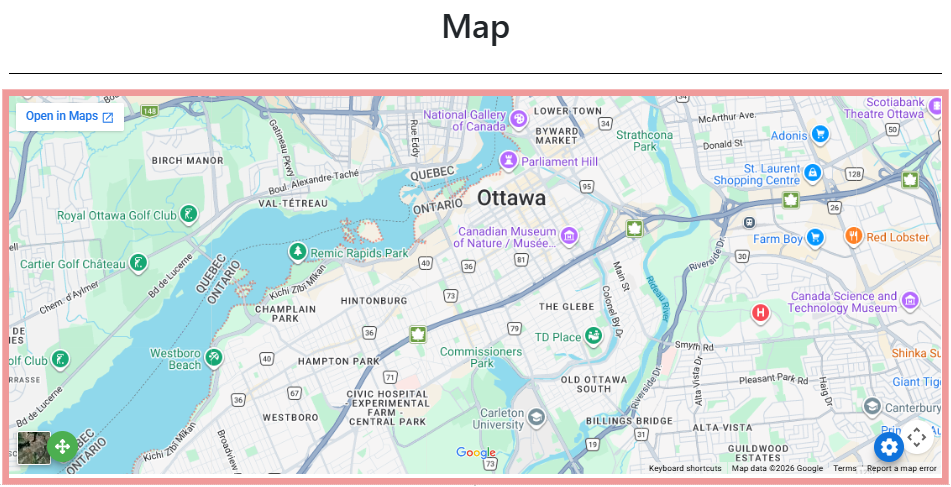
An example of the Map element on the event website in Edit mode.
Adding a Map to a page
Drag the More Column Content element from the Website Editor Sidebar into a column space, then choose the Map option.
Map Settings
Clicking a Map element opens the Map settings panel in the Website Editor Sidebar.
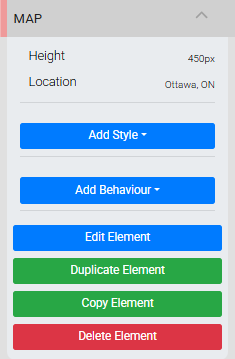
The Map settings panel in the Editor sidebar.
| Setting | Description |
|---|---|
| Height | Sets the overall height of the Map element on the page. |
| Location | Sets the map location. Accepts any value recognized by Google Maps, such as a city name, street address, or venue name. |
See Common Element Actions for more details on managing the Map element.