
You can record your event Online Auction bids on its page view. This will give you an overview of that page.
Getting Where You Need To Be
To get to the Online Auction bid recording page from the main event dashboard, click under Actions Bidding Online Auction. This will open the Online Auction page.
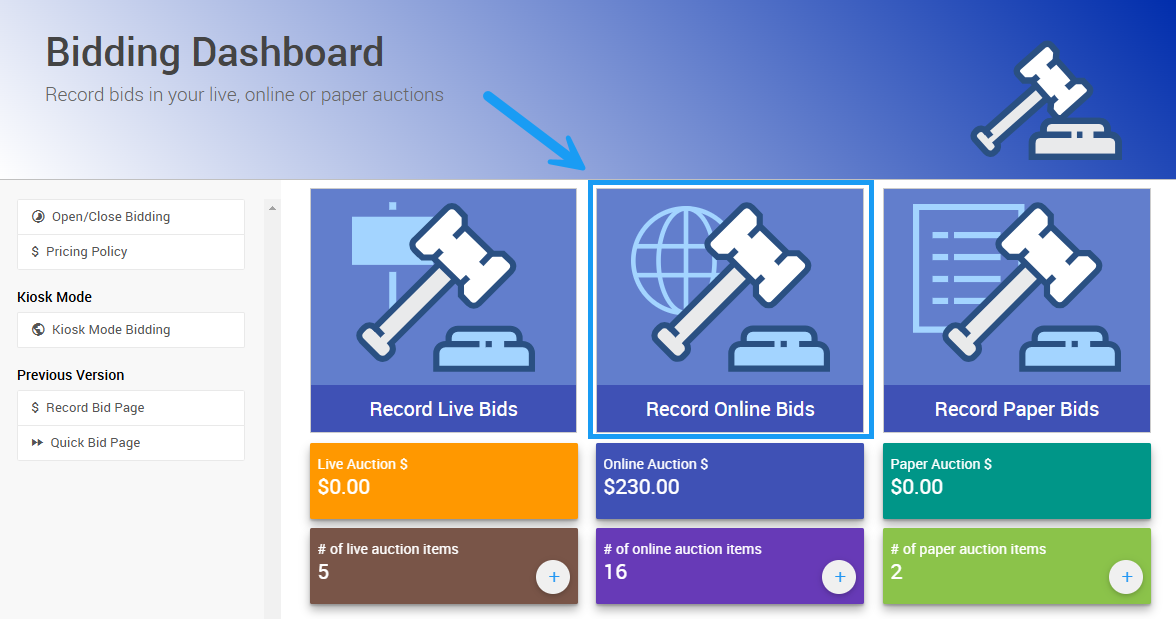
An example from a demonstration event.
Standard
The Standard view of the Online Auction bid recording page is the default view and lets you record bids with more access to your event information. Here, you can search for the item and the participant who placed the bid. You can also enter the Bid Amount and choose to close bidding when you record the bid.
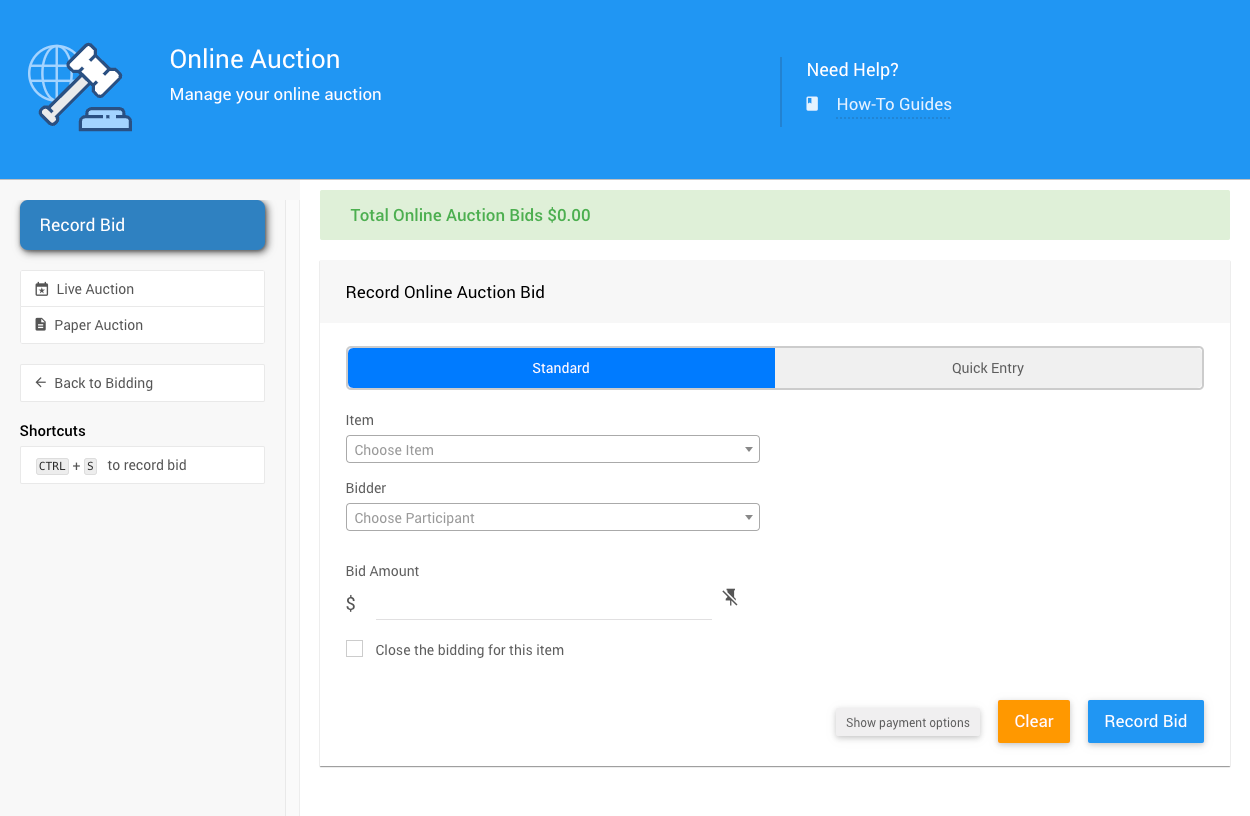
An example from a demonstration event.
Quick Entry
The Quick Entry view is a minimal view that is intended to enter many bids quickly and efficiently using only the Online Bidding type item number, the participant's Paddle#, and the Bid Amount. If appropriate, you can close the bidding for the item by checking a box that will denote the bid as the Final Bid for the item.
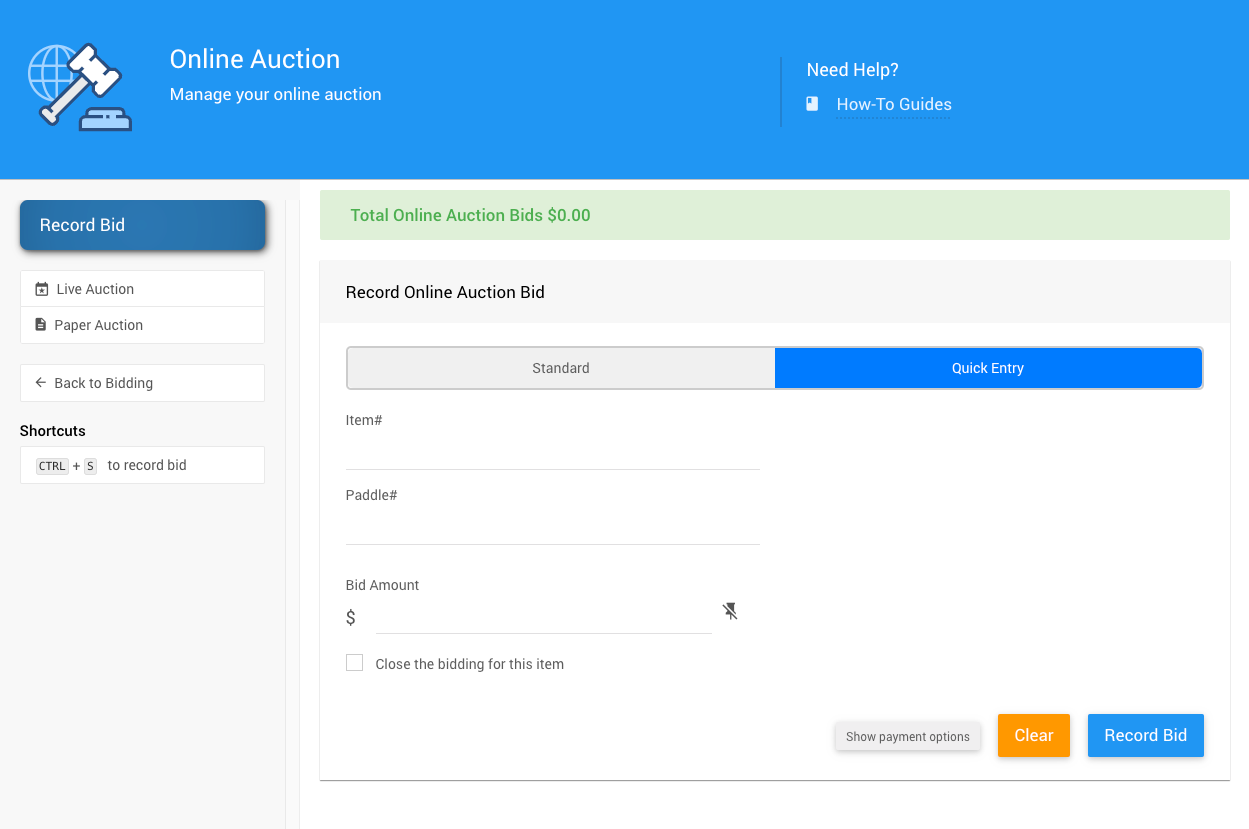
All examples taken from a demonstration event.
A Final Bid is the winning bid recorded for Paper Bidding and Live Bidding type items. Unlike online bidding — where the winning bid is determined automatically when bidding closes — final bids for paper and live items are entered manually by the organizer.
See Record Paper Bids and Record Live Bids for more details.
Payment Options
By default, the Payment Options are not displayed. This helps ensure no accidental payments are recorded during data entry. To display the current payment options, simply click on the Show payment options button at the bottom of the page.
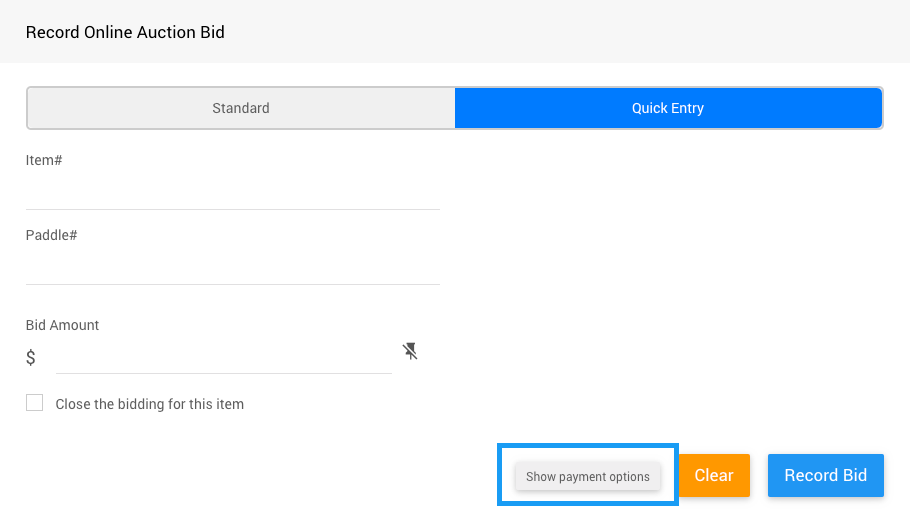
Clicking the button will expand the view to show the currently configured options, with the default as None.
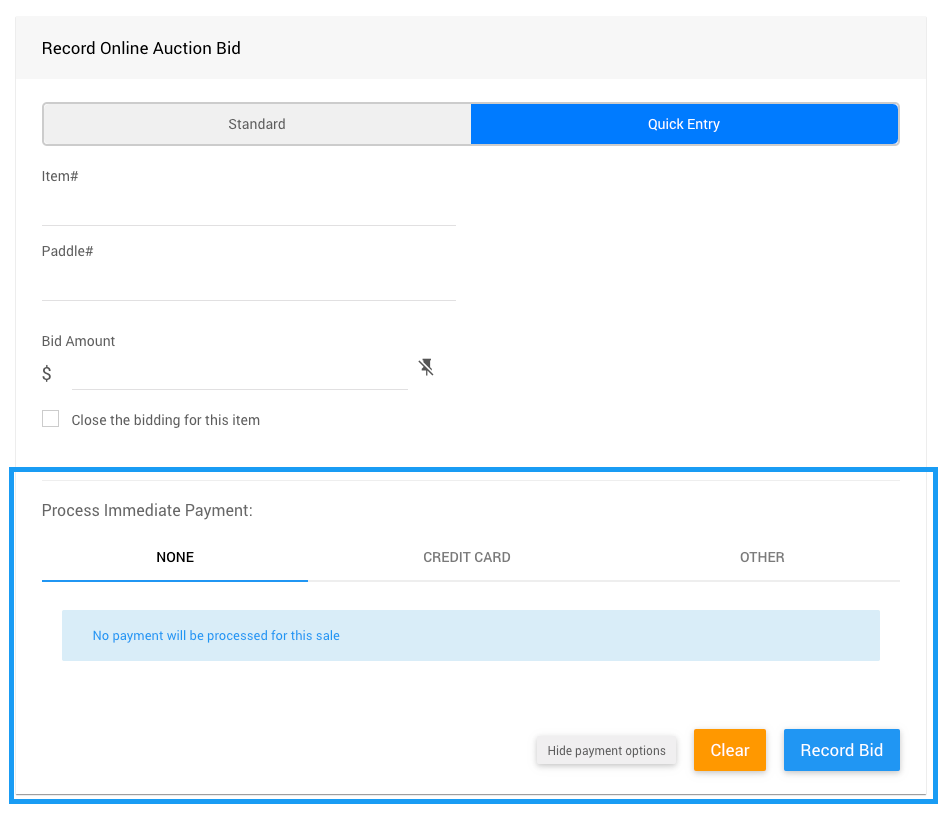
Note using these payment options will process the "payment" immediately.
You can also re-hide the payment options by clicking the Hide payment options button, which is now displayed at the bottom of the view.