
Auctria requires participants to be registered to place a bid, make a purchase, or donate. While assigning a Paddle# to each participant is recommended, it isn't required in most cases.
The Paddle # (also called the Paddle Number) is an optional numeric identifier assigned to each participant. While it can be ignored in many cases, it is required for certain operations such as in-person auction bidding, and linking or merging participant records.
See Participant Numbering for setup and configuration options.
Changing Individual Paddle#'s
To change an individual participant's Paddle#, open their Participant Details page and edit the paddle number field directly. See Participant Details.
Assigning Participant Numbers
The default behavior for number assignment is configured under the Event Details or Registration/Checkout dashboards. See Event Details and Registration/Checkout for more information.
When participants buy tickets or register online, the system assigns a Paddle# automatically based on the Paddle# Assignment settings.
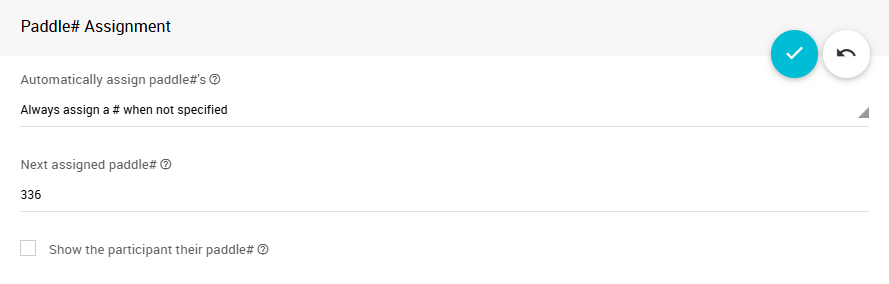
The Participant Number Assignment section of the Registration dashboard.
There are three assignment modes:
- Always assign a Paddle# when not specified (default) — The system automatically generates and assigns a Paddle# whenever a new participant is added.
- Never automatically assign a Paddle# — Paddle numbers must be assigned manually, for example during Check-In By Organizer or using the Renumber Participants function below.
- Only automatically assign Paddle# on ticket sales — A Paddle# is only assigned when a ticket is purchased. Participants who register online without purchasing a ticket will not receive one automatically.
Next Assigned Paddle#
You can control the starting point for auto-assigned numbers using the Next assigned Paddle# setting, available in both the Participant Number Assignment panel and the Event Details page under its Summary tab.
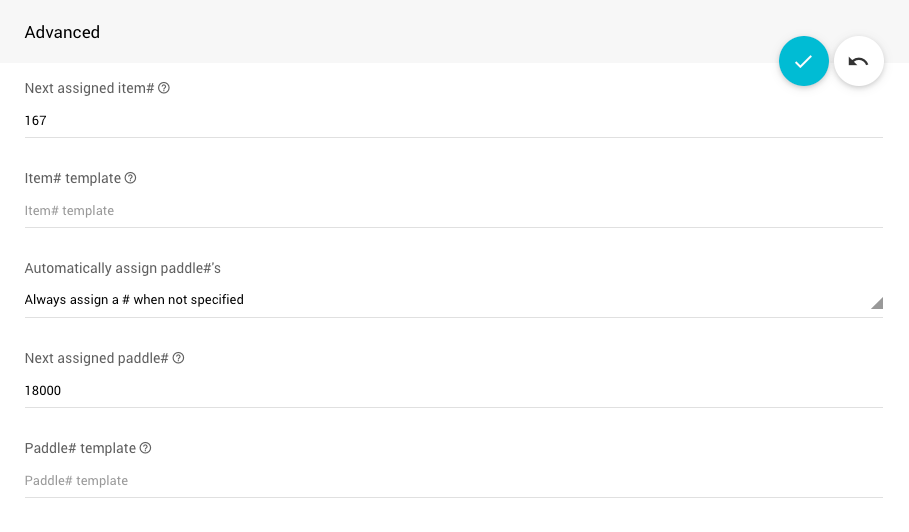
An example from a demonstration event.
Warning
Updating this value in one location will automatically update it in the other.
Using High Participant Numbers
One useful strategy is to set auto-assigned numbers to start very high (e.g. 18000+). This makes it easy to spot at a glance whether a participant has been manually checked in and assigned a "real" number. You can then reassign numbers at check-in using the Check-In By Organizer page, or pre-emptively renumber participants to high values before the event using the Renumber Participants function below.
Recommended Reading
See Event Details — Advanced Options for more information on the Paddle# template functionality.
Linked Participants
Multiple participants can share a Paddle# — when they do, they are considered linked. Linked participants remain linked after renumbering and will share the same new Paddle# going forward.
See Sharing Participant Numbers and Linking Versus Merging? for more details.
Renumber Participants
To renumber participants in batches, go to the main Event Dashboard and click Participants → Participant Numbering in the sidebar. This opens the Renumber Participants dashboard.
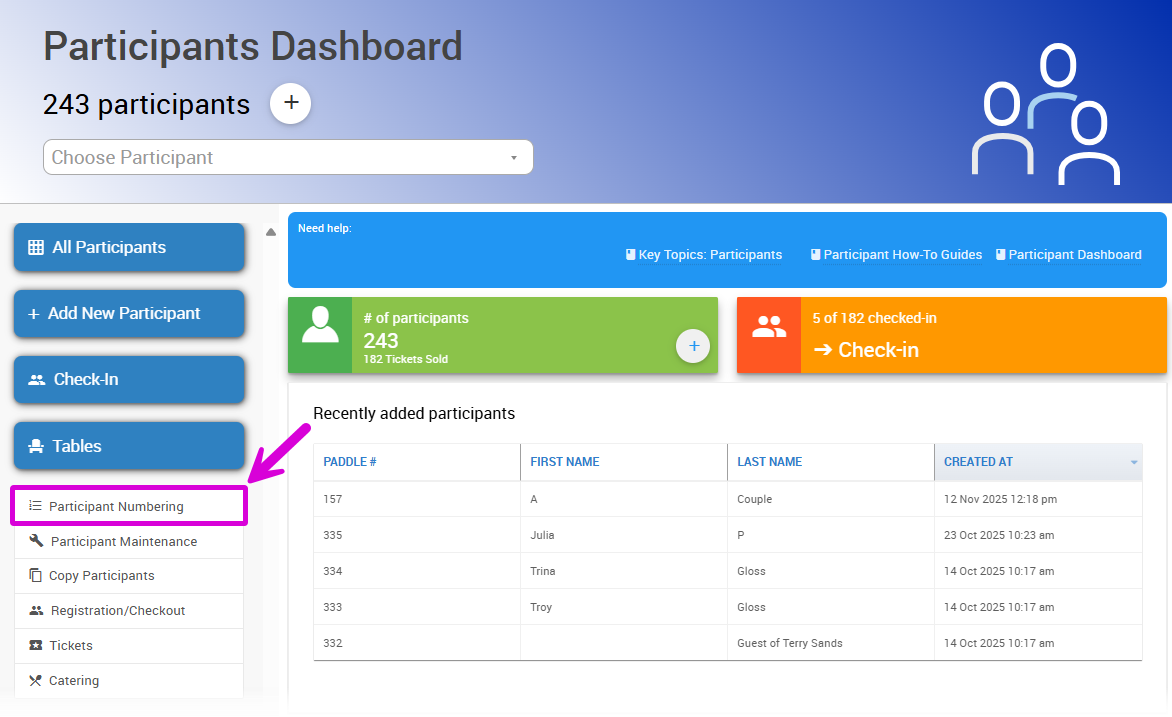
An example from a demonstration event.
No Renumbering Preview
Renumbering cannot be undone (though you can renumber again afterward if needed). There is no preview of changes before they are applied.
Starting Number and Increment
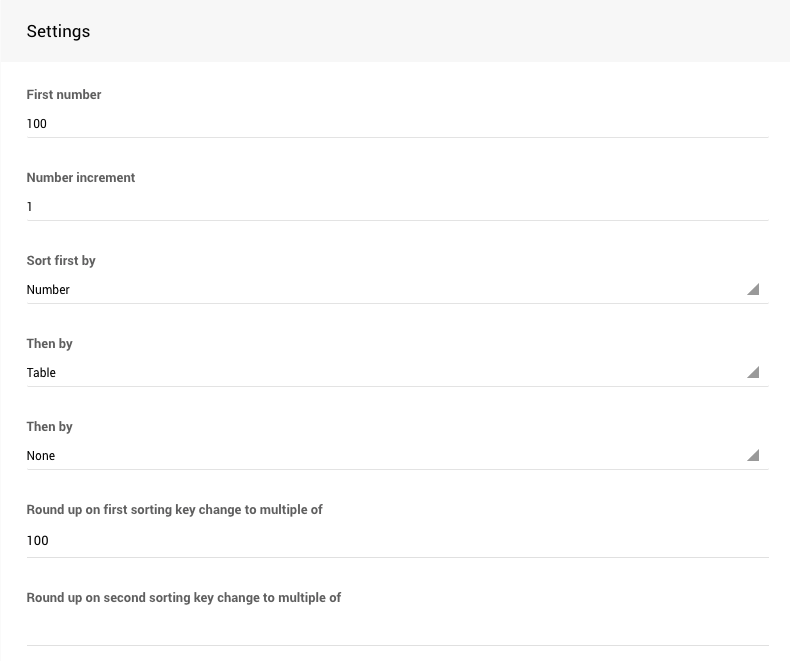
Enter the First number for the new Paddle# sequence and the Number increment to increase by. For example, a first number of 100 with an increment of 1 produces 100, 101, 102, and so on.
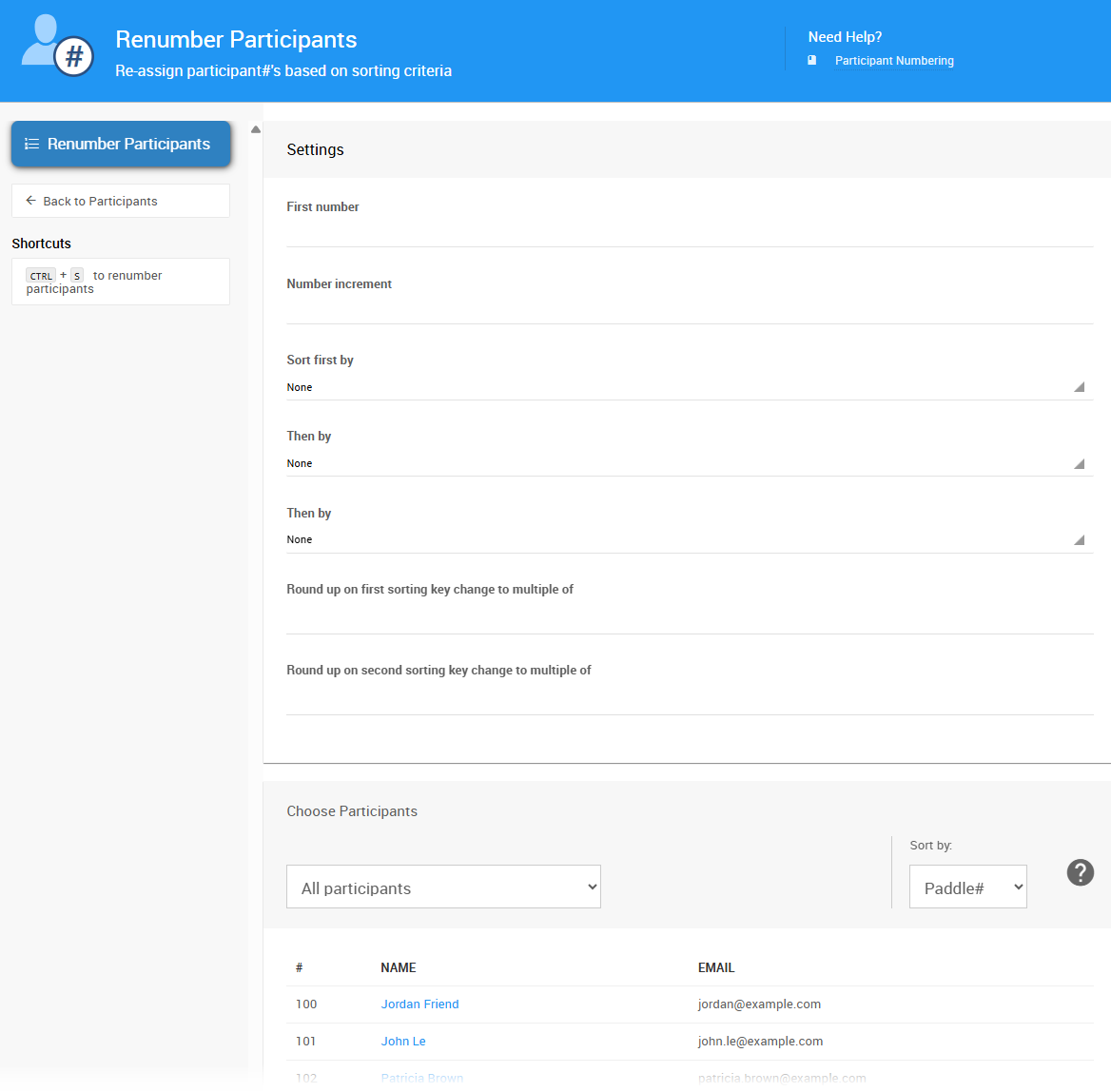
An example from a demonstration event.
Sort Order
At least one sort criterion is required for the renumbering function to run.
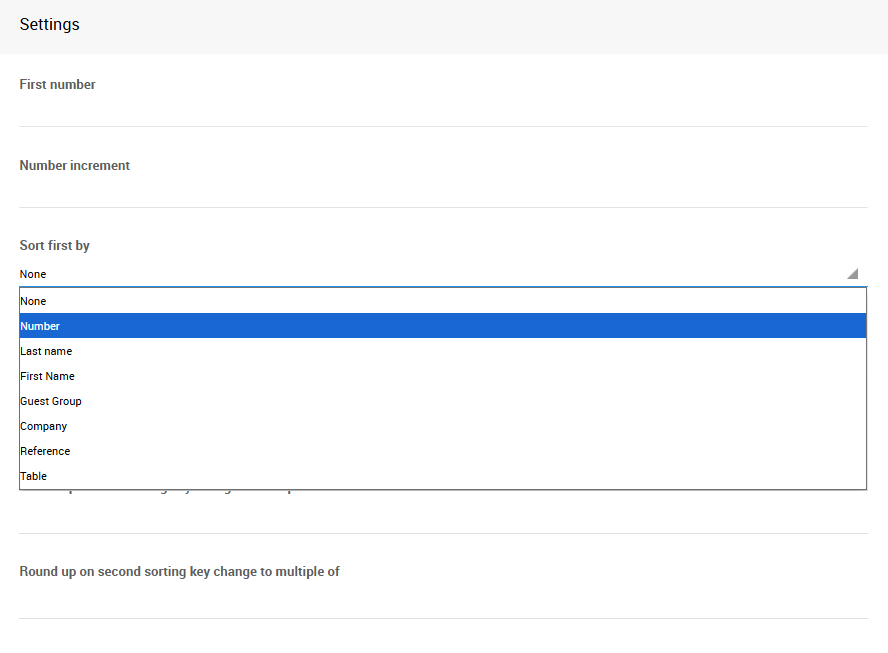
If a second or third sort option is set, you can also define a new starting number for each sort group change. For example, to align Paddle Numbers with table assignments, you could configure numbering so that participants at table 1 start at 100, table 2 at 200, and so on.
Choosing Participants
Use the Choose Participants Filters section at the bottom of the dashboard to control which participants are included. The default is All Participants.
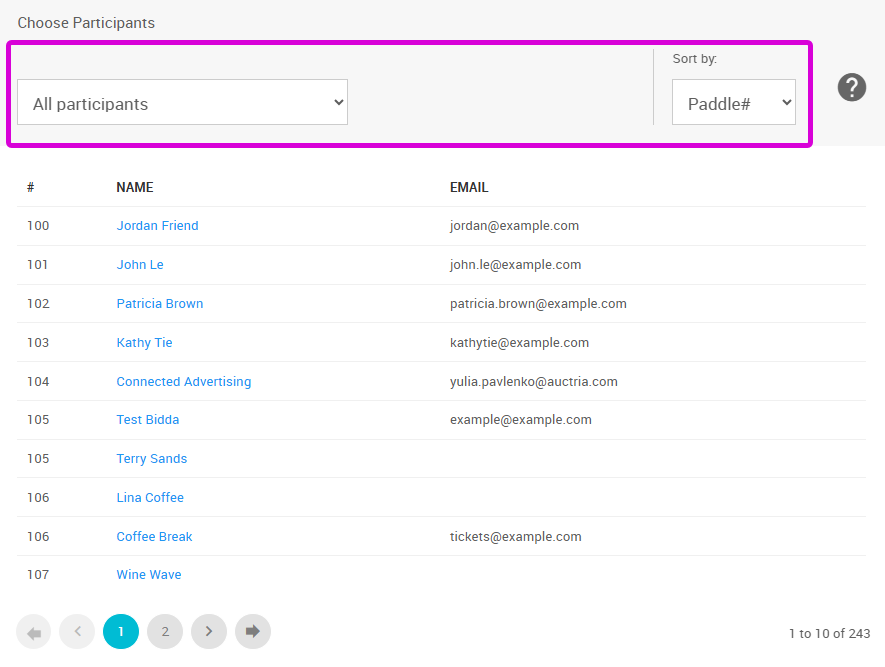
An example participant list from a demonstration event.
Participants can be filtered using the Choose Participants drop-down and sorted using the Sort by selector (default: Paddle#).
Running the Renumber
When the correct participants are listed, click Renumber Participants in the sidebar.
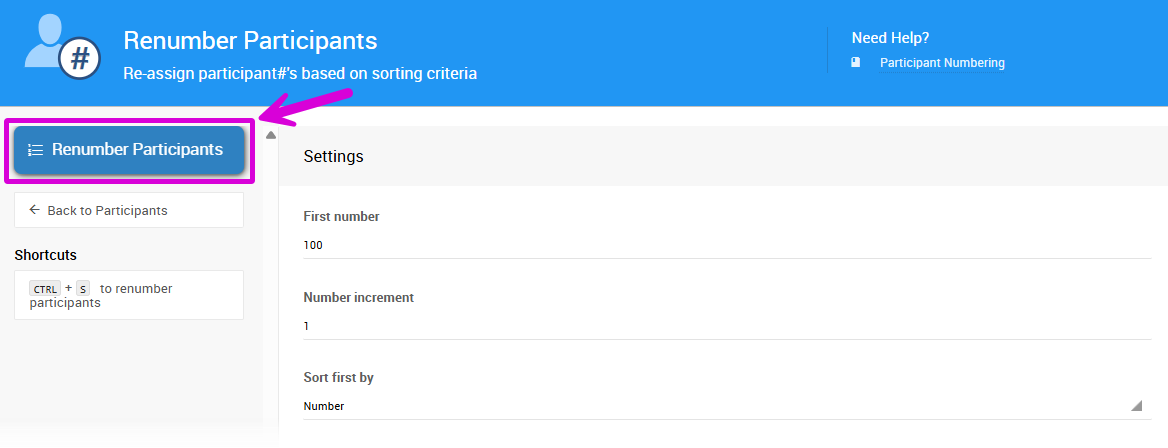
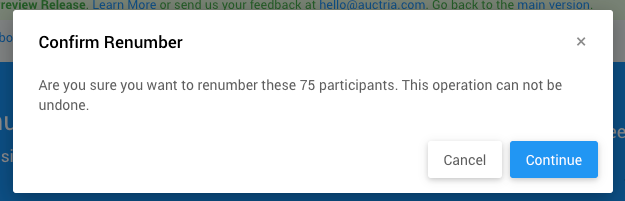
A confirmation prompt will appear reminding you the action cannot be undone. Click Continue to proceed.
After renumbering, a Numbering Results summary shows the before and after Paddle# for each participant.
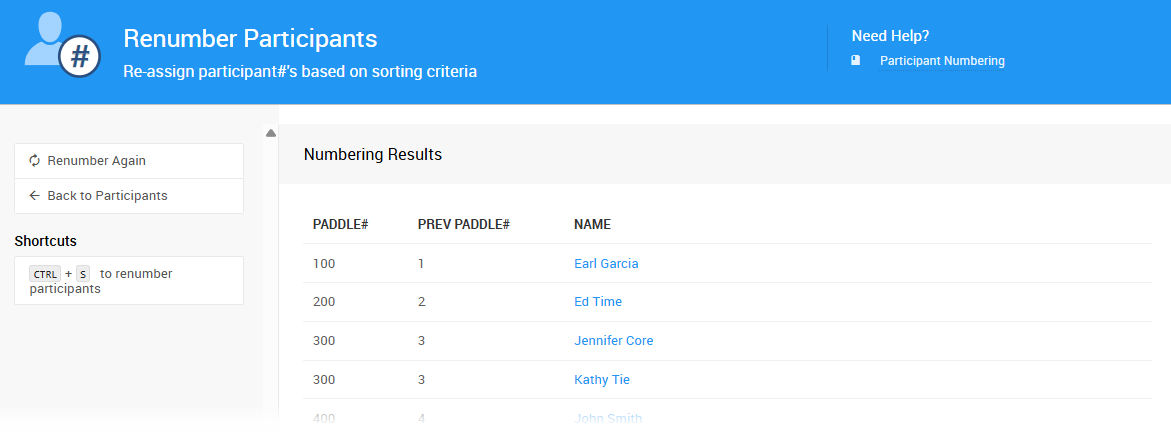
The Numbering Results list showing before and after Paddle# values.
Letters In Paddle#'s
To use letters in participant numbers (e.g. #100b), the Paddle# must be updated manually on each individual Participant Details page.