
Learn how to add table and seating details to the E-Ticket system email, so your guests can easily find where they're seated.
You can add Tables And Seating details to the E-Ticket system email to help your guests recognize the table they've been seated at. You can also include each guest's Seating Preference.
You do this by adding placeholders to the email. A placeholder is a short piece of code that Auctria replaces with each guest's actual details when the email is sent.
Step 1: Open the E-Ticket Email
From your main Event Dashboard, click Communication → System Emails, then click Edit on the E-Ticket email to open the Email Editor. See Editing Emails for more about using the editor.
Step 2: Add Table Details
Add either or both of the following placeholders to the email text wherever you'd like the details to appear.
Table Number
To show the guest's Table Number, use this placeholder:
{{ Bidder.EventTable.DisplayId }}
Table Description
To show the Table Description, use this placeholder:
{{ Bidder.EventTable.Description }}
Step 3: Add Seating Preference (Optional)
You can also add the guest's Seating Preference. A guest sets this preference when the Ticket item is purchased, and you can also set it using the Edit Guest option.
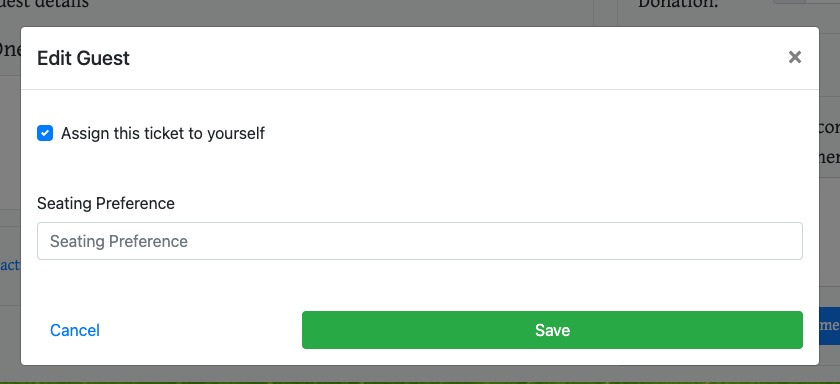
The Edit Guest option from a demonstration event.
To show the Seating Preference, use this placeholder:
{{ Bidder.SeatingPreference }}
Example
Here's an example of custom text and placeholders added to an E-Ticket.
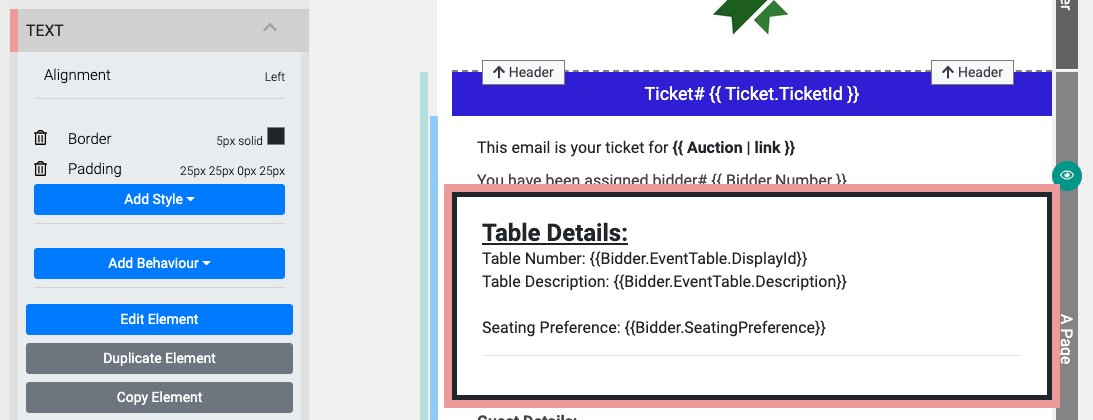
An example of custom code and text added to the E-Ticket email.
More About Editing Emails
For more help with editing emails, see: