An overview of the Item Details Images and Links tab.
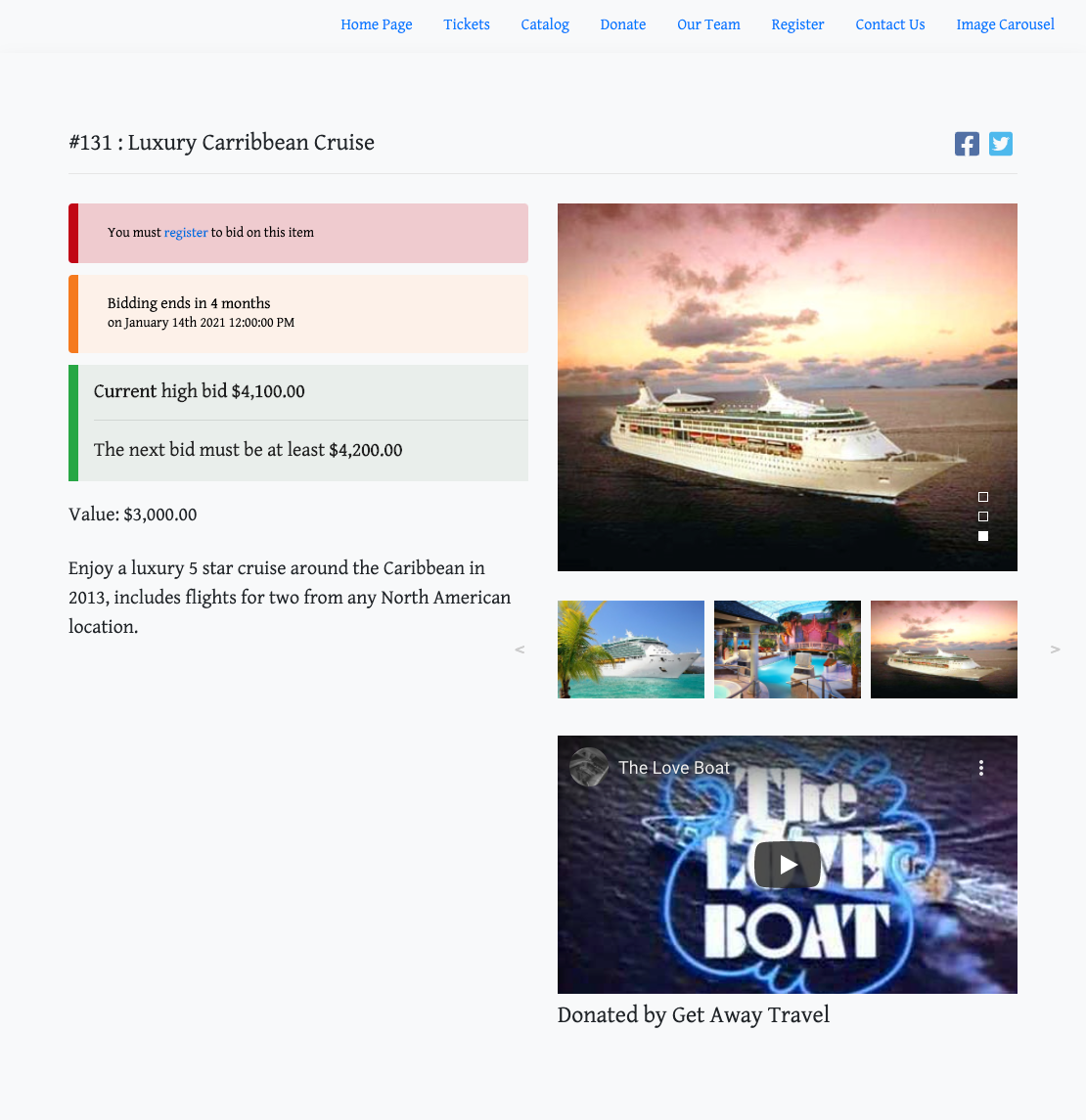
The Images/Links tab is where you manage images and external links associated with a specific item. The default item image is set here and is used as the primary display reference. Additional images can be uploaded to create an image carousel on the item's participant-facing details page.
Default Image
New items have no images by default.
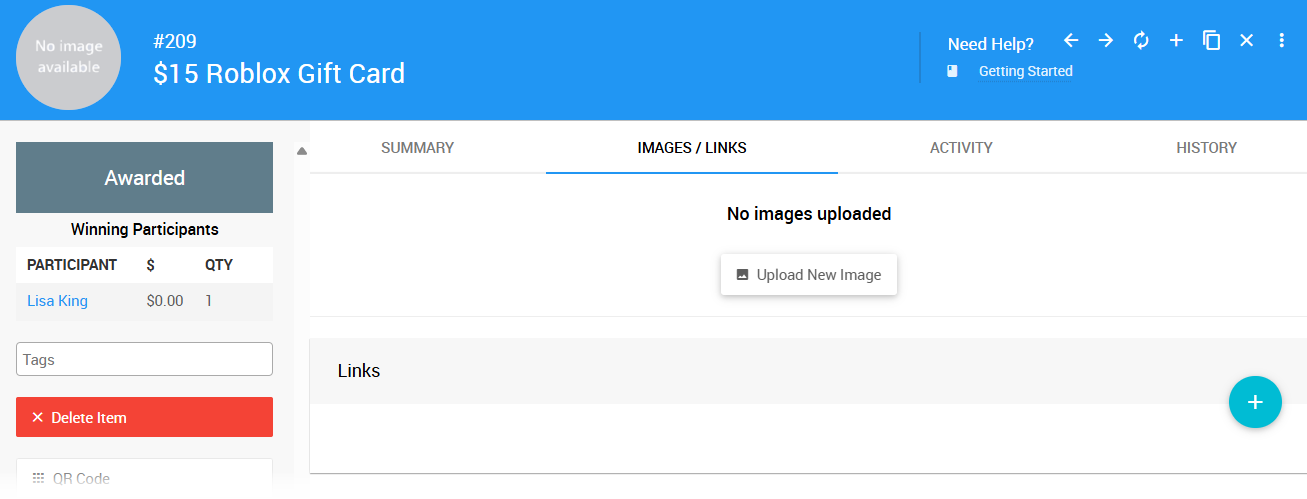
An example from a demonstration event.
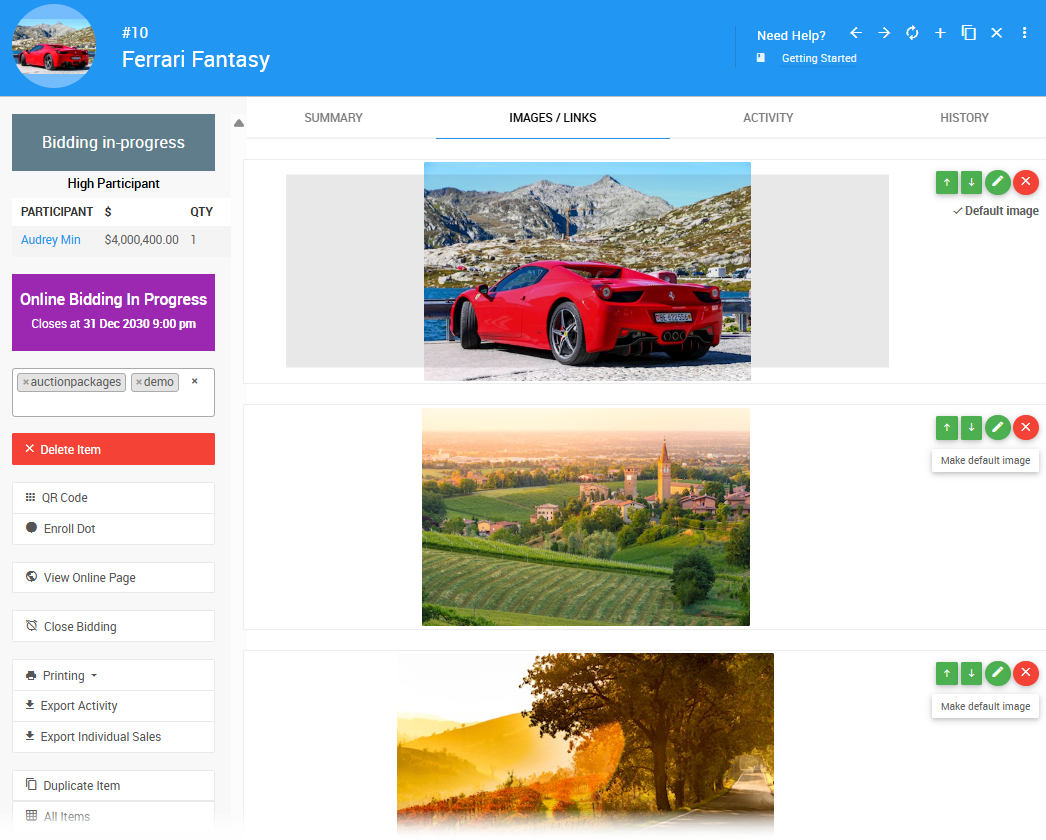
The first image you upload will automatically become the item's Default Image. To change it later, click the Make default image button to the right of the image you want to use.
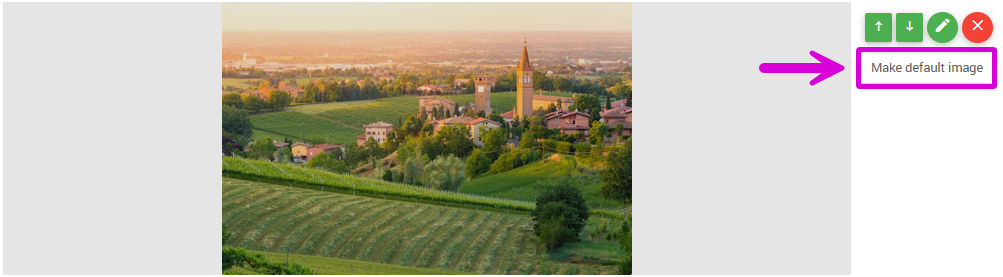
Image Fallback Order
If no item image is set, Auctria will display images in the following order:
- The item's default image
- The Auction Logo
- The Organization Logo
- A "No image available" placeholder if none of the above are set
Uploading Images
To add an image, click the Upload New Image button to open the Choose files window.
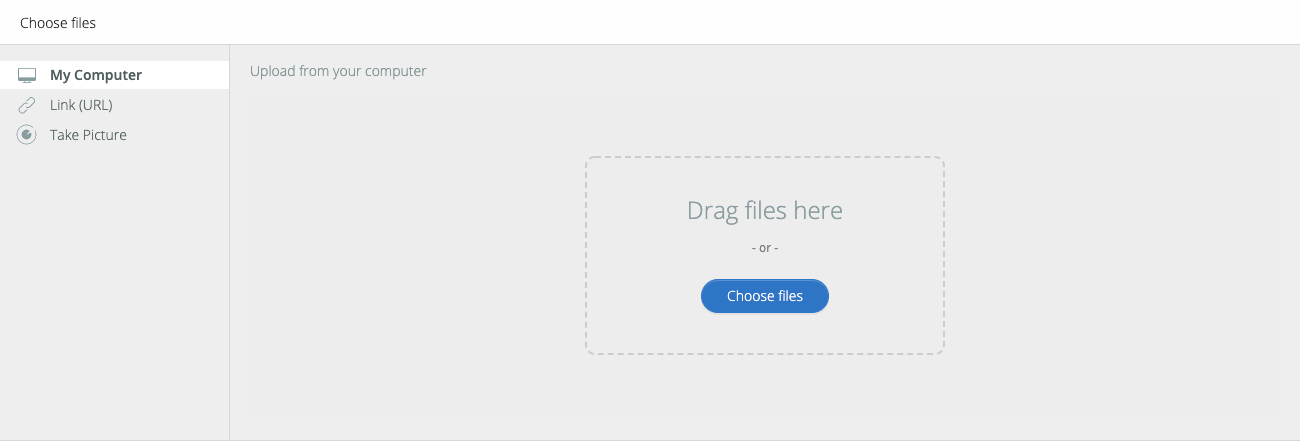
You can upload from My Computer, a Link (URL), or — on a mobile device — Take Picture.
Recommended Image Sizes
Exact dimensions aren't critical since screen sizes vary, but the following widths work well in most cases:
| Use | Recommended Width |
|---|---|
| Full-width photos or images | ~1200px |
| Half-width photos or images | ~600px |
| Page background images | Up to 1600px |
See Image Dimensions And Sizes for more details.
Image Controls
Each uploaded image has a set of controls just above the Make default image button for managing its position, editing, and removal.
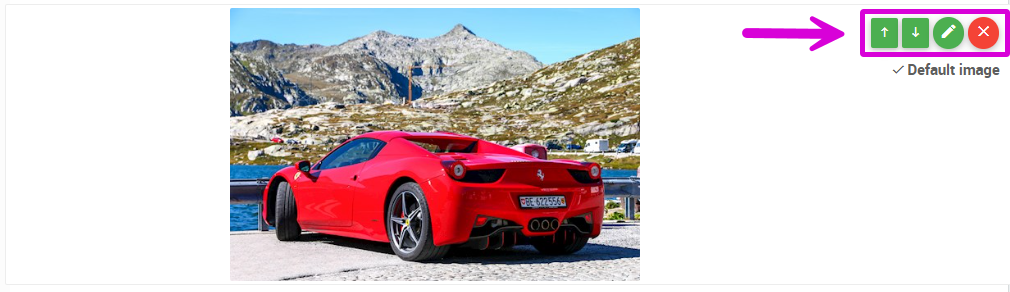
Image Position
When multiple images are uploaded, use the up and down arrow buttons to set the display order for the image carousel. The Default Image always appears first, followed by the remaining images in the order you set.
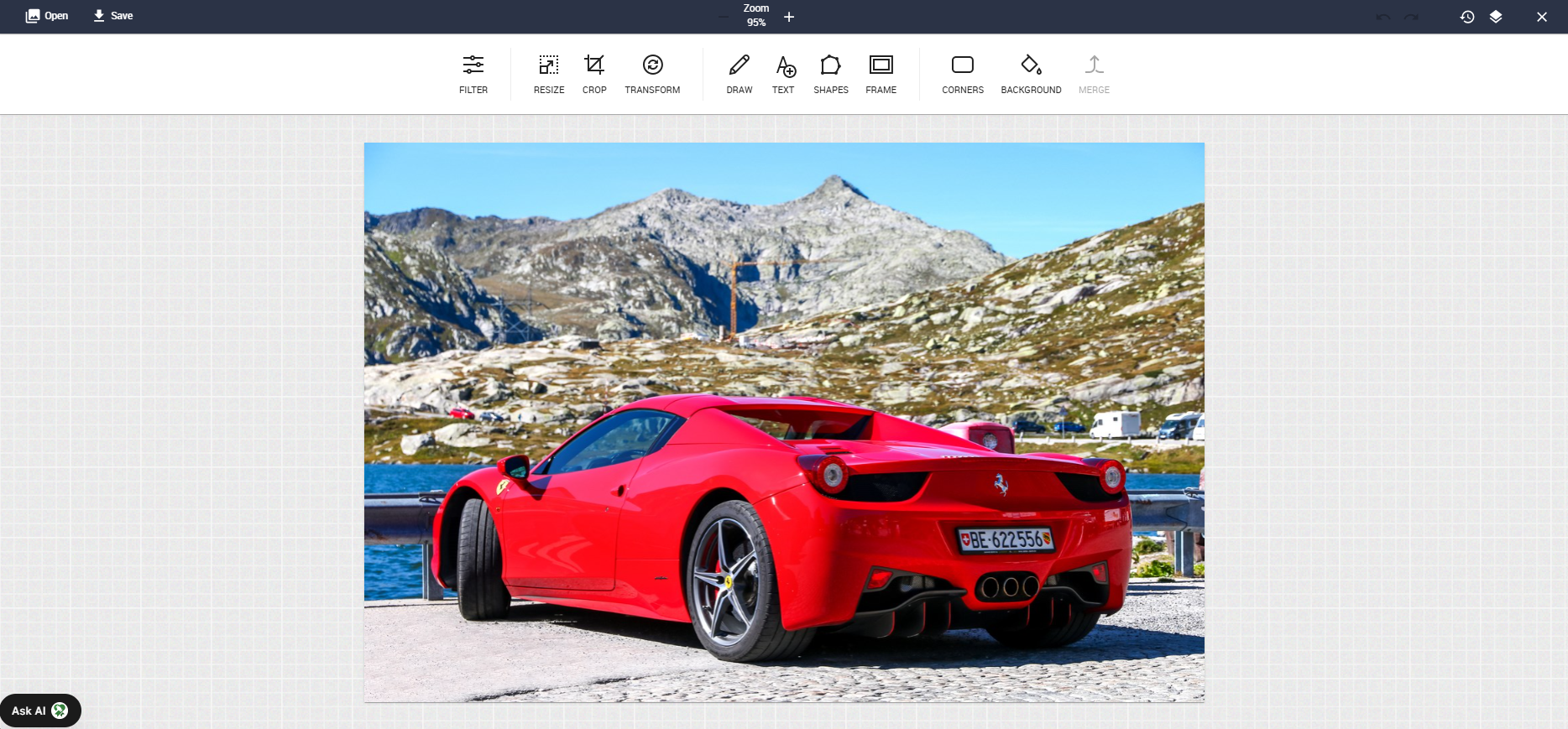
Edit Image
Click the pencil icon to open the Image Editor.
Remove Image
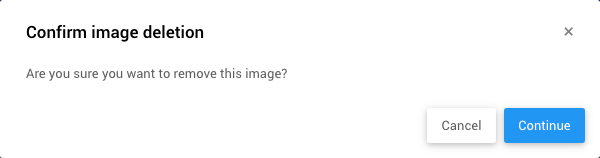
Click the red X button to remove an image. A confirmation window will appear before the image is deleted.
Deleting Images
Clicking Continue will permanently delete the image. This cannot be undone.
Links
At the bottom of the Images/Links tab is the Links section, where you can add external URL references for the item.
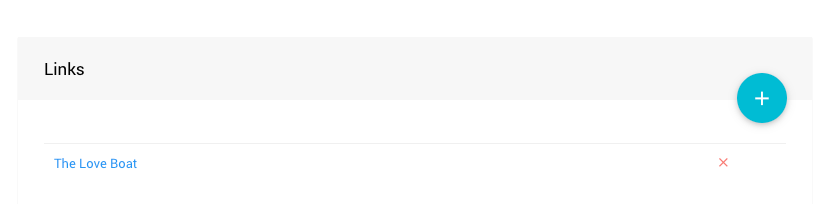
Adding a Link
Click the + icon to open the Add Link window.
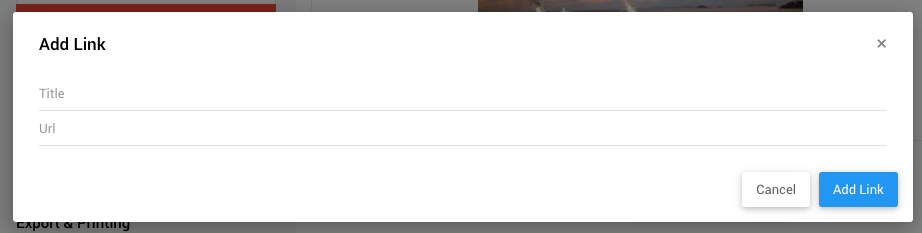
Enter a Title for the link (this is the reader-friendly label that will be displayed) and the URL for the external page. Click Add Link to save it.
Tip
Clicking a saved link will open it in your browser, just as it would for a visitor to the site.
Removing a Link
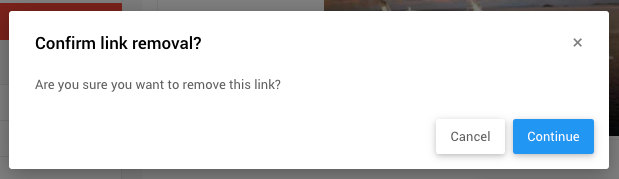
Click the red x at the far left of the link to remove it. A confirmation window will appear before it is deleted.
Video Links
If you add a link to a YouTube or Vimeo video, it will be automatically embedded on the item's details page rather than displayed as a plain link.