
Learn how to view, edit, preview, and reset the automated System Emails Auctria sends to bidders and donors.
You can modify the System Emails sent to bidders and donors by clicking on Communication → System Emails.
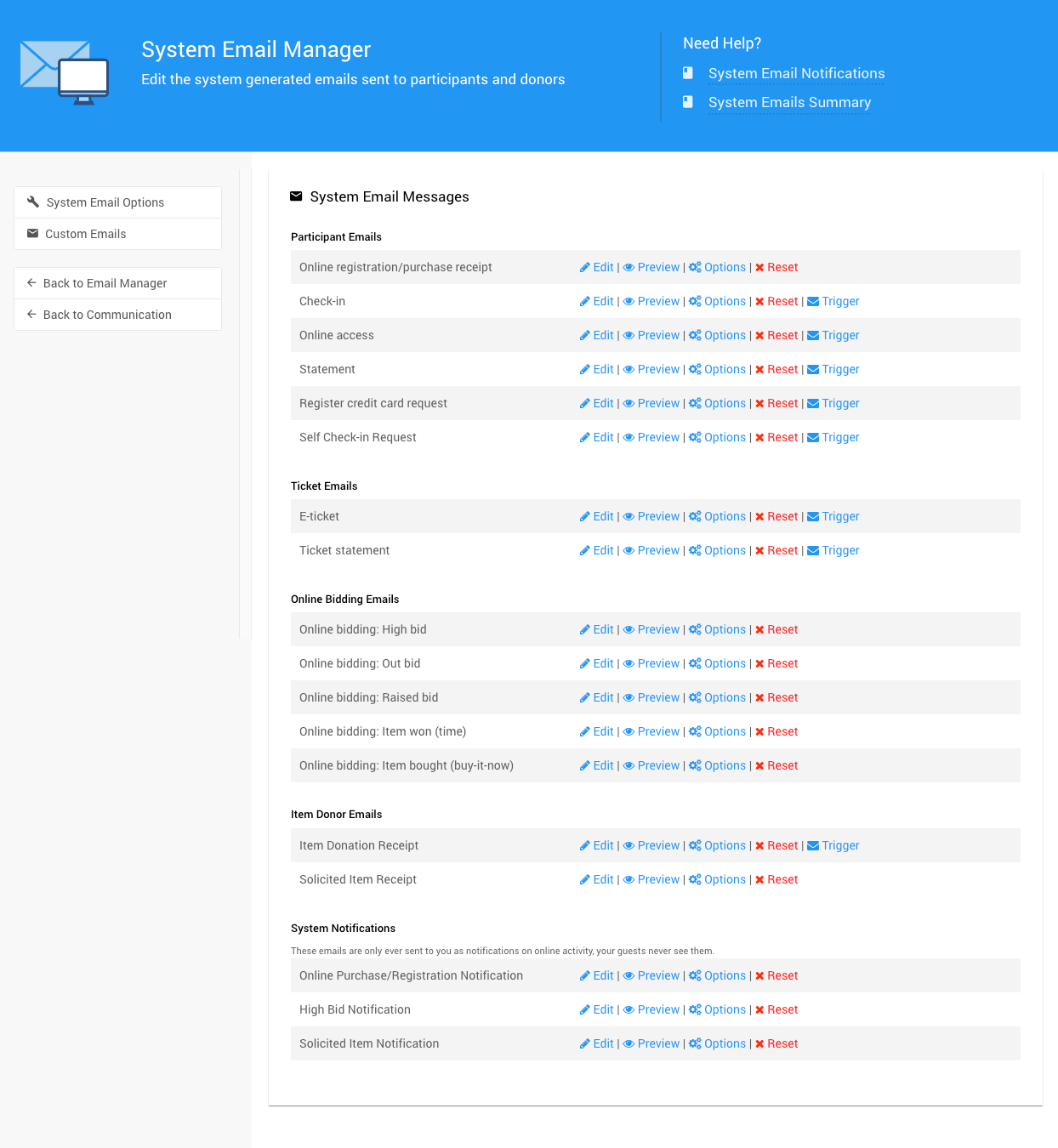
The System Email Manager page.
System Email Options
Clicking on this Action sidebar item will open the System Email Options page.
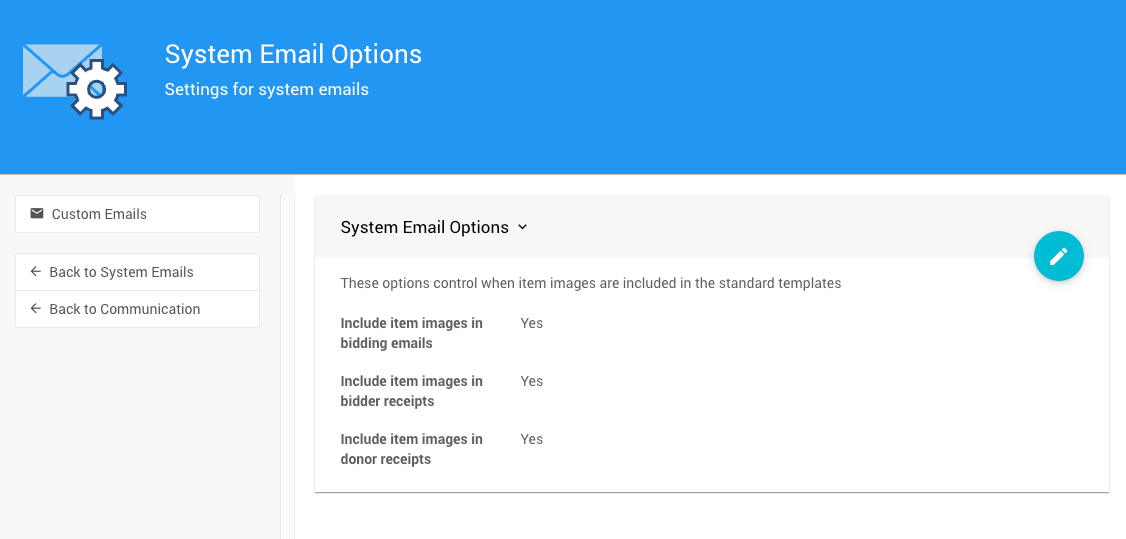
The System Email Options page.
Managing System Emails
Each System Email has its own group of settings:
| Action | Description |
|---|---|
| Edit | Opens the "Email Editor" pre-loaded with the elements of the relevant system email. See Editing Emails for more information. |
| Preview | Pops up a preview of the current email filled with example text and data. Close the window by clicking outside it, clicking the x in the top-right corner, or clicking the "Close" button at the bottom-right. |
| Options | Pops up a window with an appropriate subject line suitable for the specific system email, along with toggle options to use the standard header and footer elements. |
| Reset | Pops up a window confirming you want to reset the specific system email to its defaults. |
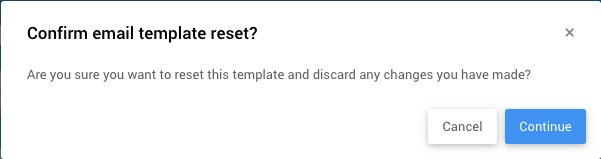
The reset confirmation pop-up.
Editing System Emails
Visibility Conditions May Hide Content
When Editing System Emails, especially when adding content to existing rows/columns spaces, note there could be an Add Behavior Visibility condition set for the specific space. This is indicated by an "eye" icon on the right side of the element.
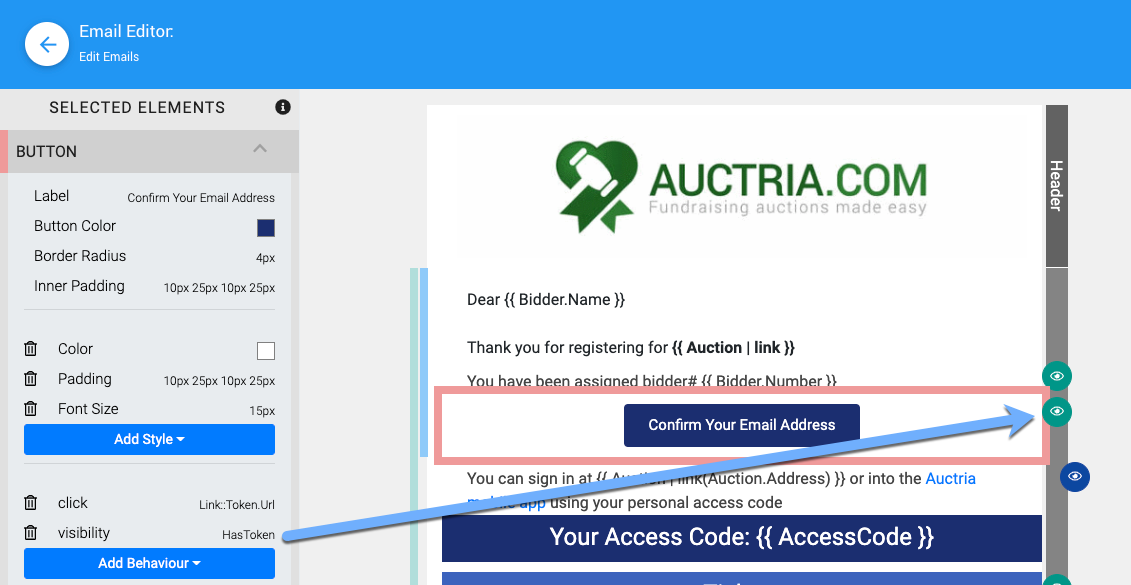
An example of the visibility condition "eye" icon on an email element.