
Learn how to collect item donations from event donors using the Donate an Item form element.
The Donate an Item element displays a multi-part form where donors can submit details about an item or service they are donating to your fundraising event. Submitted items appear under the Items Dashboard via the Solicited Items sidebar menu for review and approval.
Adding Donate an Item to a page
Drag the Donate an Item element from the Website Editor Sidebar into a row, or drag More Row Content onto the page and select Donate an Item from the Choose Row window.
Donation Item Details
The first section of the form collects details about the donated item.
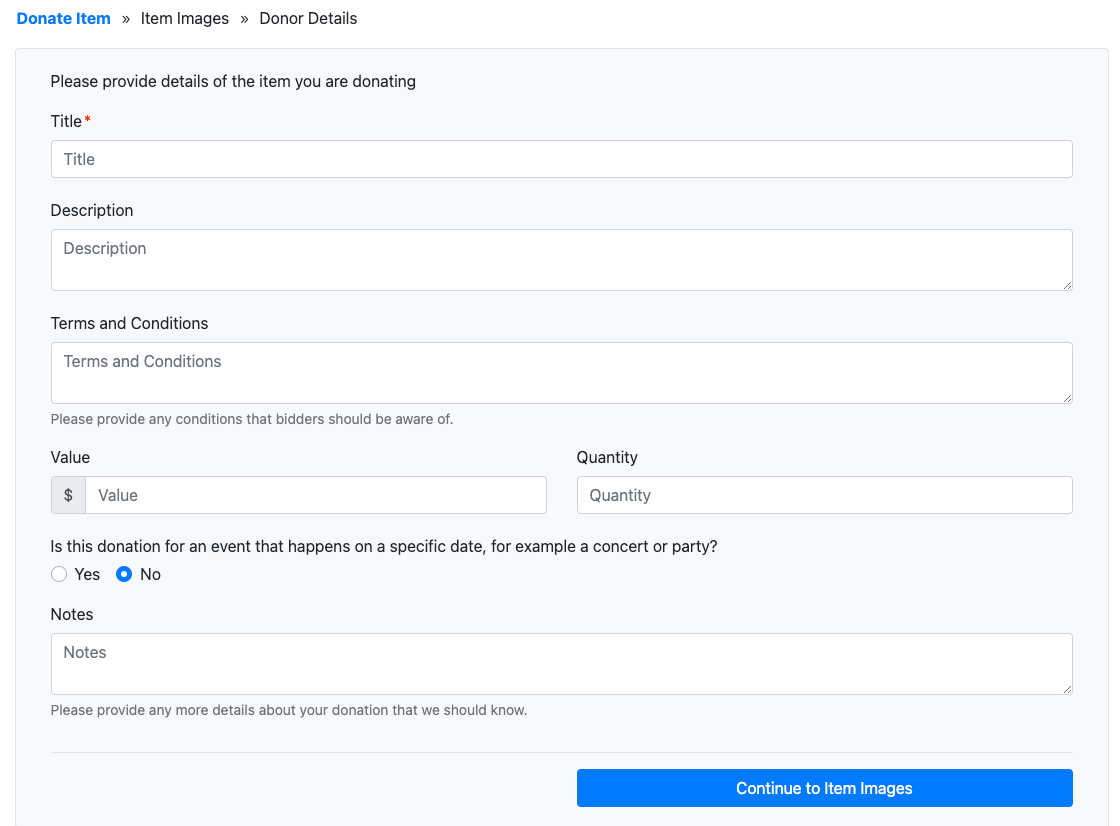
An example of the Donate an Item form.
The Title field is required by default. The Value and Quantity fields can be configured as required as needed.
If the item is event-based — such as concert tickets with a specific date and location — the donor can enable this and enter those details directly on the form.

The event item fields appear when the donor enables this option.
Fields that include a description, such as the Terms and Conditions text box, can be customized by double-clicking to open the text editor.
Custom questions
You can collect additional information from donors by adding Custom Questions and Fields to the form. Custom questions appear as additional fields that donors fill out when submitting their item.

Double-click a field description to edit it.
Item Images
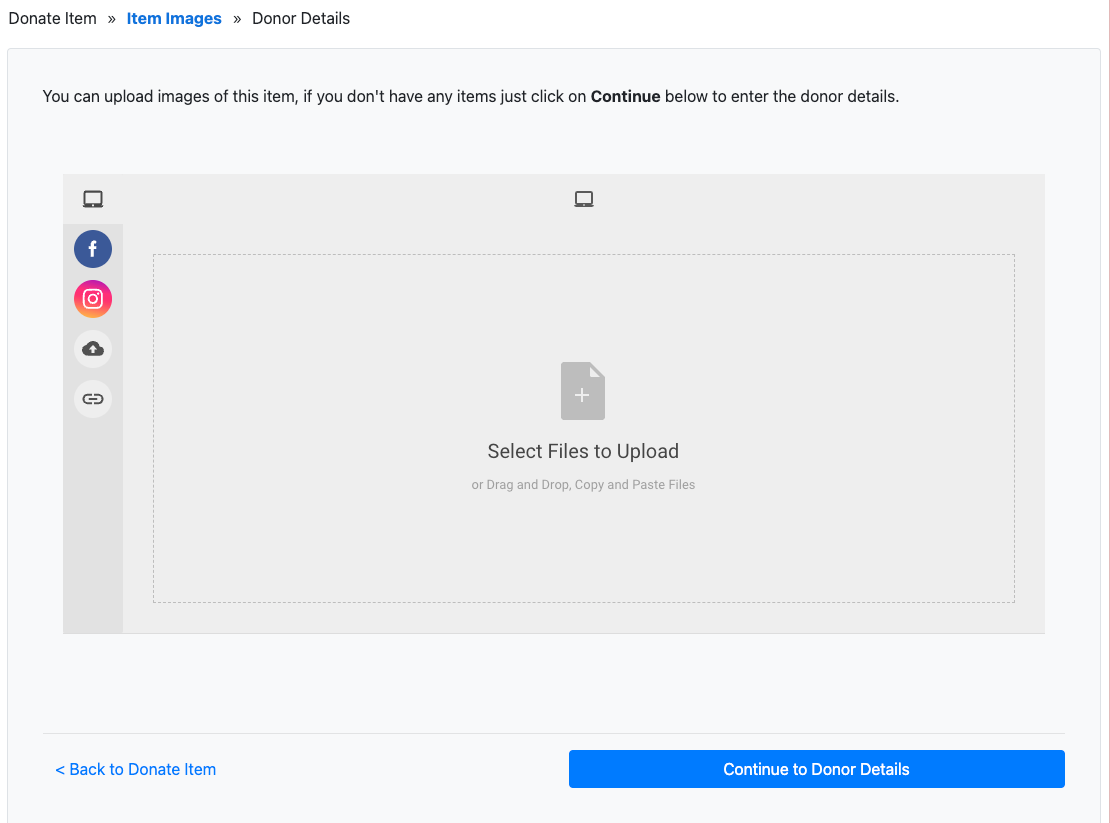
The second section lets donors upload images for the donated item using the same interface as the Choose Image element.
Donor Details
The final section collects information about the donor.
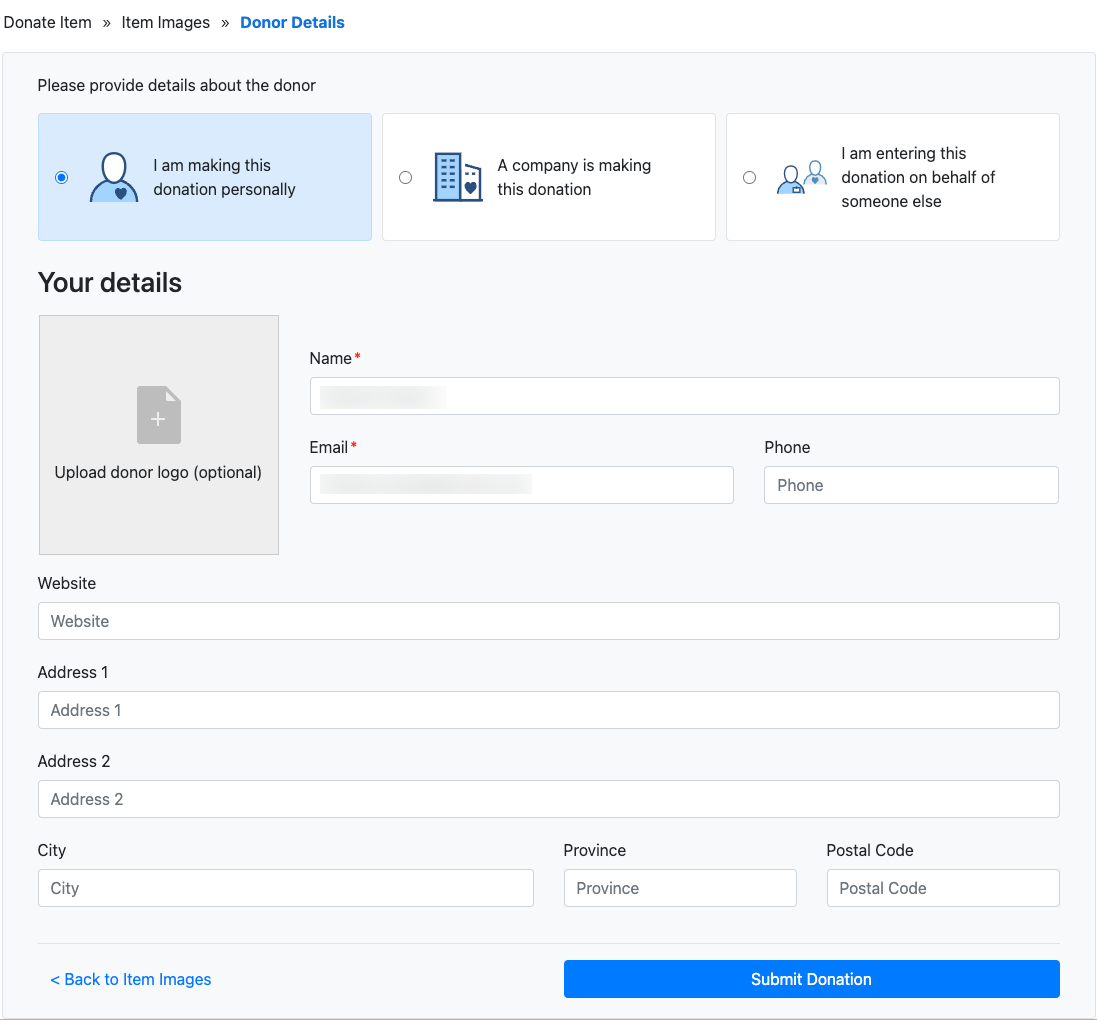
The form adapts based on the type of donor — for example, showing company-specific fields for a company donor, or a Submitting on behalf of option for organizers collecting donations on a donor's behalf.
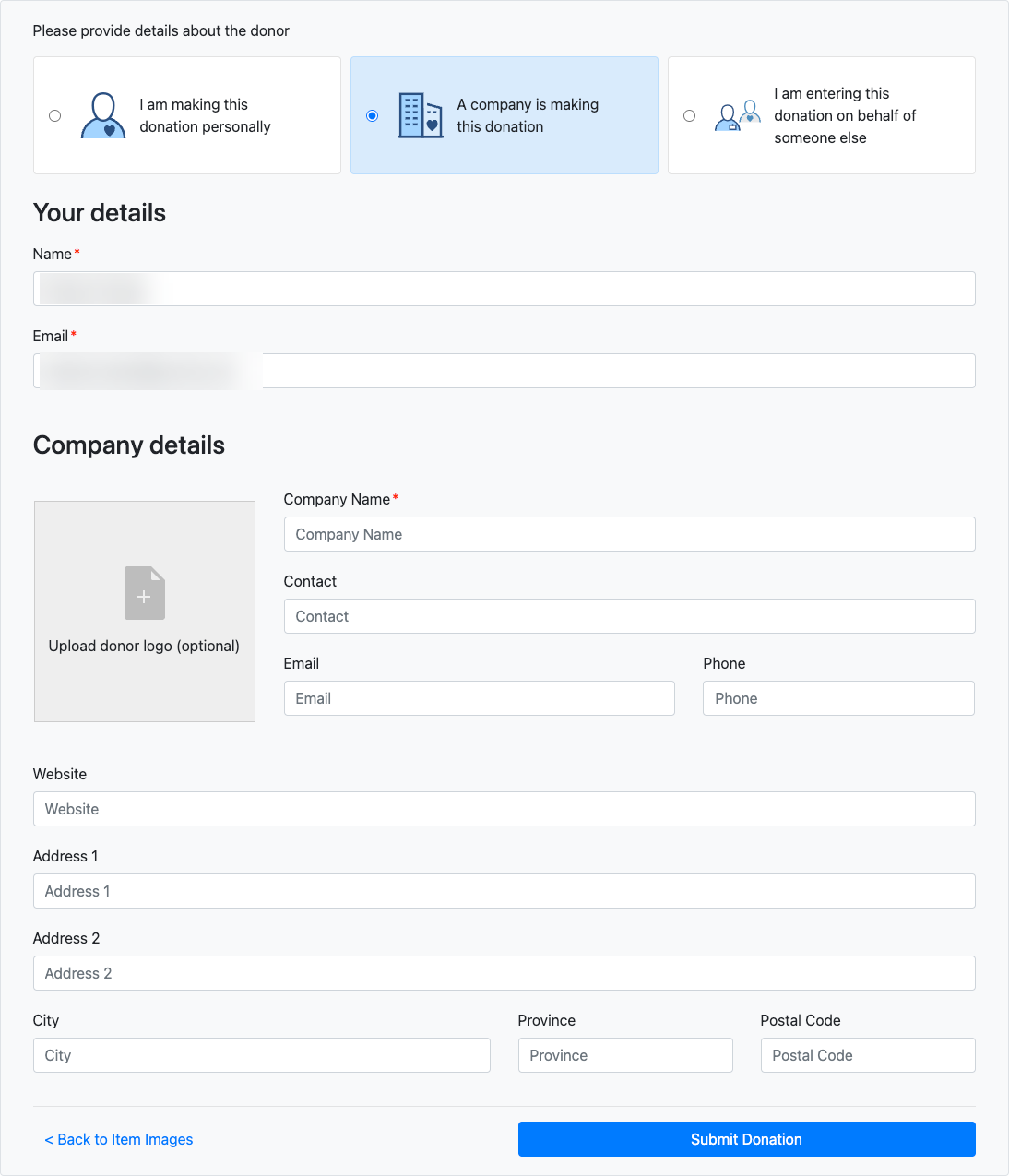
The donor details form as it appears for a company donor.
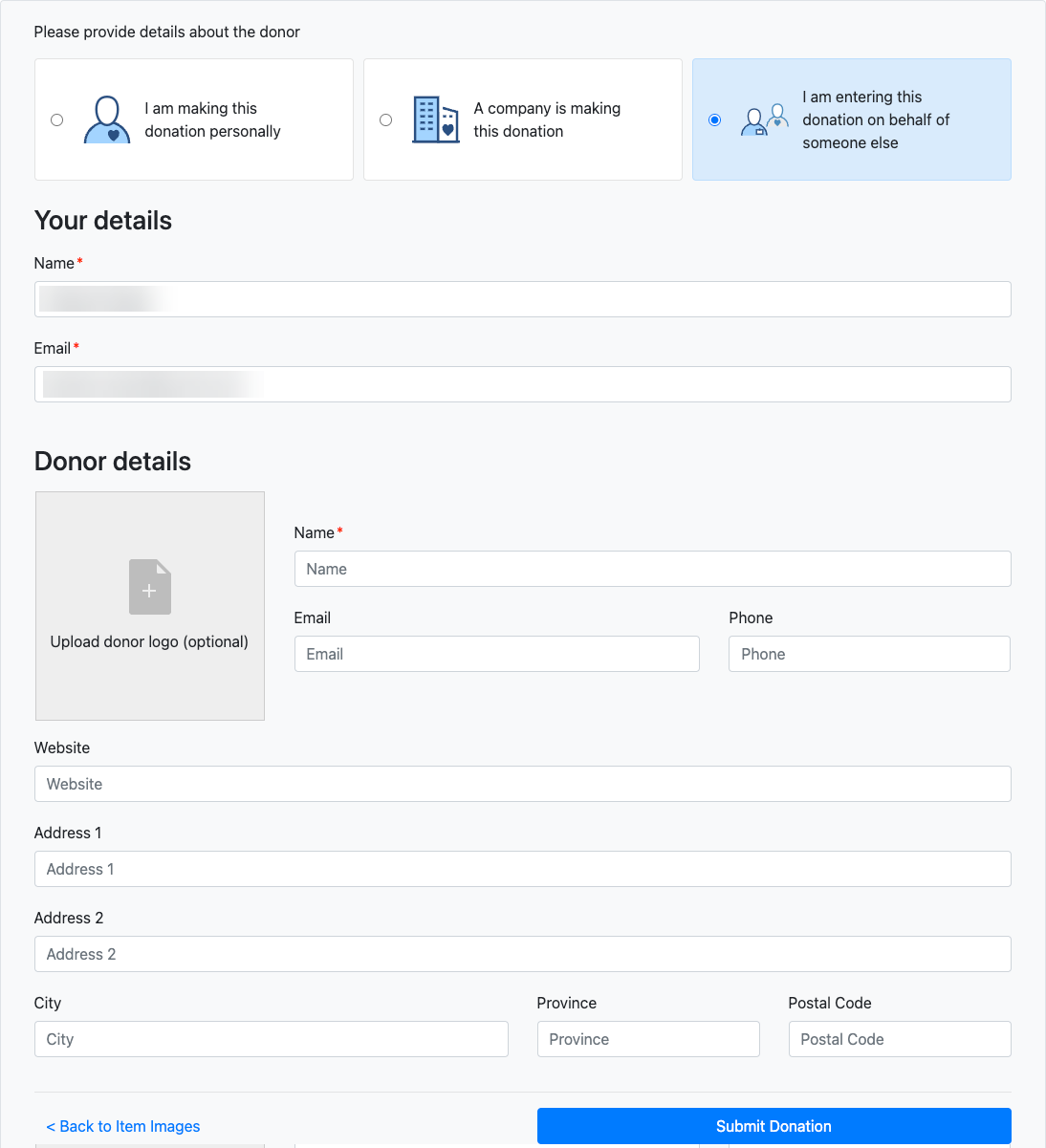
The form as it appears when submitting on behalf of a donor.
Clicking Upload donor logo (optional) opens the Select Donor Logo window. The uploaded image is saved to the Images tab of the Donor record once the item is approved. A logo is only added if one does not already exist on the donor record.
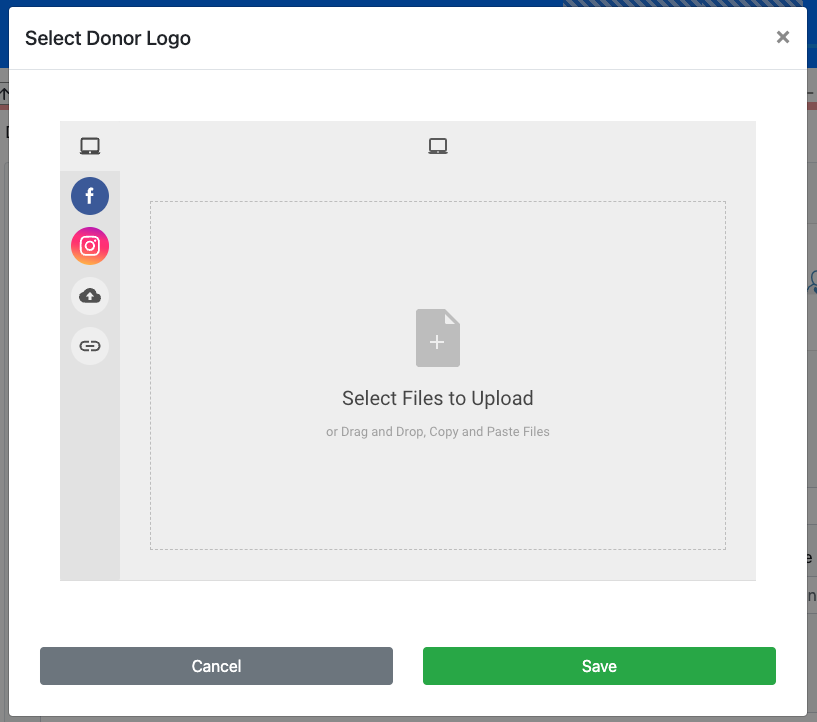
Once all sections are complete, clicking Submit Donation submits the item for review.
About accepted items
- Accepted items use the Online bidding type.
- Accepted items are assigned the Next assigned item# value. See How To Set The Next Item Number for more information.
Special Page: Donate an Item
You can add a dedicated donation page to your event website's navigation menu that includes the Donate an Item element.
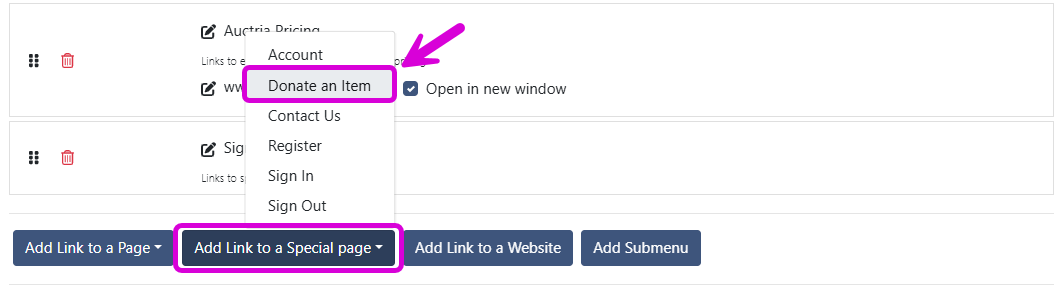
An example from a demonstration event.
To do this, configure your website menu and choose Add Link to a Special page, then select Donate an Item. This creates a new page with the element already configured and adds it to your site's top navigation.
See Common Element Actions for more details on managing the Donate an Item element.