
Learn how to use the Auctria Admin App to record online, paper, and live auction bids on event night.
Use the Bidding tab to record a bid for a guest, or to record the winner of a paper or live auction item. The bid is saved to your event right away.
No Payment Is Taken Here
Recording a bid doesn't charge the guest. The bid is added to the guest's account, and the guest pays at checkout. See Admin App Checkout.
Steps
- Tap Record in the navigation bar.

The Record button in the navigation bar.
- Tap the Bidding tab.
- Tap a bidding type: Online Bidding, Paper Bidding, or Live Bidding.
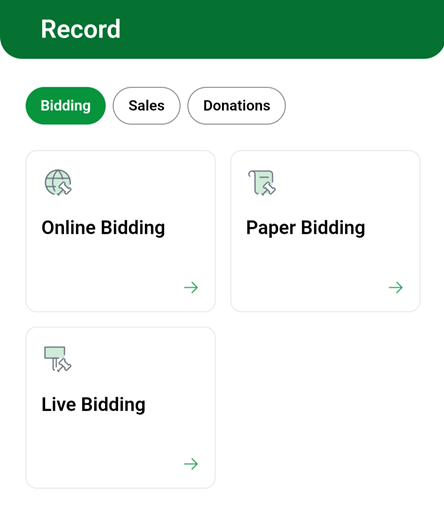
The bidding types on the Bidding tab.
- Under Select an Item, search for the item by name or number.
- Tap the item's name.
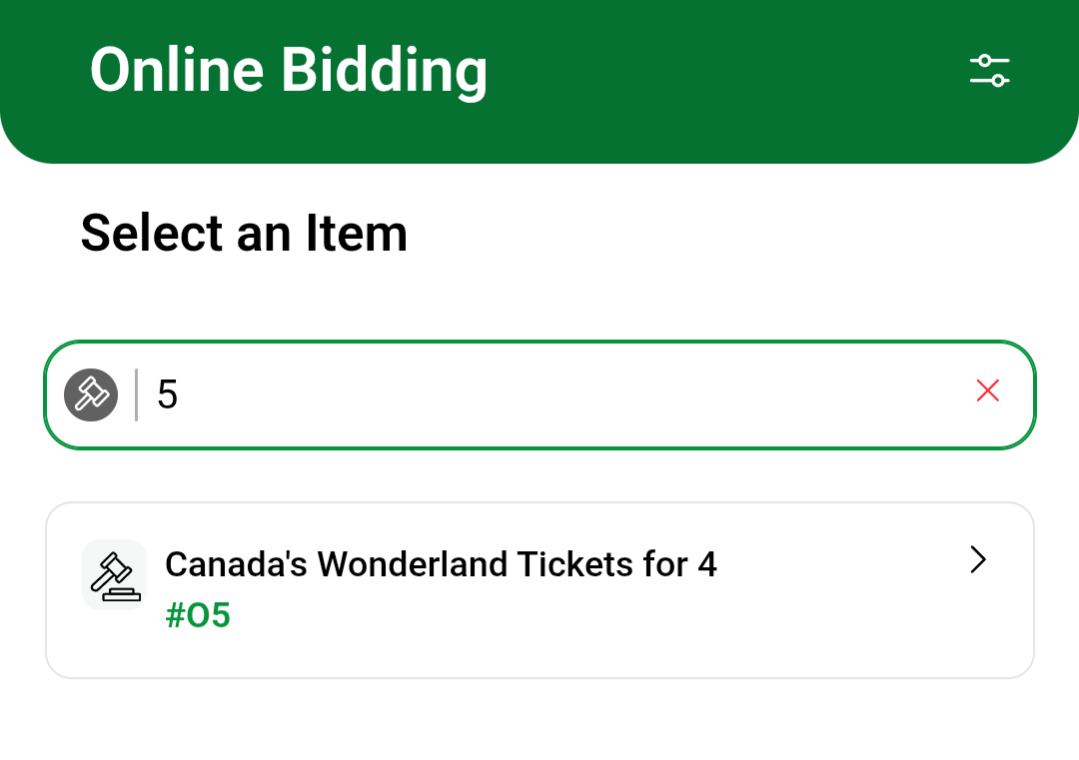
Searching for an item by number under Select an Item.
- Check the item details to make sure you have the right item.
- Under Enter Bidder Info and Amount, enter the guest's name or paddle number in Name / Paddle #. You can also tap SCAN to scan the guest's QR code.
- Enter the Bid Amount.
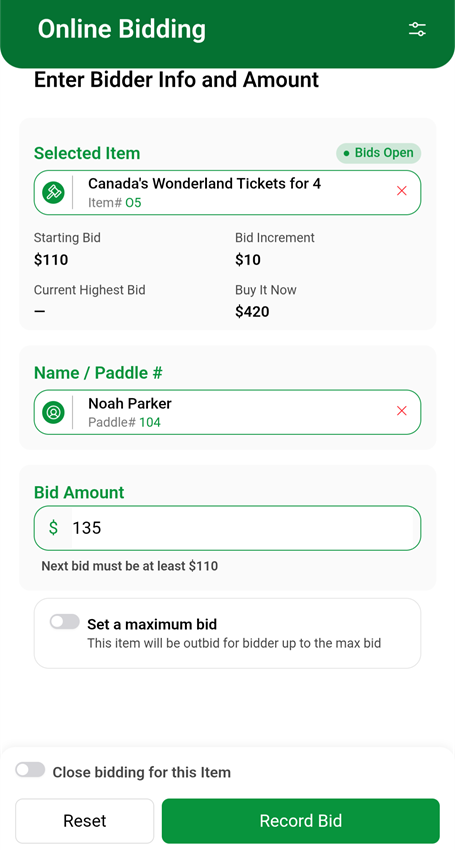
A completed Online Bidding form from a demonstration event.
Paper and Live Bids Are Final
Record Winner saves the bid as the item's final bid. If Send notification is on (the default), Auctria emails the guest that they won the item as soon as you save. Check the guest and amount first. See Bidding Settings.
- Tap the save button:
- Online Bidding: tap Record Bid.
- Paper Bidding or Live Bidding: tap Record Winner.
The app shows Bid recorded! with the guest, item, and amount. Tap Okay.
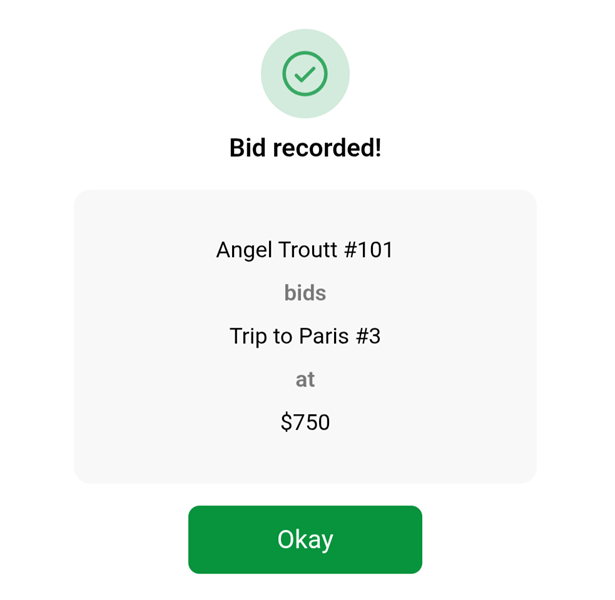
The Bid recorded! confirmation from a demonstration event.
Start Over
Tap Reset to clear the form without saving.
Guest Not Found?
The bidding screens don't have a New Guest button. Add the guest at check-in first. See Admin App Check-In.
For more about scanning, see How To Scan QR Codes At Check-In.
Bidding Types
| Type | Use It For | Save Button |
|---|---|---|
| Online Bidding | Entering a bid on an online auction item for a guest, such as a guest who can't use their phone. | Record Bid |
| Paper Bidding | Recording the winner of a bid sheet item. | Record Winner |
| Live Bidding | Recording the winner of a live auction item. | Record Winner |
Each type only lists items set up for that type of bidding.
Item Details
After you choose an item, the app shows its details so you can confirm you have the right one.
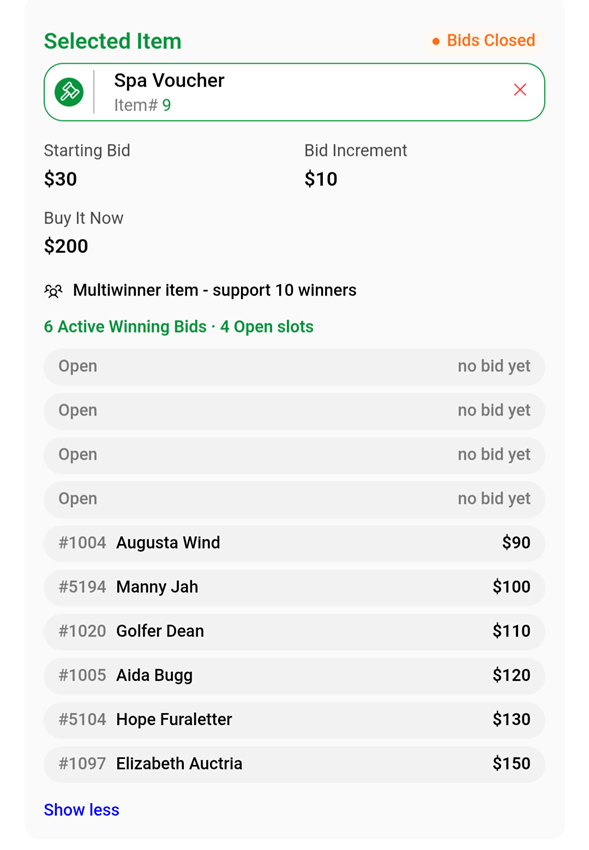
Item details for an item with more than one winner, from a demonstration event.
| Detail | Description |
|---|---|
| Bids Open / Bids Closed | Whether bidding on the item is open. |
| Starting Bid | The item's opening bid. |
| Bid Increment | How much each new bid must go up by. |
| Current Highest Bid | The highest bid so far. |
| Buy It Now | The item's Buy It Now price, if it has one. |
| Recent Bidders | The guests who bid on the item most recently. |
| Multiwinner item | For items with more than one winner: how many winners the item supports, how many winning bids and open slots it has, and a list of the current winning bids. Tap Show more or Show less to expand or shorten the list. |
Online Bidding Options
These options appear only for Online Bidding.
| Option | Description |
|---|---|
| Next bid must be at least … | Shows the lowest amount you can enter, based on the current bid and bid increment. |
| Set a maximum bid | Shows a Max bid field. The guest bids the Bid Amount now, and Auctria bids for them as needed, up to the Max bid. Not shown on items with more than one winner. See Maximum Bidding. |
| Close bidding for this Item | Closes bidding on the item when you save the bid. |
Closing Bidding Stops All Online Bids
Turn on Close bidding for this Item only when you're recording the final bid. Once bidding is closed, guests can't bid on the item from their phones.
Items With More Than One Winner
If the item has more than one winner and the guest already has a winning bid, the app asks how to record the new bid.
| Option | Description |
|---|---|
| Over previous bid | Replaces the guest's existing bid with the new amount. |
| New bid entry | Adds a separate bid, so the guest can win more than one. |
See Multiple Winners.
Recording More Than One Winner
For Paper Bidding and Live Bidding, an item that already has a winner shows an N recorded badge, such as 1 recorded.
To record another winner for the same item, tap the item's name again, then follow steps 6 to 9 above.
Bidding Settings
Tap the settings (sliders) icon at the top of the Bidding screen to change how bids are recorded.
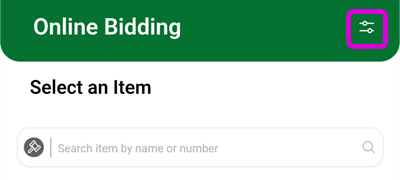
The settings icon at the top of the Online Bidding screen.
The Controls panel opens. Check or uncheck each setting, then tap X to close the panel.
Each bidding type has its own settings. For example, turning on Suppress bidding rules for Live Bidding doesn't change Online Bidding.
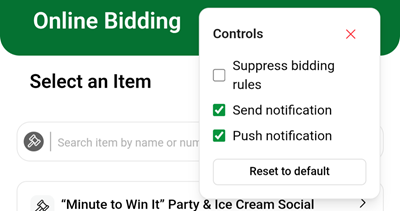
The Controls panel with its default settings.
| Setting | Description |
|---|---|
| Suppress bidding rules | Records bids even if they don't follow the item's bidding rules, such as the bid increment. |
| Send notification | Emails the guest that they won the item when the bid is a winning or final bid. On by default. |
| Push notification | Updates the bid live on the event website and other live displays. On by default. |
| Reset to default | Turns Suppress bidding rules off and the two notification settings back on. |
Winner Emails for Paper and Live Bidding
Every paper and live bid is saved as final. With Send notification on, each Record Winner emails the guest right away. Turn it off for Paper Bidding or Live Bidding if you'd rather notify winners later.
Check Bids Carefully With Rules Suppressed
When Suppress bidding rules is on, the app doesn't stop you from saving a bid that's lower than allowed. Double-check each amount before you save it.
Troubleshooting
If a bid can't be saved, the app shows Unable to record bid with the reason.
| Problem | What To Try |
|---|---|
| The bid amount is too low | Check the Next bid must be at least … amount and enter a higher bid. |
| The item doesn't appear under Select an Item | Make sure you chose the right bidding type. Each type only lists its own items. |
| The guest doesn't appear | Check the spelling or paddle number, or tap SCAN. If the guest isn't registered, add them at check-in first. |
| You recorded the wrong bid | You can't delete a bid in the app. Ask an event administrator to correct it on the dashboard. |
Try And Force Bid
Event administrators also see Try And Force Bid in the error message, unless Suppress bidding rules is already on. This saves the bid even though it breaks the item's bidding rules. Use it only when you're sure the bid is correct.
Quick Reference
| Action | Path in App | Save Button |
|---|---|---|
| Record an online bid | Record → Bidding → Online Bidding → tap item | Record Bid |
| Record a paper bid winner | Record → Bidding → Paper Bidding → tap item | Record Winner |
| Record a live auction winner | Record → Bidding → Live Bidding → tap item | Record Winner |
| Record another winner | Same as above → tap the item again | Record Winner |
| Change bidding settings | Record → Bidding → settings (sliders) icon | — |