
Learn how guests place bids on your event website, including how bid confirmations, maximum bidding, and outbid notifications work.
Guests can place bids through the event website, a kiosk, or (if enabled) by text message. This page covers the bidding experience through the event website — see the child pages below for other bidding methods.
Auction Website
The event website is mobile-friendly and works in any browser — on a desktop, tablet, or phone. Guests navigate to your event's site address, browse the item catalog, and click the bid button on any item they want to bid on. The button shows either the current bid amount or Bid Now! text. Clicking it opens the Item Details page for that item.
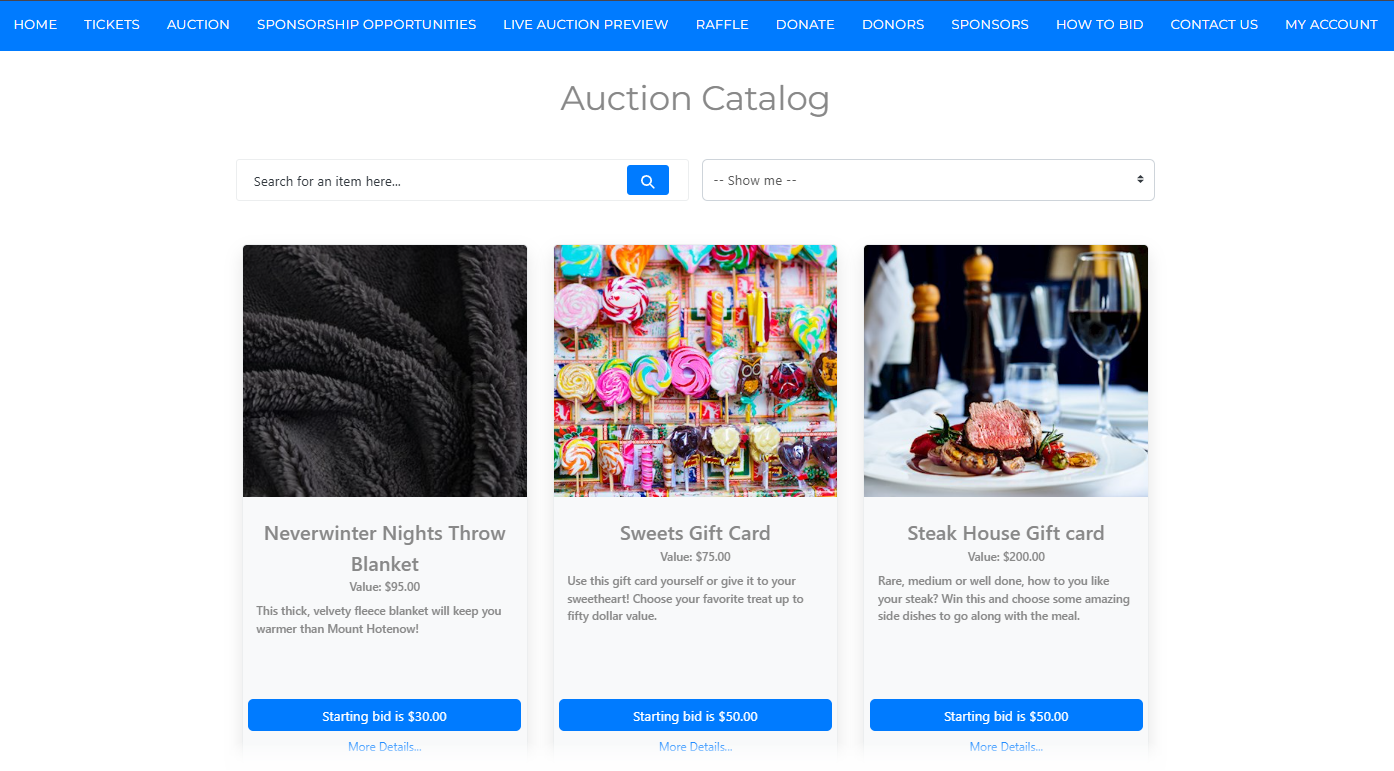
An example from a demonstration event.
Item Details
The Item Details page shows the full item description and current bid information. To place a bid, the guest enters their bid amount and clicks Bid.
If Maximum Bidding is enabled for the event, a Maximum Bid Amount field also appears. Guests can enter the maximum amount they are willing to pay — Auctria will automatically bid on their behalf up to that amount. As amounts are entered, the Bid button reflects the current values.
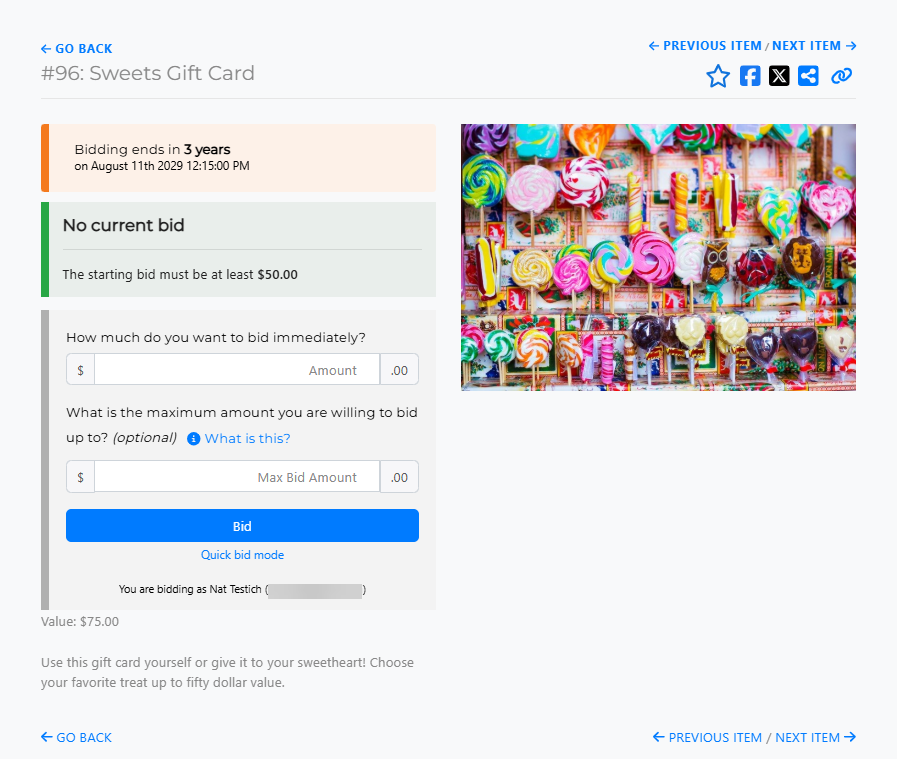
An example from a demonstration event.
After clicking Bid, a confirmation window asks the guest to verify their bid.
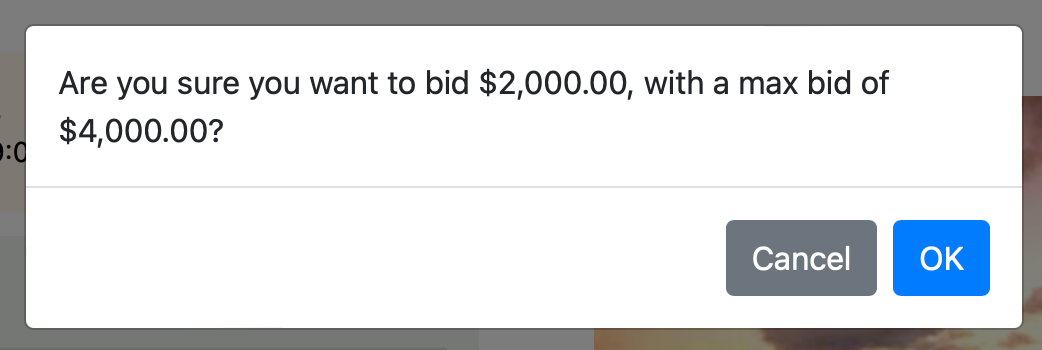
An example bid confirmation from a demonstration event.
Clicking OK places the bid. Clicking Cancel clears the entered amount and no bid is placed.
Mobile and tablet bidding
The bidding experience on tablets and mobile devices works the same way — guests enter an amount and tap Bid to start the process.
Maximum Bidding
If Maximum Bidding is enabled, a guest's bid may not be accepted as-is if another bidder already has a higher maximum bid on file. In that case, an Out Bid pop-up appears on the Item Details page and the details update to reflect the current standing.
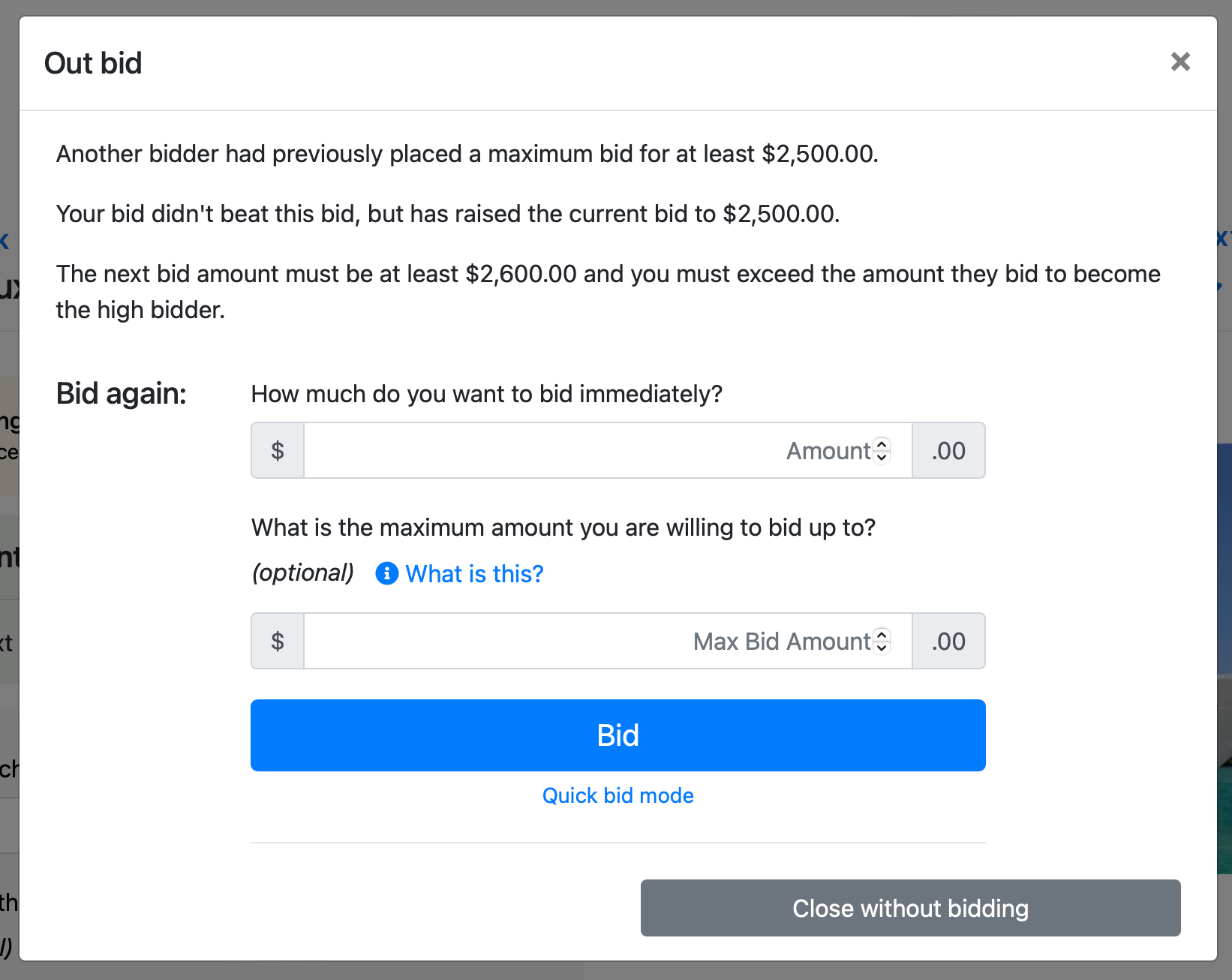
An example outbid notification from a demonstration event.
From the pop-up, the guest can enter a higher amount to continue bidding.
Successful Bid
If the guest's bid is the highest, a Bid Successful message appears and the Item Details page updates with their winning bid amount.
If the guest placed a maximum bid, the page shows their current high bid, the maximum bid amount on file, and the next bid amount required based on the item's bid increment.
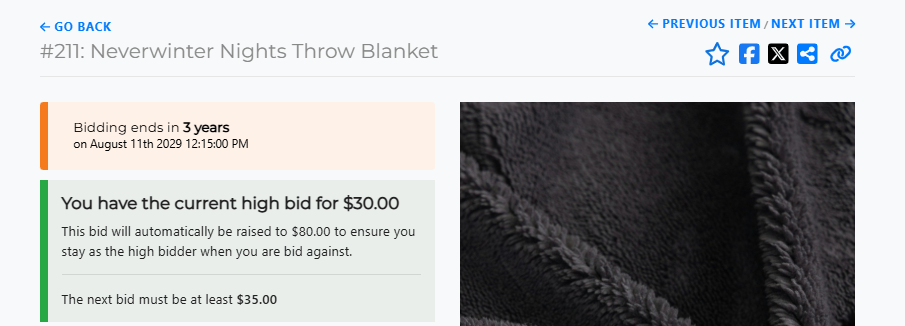
An example of a current high bid with a maximum bid amount.
Other bidders can bid higher than the shown next-bid amount — but until a bid exceeds the guest's maximum, they retain the current high bid.
When bidding closes, an Item Won notification is sent to the bidder with the current high bid.
Items With Multiple Winners
Some items have the Allow Multiple Winners option enabled, meaning more than one bidder can win a lot of the same item. When a logged-in guest returns to the Item Details page for an item they have already bid on, they will see a drop-down selector.
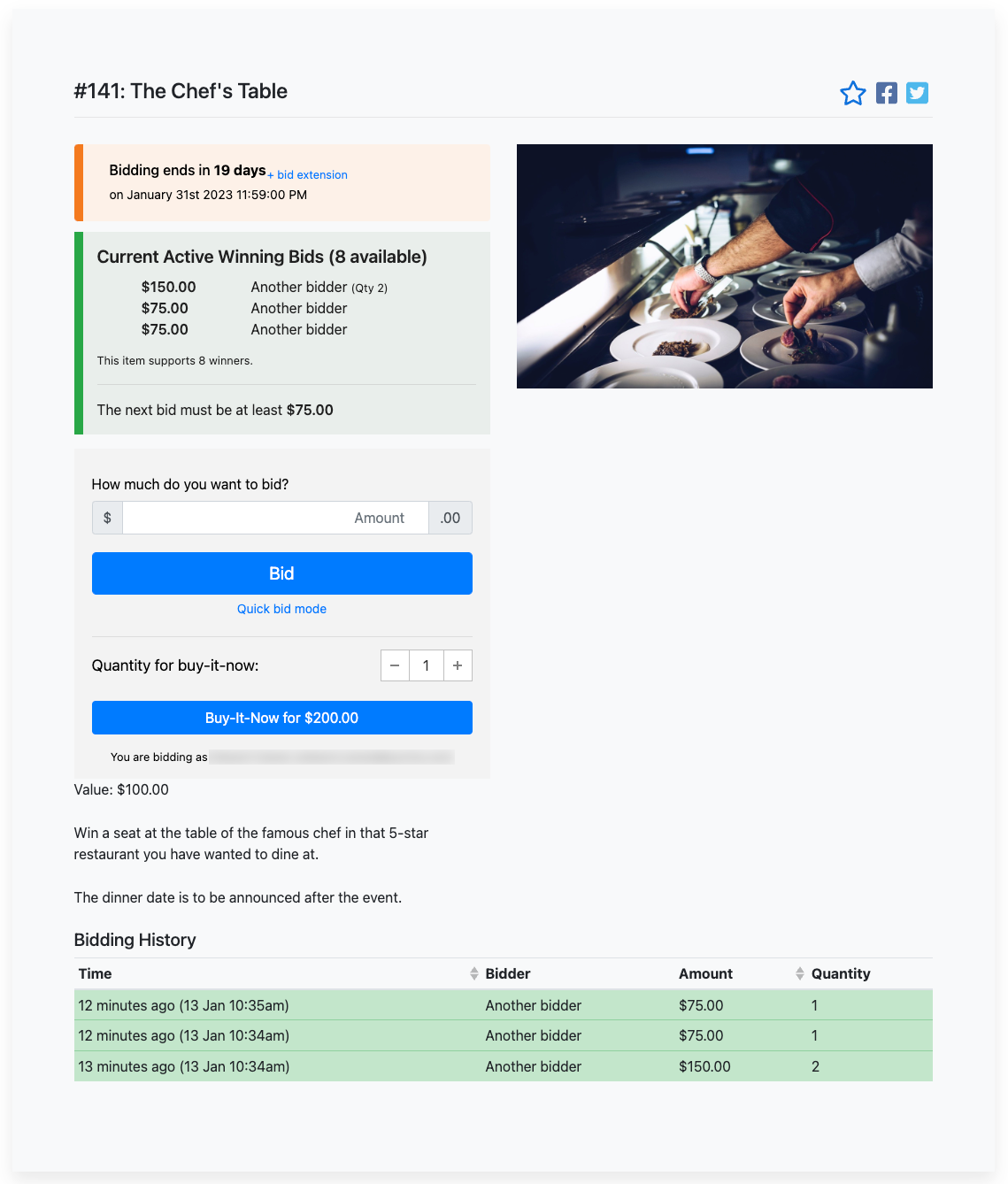
An example Item Details page for an item with multiple winners enabled.
If the guest has an existing bid, they can choose to update it.
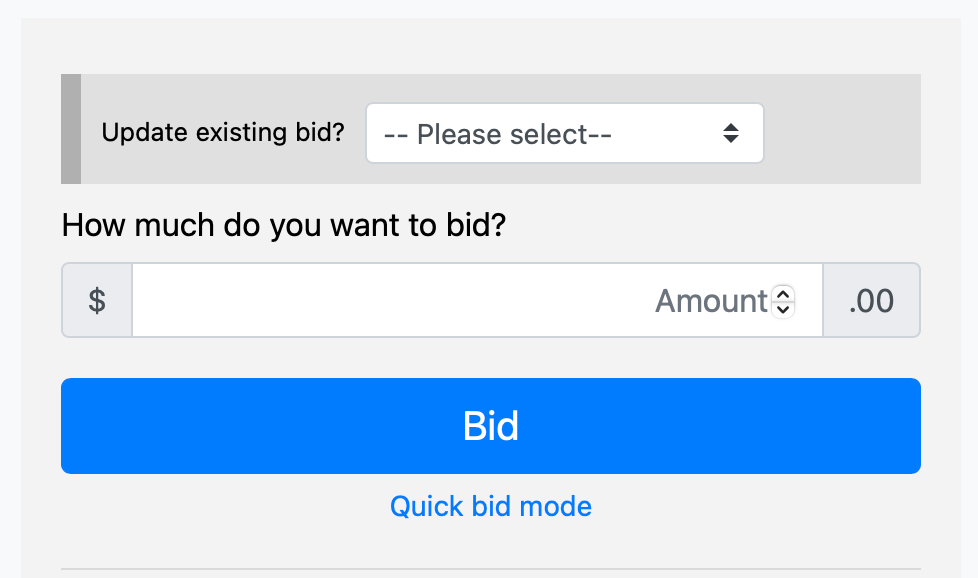
Clicking the drop-down selector beside Update Existing Bid? gives the option to either update the existing bid or place a new bid for an additional lot of the item.
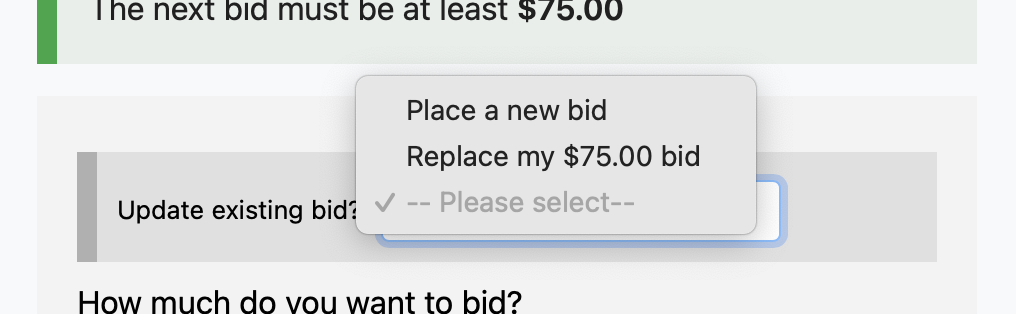
See Multiple Winners for more information on how organizers configure items with multiple winners.
Bid Extension for Bidders
When a bid is placed near the end of an auction, a bid extension can give other guests a short window to respond. Learn how this works from the guest's perspective.
See Bid Extension for Bidders for details.
Kiosk Mode
Kiosk mode lets guests place bids from a shared device set up at your venue — useful for dedicated bidding stations at in-person events.
See Kiosk Mode Bidding for details.
Text Bidding
If text bidding is enabled for your event, guests can place bids by sending a text message to a dedicated number.
See Text Bidding for details.