
The Item Details page is the main dashboard for reviewing and editing all information associated with a specific item.
A standard Item Details page opens on the Summary tab by default and also includes Images/Links, Activity, and History tabs. If the item is a basket item, a Contents tab will appear as well. The available sections and panels may vary depending on the item's type.
Example Item Details Page
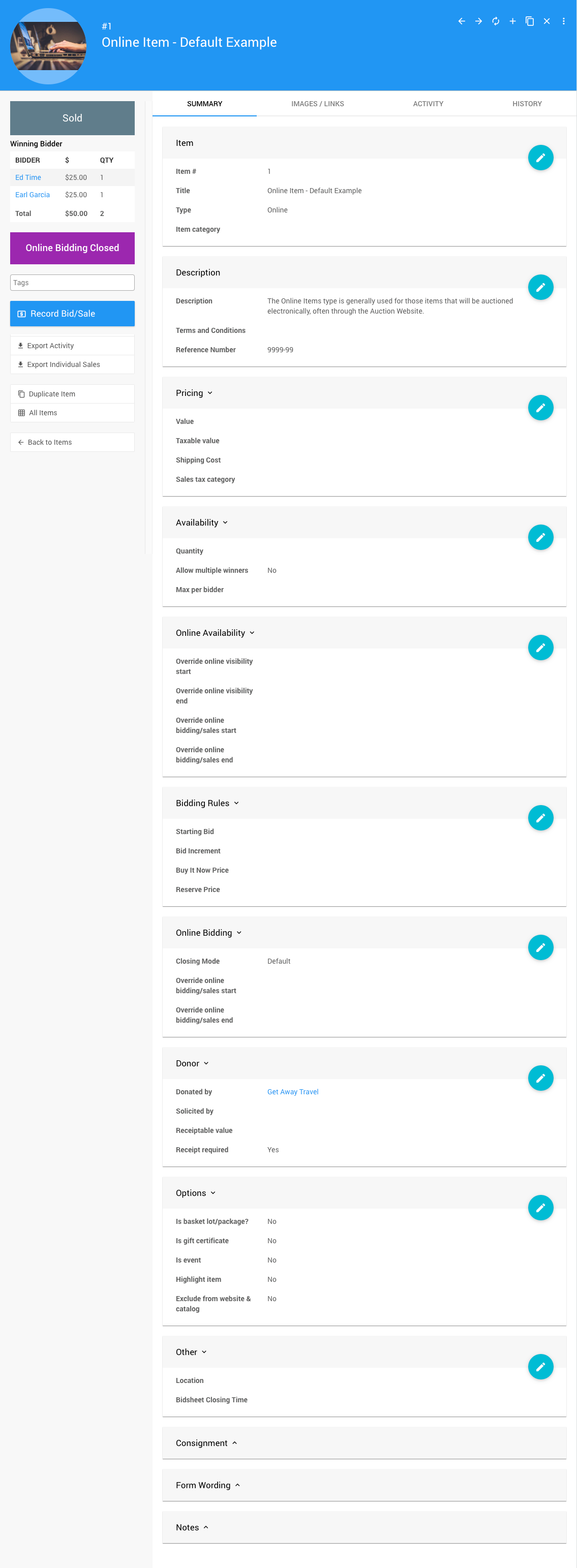
An example of the Summary tab of an item taken from a demonstration event.
Opening an Item's Details Page
There are several ways to navigate to an item's Item Details page.
From the Items Dashboard
On the Items Dashboard (left sidebar, Items), click in the Search for item field and enter the first few characters of the item's name or number. A list of matching items will appear — click the item to open its details page.
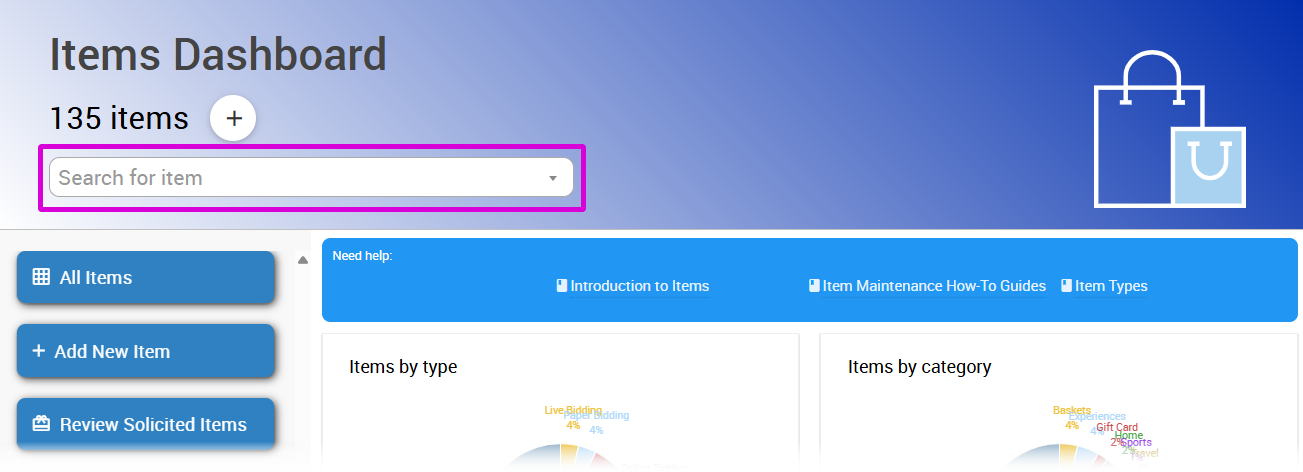
An example from a demonstration event.
From the All Items Report
From the Items Dashboard, click All Items to open the items list report.
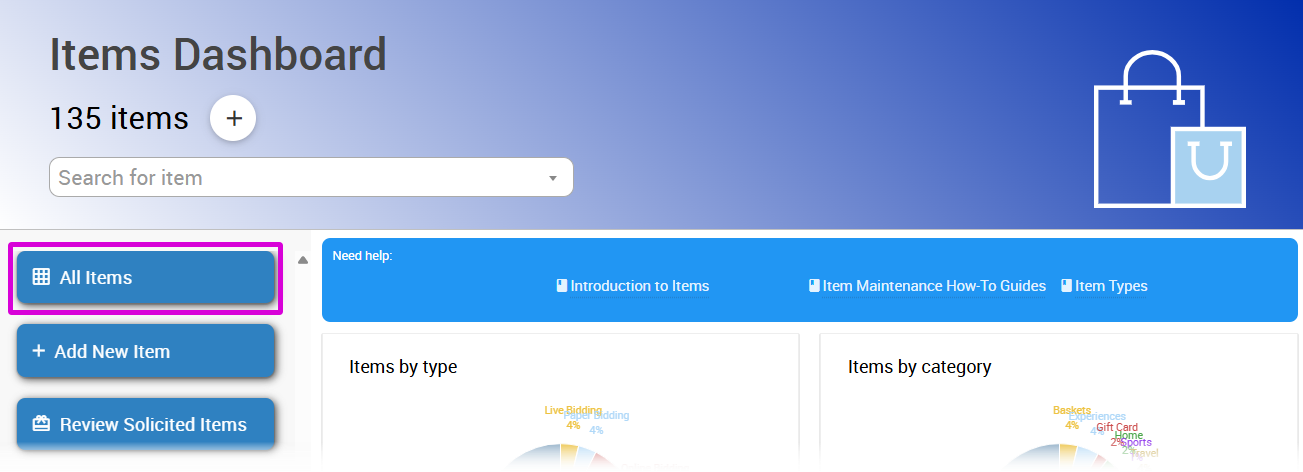
An example from a demonstration event.
You can use the filter drop-downs to narrow down the list. Then open an item's details page in any of the following ways:
- Double-click the item row.
- Check the box next to the item row and click the View Record button at the bottom of the page.
- Click the three-dot icon at the far right of the item row and select View Record from the context menu.
From the Search Bar
Click the search icon in the page header (or press Ctrl-Shift-F) and enter part of the item's name or number. Click the matching result to open its details page.

An example from a demonstration event.
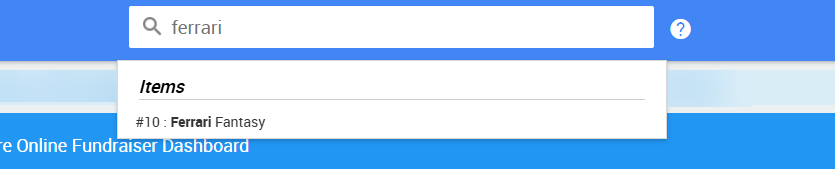
An example from a demonstration event.
Using a Shortcut Command
In the search bar, type :i followed by the item number — for example, :i 131 — and press Enter to jump directly to that item's details page.
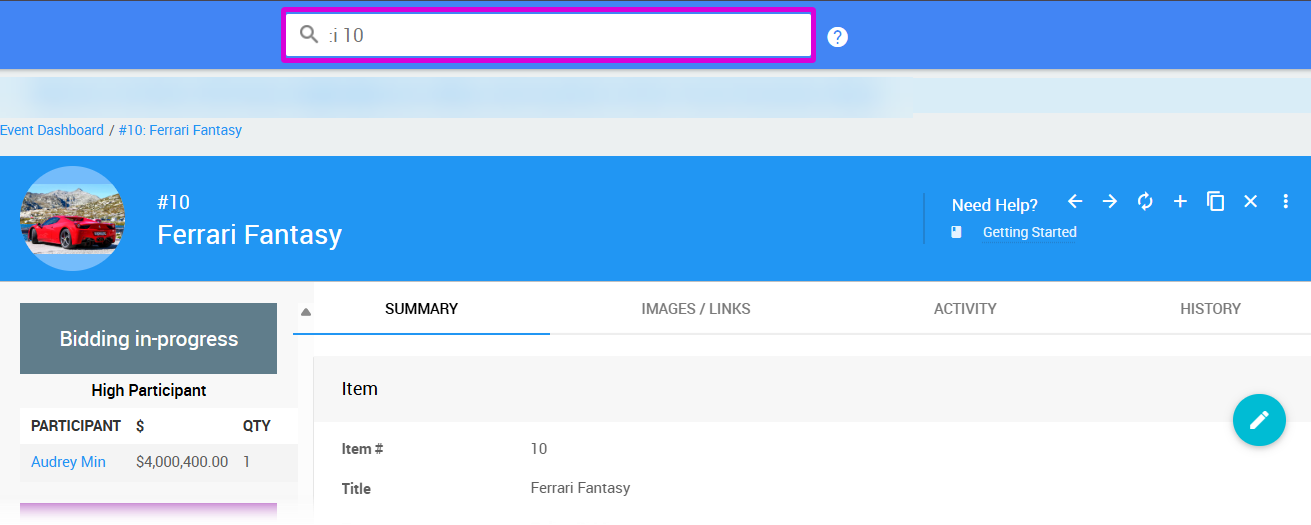
An example from a demonstration event.
From an Item Hover Card
In many places where an item's name appears — such as in the History tab — you can hover over the name to see a summary card and click the Details link to go to the item's details page. You can also click the item name directly.
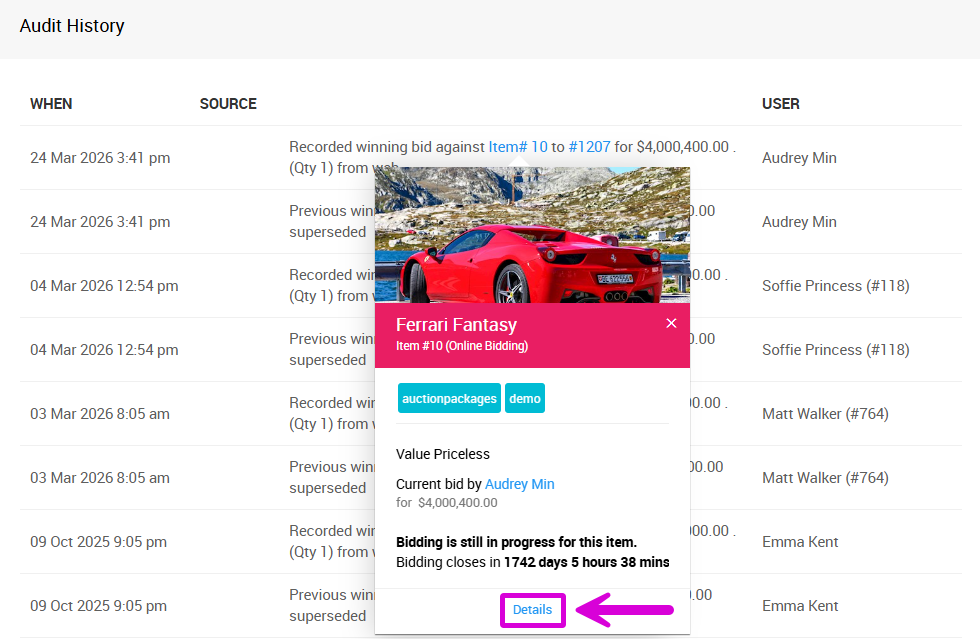
An example from a demonstration event.
From Recently Added Items
If you just saved a new item, its name will appear under Recently added items on the Items Dashboard. Double-click it to open its details page.
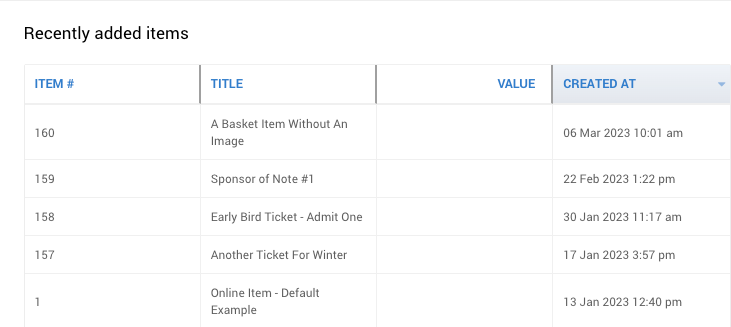
An example from a demonstration event.
Editing Item Details
Most of the modifiable information about an item is found on the Summary tab. To edit a section, click the Edit icon (the blue pencil). To save your changes, click the Save icon (the blue check mark). To undo changes before saving, click the Undo icon (the curved back arrow).
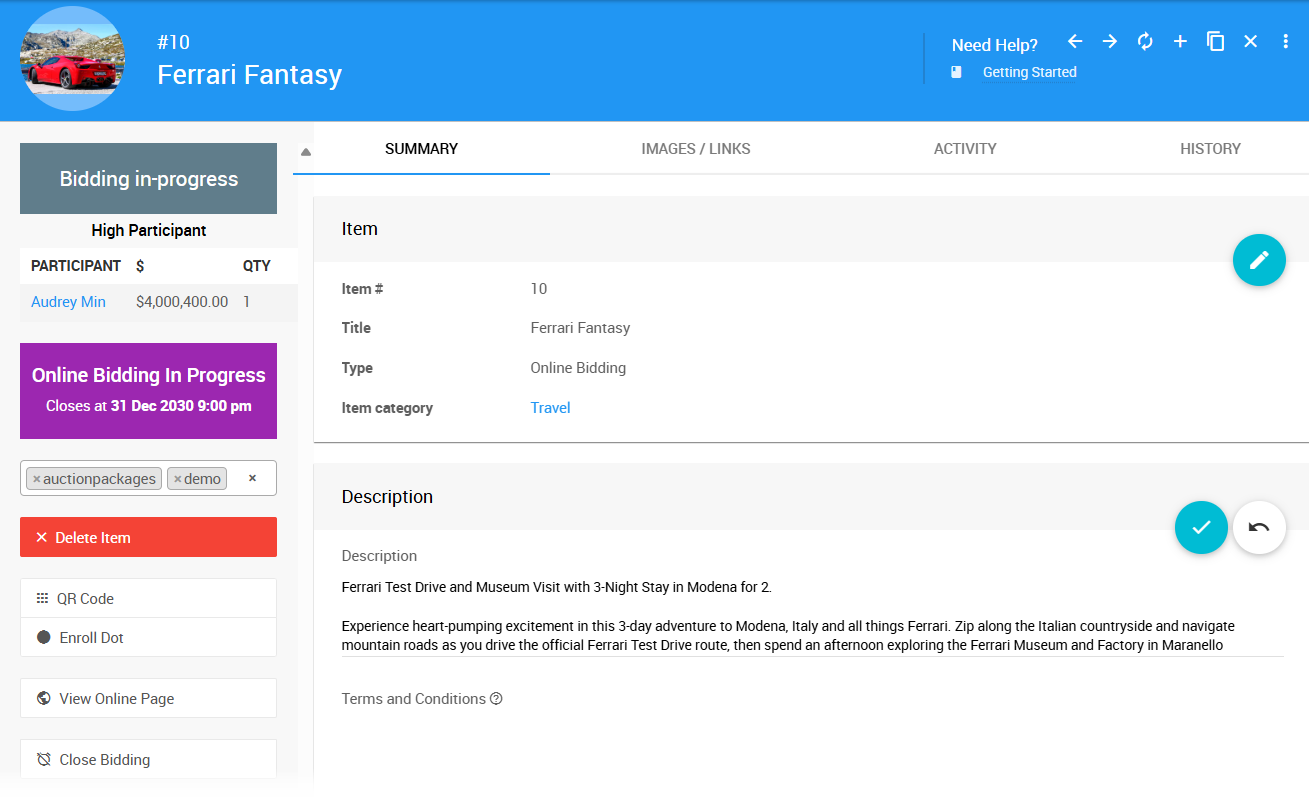
An example item using the Online Bidding type.
For details about the fields and panels available for each item type, see Item Types.
Item Details Sidebar
The Item Details sidebar includes information about the item's current bid status and links to related actions.
Bid Details
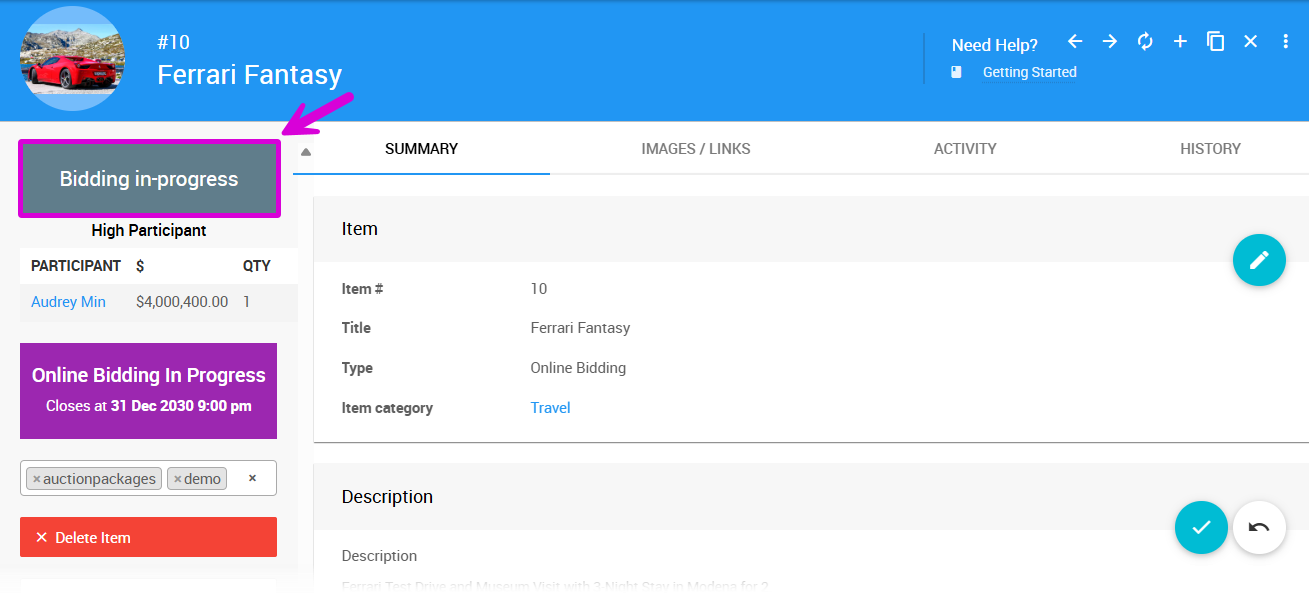
The current bid status and winning bidder(s) for the item.
Tags
You can add or remove tags from the Tags field in the sidebar. To add a tag, type its name into the field. To add multiple tags, separate them with a comma or space.
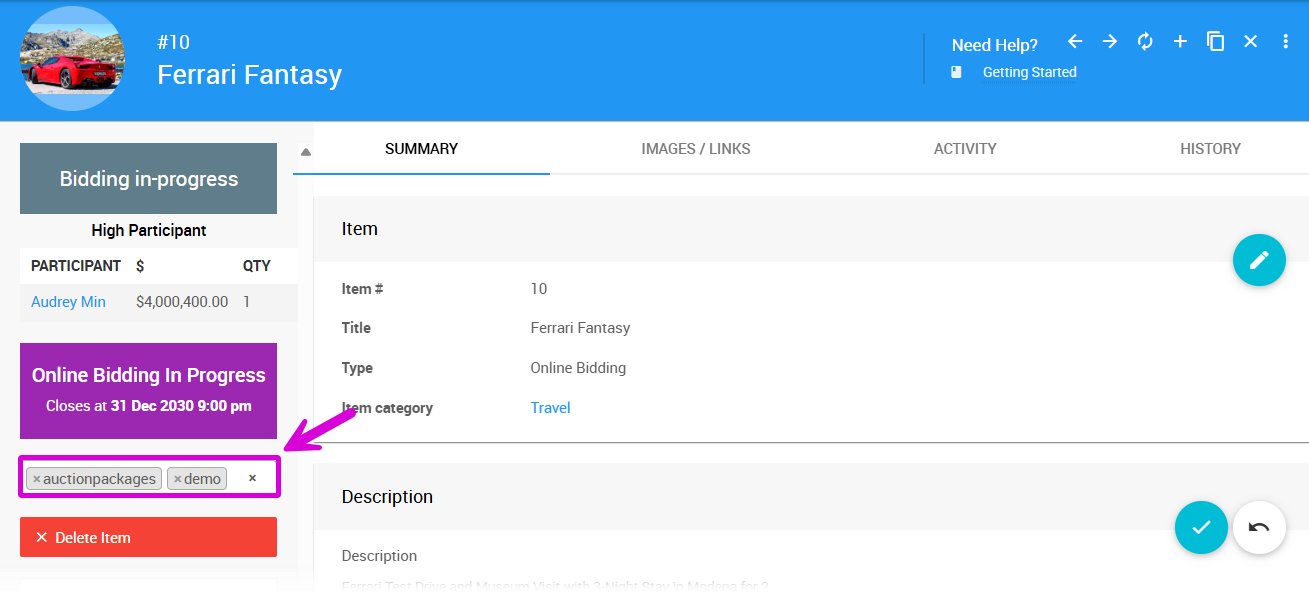
Tag Formatting
Tags should only use letters, numbers, hyphens (-), and underscores (_). Entering a comma or space will create a tag from the characters before it and begin a new tag with the characters after it.
Multi-Word Tags
Since tags cannot contain spaces, use an underscore or hyphen to separate words — for example, another_tag or extra-tag. You can also use camelCase, such as myGreatTag.
To remove tags:
- Click the small
xon the left side of a specific tag to remove that tag only. - Click the
Xat the right side of the Tags field to remove all tags from the item.
See Where Tags Can Be Used In Auctria for more information.
Sidebar Actions
| Action | Description |
|---|---|
| Delete Item | Removes the item after confirming via a pop-up window. |
| QR Code | Opens a window that displays the item's QR code, which can be copied for use on printed materials, social media, or shared with participants. |
| View Online Page | Opens a new browser tab showing the item's page on the auction website. |
| Close Bidding | Stops bidding immediately for the item (available for biddable items only). If bidding is currently closed, this will show as Open Bidding instead. See Open/Close Bidding for more information. |
| Printing: Bid Sheet | Opens a generated view of a Bid Sheet using the main Printing options. |
| Printing: Display Page | Opens a generated view of a Display Page. |
| Printing: Gift Certificate | Opens a generated view of a Gift Certificate. |
| Export Activity | Downloads an XLS file of the information on the item's Activity tab. |
| Export Individual Sales | Downloads an XLS file of sales information for the item (For Sale items only). See Export Individual Sales for more details. |
| Duplicate Item | Opens the Add New Item page pre-populated with the current item's details. |
| All Items | Opens the All Items list report. |
| Back to Items | Returns to the All Items list report view. |
Item Details Tabs
Summary
The Summary tab displays and allows editing of the majority of the item's information. The sections available vary by item type — see Summary for a full reference, or go directly to a specific item type:
- Paper Bidding Type
- Live Bidding Type
- Online Bidding Type
- Partial Items
- For Sale Items
- Donation Items
- Raffle Prize Items
Images/Links
The Images/Links tab allows multiple images to be uploaded and external links to be added for the item. Links pointing to YouTube or Vimeo videos will be embedded in the item's participant-facing details page on the auction website.
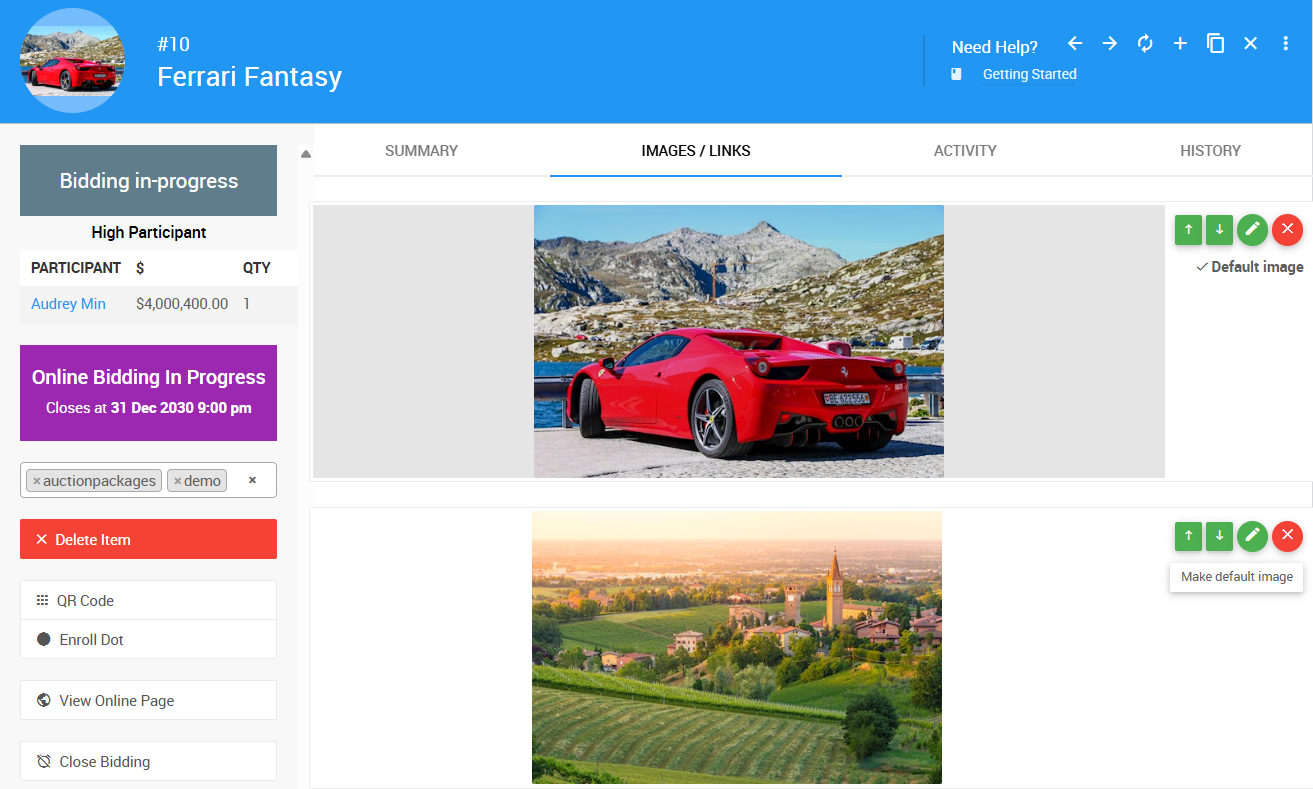
An example of an Images/Links tab from a demonstration event.
See Images and Links for more information.
Contents
The Contents tab only appears for basket items and is used to manage the items included in the basket or package.
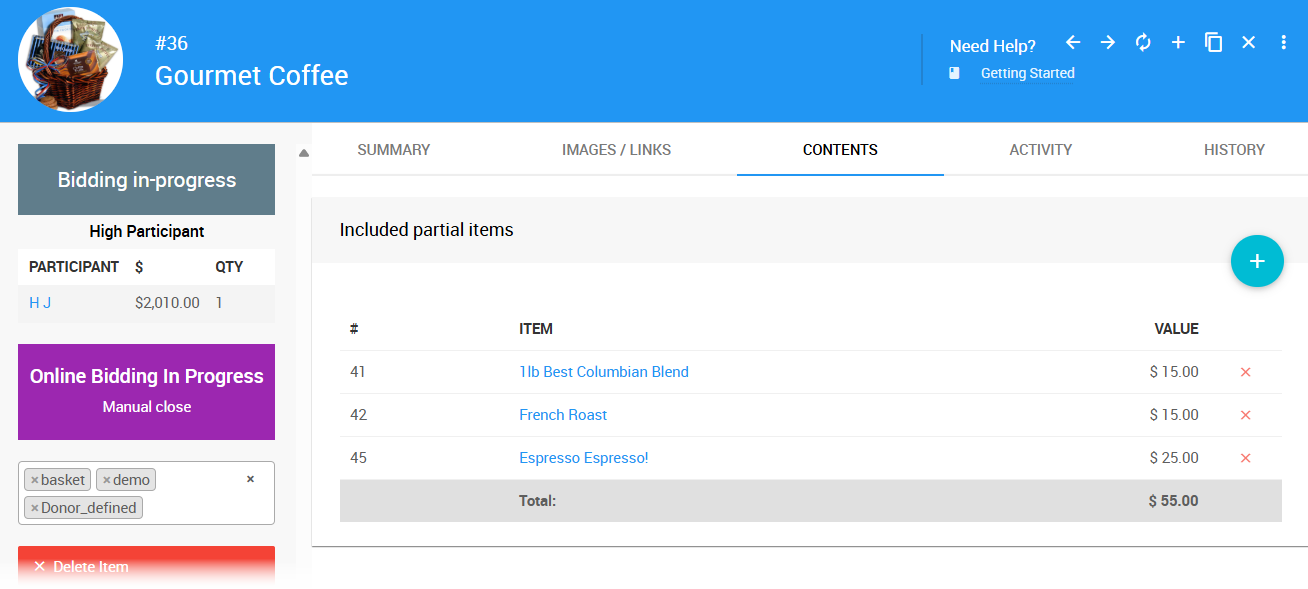
An example of a Contents tab from a demonstration event.
See Baskets and Packages for more information.
Activity
The Activity tab shows bidding and sales activity for the item. Additional options are available to modify bids as needed, including Split, Demote to not winning, Edit, Transfer, and Delete.
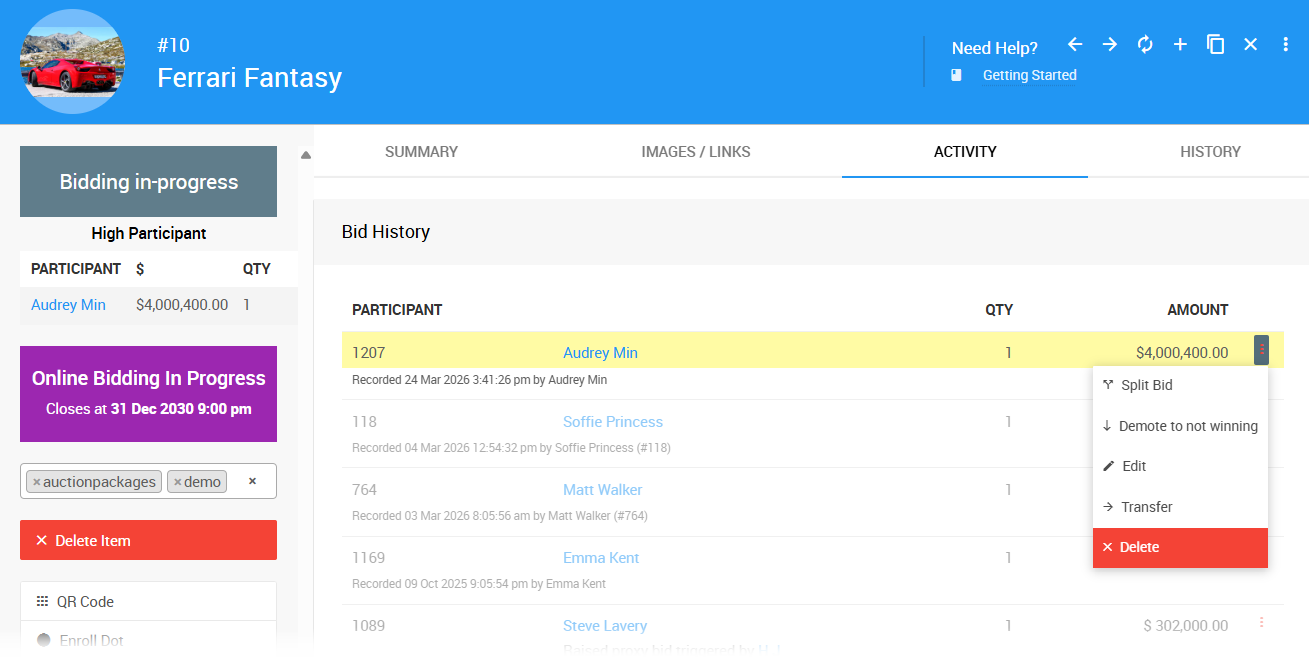
An example of an Activity tab from a demonstration event.
See Activity for more information.
History
The History tab shows an audit trail of changes to the item and its related transactions.
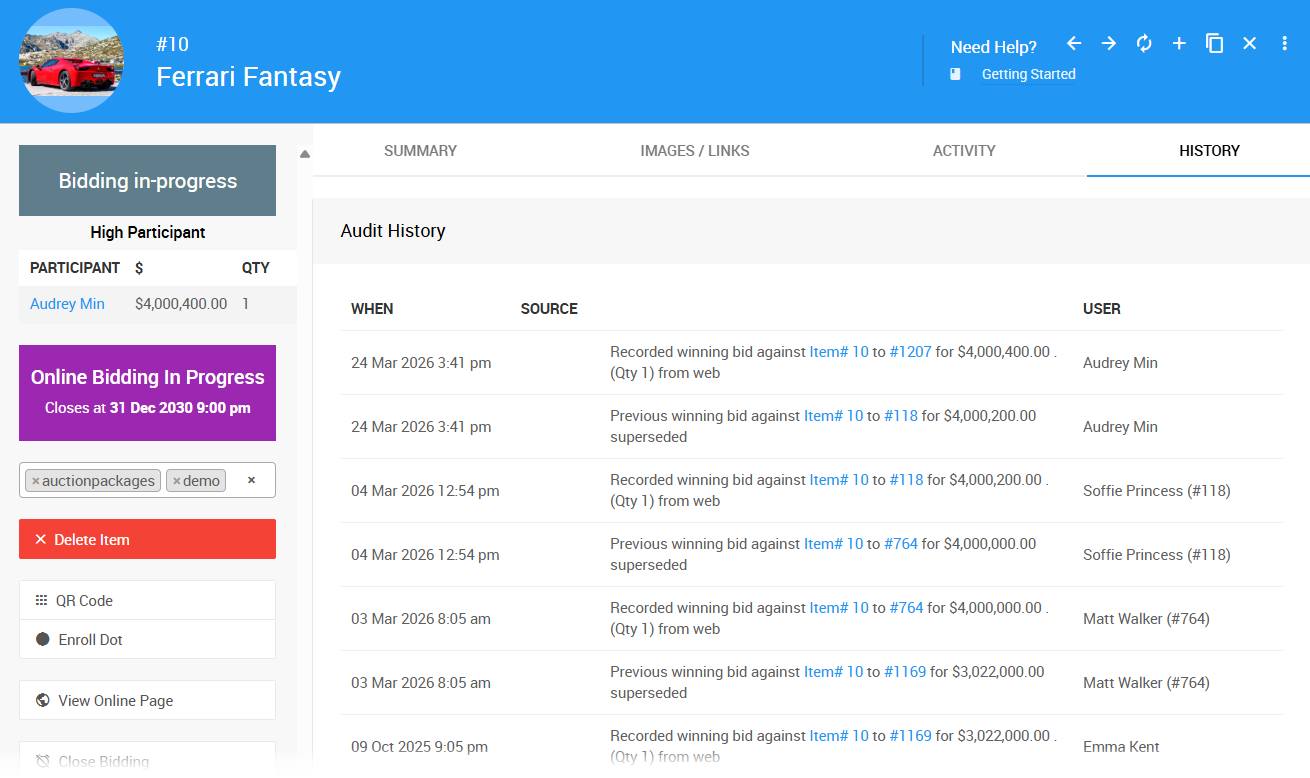
An example of a History tab from a demonstration event.
See History for more information.