
The Email Manager page allows you to manage the emails sent to bidders and donors.
Use it to review the emails that have gone out and their status, find emails sent to a specific address, and jump to the tools for managing your System Emails and Custom Emails.
Open the Email Manager
From your main Event Dashboard, click Communication → Email.
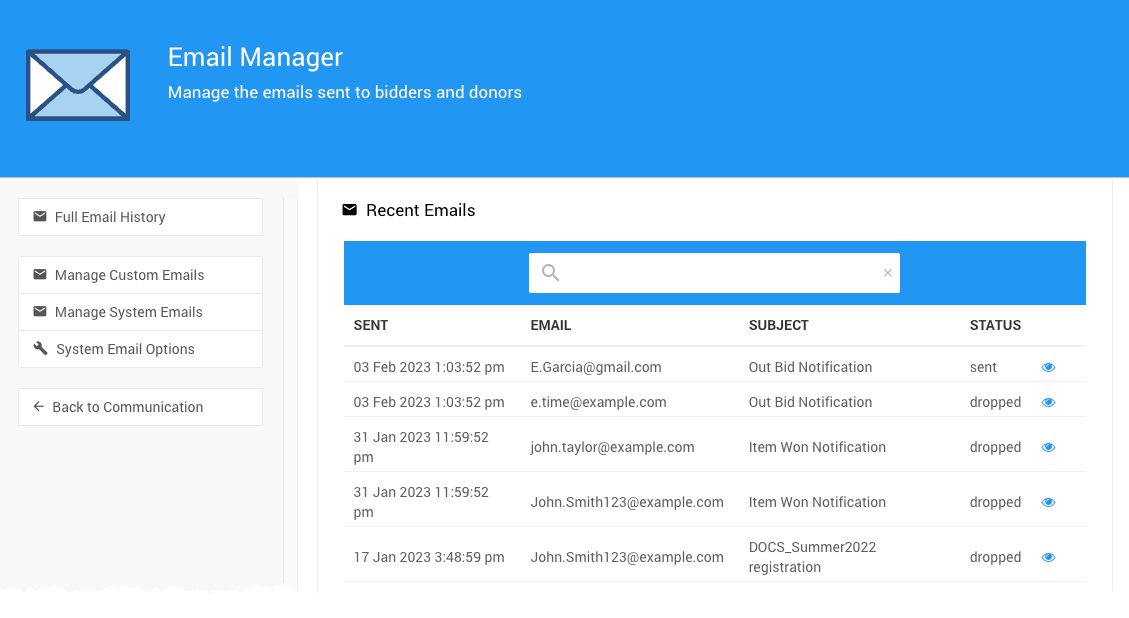
The Email Manager page from a demonstration event.
Review Your Emails
The page opens with a list of Recent Emails and their status. To see every email, click Full Email History in the page sidebar.
Click the eye icon at the far right of any email to preview it. The email opens in a new browser tab.
Find a Specific Email
To see only the emails sent to one address, search by email address. Then click the eye icon next to any result to view it.
Check What a Guest Received
Not sure whether someone got an email? Search for their email address to see only the emails sent to them.
System and Custom Email Managers
The Email Manager also links to two areas where you manage the emails themselves:
| Manager | What You Can Do | Available To |
|---|---|---|
| System Email Manager | Edit, preview, and reset the automated emails Auctria sends to bidders and donors. See System Emails. | All users |
| Custom Email Manager | Create, edit, and send your own emails to participants and donors. See Custom Emails. | Paid plans |
Email Manager Sidebar
The Actions menu in the page sidebar includes these options:
| Action | Description |
|---|---|
| Full Email History | Displays the entire Email History in a similar view as the Recent Emails list. |
| Manage Custom Emails | Opens the Custom Emails page (for paid plans). |
| Manage System Emails | Opens the System Emails page. |
| System Email Options | Opens the System Email Options page. |
| Back to Communication | Returns to the main Communication dashboard. |