
Learn about the Current Page settings available in the Website Editor sidebar.
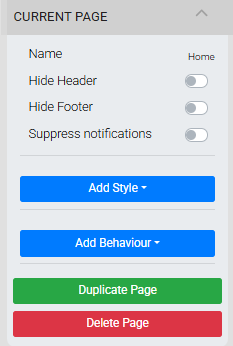
The Current Page settings let you control options for the page you are currently editing. Changes made here do not affect other pages on your website.
An example from a demonstration event.
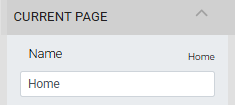
Name
Clicking the Name property opens a text field where you can change the name of the page.
An example from a demonstration event.
Page name vs. menu entry label
The Name property is the page's internal name — not the label shown in the navigation menu. If you are creating a direct link to a page, use this internal name, not the menu entry label.

An example of the Header Links window where the page name and menu entry label are different. In this example, the page name is "Catalog" and the menu entry label is "Auction".
See Header and Configuring Menu Entries for more details on menu entry labels.
Hide Header
The Hide Header toggle controls whether the Header section is displayed on the current page.
Hide Footer
The Hide Footer toggle controls whether the Footer section is displayed on the current page.
Suppress Notifications
The Suppress Notifications toggle controls whether the current page displays on-screen notifications generated from bids.
Turn off notifications site-wide
See Online Bidding — Notifications for the global setting that turns off pop-up notifications across the entire event website.
Add Style
Clicking Add Style opens the available style options for the current page.

An example from a demonstration event.
See Add Style for more information.
Add Behaviour
Clicking Add Behaviour lets you set the page's Visibility settings.

An example from a demonstration event.
See Website Element Visibility for more details on visibility options and settings.
Make Home Page
If the current page is not already set as the homepage, clicking Make Home Page in the sidebar will set it as the homepage for your event website. Visitors who follow your event website address will land on this page.

An example from a demonstration event.
Already set as home page?
When the page you are editing is already set as the homepage, the Make Home Page button will not appear in the sidebar.
See Website Address for more information on your event website address.
Duplicate Page
To create a copy of the current page, click Duplicate Page in the sidebar.

An example from a demonstration event.
This immediately creates a copy of the page (named Copy of...) and switches the editor view to the new page.
Rename the duplicate
Click on the page name to rename it. See Name above for more details.
Delete Page
To delete the current page, click Delete Page in the sidebar.

An example from a demonstration event.
No confirmation for page deletion
There is no confirmation window when deleting a page. To restore a mistakenly deleted page, click Undo at the top of the website editor.