
Learn how using the advanced options of conditional content can change email content.
Sometimes you want to make a small adjustment to the content of a System Email. For example, the Online Registration/Purchase Receipt is often a good candidate for sharing more information with your guests.
You might want to change the general content for everyone, or you might want to include or exclude some text based on a condition, such as whether the guest purchased a ticket or made a donation. This page shows you how to do the second one, using Visibility conditions.
To learn more about how these conditions work, see Email Element Visibility.
Choose a Condition
The condition you use depends on which guests you want to see your extra content.
| Condition | The Element Is Shown To Guests Who... |
|---|---|
HasTickets | Purchased a Tickets item. |
HasPurchases | Purchased a For Sale item. This includes Tickets items, since they are specially configured For Sale items. |
HasDonations | Purchased a Donation item. |
Step 1: Open the Email Editor
Open the system email you want to change in the Email Editor.
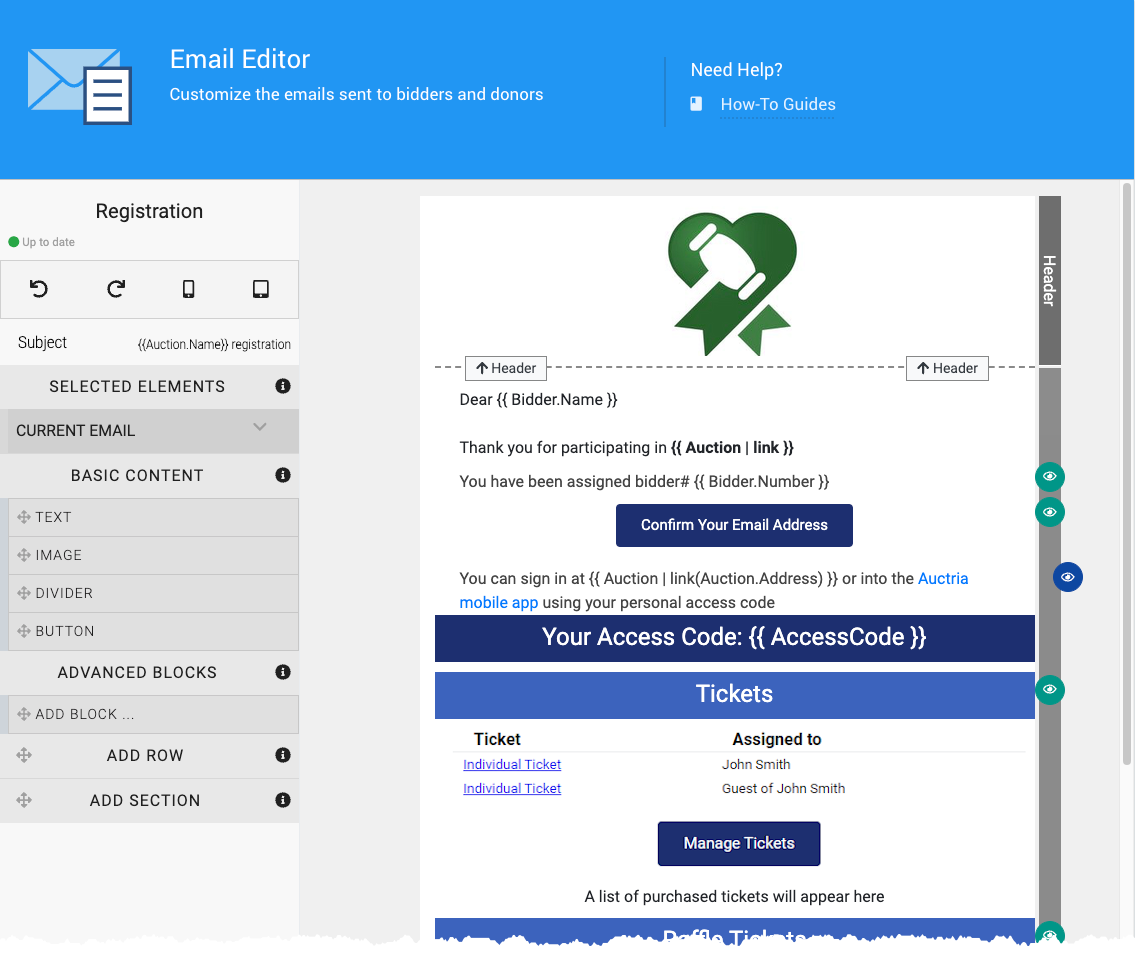
The default Online Registration/Purchase Receipt email in edit mode, from a demonstration event.
How Did I Get Here?
From the main Auction Dashboard, click Communication, and then click System Emails under the Email sidebar menu. This opens the System Email Manager. Click Edit on the email you want to change.
Step 2: Add a New Element
To start, you'll almost always add a new element, often a Text Element, to share more information that's relevant under a particular condition.
See Text Element for help adding a Text Element.
Step 3: Show Content to Guests With Tickets
Say you want to send some additional information to guests who purchased a Tickets item for your in-person event. For this, you'd use the HasTickets variable as a condition for the Visibility property of the element that holds the extra information.
The default Online Registration/Purchase Receipt system email already does this, so it's a good example to follow.
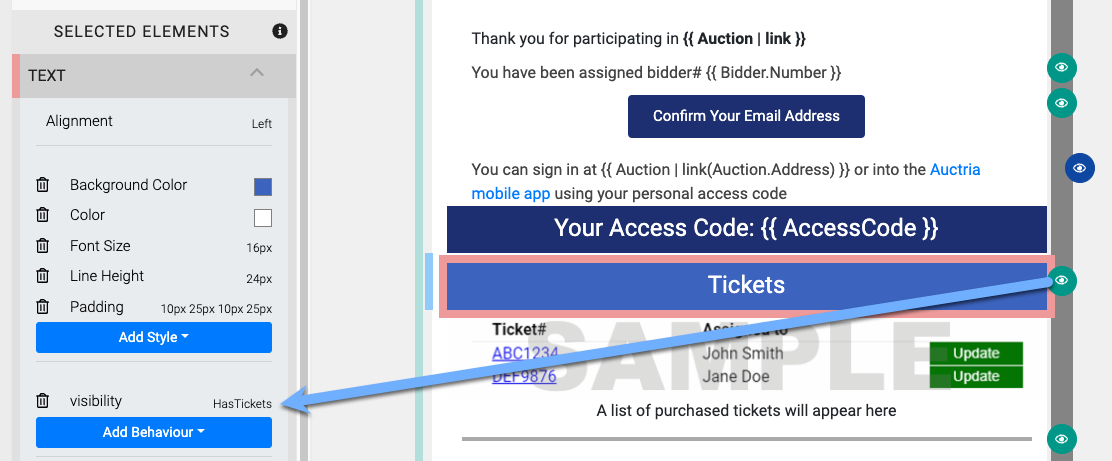
An example use of HasTickets taken from the defaults of the Online Registration/Purchase Receipt system email.
Following that example, add your own message using a Text Element.
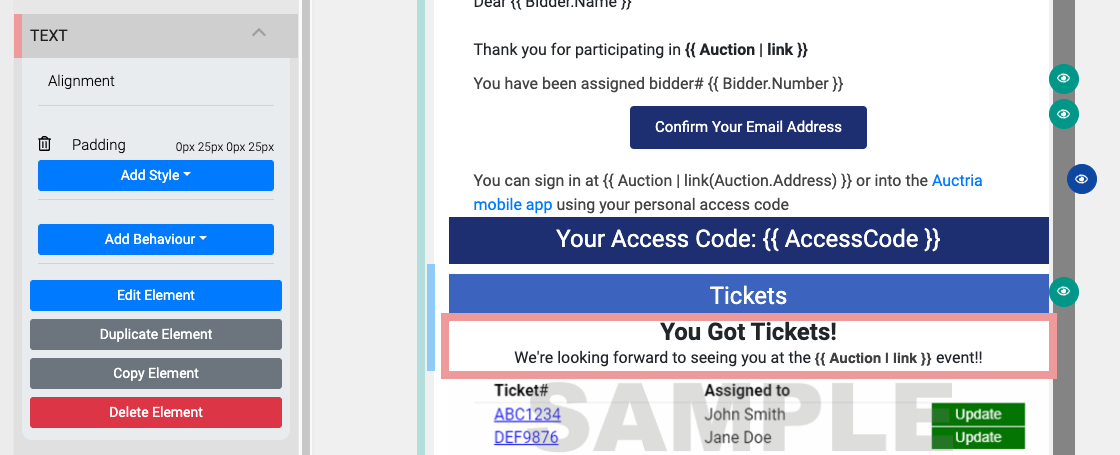
A Text Element with a custom message added to the email.
With the element still selected, click its Add Behavior property, then click the Visibility pop-up to open the property's value field.
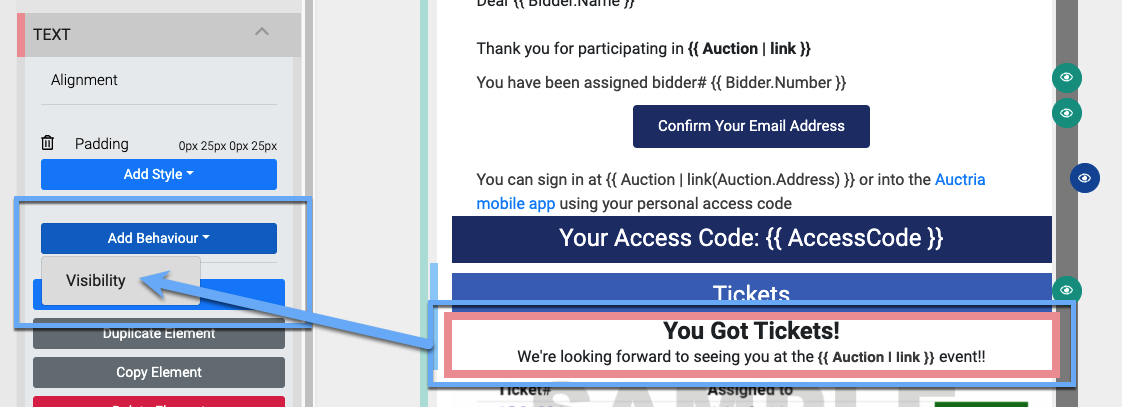
The Visibility option under the Add Behavior property.
Click the visibility label, then type HasTickets into the field that opens.
Capital Letters Matter
Type HasTickets exactly as shown. These conditions are case-sensitive.

The HasTickets value entered in the visibility field.
Click the visibility label again to set the value. Then click the Save Now button at the top of the sidebar to save your changes to the email.
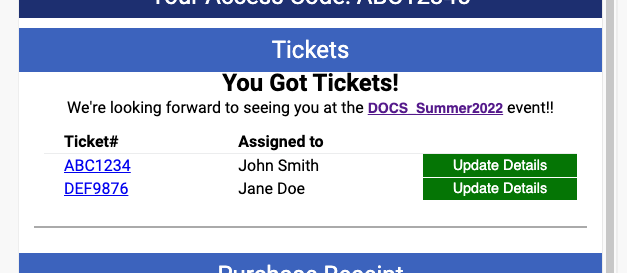
The custom message from the example above, shown in the preview of the Online Registration/Purchase Receipt email.
Look for the Eye Icon
Every element with a Visibility property applied has an eye icon on the right side of the element.
Step 4: Show Content to Guests With Purchases
To address guests who made a purchase, which means they purchased a For Sale item, use the HasPurchases condition for the Visibility property.
Apply it the same way you applied HasTickets in Step 3.

An example of the HasPurchases value being used with an element.
Tickets Count as Purchases
Using HasPurchases includes all purchases of Tickets items, since these are specially configured For Sale items.
Step 5: Show Content to Guests Who Donated
A guest may donate on the Auction Website. Their donation creates a Bidder Record for them and triggers the Online Registration/Purchase Receipt.
To check whether a guest purchased a Donation item, use the HasDonations condition for the Visibility property. Apply it the same way you applied HasTickets in Step 3.
If your message is made up of more than one element, such as a row of elements, add the visibility behavior to each element related to your message.
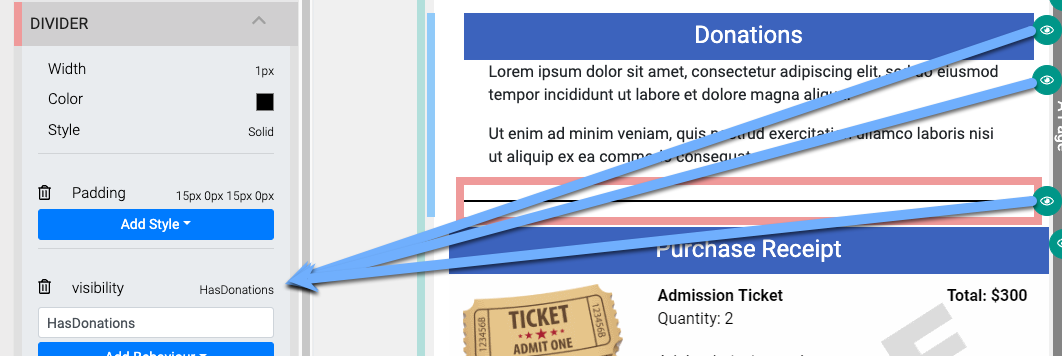
An example of the HasDonations value being applied to each related element.