
Learn how guests can manage their tickets from the Ticket Hub — including updating contact details, meal choices, and transferring tickets.
From their My Account page, a guest can update the ticket details assigned to them by clicking the See Tickets button.
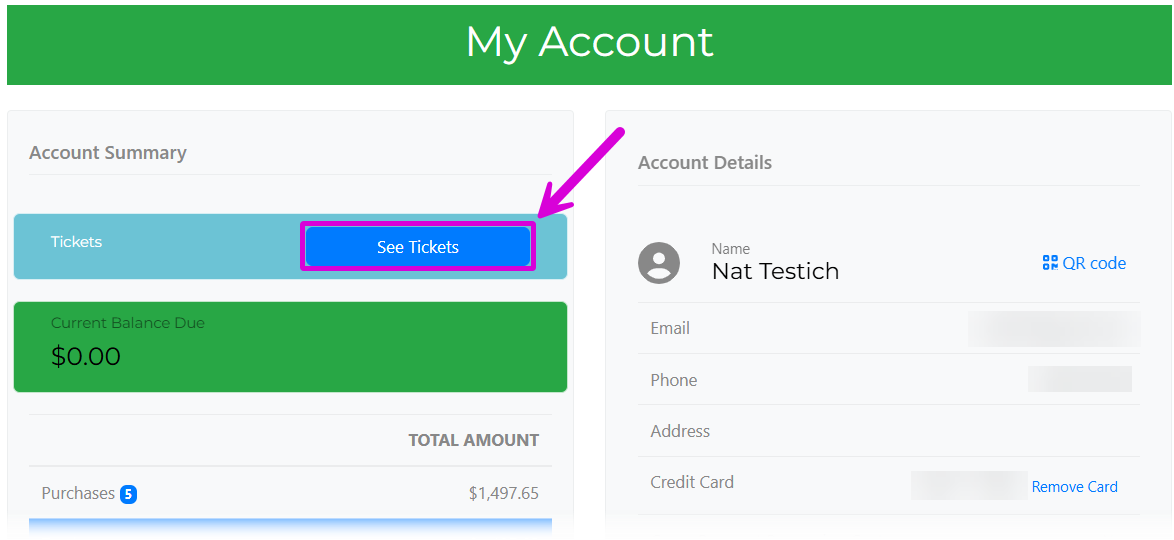
An example from a demonstration event.
Update Details
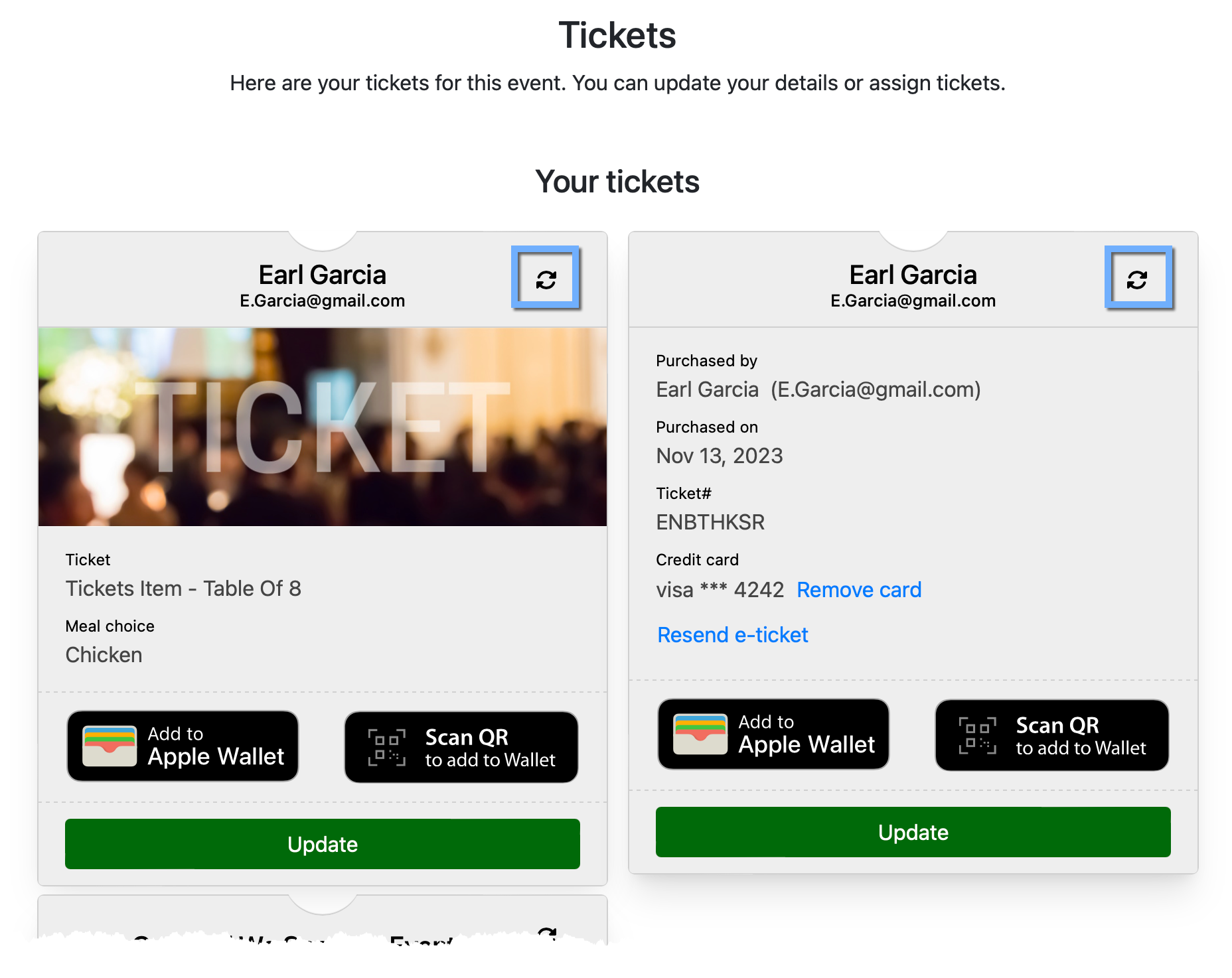
Clicking See Tickets, or clicking Update Details in their E-Ticket, opens the Ticket Hub.
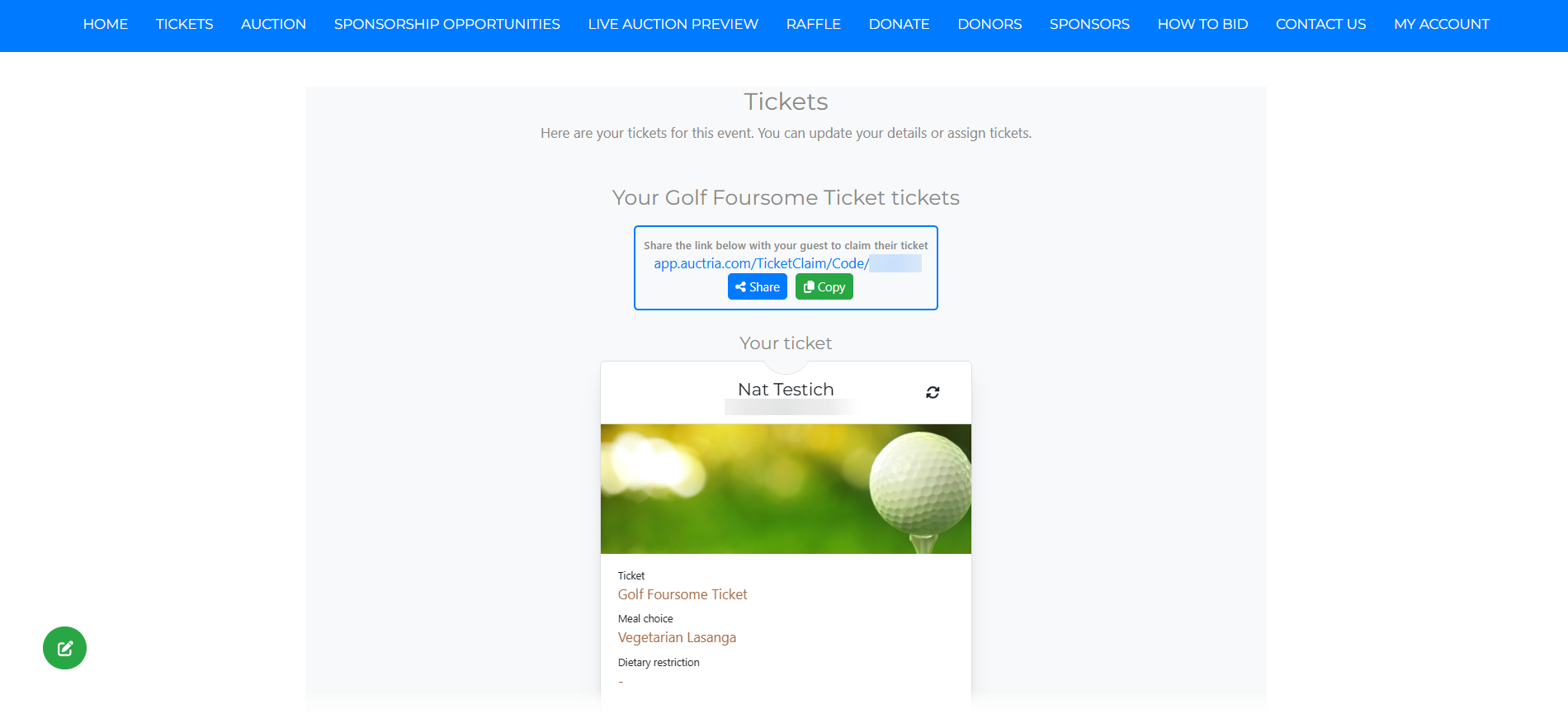
An example from a demonstration event.
Clicking one of the Update buttons opens the Update Ticket Details window for that specific ticket.
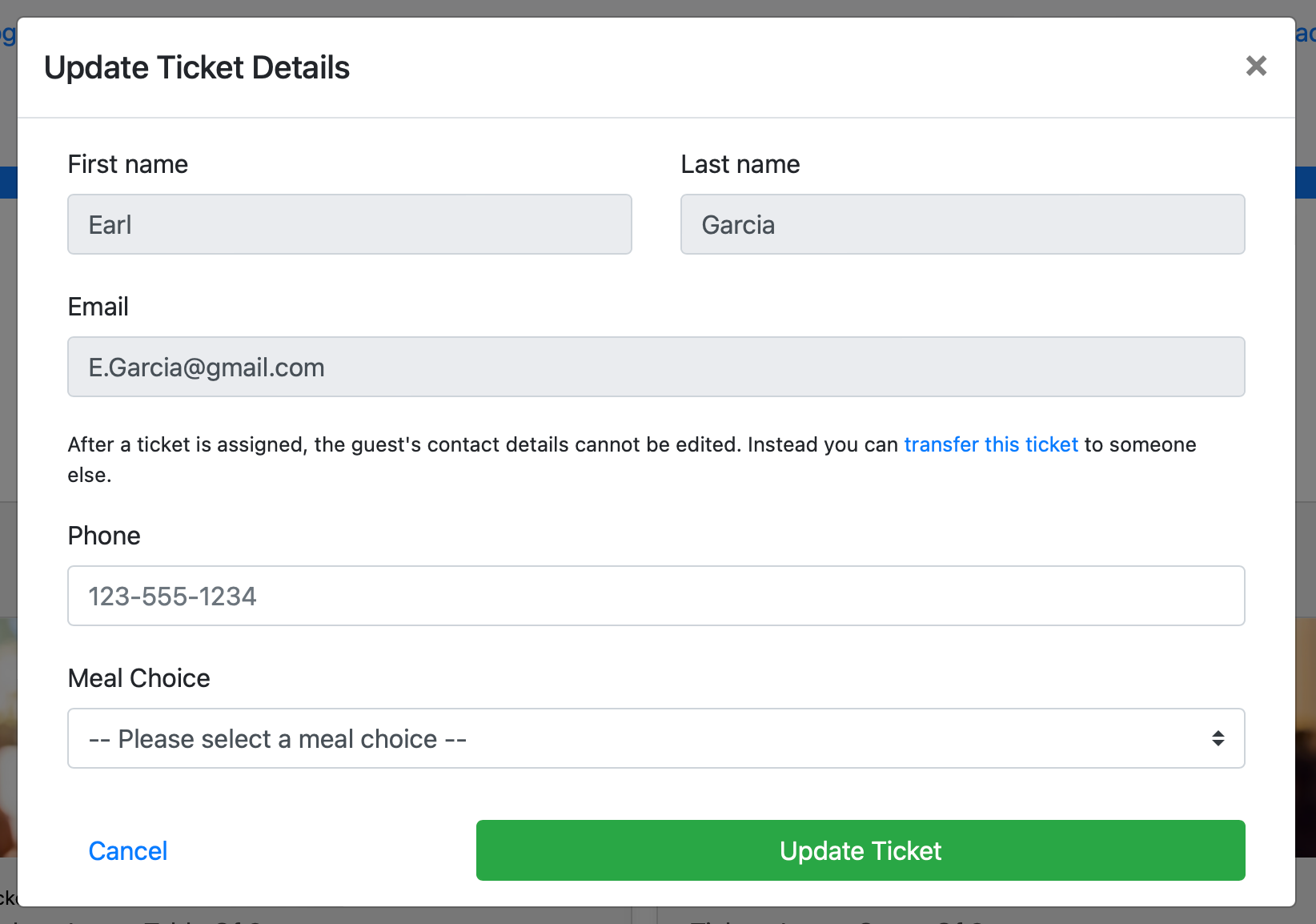
An example from a demonstration event.
Transfer Ticket
After a ticket is assigned, the guest's contact details cannot be edited directly. Instead, the ticket can be transferred to someone else.
Clicking the in-app link changes the Update Ticket window to the Transfer Ticket window.
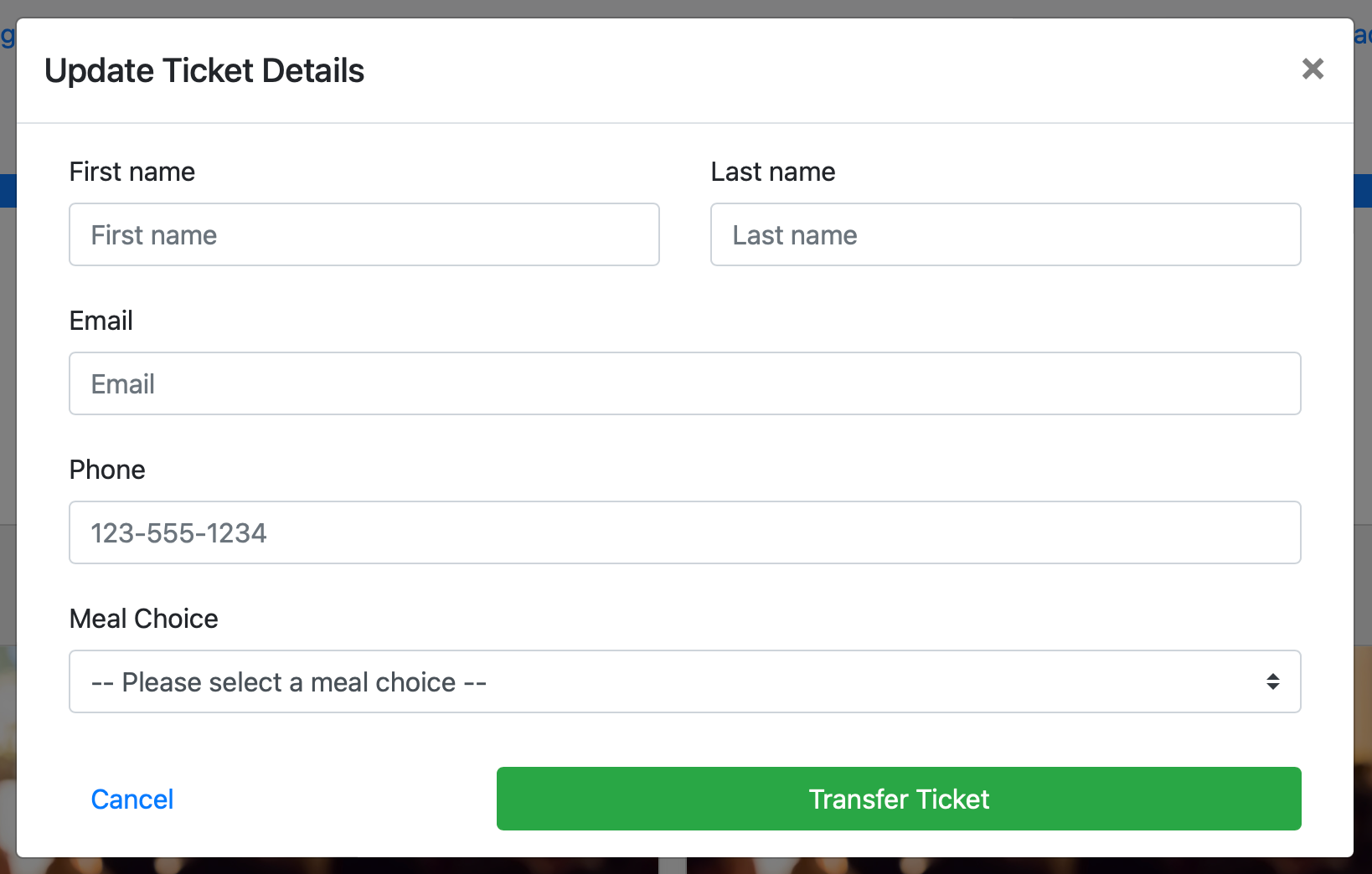
An example from a demonstration event.
Update Meal Choice
Guests can also select or change their Meal Choices and Dietary Restrictions option using the drop-down selector of available choices.
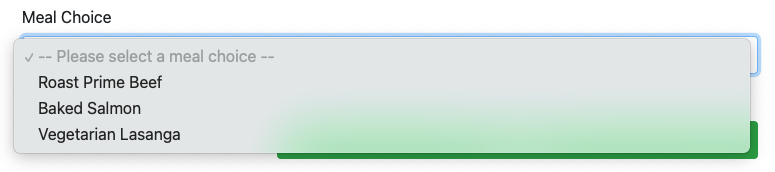
An example of possible meal choices.
Update Ticket
Once changes are made, clicking Update Ticket saves them and closes the window, returning the guest to the Tickets Hub. Clicking Cancel closes the window without saving.
Ticket Information
Clicking the flip icon () turns the ticket over to show more specific details, including the option to resend an e-ticket if needed.
See Adding And Editing Tickets for more information about setting up Admission Tickets with Auctria.