
This function will copy participants from one event to another with Auctria.
The Copy Participants feature lets you copy participants from one event to another, saving you from re-entering their details manually.
Selling Tickets?
If your event sells tickets, we recommend skipping this feature — copying participants to a ticket-based event can clutter your participants list with people who may not actually attend.
Before You Start
Copy Participants works as a "push" — you navigate to the source event (the one with the participants you want to copy) and push them to a target event. If you start from a new or empty event, the list will be empty.
To switch to the source event, see Change Events.
Copy Participants
From the source event, go to Participants (left sidebar) → Copy Participants.
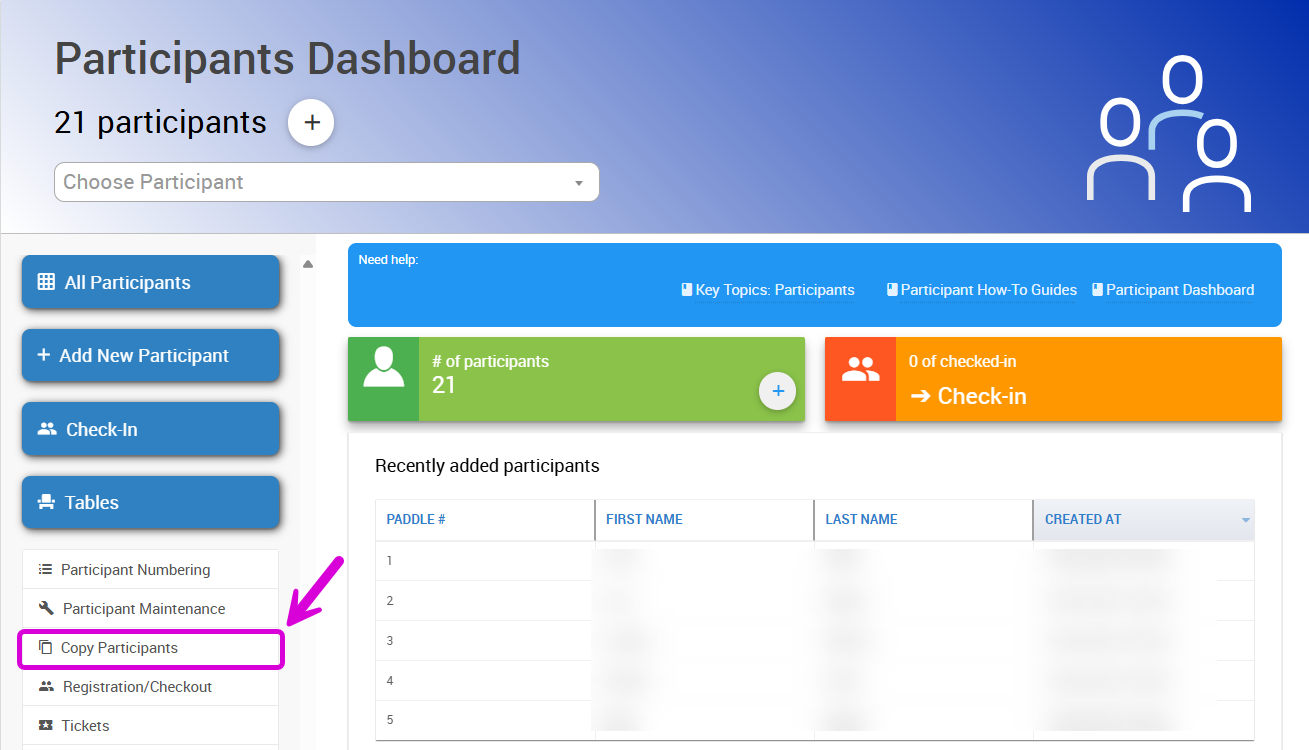
An example from a demonstration event.
On the Copy Participants page:
- Select the target event from the drop-down list.
- Use the Choose Participants section to select which participants to copy.
- If you don't want to carry over registered credit cards, uncheck Include registered cards.
When your selection is ready, click Copy Participants.
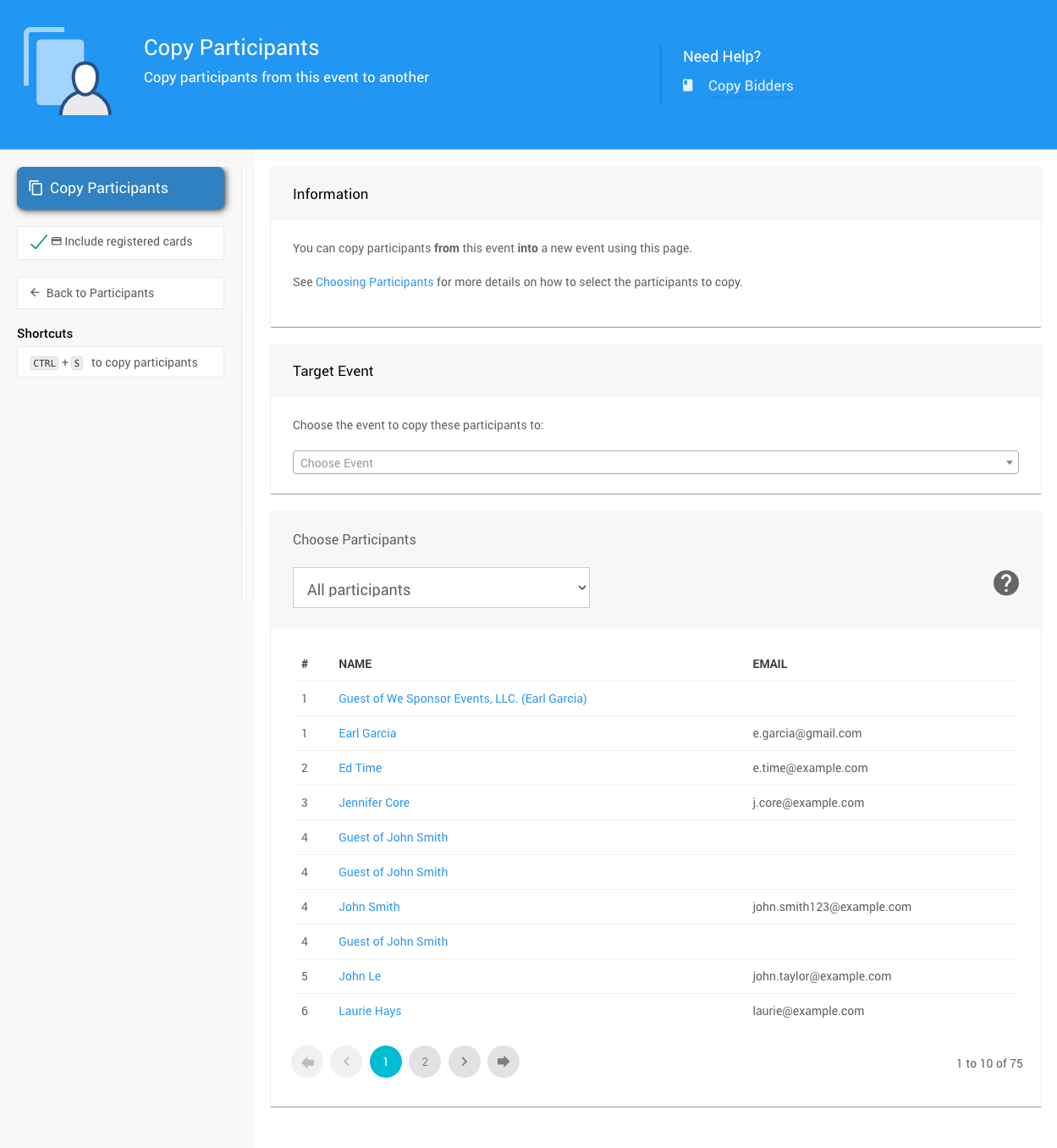
An example from a demonstration event.
A confirmation window will show the number of participants to be copied. Click Continue to proceed.
Existing Matches Are Skipped
If a participant in the target event already has a matching Paddle# and name, they will be skipped. All other participants will be copied and assigned a new Paddle#.
If you run into any duplication issues after copying, see Participant Maintenance for tools to help resolve them.