
Learn how to add, remove, resize, and reorder columns in the Website Editor.
Editing columns means editing the layout of a specific row: you are changing how the row is divided, not the content inside the columns.
To open the Edit Columns window, select a row or any element within it, then click Edit Columns in the Selected Elements panel in the Website Editor Sidebar.
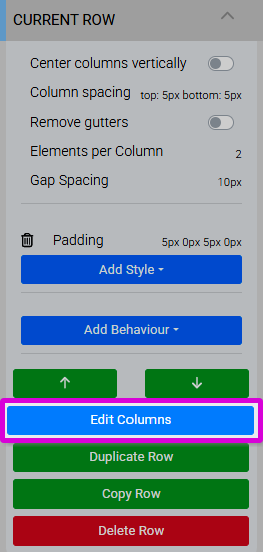
An example from a demonstration event.
Tip
Selecting any element within a row also selects the row itself, making it ready for column editing.
Reordering Columns
Drag and drop columns using the three-line handle at the far left of each column row in the Edit Columns window to change their display order.
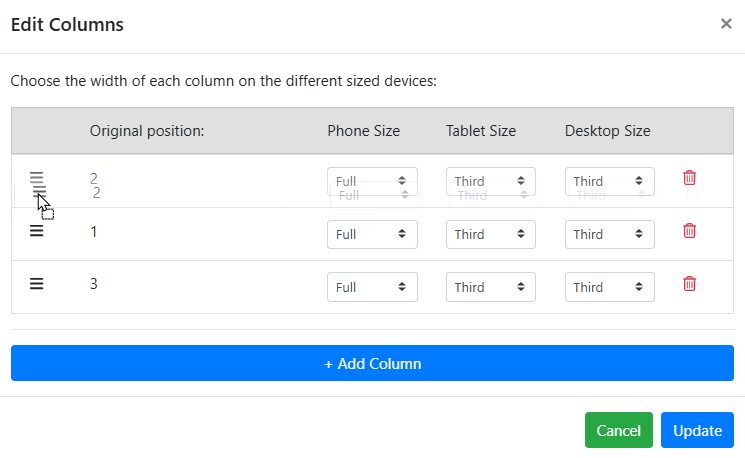
An example of reordering columns with drag and drop from a demonstration event.
Resizing Columns
Each column can be sized independently for three viewport types: Phone, Tablet, and Desktop. Use the drop-down selector for each device type to choose a size from the pre-defined list, which represents fractions of the row width.
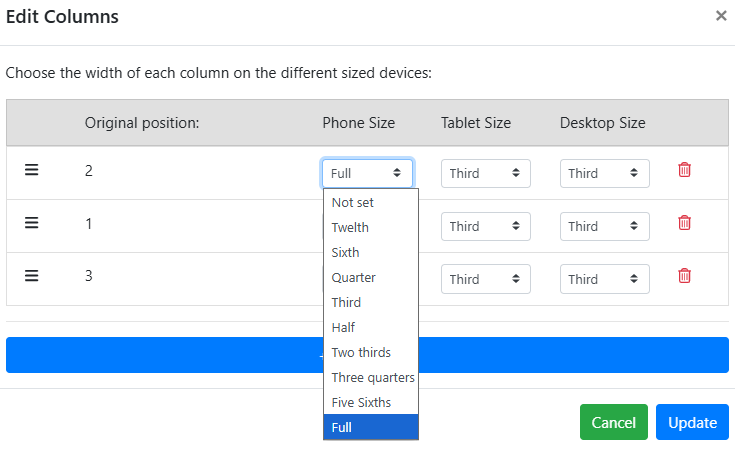
An example from a demonstration event.
Mix and match sizes
You can combine different sizes to create diverse layouts. Column sizes for each device type should generally add up to Full width.
Adding Columns
Click Add Column at the bottom of the Edit Columns window to add a new column to the end of the row. The maximum number of columns in a row is four. New columns default to Full (Phone), Half (Tablet), and Half (Desktop).
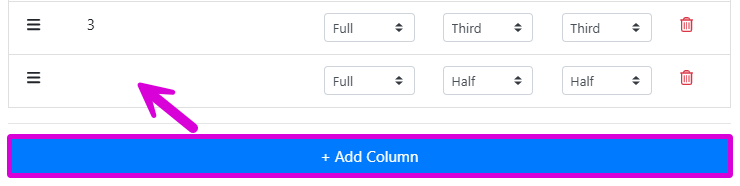
An example from a demonstration event.
Adjust sizes after adding
New columns default to Half width on Tablet and Desktop. Adjust the sizes for all device types so they add up to Full width.
Empty columns can be left without content and used as spacers in the layout.
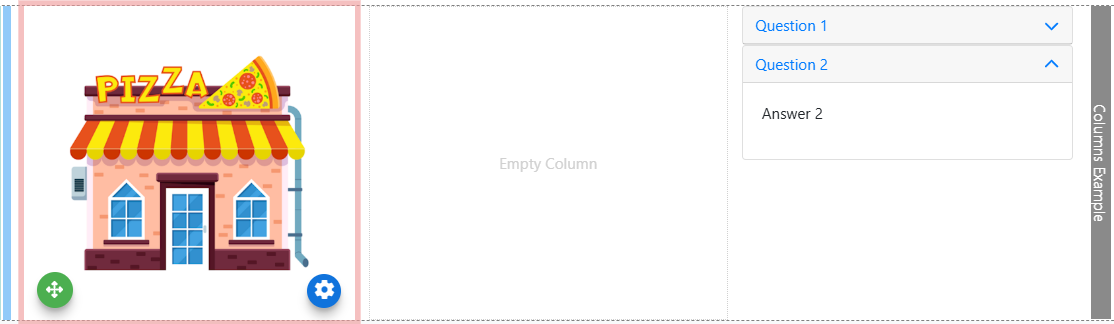
An example using empty columns as spacers.
Tip
Remember to configure column sizes for all three device types (Phone, Tablet, and Desktop) when using multi-column layouts.
Removing Columns
Click the trashcan icon at the far right of a column in the Edit Columns window to remove it. This is immediate and will not prompt for confirmation.
Saving Changes
Click Update to save your column layout. Changes are not applied until Update is clicked.
Always review sizes after editing
Column sizes do not update automatically when you add, move, or delete columns. After any change, check the sizes for all three device types and adjust them manually as needed.