
Learn how to add and configure a Heading element on your event website.
The Heading element adds a styled heading to a column. When first added, it displays Heading Text placeholder text — replace this with your own content.

An example of the Heading element on an event website in Edit mode.
Adding a Heading to a page
Drag the Heading element from the Website Editor Sidebar (under Column) into a column space.
Heading Settings
Clicking a Heading element opens the Heading settings panel in the Website Editor Sidebar.
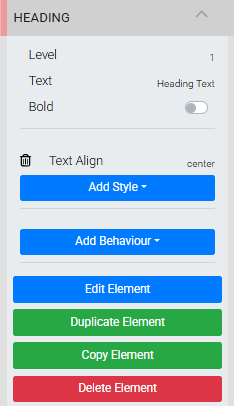
The Heading settings panel in the Editor sidebar.
| Setting | Description |
|---|---|
| Level | Sets the heading level: 1, 2, 3, or 4, equivalent to HTML <h1> through <h4>. Default is 1. |
| Text | The heading text. Click the Text field in the settings panel to edit inline, or double-click the heading on the page to open the Edit Text window. |
| Bold | Toggles the bold version of the font, if available. |
See Common Element Actions for more details on managing the Heading element.