
Learn how Auctria tracks the guests at your event and how to use guest numbering.
In Auctria, a Participant is anyone who contributes to your event — whether by bidding, purchasing items, or donating. The term is used inclusively to cover all types of attendees and supporters.
See Participants for details on adding and managing participants.
What are Participants?
Participants represent the people attending your event and/or engaging online. In most cases, "participants" and "guests" mean the same thing.
If you're selling Tickets, we recommend setting up one participant per guest. This ensures an accurate headcount and is required if you want to track details like meal choices or tables and seating.
A participant record tracks individual guest details (name, email, meal preference, etc.) and is required for registering credit cards if you're using payment processing. All payments and purchases processed through the Event Website require a Participant Record — if one does not exist, the checkout process will create one automatically.
There are no hard limits on the number of participants you can have registered for an event.
Adding Participants
There are a few ways participants can be added to your event:
- Online registration: Allow guests to register themselves when they purchase Tickets through your event website (Registration/Checkout).
- Manually: Add participants individually from the dashboard using Add New Participant.
- Import: Bring in participant lists from an Excel (
.xls) file with import.
Participants Per Event
Participants are saved at the event level. Even if someone has been part of a previous event, they'll need a new registration for each event they attend.
Add During Check-In
You can also create or update participant records right from the Check-In By Organizer page — handy for last-minute arrivals. Assign a new Paddle# or add a brand-new participant on the spot.
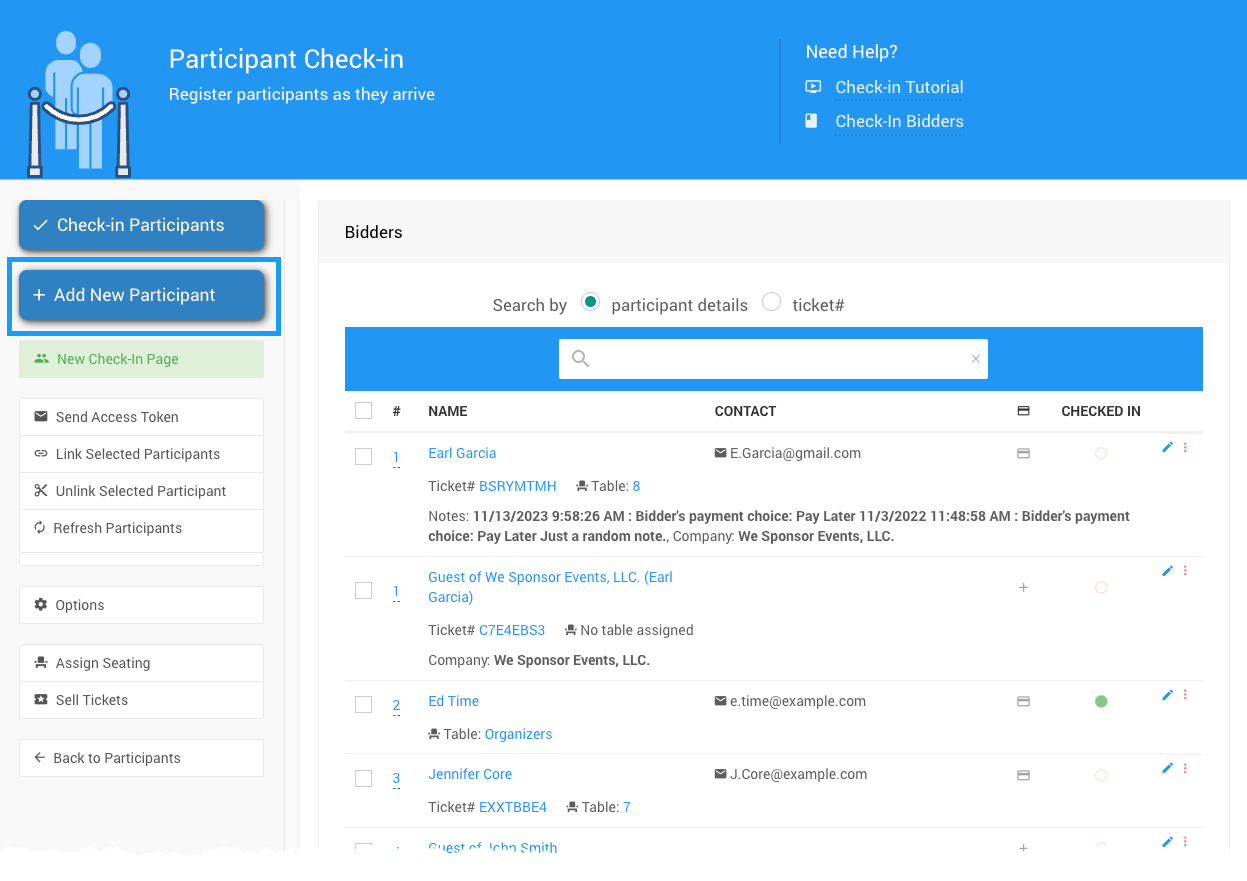
Adding a participant during Check-In.
Add by Text Message
If Text Messages are enabled, guests can register via text. See Enable Registration By Text for setup instructions.
Managing Participants
Once created, a participant's details can be updated at any time through their Participant Details page.
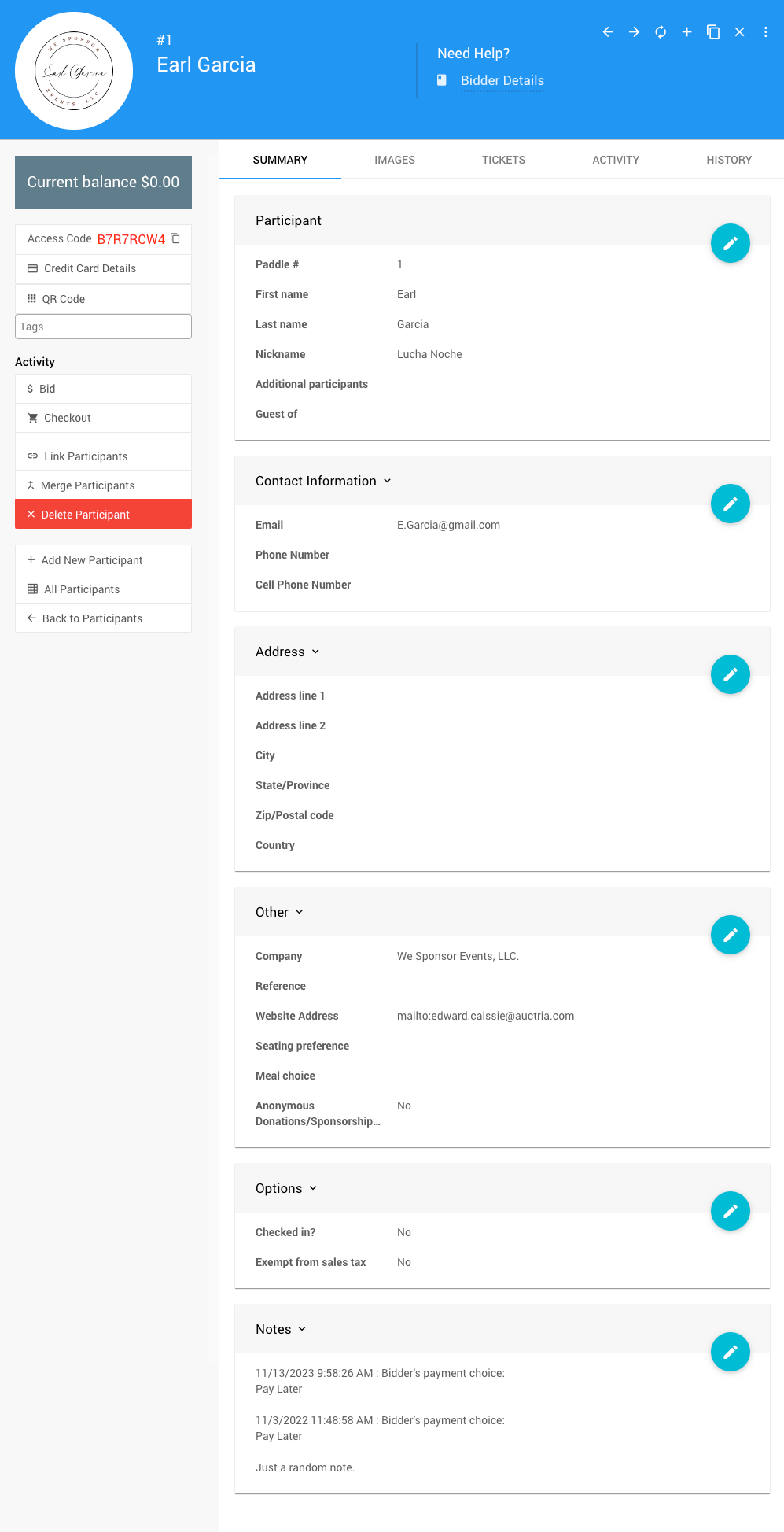
Example of a Participant Details page.
More About Participants:
Linked Participants
When multiple participants share the same Paddle#, they are considered linked. This allows family members, couples, or groups to bid together.
More About Linked Participants:
Primary Participant
A linked group can have a designated Primary Participant — the "main" account for that paddle number. The primary record will:
- Be listed first on reports and statements
- Act as the default contact for receipts and communications
- Serve as the base record for linked transactions
Set the Primary Participant by opening their record and clicking Make Primary in the left sidebar.
Where you'll see it
- A star icon marks the primary at check-in, on the participant record, and in searches.
- The primary is listed first in the group and is automatically used in quick entry forms, checkout, and chooser lists.
When To Set A Primary Participant
Setting a Primary Participant after linking helps keep check-in and checkout smooth for your team and guests.
Additional Participants
Each participant record includes an Additional Participants field. This is an informational only field — use it to note the names of extra guests bidding under the same Paddle#.
These names will display on Participant Statements, but unlike linked participants, they won't have full participant records.
Ticket Sales And Additional Participants
If you're selling tickets and creating one participant per guest, you don't need to use the Additional Participants field.
Participants Dashboard
To access the Participants Dashboard, click Participants from the main event dashboard.
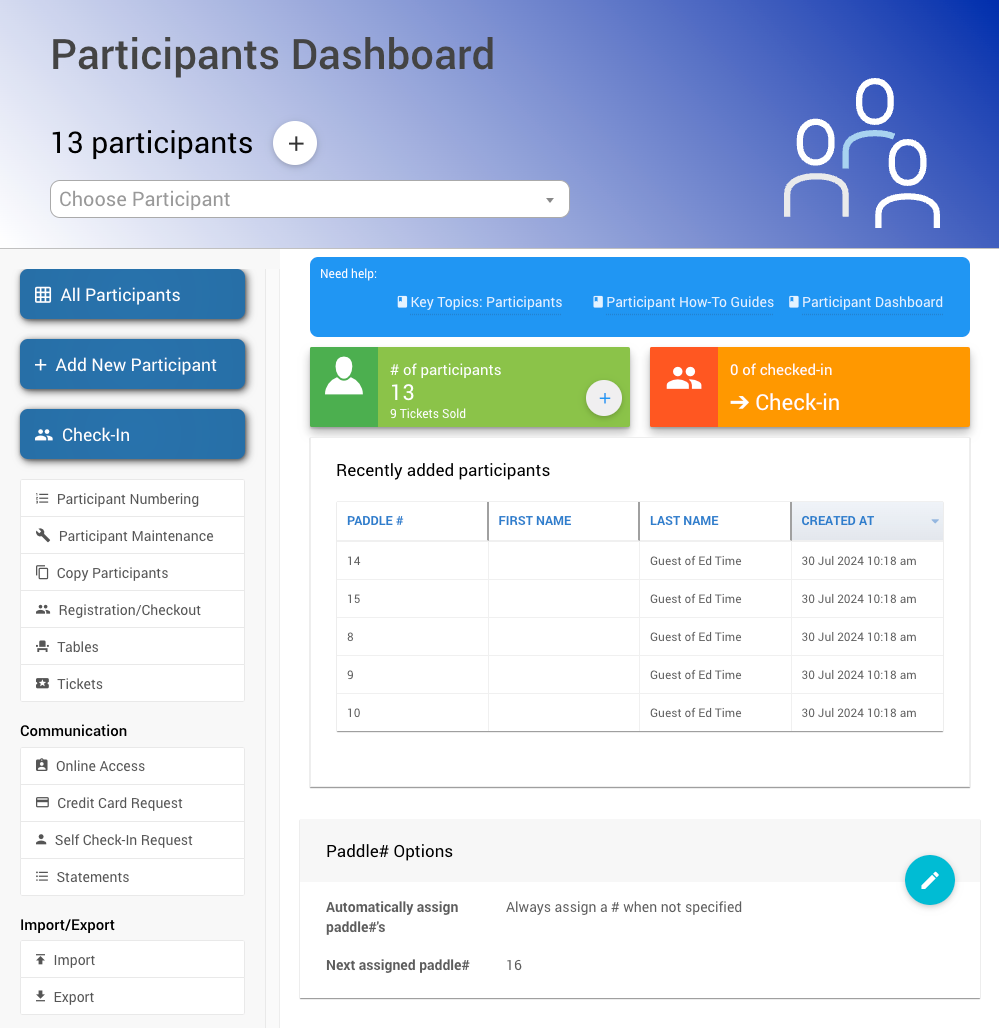
An example Participants Dashboard from a demonstration event.
You can add a new participant from the main banner by clicking the + icon, or use the Choose Participant selector to search by name or paddle number. The ? icon in the top-right corner opens the User Guide.
Main Content
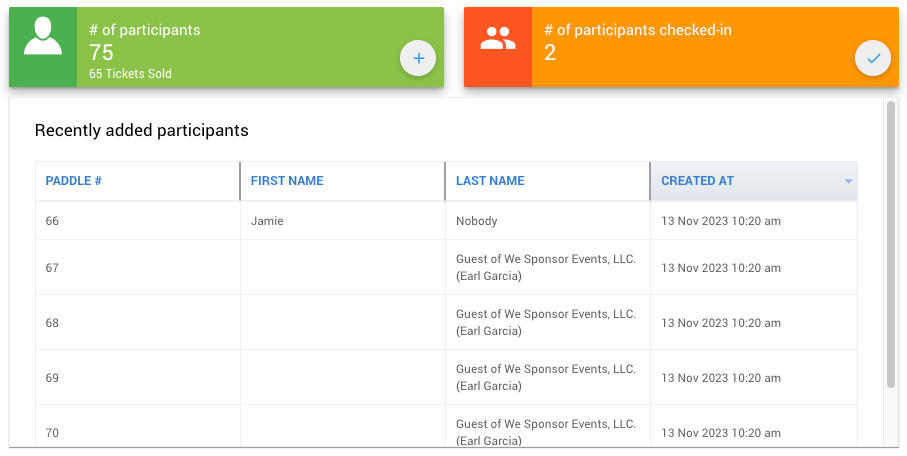
An example from a demonstration event.
| Field | Description |
|---|---|
| # of participants | Shows the current number of registered participants. Click + to add a new one. |
| # of participants checked in | Shows the current check-in count. Click to open the Check-In By Organizer dashboard. |
| Recently added participants | Lists recently added participants. Double-click any name to open their record. |
Paddle Number Options
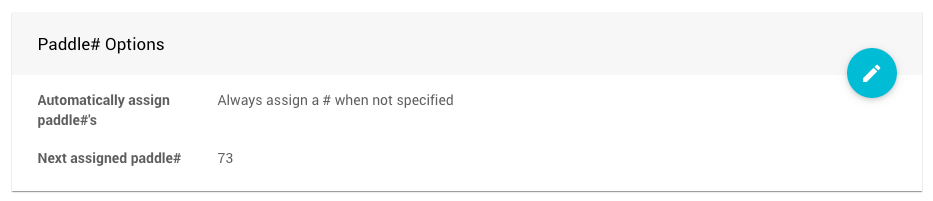
An example from a demonstration event.
| Setting | Description |
|---|---|
| Automatically assign Paddle#'s | Controls when a paddle number is automatically assigned if one isn't specified. |
| Next assigned Paddle# | Sets the next paddle number the system will use when auto-assigning. |

Options for automatically assigning Paddle#'s.
Sidebar Actions
The sidebar provides quick access to common participant functions.
| Action | Description |
|---|---|
| All Participants | Opens the Participants list view report. |
| Add New Participant | Opens the Register Participant page. |
| Check-in Participants | Opens the Check-In page. |
| Tables | Opens the Tables And Seating page. |
| Participant Numbering | Opens the Participant Numbering page. |
| Participant Maintenance | Opens the Participant Maintenance page. |
| Copy Participants | Opens the Copy Participants page. |
| Registration/Checkout Settings | Opens the Registration/Checkout page. |
| Tickets | Opens the Tickets dashboard. |
| Catering | Opens the Catering page. |
Communication
| Action | Description |
|---|---|
| Online Access | Opens the Participant Online Access And Tokens page. |
| Credit Card Request | Opens the System Email page for this email. |
| Self Check-In Request | Opens the Self Check-In Request page to configure and send guest check-in invites. |
| Statements | Opens the Participant Statements page. |
See Introduction To Communication for more information.
Import/Export
| Action | Description |
|---|---|
| Import | Opens the Import Data page with the Participant table pre-selected. |
| Export | Opens the Import/Export page. |
See Import/Export for more information.
Last Reviewed: March 2026