
Learn about the Repair/Reissue Tickets feature in Auctria.
Sometimes ticket records and ticket item sales can get out of sync — especially if tickets were deleted, item settings changed, or bulk edits were made. The Repair Tickets page is your go-to tool for fixing these mismatches without losing important data.
This page explains when and how to use each of the available tools.
When to Use the Repair Tickets Tools
Use the Repair Tickets tools if you've:
- Changed the Tickets Per setting on a ticket item after making sales.
- Deleted individual tickets manually.
- Fewer or more tickets than expected for a participant.
- Errors when trying to check people in or print tickets.
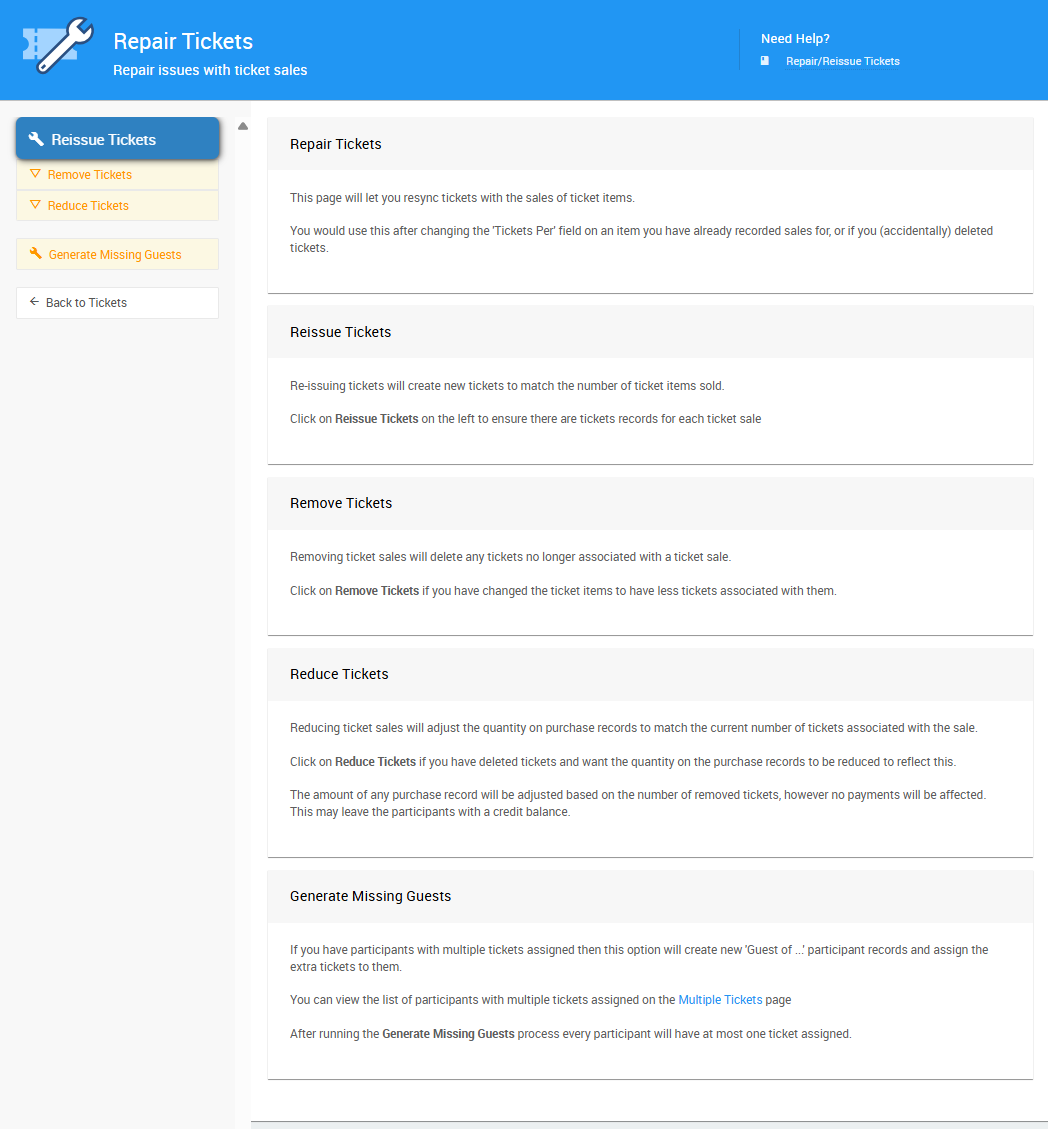
An example Repair Tickets page from a demonstration event.
Available Tools
Repair Tickets
Resyncs tickets with existing ticket sales.
Use this when:
- You've changed the Tickets Per value on a ticket item that already has sales.
- Tickets were accidentally deleted.
Click Repair Tickets to match ticket records with purchase quantities.
Reissue Tickets
Creates new tickets to match the number of ticket items sold.
Use this when:
- Ticket records are missing entirely.
- You want a fresh set of tickets for existing sales.
Click Reissue Tickets to regenerate tickets from scratch.
Remove Tickets
Deletes any extra tickets that are no longer linked to a sale.
Use this when:
- You've changed ticket item settings to reduce ticket quantities.
- There are leftover tickets with no associated purchase.
Click Remove Tickets to clean up unused or orphaned tickets.
Reduce Tickets
Adjusts the quantity on purchase records to match the number of tickets currently present.
Use this when:
- You've manually removed tickets and want the purchase record to reflect that.
- You want purchase totals to decrease. Payments aren't affected.
Credit balance may result
This may leave bidders with a credit balance if the amount paid is higher than the adjusted total.
Click Reduce Tickets to update the purchase record quantities.
Generate Missing Guests
Creates "Guest of..." records for any extra tickets assigned to a single person.
Use this when:
- A single participant has multiple tickets.
- You want each ticket linked to a separate guest for seating or check-in.
Click Generate Missing Guests to split ticket assignments into individual guest records.