
When setting up an online Auction, you will generally also set up the Online Bidding Times or default online start and end times for bidding. This primarily affects the Biddable Items in your event.
Biddable Items are item types that participants can place bids on. Auctria supports three biddable item types:
| Item Type | Description |
|---|---|
| Online Bidding | Bids are placed electronically. Bidding closes automatically at the end of the configured Online Bidding Time. |
| Paper Bidding | Final bids are recorded from paper bid sheets. Items can accept online pre-event bids but will not close automatically by default. |
| Live Bidding | Items auctioned in person, typically led by an auctioneer or emcee. Final bids are recorded manually at the event. |
See Item Types for more information.
More approaches to use when displaying items on your Event Website.
Setting Default Online Bidding Times
You can set the default online bidding times by clicking through Settings Online Bidding on the sidebar.
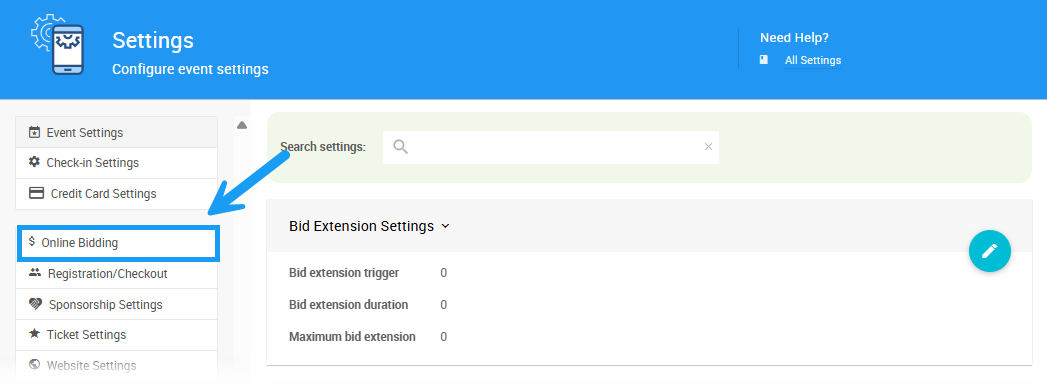
This will open the Online Bidding page, where you can set the Online Bidding Period.
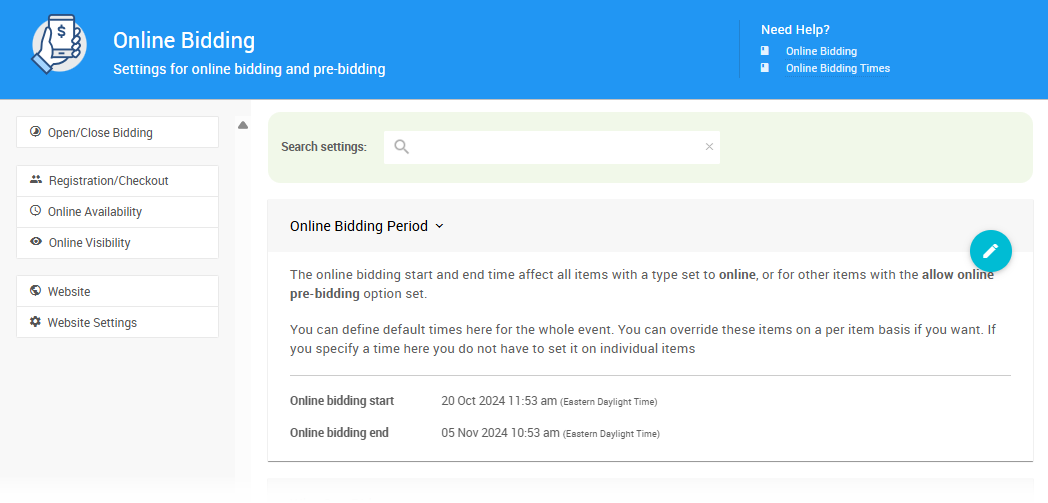
Once you have set a start, and end time for your event, they will be used as the default for all items. Setting the default online bidding times also enables Online Bidding for the event.
- You can override the default Online Bidding Period times per item.
- If you specify times here, you do not have to set it on individual items.
- Start and End times must be set when online bidding is wanted.
Setting Override Online Bidding Times
For Biddable Items, you can override the start, end, or both times on a per-item basis. This is handled in the Item Details Summary tab of the item by setting the override time in the Online Bidding section.
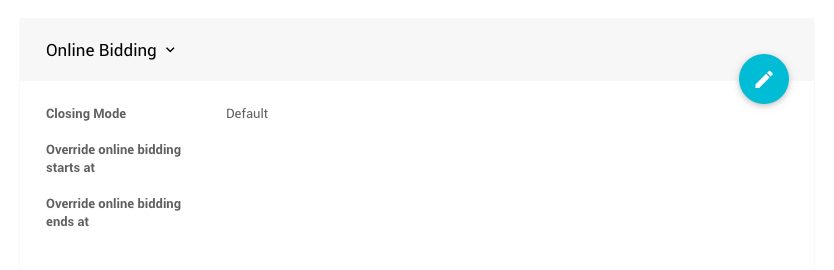
As viewed in an Online item type, this is similar for Paper and Live item types.
Biddable Item Type Specifics
Online Items will use the "Override" times to automatically open or close the item for bidding. These times are generally only set at the item level if the time is different from the default event online start and end times for the specific item. When the end time is met, item-won notifications will be sent to the winning bidders.
Paper Items will use the "Override" times for online "pre-bidding." In general, Paper Items will have their online bidding time stop before any "in-person" event. If the Paper Items will be available for bidding after the "online event" ends, they will need to have their override end times set appropriately. The default online end times will otherwise end bidding for the items as is.
Online Bidding TypeLive Items will use the "Override" times similarly to Paper Items. In most cases, Live Items will have their bidding closed manually during the live "in-person" event and, as such, are often managed using the Live Auction Controller.
Monitor Auction | Live Auction
To enable "pre-bidding" for Paper or Live item types, you must also ensure the Participate in online bidding option is enabled (this option is enabled by default).
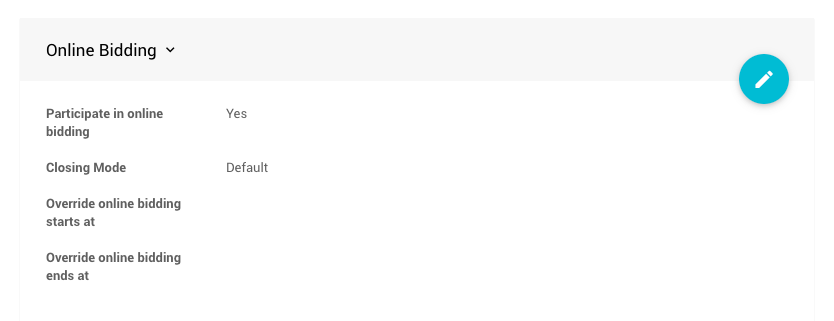
As viewed in a Paper item type, this is the same for a Live item type.
For Sale Item Type Bidding Times
By default, For Sale Items do not have "start" or "end" times. Once created and made visible on the event website, your guests can purchase them anytime.
In essence, For Sale items ignore the default Online Bidding Period times. However, this does not mean you cannot set "Override" times for these items. This is handled in the Item Details Summary tab of the item by setting the override time in the For Sale Items section.
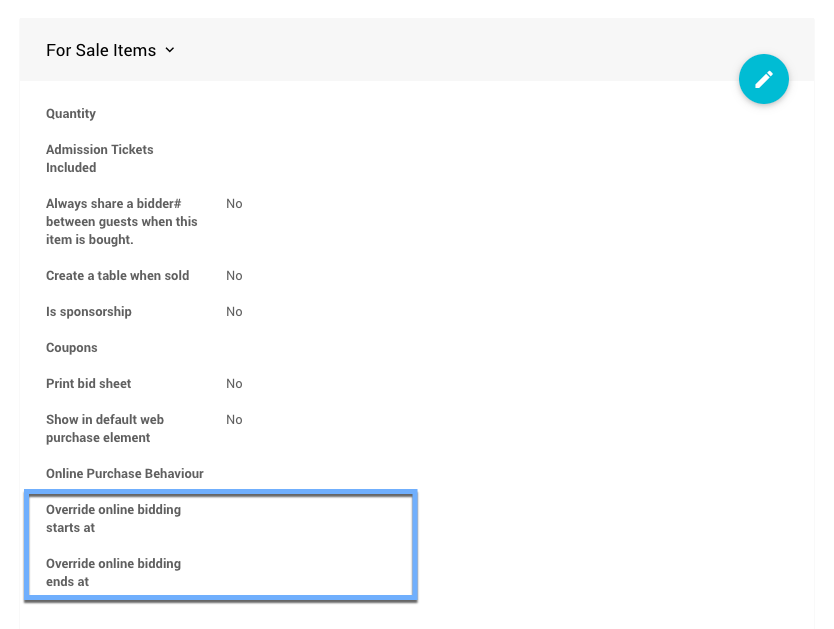
Setting an "Override" time will affect the visibility of the For Sale item regardless of the default Online Bidding Period times.
- How To Add Early Bird Tickets This provides a great "For Sale" type items example.
- Configure Items Displayed
Donation Item Type Bidding Times
By default, Donation Items do not have "start" or "end" times. Once they are created and made visible on the event website, your participants are free to make their donation pledges anytime.
In the same sense as For Sale items, Donation items ignore the default Online Bidding Period. They can set "Override" times in the same manner. This is handled in the Item Details Summary tab by setting the override time in the Donation Items section.
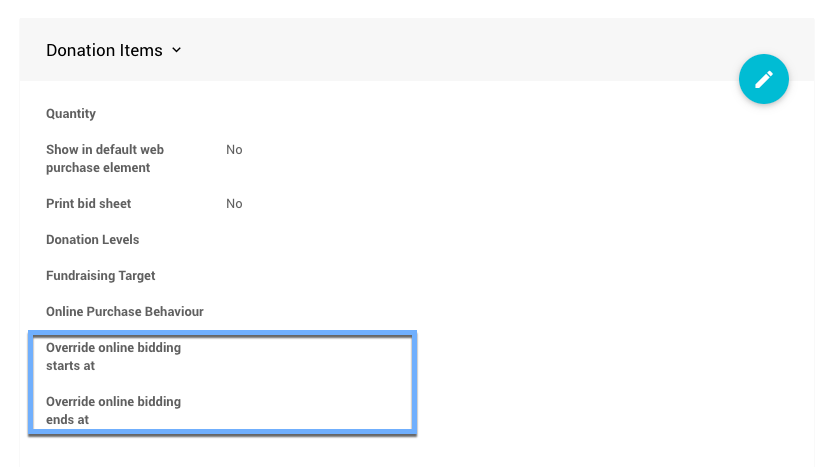
Setting an "Override" time will affect the visibility of the Donation item regardless of the default Online Bidding Period times.
"Override" end times for Donation items.
Leaving this option open will allow visitors to the event website to continue to make donations as long as possible. By default, the website will eventually "close" by way of the Archive Event functionality, so there is no need to actually set an online end time.