
Scan a guest's QR code to find them quickly at check-in, in the Admin App or from the dashboard with a paired phone.
You can scan the QR code on a guest's e-ticket or printed ticket. There are two ways to do it:
- In the Admin App. Use your phone's camera. You don't need a laptop.
- From the dashboard. Run check-in on your laptop and use a paired phone as the scanner.
Scan In The Admin App
- Open the Auctria Admin App on your phone.
- Tap Check-in in the bar at the bottom of the screen.
- Under Select Guest to Check-In, tap SCAN next to the search box. The camera opens.
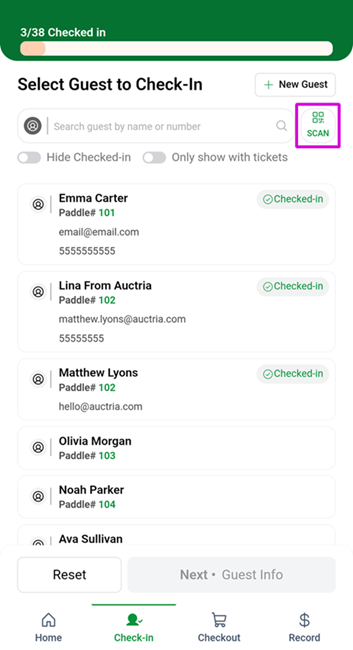
An example from a demonstration event.
- Point the camera at the QR code on the guest's ticket. The guest is added to your selection.
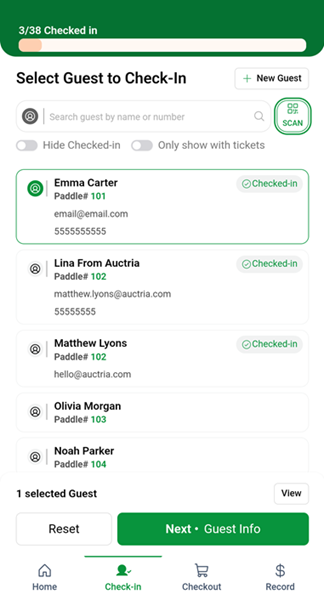
An example from a demonstration event.
- Tap Next • Guest Info to continue check-in.
Check In A Group Together
To check in a couple or a table, scan each guest's code before you tap Next • Guest Info. Each guest is added to the selection.
Note
If you scan a code that isn't a guest ticket, the app shows This code is not a guest QR code. Scan the guest's ticket again.
Scan From The Dashboard With A Paired Phone
Use this when you run check-in on a laptop. Your phone scans the code, and the dashboard finds the guest.
Before You Start
Your phone must be signed in to the Admin App, have the app open, and be paired with the dashboard. See How To Pair A Phone And Laptop.
- In the dashboard header, click the devices icon next to your email address. Follow the steps to pair your phone.

An example from a demonstration event.
- In the dashboard sidebar, under Actions, click Check-in.
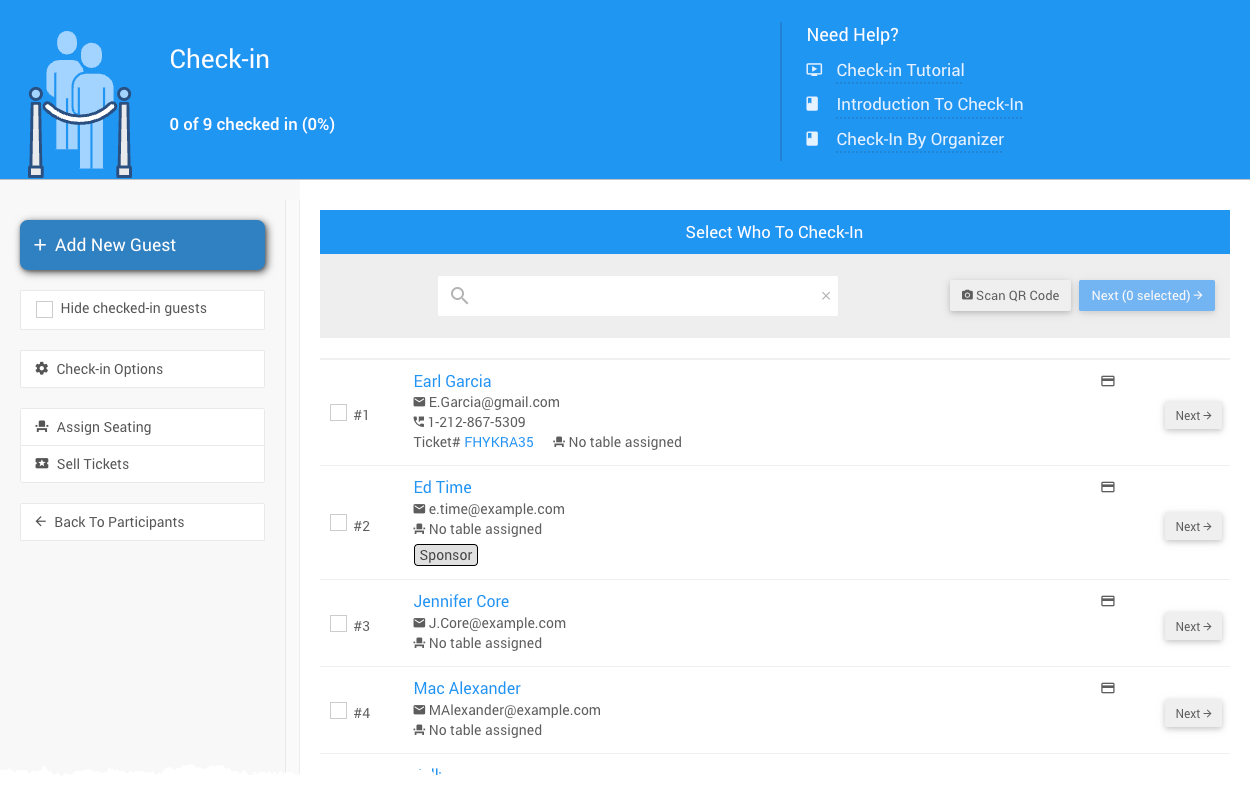
An example Check-In page from a demonstration event.
- Click Scan QR Code. The scanner opens on your paired phone.
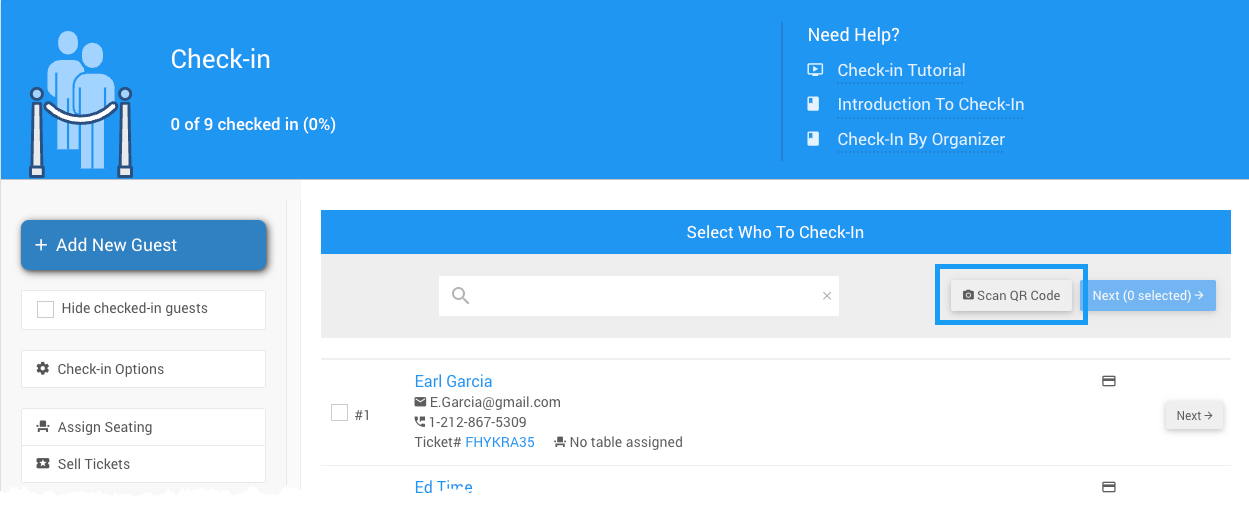
An example from a demonstration event.
The dashboard shows Complete on your paired phone while it waits for the scan.
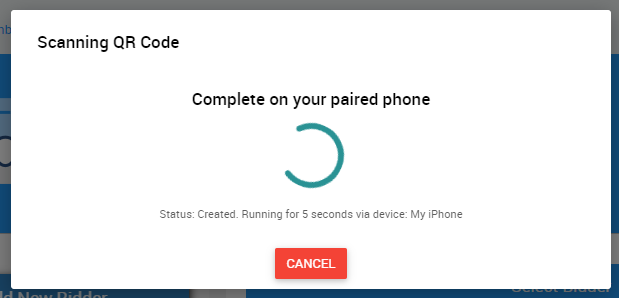
An example from a demonstration event.
- On your phone, point the camera at the QR code on the guest's e-ticket.
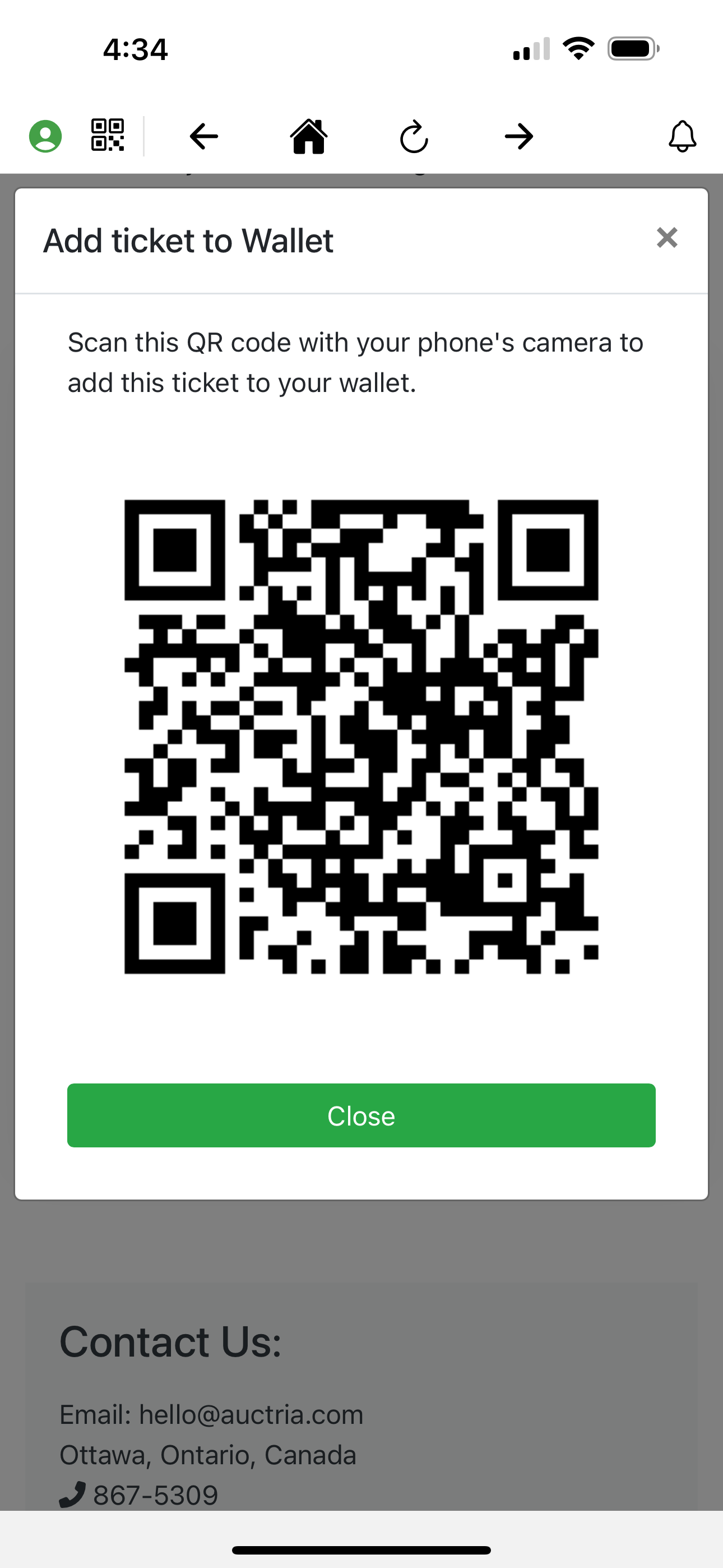
An example e-ticket from a demonstration event.
You can also scan the QR code on a printed ticket.
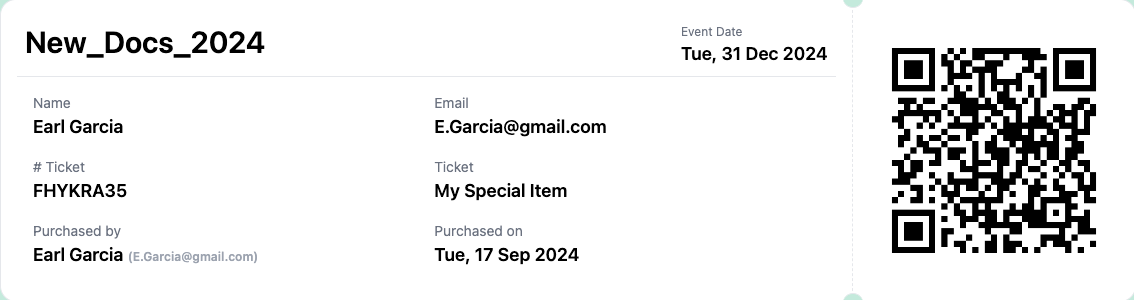
An example printed ticket from a demonstration event.
- Check that the dashboard selects the right guest for check-in.
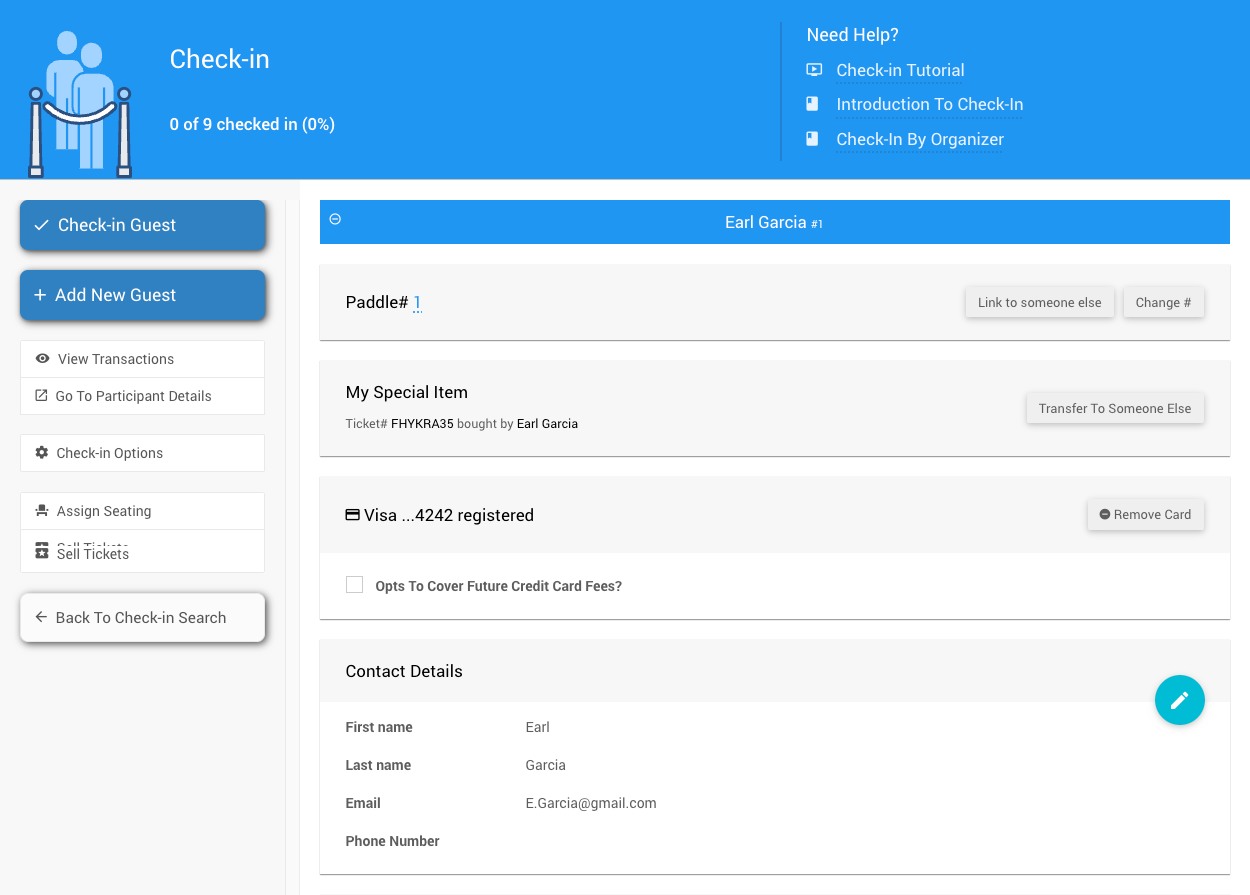
An example from a demonstration event.
Webcam Opens Instead Of Your Phone?
If no phone is paired, Scan QR Code uses your computer's webcam. Check that the Admin App is open on your phone and paired, then try again.