
An overview of the Registration/Checkout page.
Getting Where You Need To Be
The Registration/Checkout page is where you configure how participants register for your event and how checkout works.
To open it, click Settings in the left sidebar, then select Registration/Checkout.
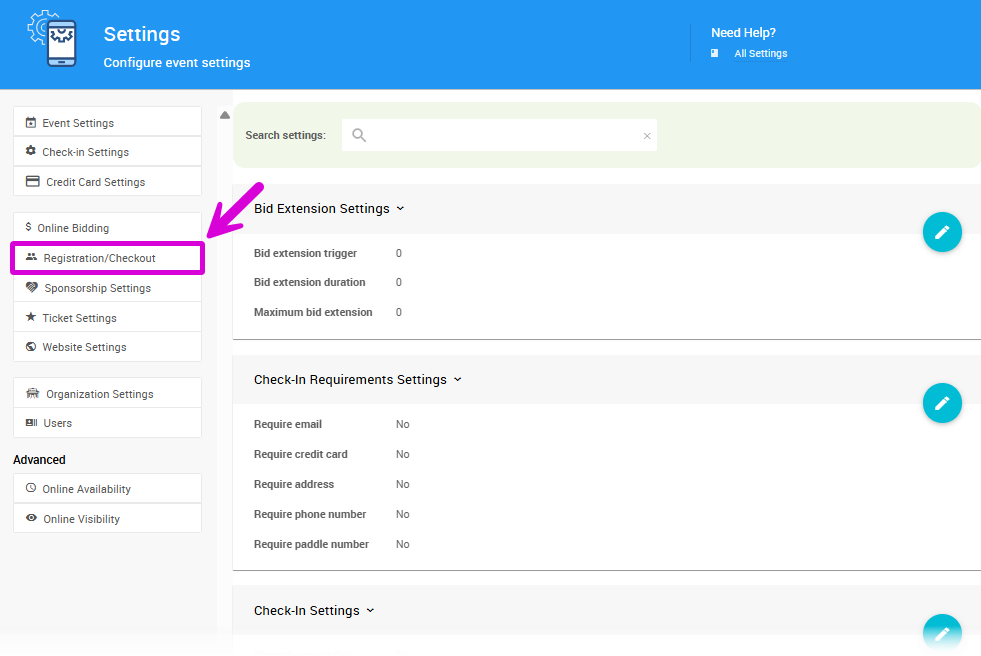
An example from a demonstration event.
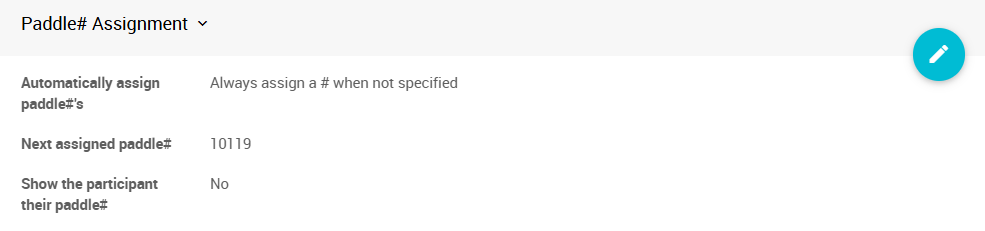
Paddle# Assignment
| Setting | Description |
|---|---|
| Automatically assign Paddle#'s | Controls automatic Paddle# assignment behavior. |
| Next assigned Paddle# | The system will use this as the next Paddle# when auto-assigning. |
| Show their own Paddle# to the participant online | Shows participants their Paddle# on the My Account page and includes it in their registration email. Participants typically don't need their Paddle# for online-only events. |
Automatic Paddle# Assignment Options:
- Always assign a # when not specified
- Never automatically assign a #
- Only automatically assign # on ticket sales

Online Registration
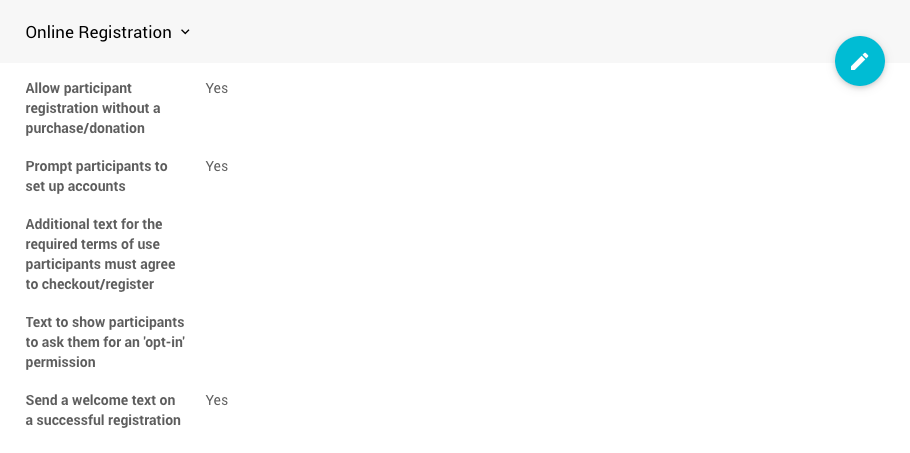
Online registration must be enabled for participants to purchase tickets or register online. At minimum, set Enable online participant registration and ticket purchases to Yes.
| Setting | Description |
|---|---|
| Allow participant registration without purchase/donation | Allows participants to register without buying a ticket or making a donation. Also controls the visibility of the Register link in the Event Website menu. See Header. |
| Prompt participants to set up accounts | Prompts participants to create an account when registering or checking out. |
| Additional text for the required terms of use | Text shown alongside the standard terms of use that guests must agree to at checkout or registration. |
| Text to show participants for opt-in permission | If set, guests will see this text during checkout/registration to opt in to email updates. |
| Send a welcome text on successful registration | Sends a welcome SMS to the registrant if Text Messages are enabled. Requires a paid license — see the pricing page for details. |
Online Payment Options
| Setting | Description |
|---|---|
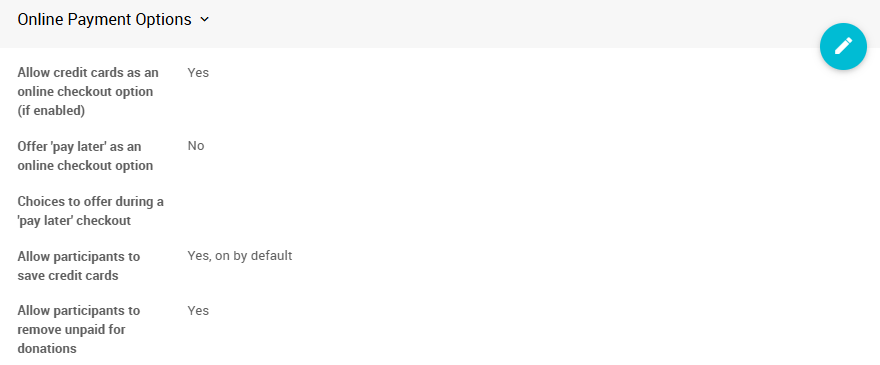
| Allow credit cards as an online checkout option | Allows participants to pay by credit card during online checkout. Requires credit card processing to be enabled. |
| Offer 'pay later' as an online checkout option | Allows participants to add the amount owing to their account instead of paying at checkout. See How To Set Up Online Pay Later. |
| Choices to offer during a 'pay later' checkout | A comma-separated list of alternative payment forms to display as button labels in the checkout form when pay later is selected. These are for reference only. If no choices are defined, participants can still click Pay later to defer payment — no payment is recorded, but they can opt into shipping and add a donation. Participants will receive a statement showing their outstanding balance. |
| Allow participants to save credit cards | Yes, on by default saves cards automatically. Yes, off by default lets participants opt in by checking a box. No removes the option entirely. |
| Allow participants to remove unpaid donations | Allows participants to remove an unpaid donation from their My Account page. |
Registration Options
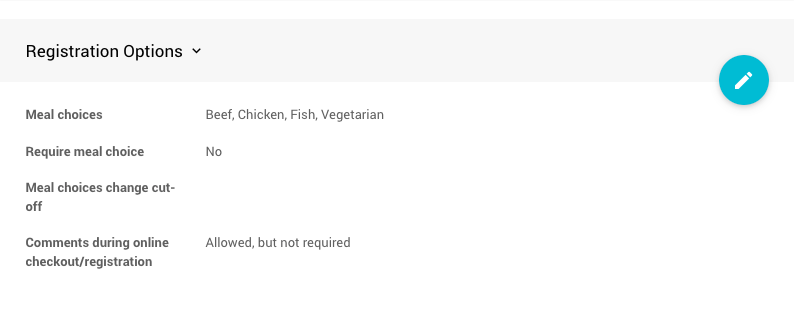
An example Registration Options section with sample meal choices.
| Setting | Description |
|---|---|
| Meal choices | A comma-separated list of meal options presented to participants at registration (e.g. Beef, Chicken, Fish, Vegetarian). Avoid spaces after commas — they will appear as part of the meal name in reports. Renaming a meal choice after selections have been made will cause reports to treat the old and new names as separate options. |
| Require meal choice | If meal choices are defined, makes a selection required for each guest. |
| Meal choices change cut-off | Sets a deadline after which participants can no longer update their meal choice from the My Account page. Uses the standard Auctria date picker and should be set with enough lead time for catering. |
| Comments during online checkout/registration | Allows participants to leave comments when checking out or registering. When enabled, a comment box appears on the right side of the checkout form. The comment prompt text can be edited by double-clicking it to open its Edit Content window. See Text Element. |
Viewing Registration Comments
To view comments left by guests, go to Reports → Participants → Registration Comments.
Custom Questions
Custom questions can be added to the registration and checkout contact form for the purchaser or bidder directly from this page. Answers are stored on the Participant table in Auctria.
See Custom Questions and Fields for more details.
Registration Contact Options
These settings control which contact fields are shown or required when participants register.
| Setting | Description |
|---|---|
| Ask for participant's address | Shows the address field at registration. |
| Require participant's address | Makes the address field mandatory. |
| Ask for participant's phone# | Shows the phone number field at registration. |
| Require participant's phone# | Makes the phone number field mandatory. |
| Ask for participant's website | Shows the website field at registration. |
| Ask for participant's company | Shows the company field at registration. |
| Ask for reference number from participant | Shows the reference number field at registration. |
| Ask for participant's seating preference | Shows the seating preference field at registration. |
Registration Guest Contact Options
These settings control what information is collected from guests — attendees who are attending with an admission ticket purchaser.
Warning
If you are selling tables or sponsorships that include multiple tickets, we strongly recommend leaving these options off. Requiring purchasers to enter details for many guests often results in their own information being entered multiple times, or invalid data being entered just to advance through checkout. Either outcome is worse than collecting no guest information at all.
| Setting | Description |
|---|---|
| Require guests' name | Makes the name field mandatory for each guest. |
| Require guests' email | Makes the email field mandatory for each guest. |
| Require guests' address | Makes the address field mandatory for each guest. |
| Require guests' phone# | Makes the phone number field mandatory for each guest. |
Who Can Register
| Setting | Description |
|---|---|
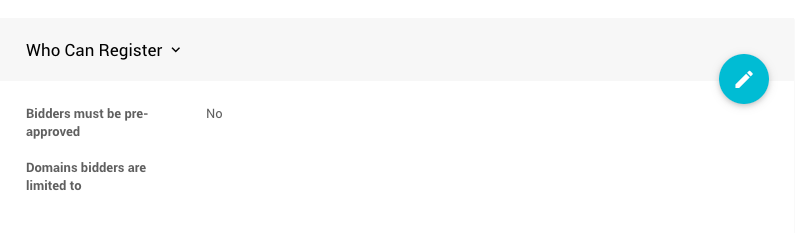
| Bidders must be pre-approved | When set to Yes, participants can only register if a record with a matching email address already exists in the system. Default is No, which allows anyone to register. |
| Domain bidders are limited to | Restricts registration to email addresses from specific domains. Enter domains as a comma-separated list (e.g. mycompany.com, relatedcompany.com). Leave as Empty to allow any email address. |
Ticket Checkout Options
These settings affect what participants see during a checkout that includes admission tickets.
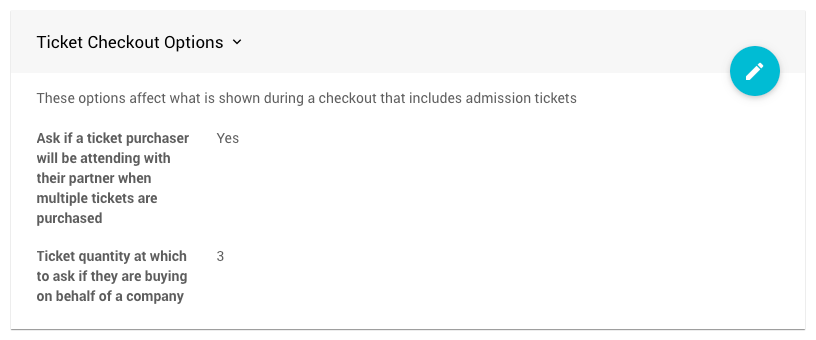
The default settings for a new event.
| Setting | Description |
|---|---|
| Ask if a ticket purchaser will be attending with their partner when multiple tickets are purchased | Enabled by default. Designed to simplify purchasing couples or small group tickets — works alongside the quantity threshold below. |
| Ticket quantity at which to ask if they are buying on behalf of a company | The number of tickets at which the system prompts whether the purchase is on behalf of a company. Default is 3. Set this to an unusually high number to prevent the company prompt from appearing. |
Notifications

| Setting | Description |
|---|---|
| Notify organization of participant activity | When set to No, the organization's Contact Email will only be used on the event website and as the reply-to address on outgoing emails — it will not receive participant registration notifications. |
Danger
If a Bcc Email address is set, it will continue to receive participant activity notifications regardless of the Notify organization of participant activity setting.
See Introduction To Organizations for more information.