
How to change, categorize, or remove a recorded expense.
Steps
- Open Expenses (Financials → Expenses).
- Click the number-of-expenses block to open your list of expenses.
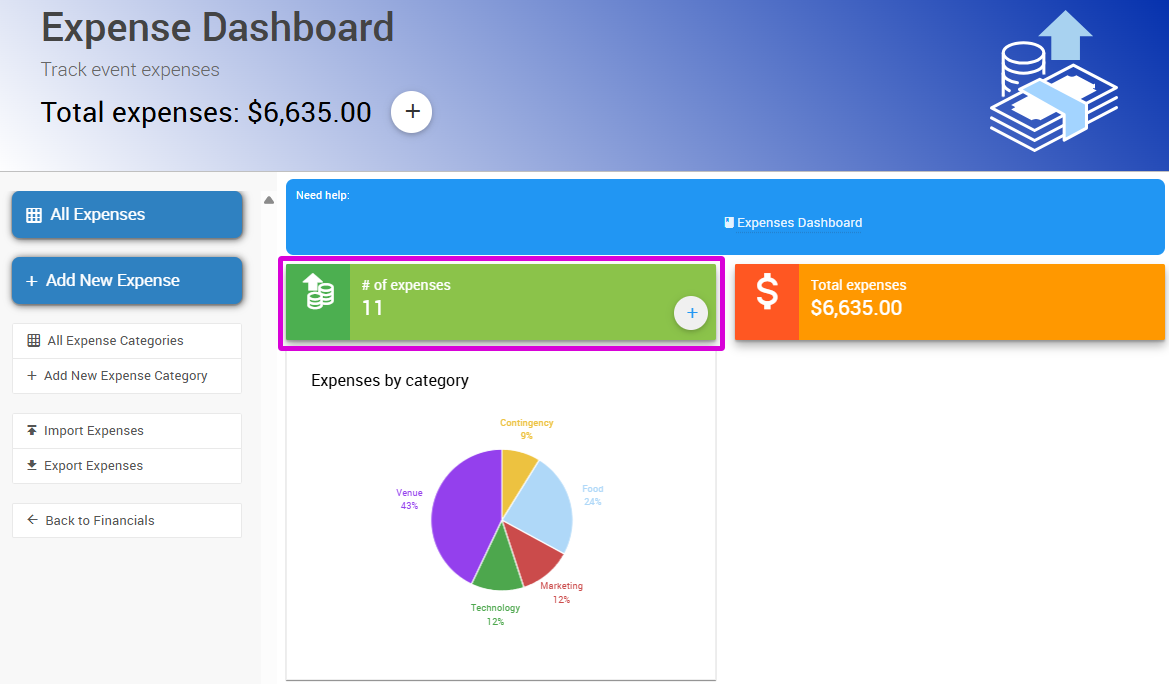
The expense count block on the Financials dashboard, from a demonstration event.
- Click the pencil icon on the right side of the record to edit the expense.
- Edit your expense fields as desired.
Adding a category to an expense
To assign a category, click the Category field and choose one from the dropdown.
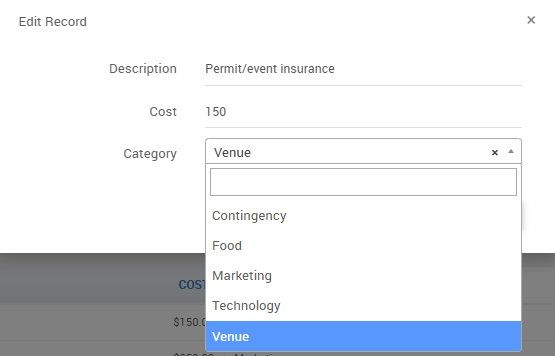
The Category field in the expense edit form, from a demonstration event.
See How To Add An Expense Category if you need to create a new category first.
- Click UPDATE to save your changes.
Viewing Expense History
Double-click a record to open its Details page, then click the History tab to view the expense's audit history.
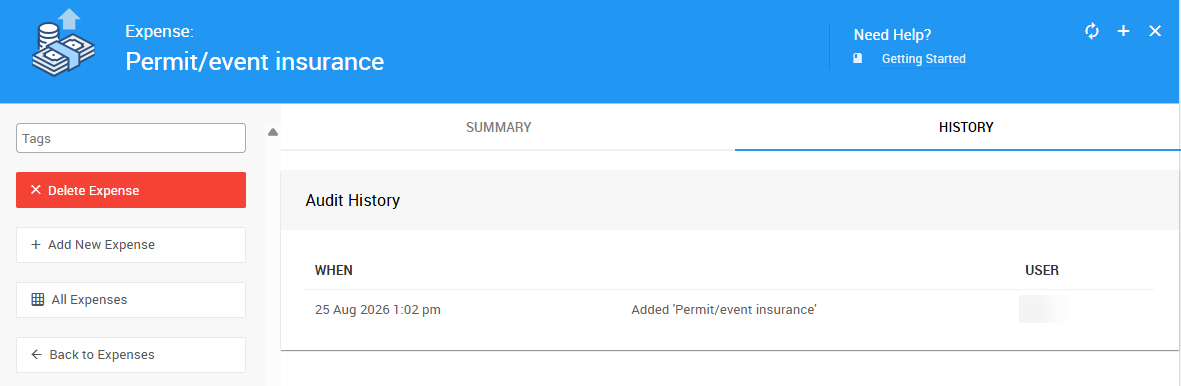
The History tab on the Expense Details page, from a demonstration event.
Click Summary to return to the expense's details.
Deleting an Expense
This action cannot be undone
Deleting an expense permanently removes its record.
- From the Expense Details page, click Delete Expense.
- Type
yesin the confirmation field, then click Continue to finalize the deletion, or Cancel to go back.
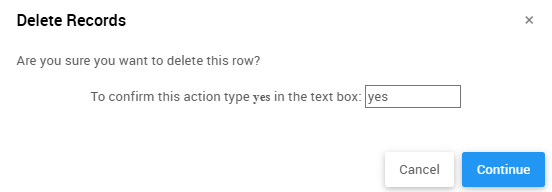
The Delete Expense confirmation dialog, from a demonstration event.