
Learn how to add and configure the Profile Bar element on your event website.
The Profile Bar displays the logged-in guest's profile information and is found by default at the bottom of most event website templates.
Adding a Profile Bar to a page
Drag the More Column Content element from the Website Editor Sidebar into a column space, then choose Profile Bar.

An example of the Profile Bar element placed above the Header on an event website in Edit mode.
Adding the Profile Bar above the header
To place the Profile Bar above the header or menu element, you will first need to add a new row above it.
Profile Bar Settings
Clicking a Profile Bar element opens its settings panel in the Website Editor Sidebar. The element has a single setting:
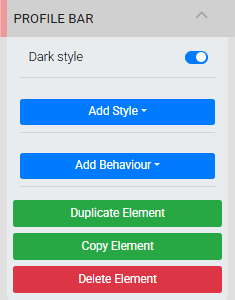
The Profile Bar settings panel in the Editor sidebar.
| Setting | Description |
|---|---|
| Dark Style | Toggles the Profile Bar between the default light style and a dark color scheme. |
See Common Element Actions for more details on managing the Profile Bar element.