
Learn how to change the item associated with a participant's donation or pledge.
The Change Item function lets you reassign a participant's donation or pledge to a different Donation Item, or switch it to a different item type entirely — for example, converting a donation to a ticket purchase.
Step 1 — Open the Donation Item's Activity Tab
Navigate to the Donation Item that the original pledge was made against and open its Activity tab.
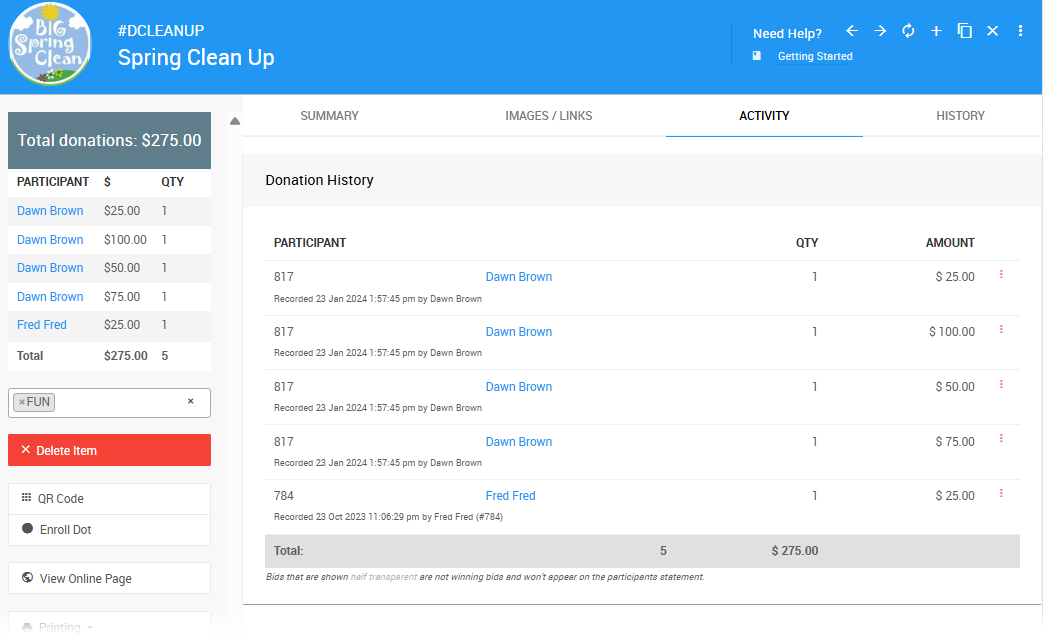
An example Donation Item Activity tab from a demonstration event.
Step 2 — Open the Transaction for Editing
Find the transaction you want to change and click the options menu (three vertical dots) at the far right of its row. Select Edit from the menu.
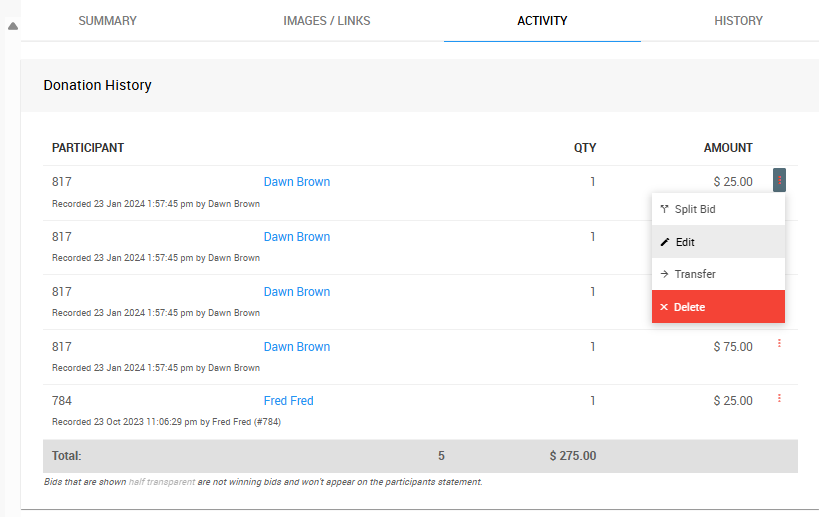
An example Donation Item Activity tab from a demonstration event.
Step 3 — Select Change Item
The Bid Details dashboard will open for the transaction. Click Change Item in the left sidebar.
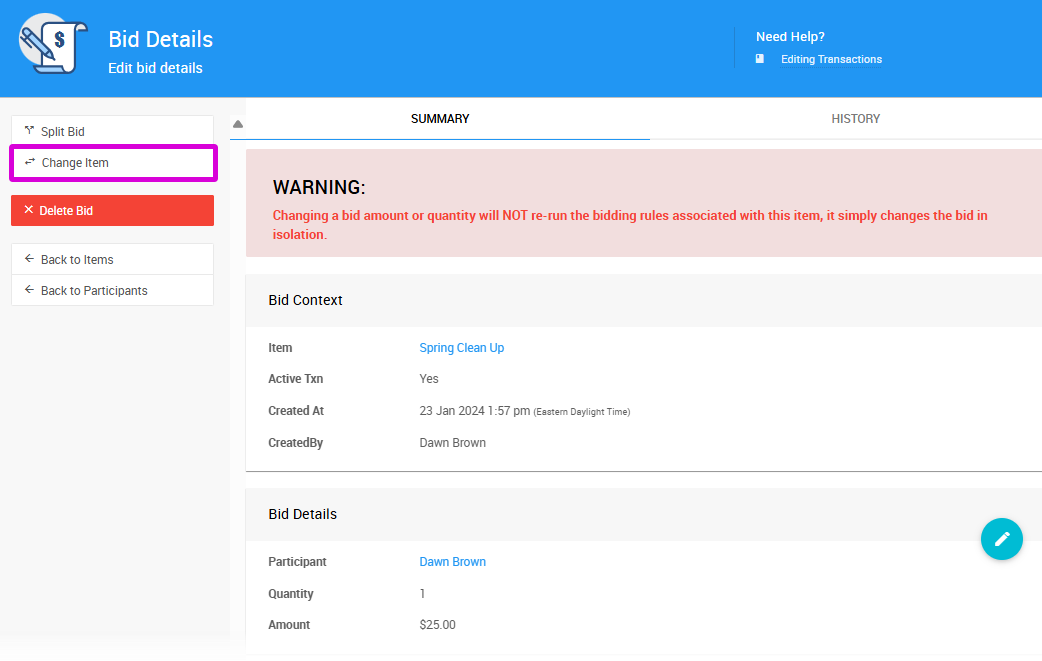
An example from a Donation item in a demonstration event.
Step 4 — Select the New Item
A pop-up window will appear with a drop-down selector. Choose the item you want to reassign the transaction to and click Change Item.
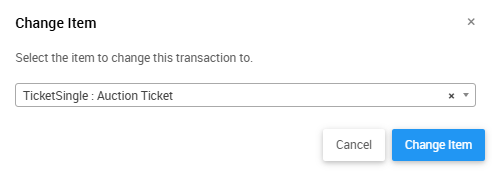
An example from a Donation item in a demonstration event.
A confirmation window will appear. Click Continue to apply the change.
Step 5 — Review the Updated Transaction
The Bid Details page will automatically refresh with the updated item information.
Changing to a Different Item Type
The Change Item function works across item types — for example, you can reassign a Donation item to a Tickets item. When you do this, Auctria will update the relevant ticket details across the platform automatically.