
Learn how to check, update, or remove a maximum bid from the event website.
Check for an Active Maximum Bid
To see whether you have an active maximum bid on an item, go to your My Account page on the auction website and open the Active Bids tab.
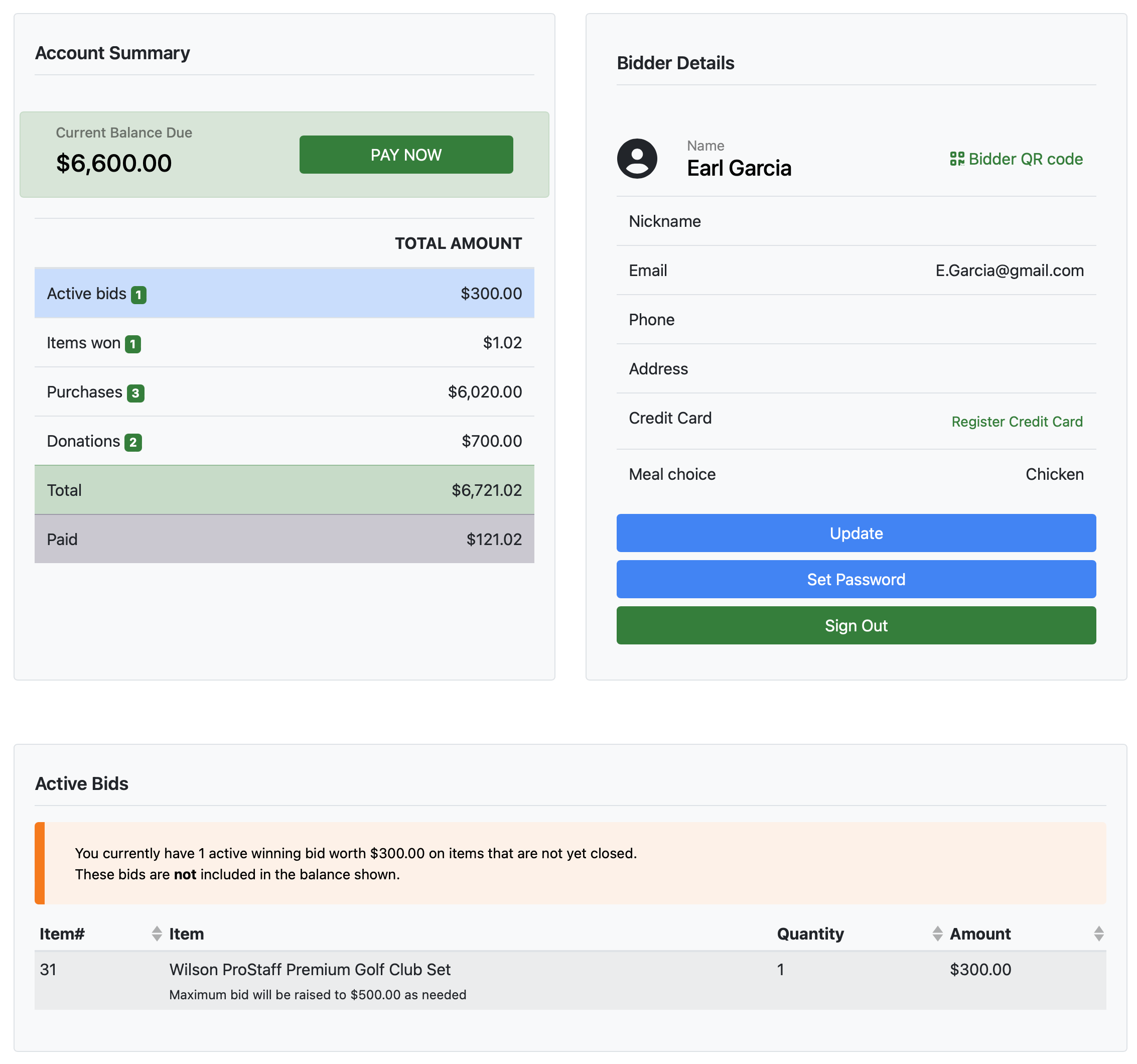
An example My Account page from a demonstration event.
Under Active Bids, any items with a maximum bid will show the maximum bid amount alongside the current bid.
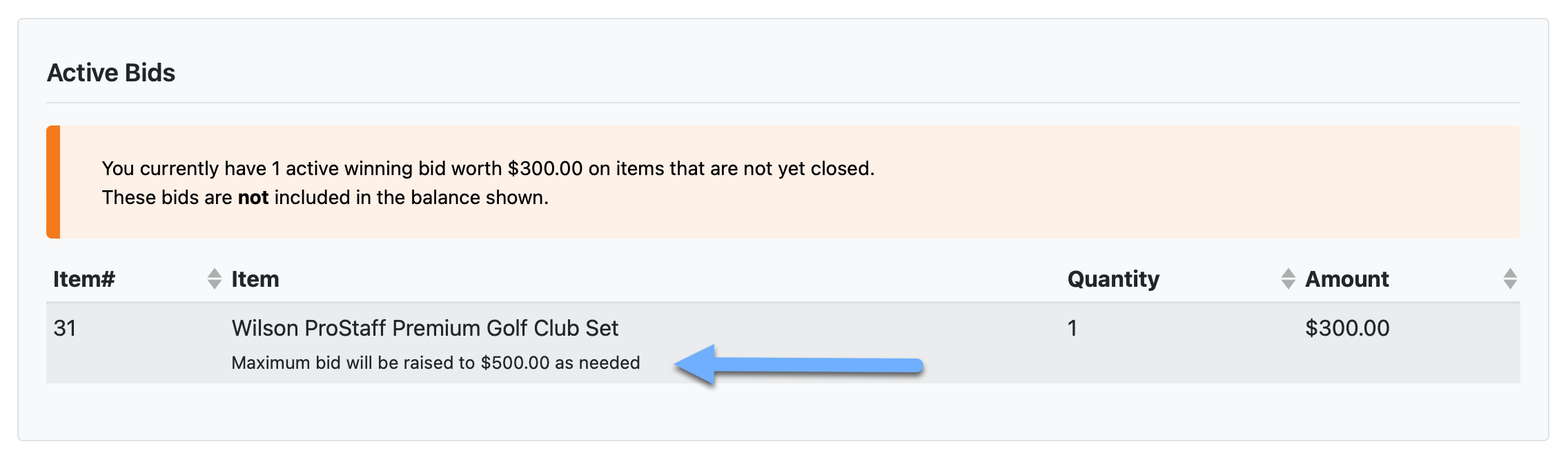
An example showing a maximum bid on the My Account page.
Open the Item Details Page
From the Active Bids list, double-click the item row to open its Item Details page.
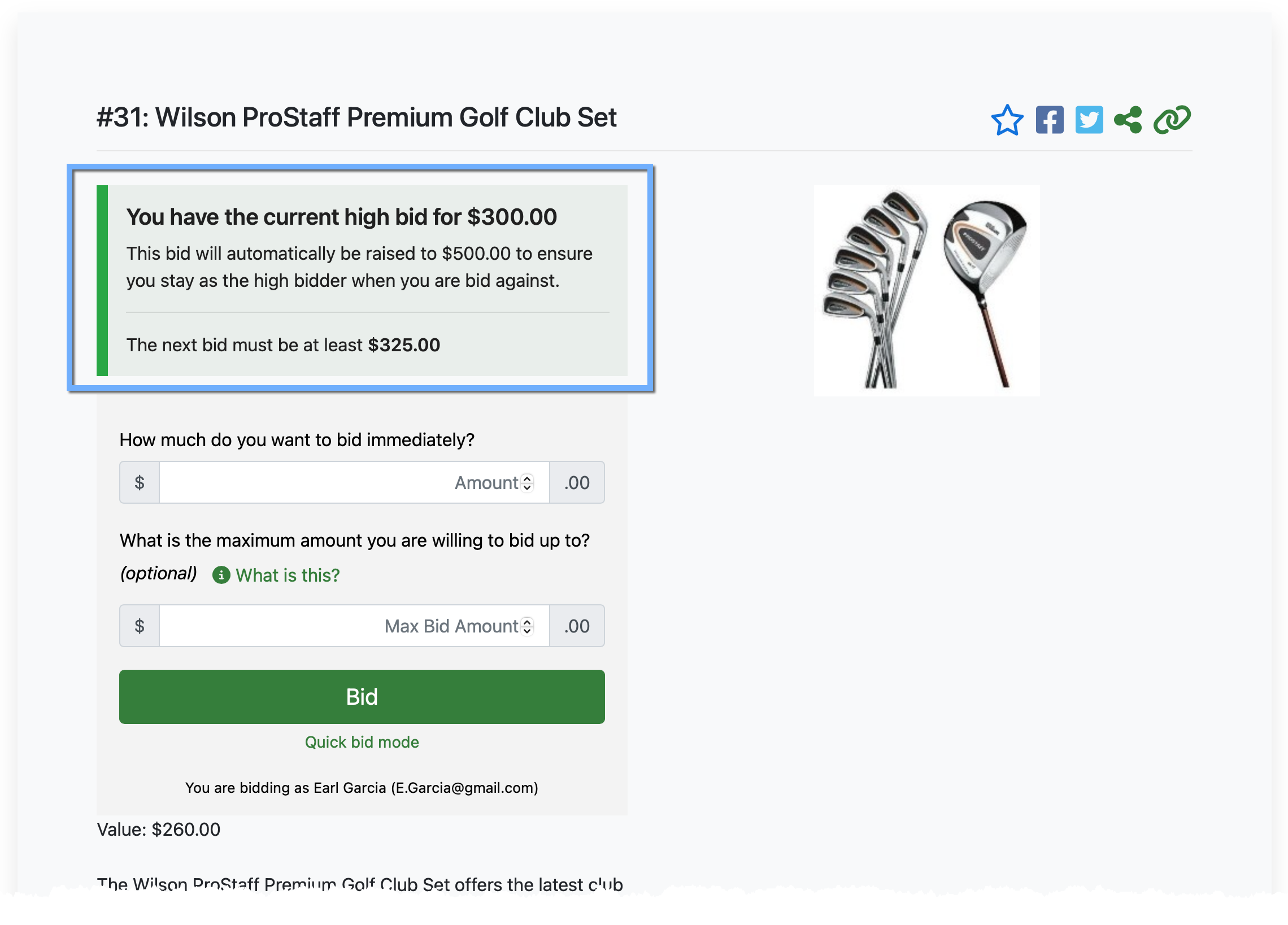
An example Item Details page showing the maximum bid amount to the current high bidder.
The Item Details page shows your current winning bid and your active maximum bid for the item.
Change Your Maximum Bid
Enter your current winning bid amount (or a higher amount if you want to raise it), then enter your new Maximum Bid amount. Click Bid to submit.
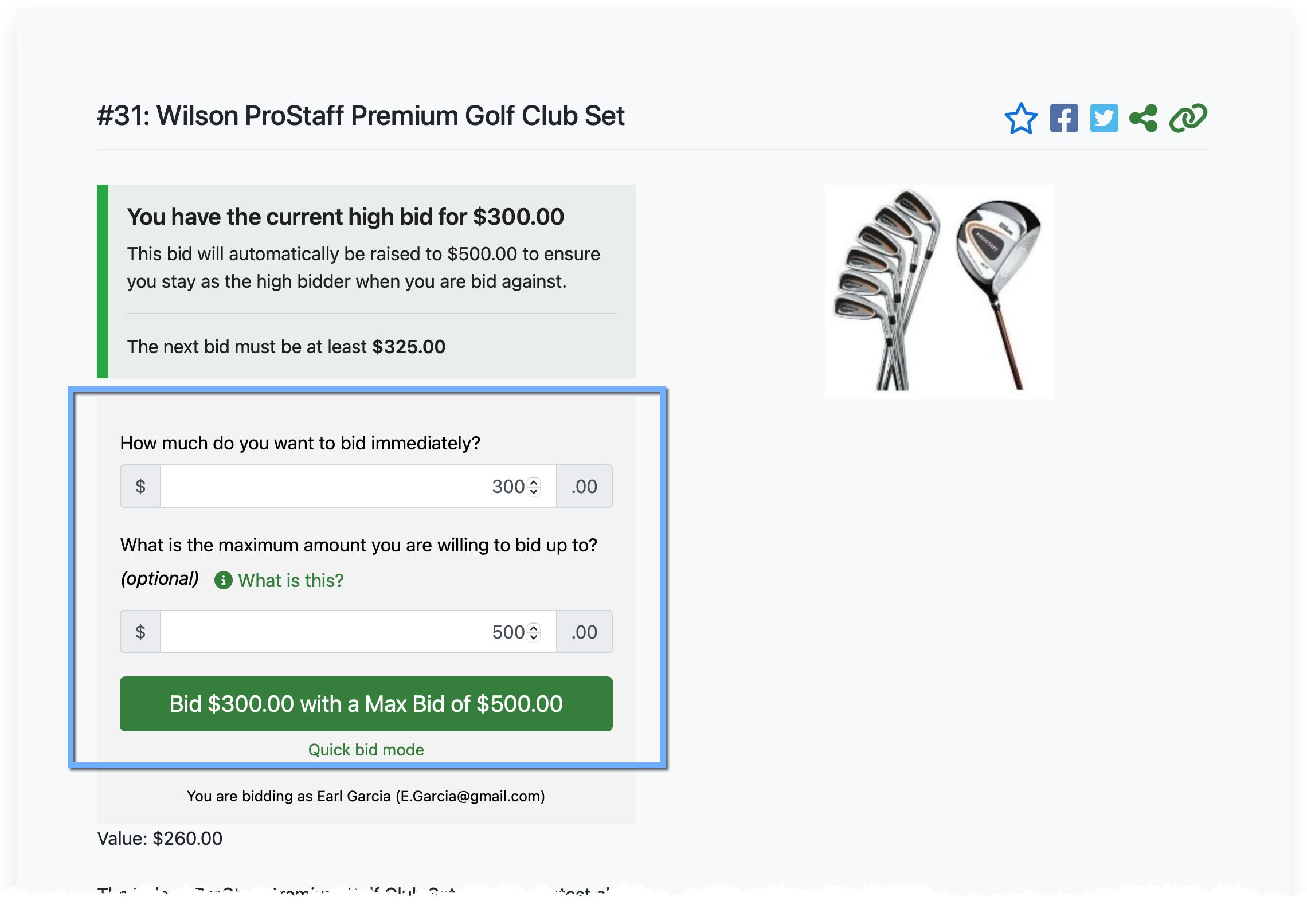
An example of a new maximum bid being set.
A confirmation window will appear — click OK to confirm.
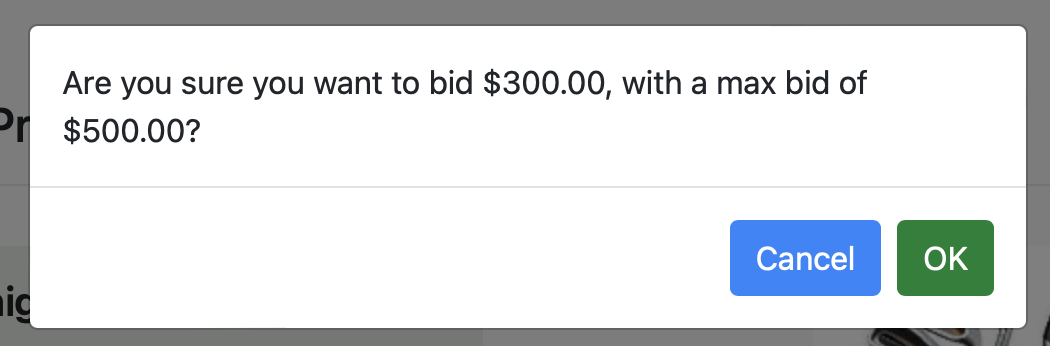
An example confirmation based on the bid above.
Remove Your Maximum Bid
To remove a maximum bid without changing your current winning bid, enter the same amount in both the Amount and Max Bid Amount fields (equal to or greater than your current high bid). This clears the maximum bid and leaves your current bid in place.