
Learn how to send a custom text message to all, some, or just one of your participants.
Advanced Texting Required
To use the Send Custom Text option, the Advanced Texting feature set must be enabled first. See How To Set Up Advanced Texting for how to set it up.
Send a Custom Text
- From the main Auction Dashboard, click Communication.
- Under the Texting sidebar menu, click Send Custom Text to open the Send Text dashboard.
- Write your message in the Send Text panel.
- Select your Recipients. See Choose Participants Filters for more details on selecting which participants to text.
- Click Send Text in the Actions sidebar menu.
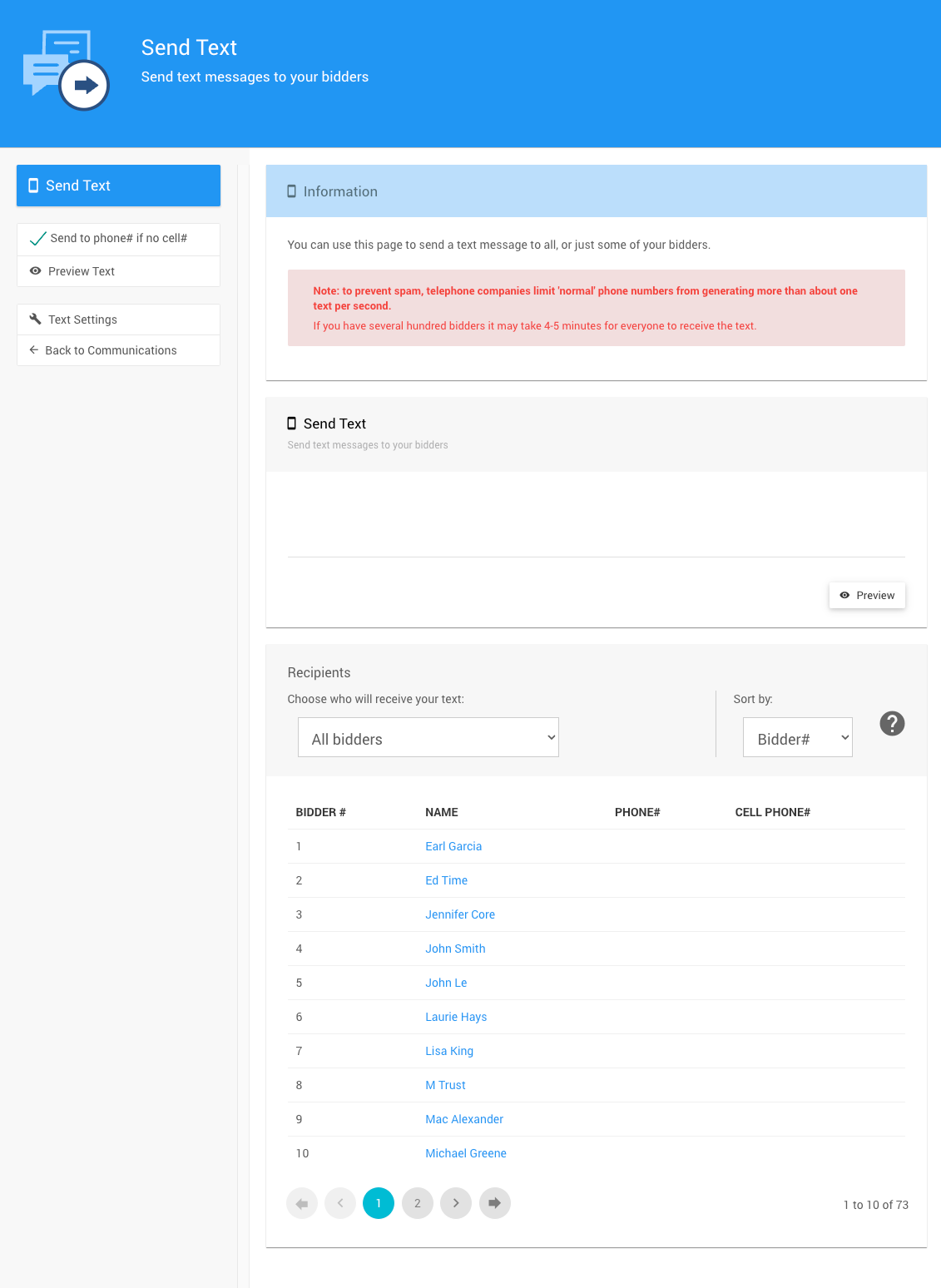
The Send Text dashboard from a demonstration event.
Message Length
Text messages are limited to 160 characters per segment if they contain only standard characters. Including emojis or accented characters cuts this limit in half. If your message goes over the limit, it is automatically split into multiple text messages.
Text Message Sending Limits
To help prevent spam, telephone carriers limit the number of text messages that can be sent. These limits follow the A2P 10DLC regulations.
Auctria does not control these restrictions. Sending 100 text messages at once may take several minutes to fully deliver.
Actions
The Actions sidebar menu includes these options:
| Option | Description |
|---|---|
| Send Text | Sends the text message to the chosen Recipients. |
| Send to phone# if no cell# | Uses the participant's telephone number if there is no cell phone number in their Participant Details. |
| Preview Text | Shows a pop-up window with a preview of the text message from the Send Text panel. |
| Text Settings | Opens the Text Settings page. |
| Back to Communication | Returns to the Communication dashboard. |
Sample Text Message Add-Ons
Placeholders (Advanced)
Text messages can include template references using Liquid placeholders. These may be considered Advanced uses of Auctria.
There is no realistic limit to the number of placeholders you can include in a message, so you can mix and match as needed. The samples below show some common ones.
Include an Access Code
To text a participant's access code, you could use something like this:
Your access code is {{ AccessCode }}
For more about access codes, see Participant Online Access And Tokens.
Include a Link to the Sign In Page
To text a link to the Sign In page, you could use something like this:
Click on {{ ShortSignInUrl }} to access the website.
Send a Request for Credit Card Registration
To text a link to the Request Credit Card Registration system page, you could use something like this:
Click on {{ ShortRegisterCreditCardUrl }} to access your credit card registration page.
Send a Participant's Table Number
To text a participant's table number, you could use something like this:
You are seated at table# {{ AssignedTable.Number }}.
For more about tables, see Tables And Seating.