
Pair your phone with the dashboard on your laptop so you can take card payments with your phone.
When your phone is paired, you keep working in the dashboard on your laptop as usual. When you take a credit card payment, you can choose your paired phone to collect the card with Tap to Pay or your phone's card reader.
Before You Start
Make sure you have:
- The Auctria Admin App installed on your phone.
- The same Auctria account signed in on your phone and your laptop. You can only pair with phones signed in to your account.
- Payment processing through Stripe, if you plan to use Tap to Pay.
- A phone, not a tablet. Tap to Pay doesn't work on tablets.
Disable The Device Lock Screen
Turn off your phone's lock screen, or set the timeout to a high value, before your event.
When the phone locks, it can drop the connection to your card reader to save power. It can take several seconds to reconnect when you wake it up.
Step 1: Sign In To The Admin App
- On your phone, open the Admin App and sign in with your usual email and password.
- In the Device nickname field, enter a short name for your phone, such as
Front Desk Phone.
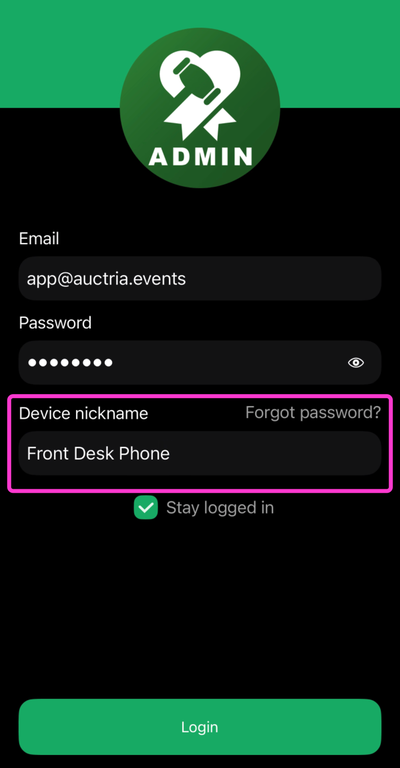
An example Admin App Sign-In screen from a demonstration event.
Step 2: Sign In To The Dashboard
On your laptop, sign in to Auctria as usual. If you're already signed in, refresh the page.
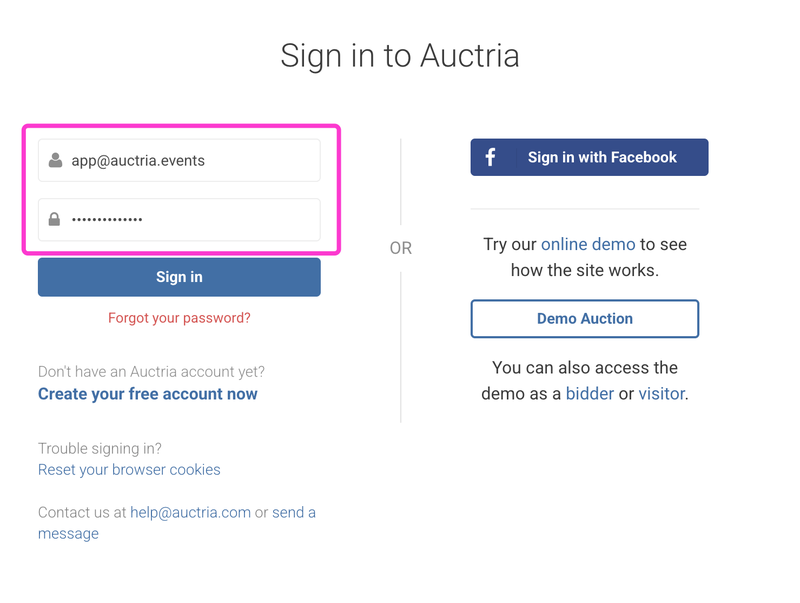
An example Dashboard Sign-In page from a demonstration event.
Step 3: Click The Pairing Icon
Click the pairing icon at the top right of the dashboard, next to your email address. This icon only appears when a phone is available to pair.
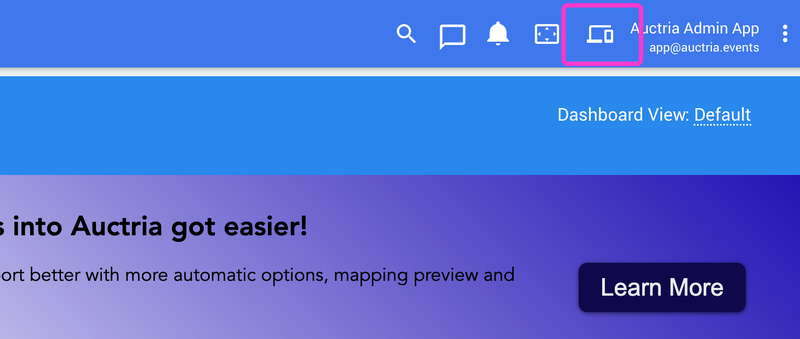
An example Pairing Icon in the dashboard header from a demonstration event.
Step 4: Connect To Your Phone
- Find your phone's nickname in the list of available devices.
- Click Connect next to it.
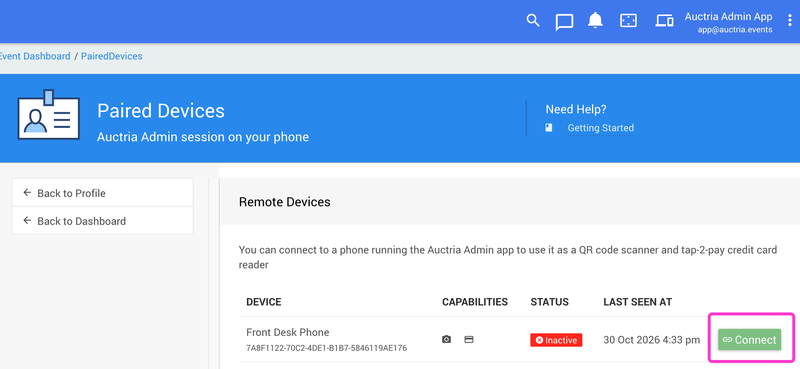
An example Available Devices list from a demonstration event.
When your phone is connected, a new icon appears in the dashboard header and Connect changes to Disconnect.
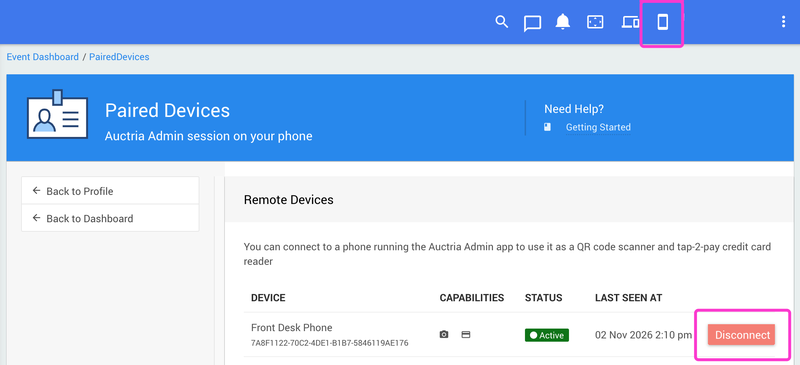
An example Connected Phone in the dashboard header from a demonstration event.
Step 5: Confirm The Pairing
Open any credit card form in the dashboard. Paired Phone now appears in the list of payment methods.
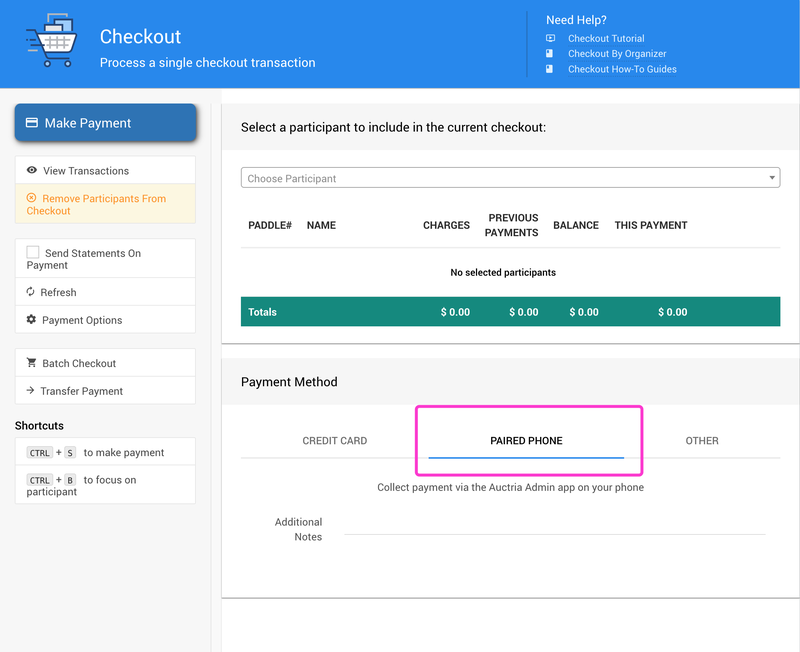
An example Paired Phone payment option from a demonstration event.
Check The Amount Before The Card Is Tapped
Choosing Paired Phone sends the payment to your phone. Confirm the amount with the guest before they tap their card.
Disconnect Your Phone
- Click the pairing icon at the top right of the dashboard.
- Click Disconnect next to your phone's nickname.
Paired Phone no longer appears as a payment method.
Troubleshooting
| Problem | What to Try |
|---|---|
| The pairing icon doesn't appear | Make sure your phone and laptop are signed in to the same Auctria account, then refresh the dashboard. |
| Your phone isn't in the device list | Check that the Admin App is open and signed in on your phone, then refresh the dashboard. |
| Paired Phone isn't a payment method | Open the pairing page and confirm your phone shows Disconnect. If not, click Connect again. |
| The connection drops during the event | Turn off your phone's lock screen. Keep the Admin App open while you take payments. |
| Pairing is slow or keeps failing | Switch your phone from venue Wi-Fi to mobile data, then try again. |
| Tap to Pay isn't available | Use a phone, not a tablet, and confirm the event processes payments through Stripe. Or use a card reader. See Mobile Card Readers. |