
Learn how to display your event's donors on the website using the Donor Catalog row element.
The Donor Catalog displays item donor logos on your event website, each linking to the donor's website address as set in their Item Donor Details record.
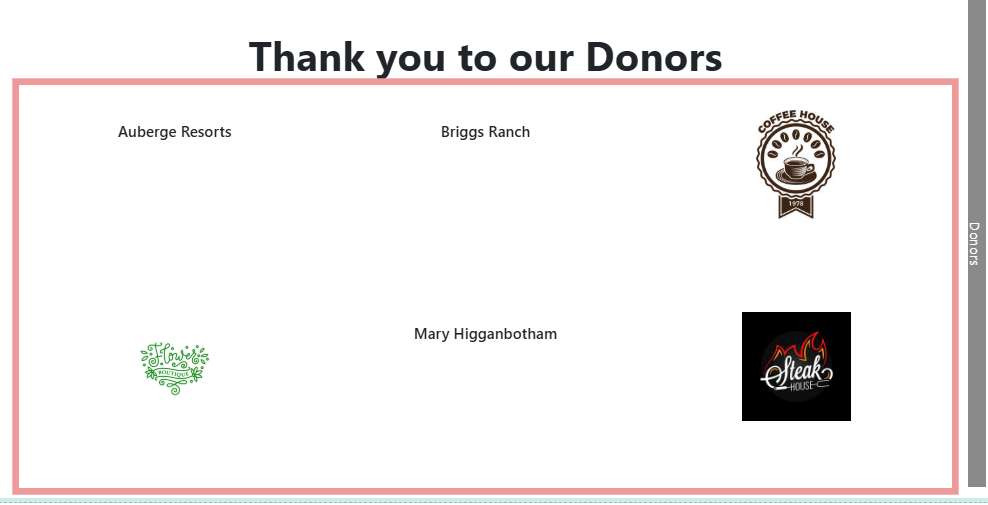
An example of the Donor Catalog on the event website in Edit mode.
It consists of two components: the Donor Display, which controls the overall catalog layout and which donors appear, and the Donor Card, which controls how each individual donor entry looks. These will open in the Editor sidebar when you select the Donor Catalog element.
Adding the Donor Catalog to a page
Drag the Donor Catalog element from the Website Editor Sidebar into a row, or drag More Row Content onto the page and select Donor Catalog from the Choose Row window.
Active donors only
The Donor Display will only show active donors from the current event.
Donor Display
The Donor Display component controls the overall catalog — which donors appear, how many show per page, and how they are arranged.
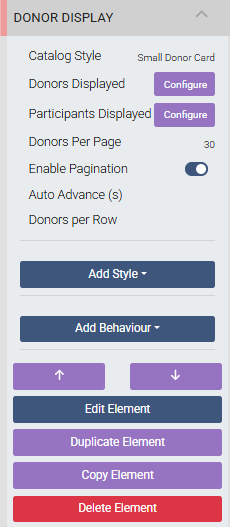
The Donor Display settings panel in the Website Editor sidebar.
Catalog Style
Two layout styles are available, adjusted through the Donor Card element:
- Small Catalog Card (default)
- Wide Catalog Card
Donors Displayed
Clicking Configure for Donors Displayed opens the Select Donors window, where you set conditions to filter which donors appear in the catalog.
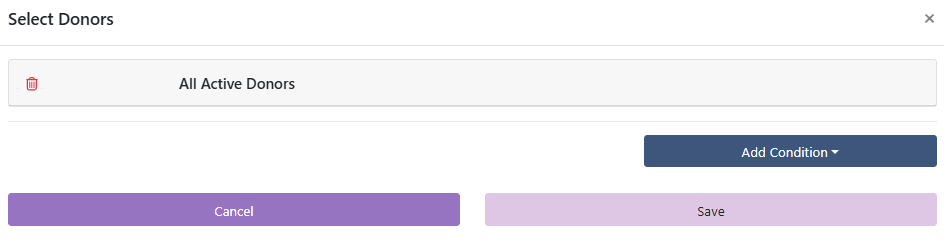
An example from a demonstration event.
| Condition | Description |
|---|---|
| All Active Donors | Lists all active donors from the event. Default. |
| No Donors | Shows no donors. Use when you only want to display bidders. |
| Item Donors Only | Shows donors who provided items via the Donate an Item form. |
| Donors With Logos | Shows only donors with a logo uploaded to their record. See Images. |
| Donors Without Logos | Shows only donors without a logo uploaded to their record. |
| Donors matching search term | Shows donors matching a specific search term. |
| Donors matching tags | Shows donors with the specified tag(s) assigned. |
| Donors not matching tags | Shows donors that do not have the specified tag(s). |
Setting tag conditions
When entering a tag for the Donors matching tags or Donors not matching tags conditions, type the tag value and press Space or Tab to confirm it before saving.
Participants Displayed
Clicking Configure for Participants Displayed opens the Select Participants window. By default no bidders are shown, but you can display bidders who have made donations alongside donors.
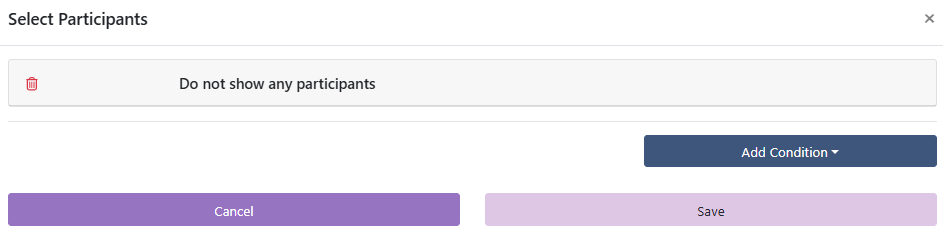
An example from a demonstration event.
| Condition | Description |
|---|---|
| Do not show any participants | No participantss are shown. Default. |
| All participants that made a donation | Shows all participants who made any donation. |
| All participants that made a donation against items tagged | Shows participants who donated to items with a specific tag. See Where Tags Can Be Used In Auctria and Item Details. |
| All participants that made a "cash" donation | Shows participants who made a general donation via the Donation Element. |
Donors Per Page
Sets the number of donors displayed on a single page.
Enable Pagination
When enabled, adds a page navigation bar when the number of donors exceeds the Donors Per Page value.
Auto Advance (s)
Automatically advances to the next page of donors after the specified number of seconds. Leave blank to disable auto-advance.
Donors per Row
Sets a fixed number of donors per row, up to a maximum of 4. Donor logos scale to fill the appropriate space for the column count set.
Donor Card
The Donor Card component controls how each individual donor entry appears in the catalog.
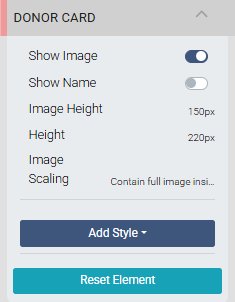
The Donor Card settings panel in the Website Editor sidebar.
Show Image
Toggles the display of the donor's logo or image. If no image is available, the donor's name is shown instead.
Show Name
Toggles the display of the donor's name when an image is present.
Image Height
Sets the height of the image container.
Image Scaling
| Option | Description |
|---|---|
| Enlarge Image to cover | Expands the image to fill the image height container. |
| Contain full image inside | Reduces the image as needed to fit within the container without cropping. |
See Common Element Actions for more details on managing the Donor Catalog.