
Learn how to embed a video on your event website using the Video element.
The Video element embeds a YouTube or Vimeo video into a column, with optional picture-in-picture support so guests can continue watching while they browse the rest of your site.
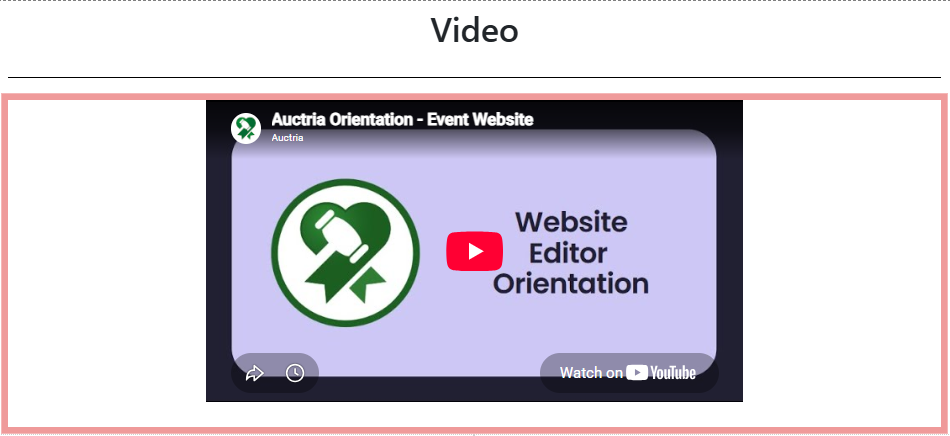
An example of the Video element on an event website in Edit mode.
Adding a Video to a page
Drag the More Column Content element from the Website Editor Sidebar into a column space, then choose Video.
Video Settings
Clicking a Video element opens the Video settings panel in the Website Editor Sidebar.
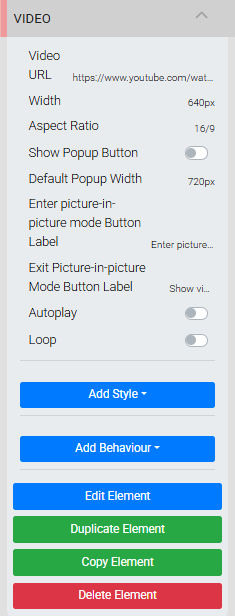
The Video settings panel in the Editor sidebar.
| Setting | Description |
|---|---|
| Video URL | The full URL of the YouTube or Vimeo video to embed. |
| Width | Sets the display width of the video. Default is 640px. |
| Aspect Ratio | Sets the aspect ratio used to calculate the video height from its width. Default is 16/9. |
| Show Popup Button | When enabled, displays a button that lets guests open the video as a floating picture-in-picture overlay. Disabled by default. |
| Default Popup Width | Sets the initial width of the floating video overlay. The overlay is always contained within the guest's browser window regardless of the value set. |
| Enter picture-in-picture mode Button Label | The label text for the button that opens the picture-in-picture overlay. Default is Enter picture-in-picture mode. |
| Exit Picture-in-picture Mode Button Label | The label text for the button that closes the picture-in-picture overlay and returns the video inline. Default is Show video inline. |
| Autoplay | When enabled, the video begins playing automatically when the page loads. |
| Loop | When enabled, the video restarts automatically when it ends. |
See Common Element Actions for more details on managing the Video element.