
Learn how to customize the text on your event website's shopping cart and checkout form.
The shopping cart icon appears on all event website pages when a guest has items in their cart. Clicking it begins the checkout process. The steps a guest sees depend on their cart contents and your event's configuration.
To customize the checkout form text, you must be in Edit mode with an active transaction — meaning the shopping cart notification bubble is visible.
Cart Summary
Show 'Add Donation' Toggle
Click the shopping cart element on the page to open the Checkout settings panel in the Editor sidebar. The Show 'Add Donation' toggle controls whether the Add Donation block appears on the Cart Summary. This is enabled by default and is generally recommended, as it gives guests an opportunity to add a donation before completing their purchase.
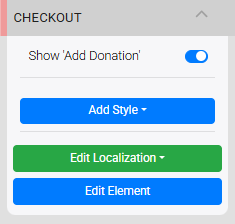
The Checkout settings panel in the Editor sidebar.
Editable Text
Double-click any of the following text elements to open an editor and make changes:
- The Shopping Cart block title
- The Add Donation label
- The Comments label
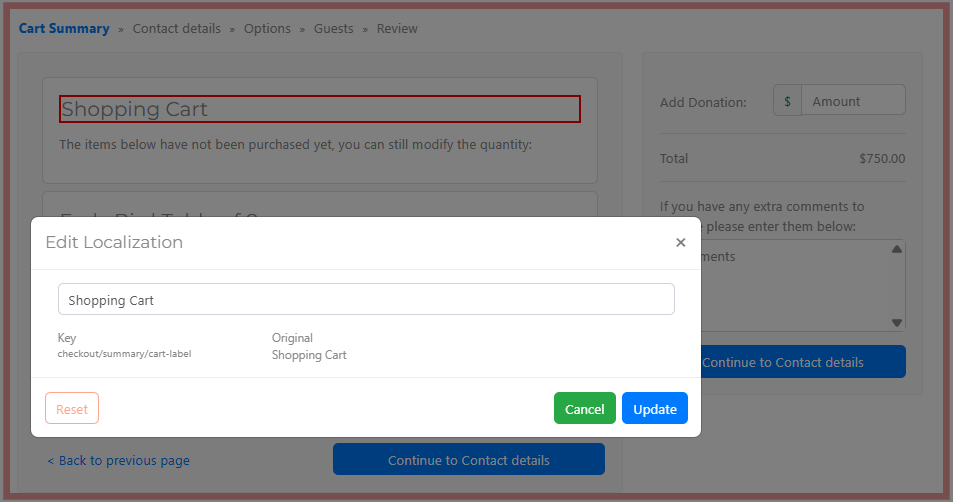
The Edit Localization appears when you double-click an editable text element.
These labels are shared across all checkout parts
The Add Donation label and Comments label text are the same throughout the entire checkout form. Editing either label on one part updates it everywhere.
Turning off Comments
The Comments field can be disabled under Bidder Registration/Checkout → Registration Options by selecting Not Allowed.
Contact Details
Click Continue to Contact Details from the Cart Summary to reach this part of the form. The only editable text unique to this section is the "Provide your contact details" heading — double-click it to open the Edit Localization window.
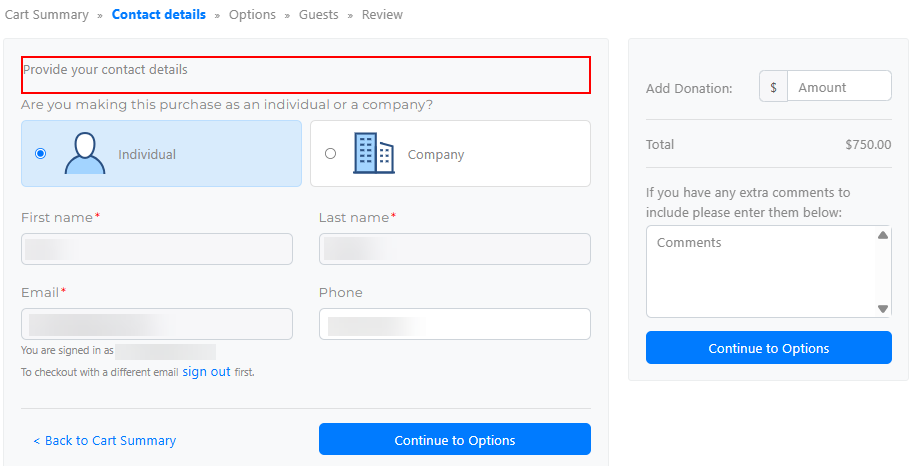
An example from a demonstration event.
Phone field sends text messages
There is a single Phone field which is treated as a cellular number by default. Any text messages sent by Auctria will be directed to this number. A second phone number can be added via the Participant Details dashboard.
Options
The Options step appears in the checkout flow if the Show 'Add Donation' toggle is enabled or if your event has shipping options configured.
- A Donate element appears with an Add Donation field.
- A Shipping element appears with a description and a dropdown of the shipping options configured in the Shipping dashboard.
Editable text fields will be highlighted when you hover over them on each element.
Guests
The Guests step appears in the checkout flow when the cart contains a Ticket item with multiple admissions. Text with a highlight on hover is editable, double-click to open the editing window.
Review
The Review step is the final step before payment. Editable text elements are highlighted when you hover over them in edit mode.
Reviewing guest comments
Comments submitted through the checkout form can be reviewed in Reports → Bidders → Registration Comments. See Viewing Registration Comments for more details.