
Learn how to add social media sharing buttons to your event website using the Share Event element.
The Share Event element adds a group of social media icons to a column, giving website visitors a quick way to share your event. By default it includes four social media platforms and a link icon that opens a pop-up with a direct link to your event website.

An example of the Share Event element on the event website in Edit mode.
Adding a Share Event element to a page
Drag the More Column Content element from the Website Editor Sidebar into a column space, then choose Share Event.
Share Event Settings
Clicking a Share Event element opens its settings panel in the Website Editor Sidebar.
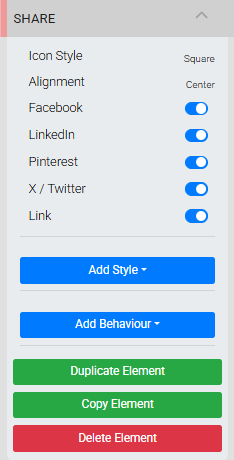
The Share Event settings panel in the Editor sidebar.
| Setting | Description |
|---|---|
| Icon Style | Sets the visual style of the sharing icons. |
| Alignment | Sets the horizontal alignment of the icon group. |
| Icon toggles | Each social media platform can be toggled on or off individually. |
See Common Element Actions for more details on managing the Share Event element, including applying styles, setting visibility, and duplicating or deleting the element.