
This guide covers merging participants from the participant's details page.
Merge Participants
Merging participants pulls all activity from one participant record into another, then permanently deletes the second record.
Merging Participants Cannot Be Reversed
This cannot be undone. Linked participants can be unlinked, but merged participants cannot be un-merged. See How To Link Participants if linking is more appropriate for your situation.
Open the First Participant's Record
From the main Auction Dashboard, click the Participants block to open the Participants list. Double-click the participant you want to merge into to open their record.
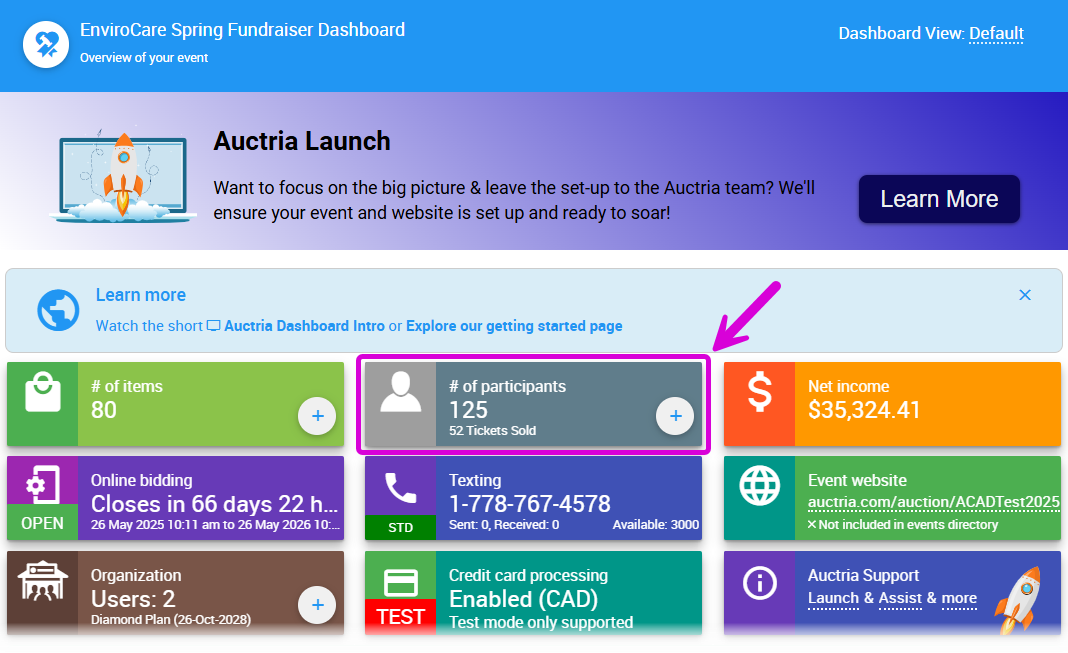
An example from a demonstration event.
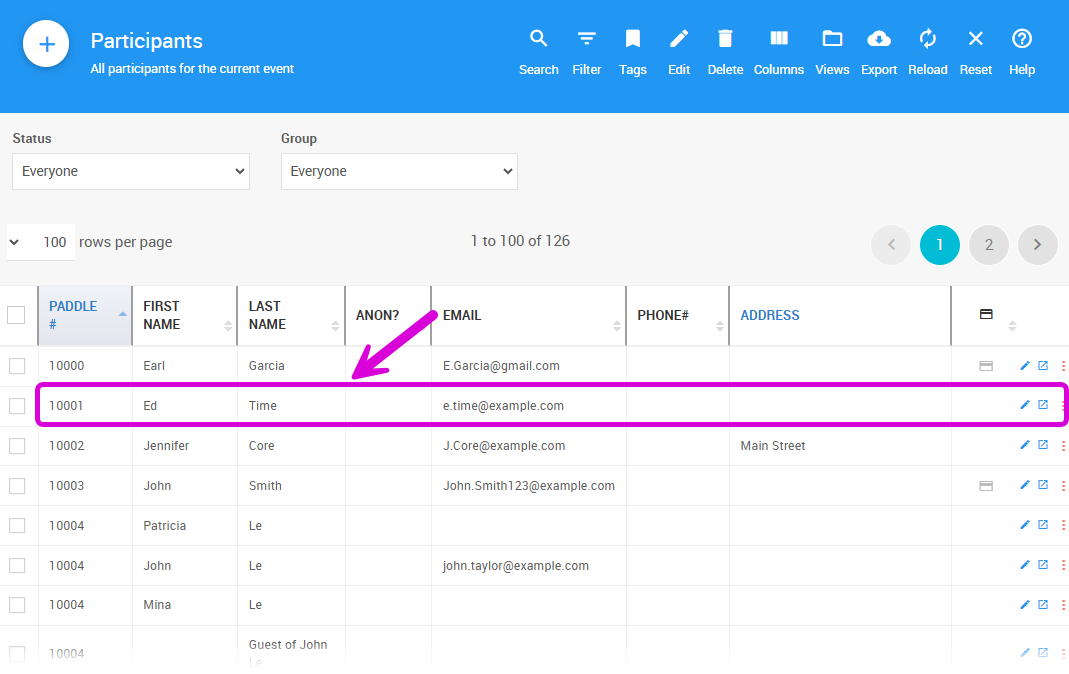
An example from a demonstration event.
Merge Into This Record
In the left sidebar, click Merge Participants.
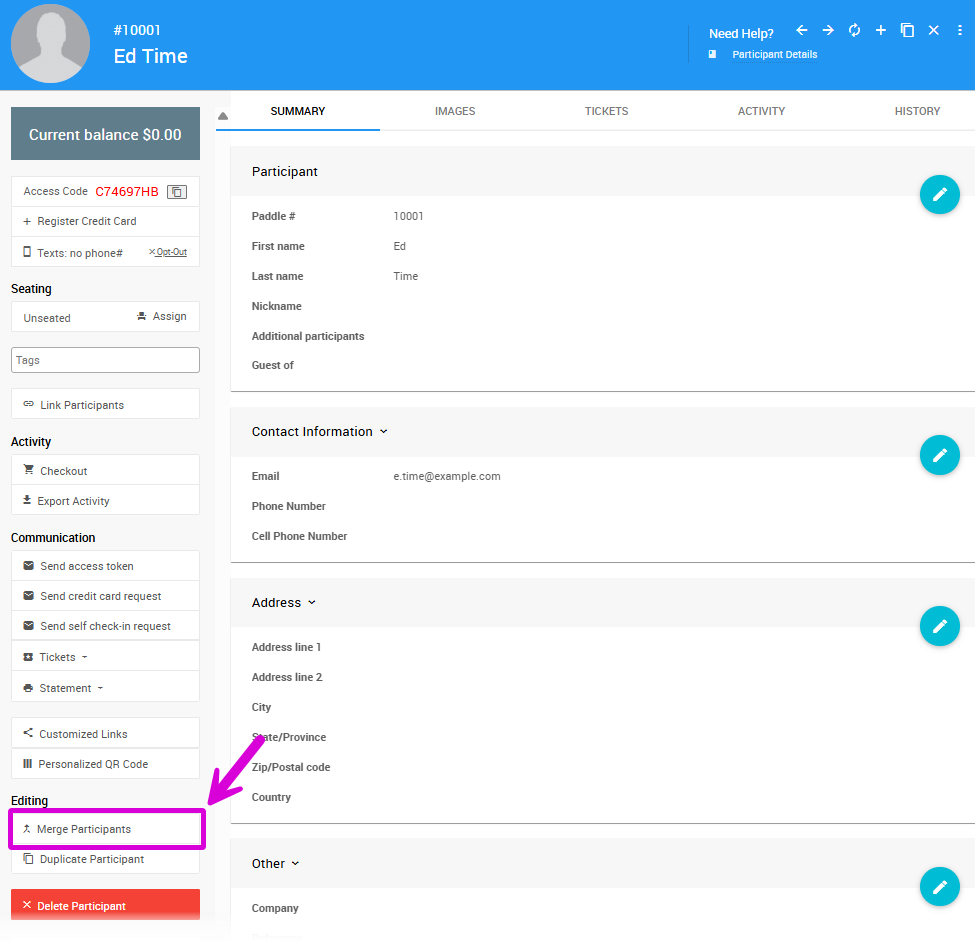
An example from a demonstration event.
In the Merge Participants window, select the second participant — this is the record that will be merged into the first and then deleted.
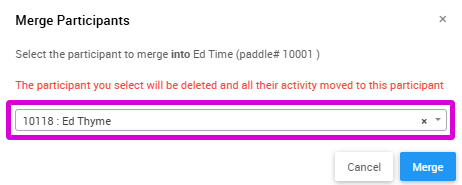
An example from a demonstration event.
Click Merge to proceed.
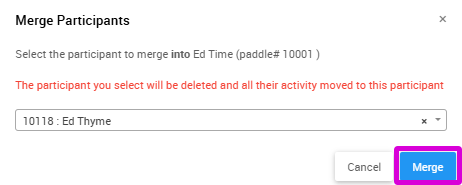
An example from a demonstration event.
Confirm the Merge
Because this action is permanent, a final confirmation is required.
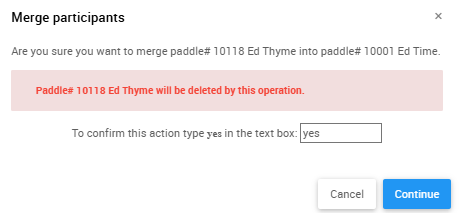
An example from a demonstration event.
Type Yes To Confirm
Type yes in the text box and click Continue to complete the merge.
Reviewing the Merge
Once complete, the second participant's record will be deleted and their activity will appear under the first participant. To review the change, open the first participant's History tab — the merge will be recorded there for audit purposes.
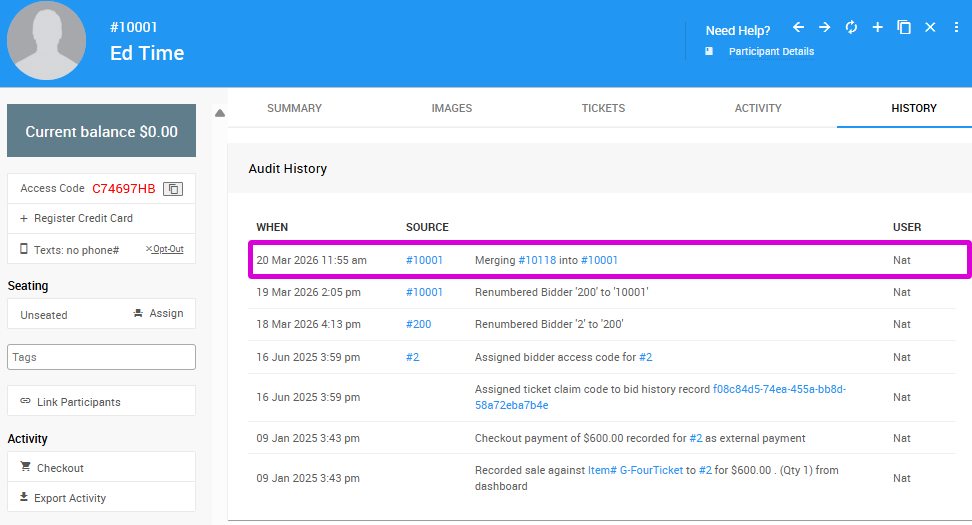
An example from a demonstration event.