
Learn about the types of content available for your event website and how they fit together.
Every event website page has three zones: a Header zone at the top, a Footer zone at the bottom, and the main Page content area in between.
The header and footer zones appear on every page of your site. See Headers and Footers for details on working with those zones.
The main page content area is built from a hierarchy of layers:
- Sections divide the page into areas that can be styled and managed as a group.
- Rows sit inside sections. Each row is divided into one to four Columns.
- Columns hold the individual content elements that visitors see.
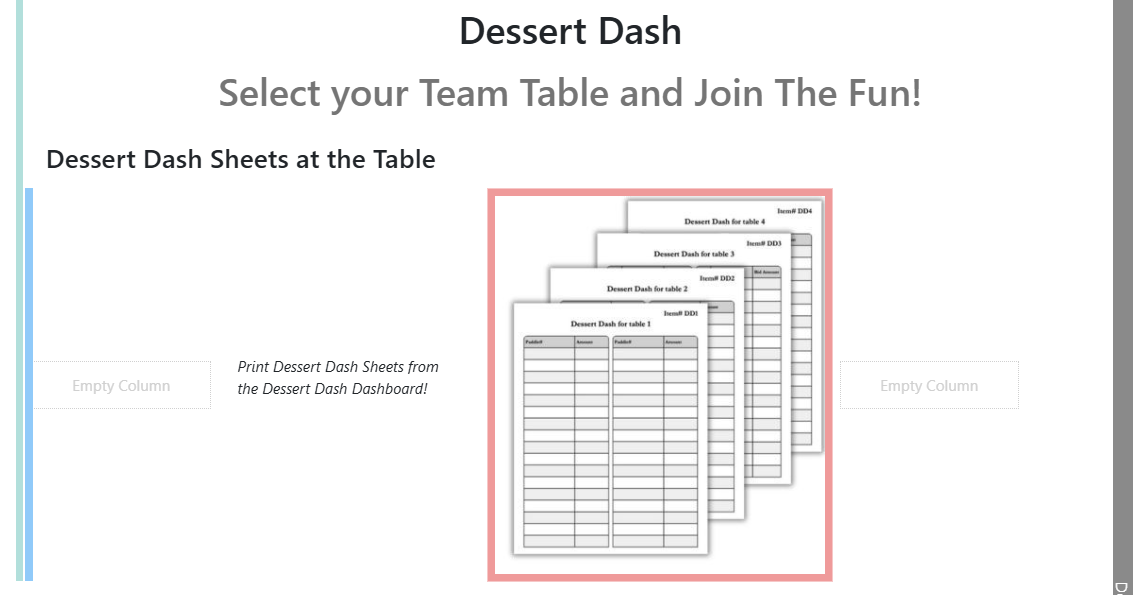
An example page in edit mode showing the section, row, and column structure.
Content is added to a page by dragging items from the Website Editor Sidebar and dropping them onto the page. Content elements are added from the More Row Content... and Column Content... options. Sections and rows are added from the Add Row and Add Section options in the sidebar.
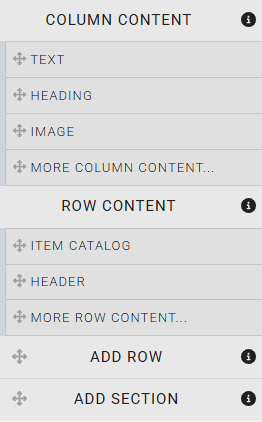
Drag and drop Row and Content elements from the sidebar onto the page to place them.
Adding sections and rows
For step-by-step instructions on adding sections and rows to a page, see Adding Rows & Sections.
Row Content
Row Content elements span the full width of a section and sit at the row level. They are used for larger structural or functional components — like a site header, an item catalog, or a leaderboard — that occupy an entire row rather than sitting inside a column.
To add a row content element, drag it from the sidebar onto the page. Dragging the More Row Content option onto the page opens the Choose Row window, where you can browse all available row content elements.
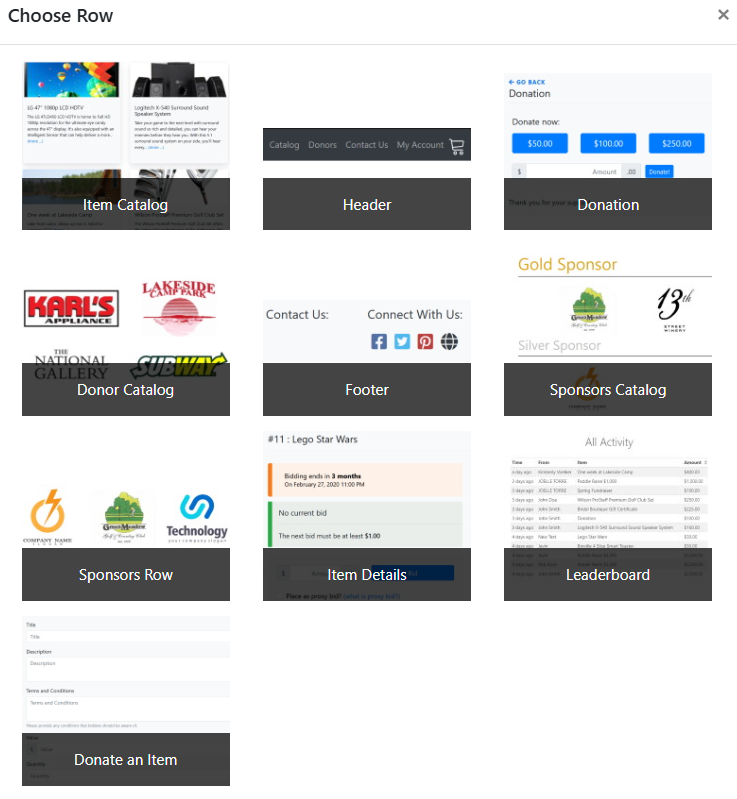
The Choose Row window that appears when Row Content is added to a page.
See Row Content for the full list of available elements.
Column Content
Column Content elements are placed inside columns and make up the visible content of most pages — text, images, headings, buttons, countdown timers, and more.
To add a column content element, drag it from the sidebar into a column on the page. Dragging the More Column Content option into a column opens the Choose Content window, where you can browse all available column content elements.
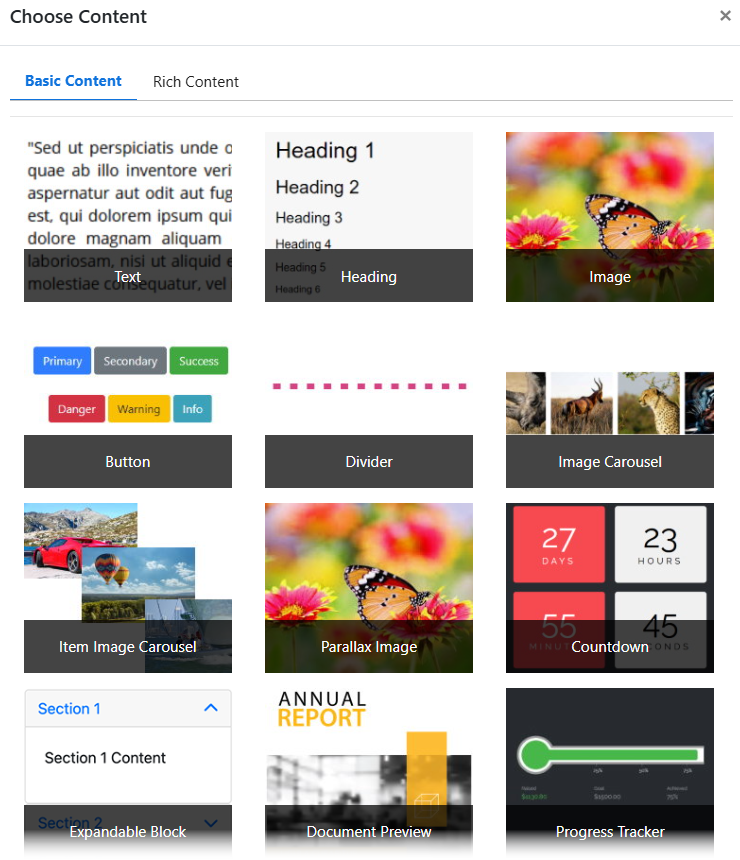
The Choose Content window has both Basic and Rich content options.
See Column Content for the full list of available elements.