
Learn how to add a rotating image carousel to your event website using the Image Carousel element.
The Image Carousel element displays a slideshow of images in a column, with optional navigation controls and thumbnails. When first added, it shows a set of default images — replace these with your own.
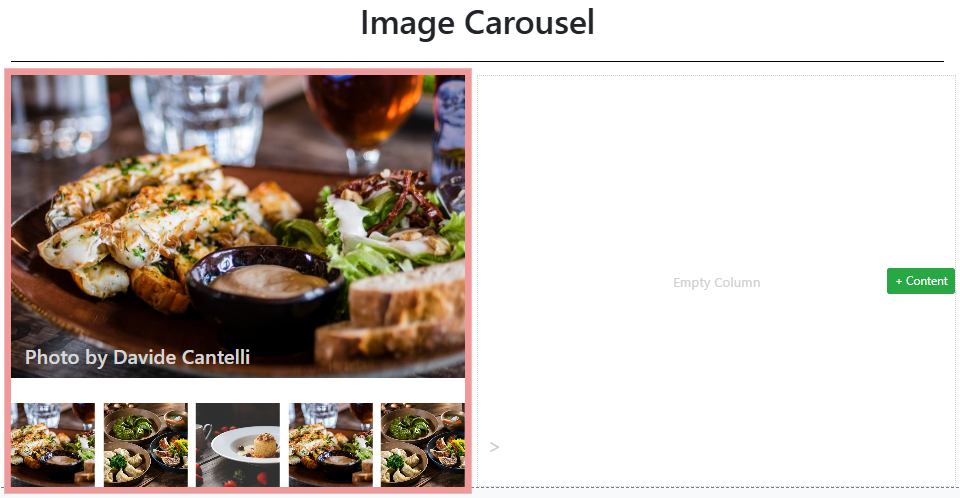
An example of the Image Carousel on the event website in Edit mode.
Adding an Image Carousel to a page
Drag the Image Carousel element from the Website Editor Sidebar into a column space.
Image Carousel Settings
Clicking an Image Carousel element opens the Image Carousel settings panel in the Website Editor Sidebar.
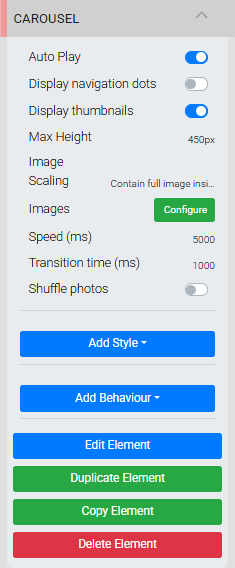
The Carousel settings panel in the Editor sidebar.
| Setting | Description |
|---|---|
| Auto Play | Toggles automatic rotation through the carousel images. |
| Display navigation dots | Toggles the display of navigation dots at the bottom-right of the main image. A page refresh may be needed for the dots to appear. |
| Display thumbnails | Toggles the display of thumbnail images below the main carousel image. |
| Limit to image width | When enabled, tall images are shown at full height even if they do not fill the carousel width. Default is disabled. |
| Max Height | Sets the overall height of the Image Carousel element. |
| Speed (ms) | Sets how long each image is displayed before advancing to the next, in milliseconds. Default is 5000 (5 seconds). |
| Transition time (ms) | Sets the duration of the fade transition between images, in milliseconds. Default is 1000 (1 second). |
| Shuffle photos | Randomizes the order in which images are displayed. |
Managing Images
Clicking Configure next to Images opens the Select Images window.
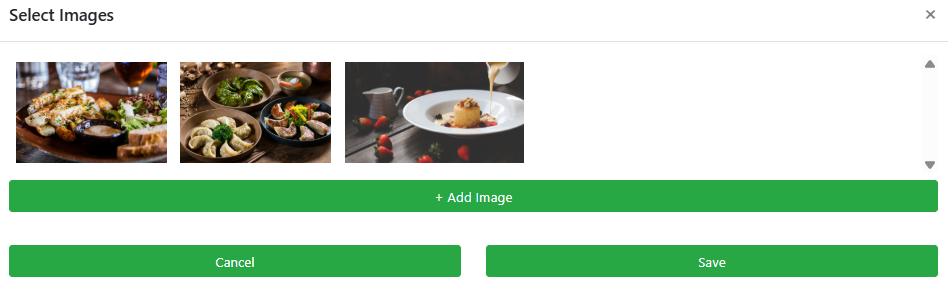
An example from a demonstration event.
- Click Add Image to open the Choose Image window and add images to this carousel.
- To remove an image, hover over its thumbnail and click the trashcan icon. Removal takes effect immediately without clicking Save.
Click Save when done to keep your changes.
Recommended image dimensions
The precise pixel size is not critical since screen sizes vary, but these ranges work well in most cases:
- Full-width images: around 1200px wide
- Half-width images: around 600px wide
- Page background images: up to 1600px wide
See Common Element Actions for more details on managing the Image Carousel element.