
Ensure you are ready to start accepting credit card payments in Auctria with Stripe.
After working through the steps of setting up your Stripe.com account it is good to double-check to make certain everything is ready for when you go to start accepting credit cards payments.
Stripe.com Connection
Clicking on the Stripe.com Connection button under the Connections sidebar menu will display the current values for your Stripe account.
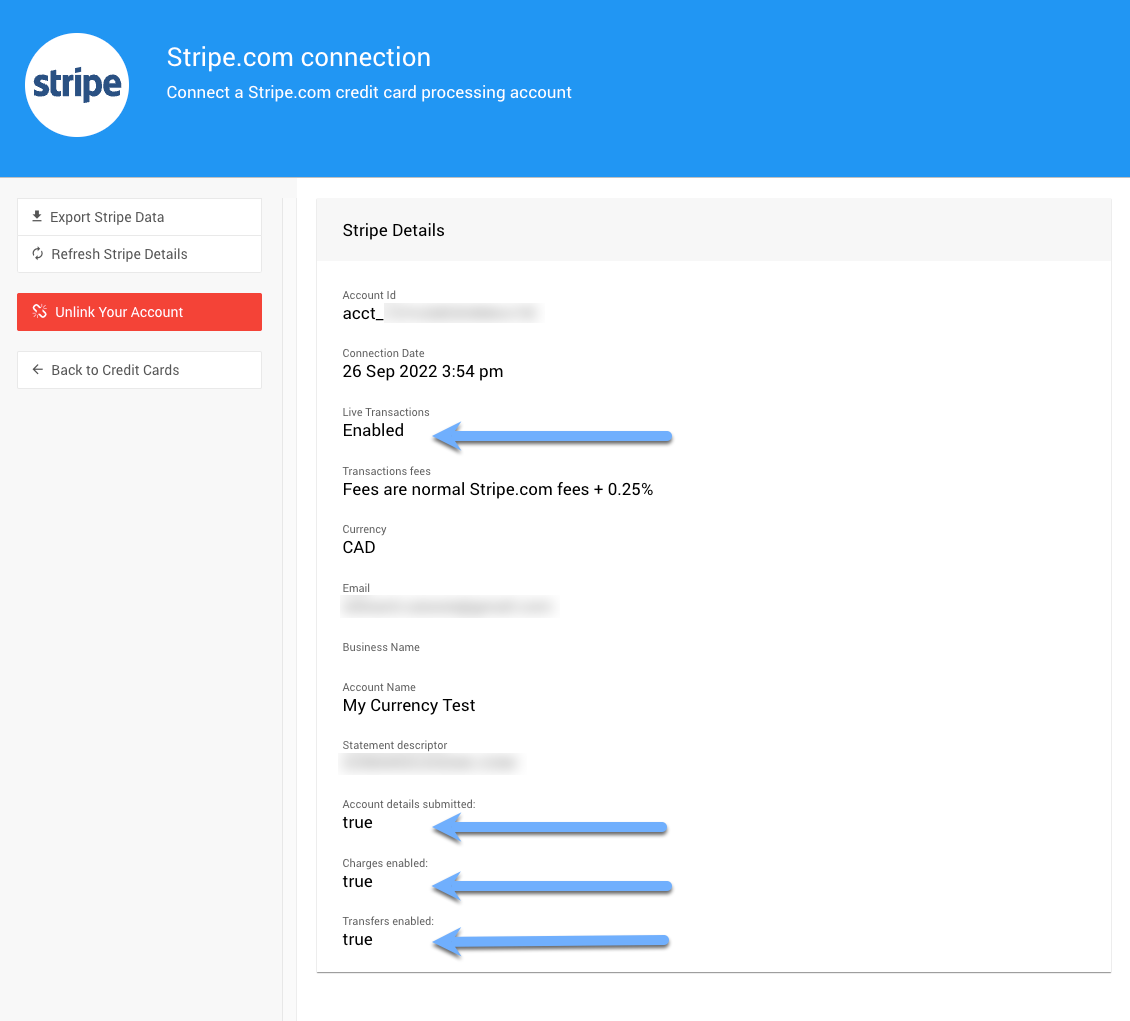
An example from a demonstration event.
The main indicators to check to see if you are ready to accept "Live" transactions as well as be able to have that money transferred to your organization's bank account are the following:
| Indicator | What It Means |
|---|---|
| Live Transactions | Marked Enabled based on your Stripe account settings. This is not affected by the Credit Card Processing Mode you have selected in Auctria. |
| Account details submitted | Generally marked true, especially once you're Live with Stripe — it indicates you've provided Stripe with the appropriate details to create your account. |
| Charges enabled | Needs to be marked true to accept credit card payments. If marked false, it generally indicates there are still open verifications that need to be completed with Stripe. Visiting your Stripe.com account and/or contacting Stripe.com Support will provide more information on this. |
| Transfers enabled | Needs to be marked true to have processed credit card payments transferred to your organization's bank account. If marked false, your organization's bank account details may not be entered and/or verified with Stripe yet. |
Charges and Transfers Disabled
When the Charges enabled and Transfers enabled properties are displaying as false, your bidders will see error messages when they try to check out of the event.
Please contact Stripe.com Support for additional assistance as this often means Stripe has not completed their validation processes for your account.
In most cases, when Stripe is not enabled/true for the above settings you will need to contact Stripe.com for further assistance with your Stripe account settings.
Reminder
If you did set your Credit Card Processing Mode to Test, remember to set it to Live before you open your event and start accepting credit card payments.