
An overview of how to set up and manage a Fund-a-Need section where guests can donate to specific projects or to your event generally.
Fund-a-Need is handled in Auctria by creating Donation Items. See Add New Items to Auctria for more details on adding items.
Approaches to Fund-A-Need
There are three ways to set up a Fund-a-Need in Auctria, depending on how you want to accept donations.
Single Donation Item
Create one Donation Item with a title like Fund-a-Need and set the type to Donation, leaving the value blank. Consider using a memorable item number — for example, NEED — rather than a system-generated one.
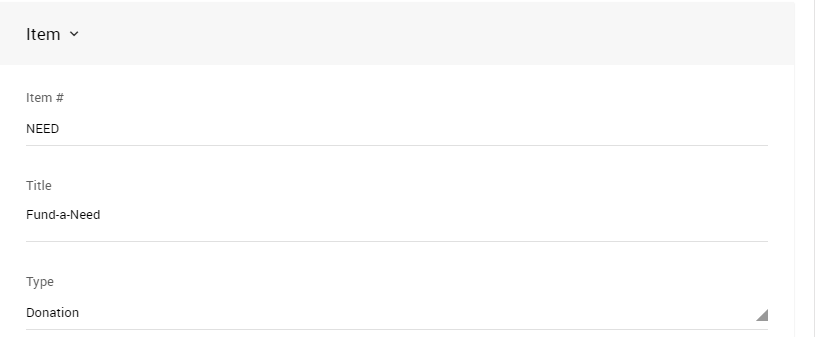
When recording donations against this item, you'll need to select the bidder and enter the amount each time.
See Record a Donation for more details on recording donations.
Multiple Donation Items
If you accept donations at fixed levels — for example, $100, $500, and $1,000 — create a separate Donation Item for each level with the value set to the donation amount. Use meaningful item numbers such as NEED500 to represent the $500 level.
The advantage of this approach is that the amount is automatically populated when you select the item to record a donation, making data entry faster at live events. However, managing many donation levels this way can become unwieldy if you have a large number of tiers.
No Donation Items
You can skip Donation Items altogether and record donations directly from the Donations dashboard, selecting Record Donation on the left or the Other Donations tile, and leaving the item row blank. These donations will appear on Participant Statements as Cash Donations.
See Donations Dashboard for more details.
Choosing the Right Approach
| Scenario | Recommended Approach |
|---|---|
| Live event with quick bid entry | Multiple Donation Items — selecting the item auto-populates the amount on the Bidding Dashboard page. |
| Online donations through the auction website | Single Donation Item with multiple Donation Levels defined — displays as buttons with preset amounts, plus an optional open amount field. |
| No tracking needed | No Donation Items — record donations directly as Cash Donations. |
Fund-A-Need Online
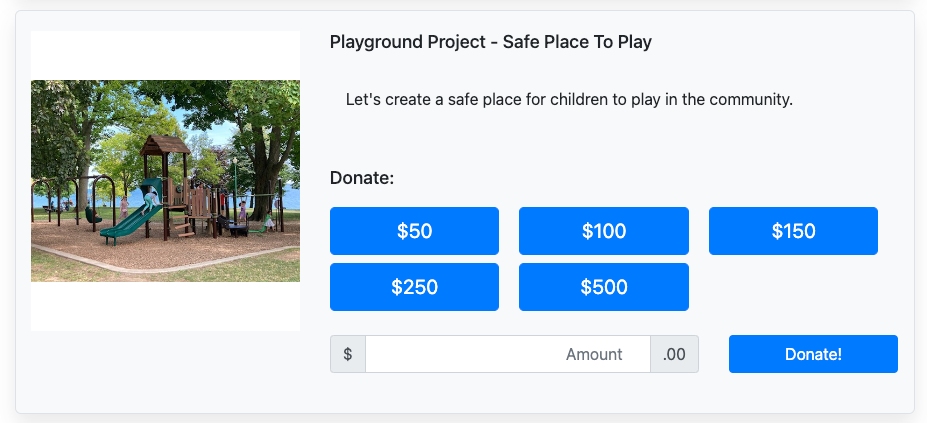
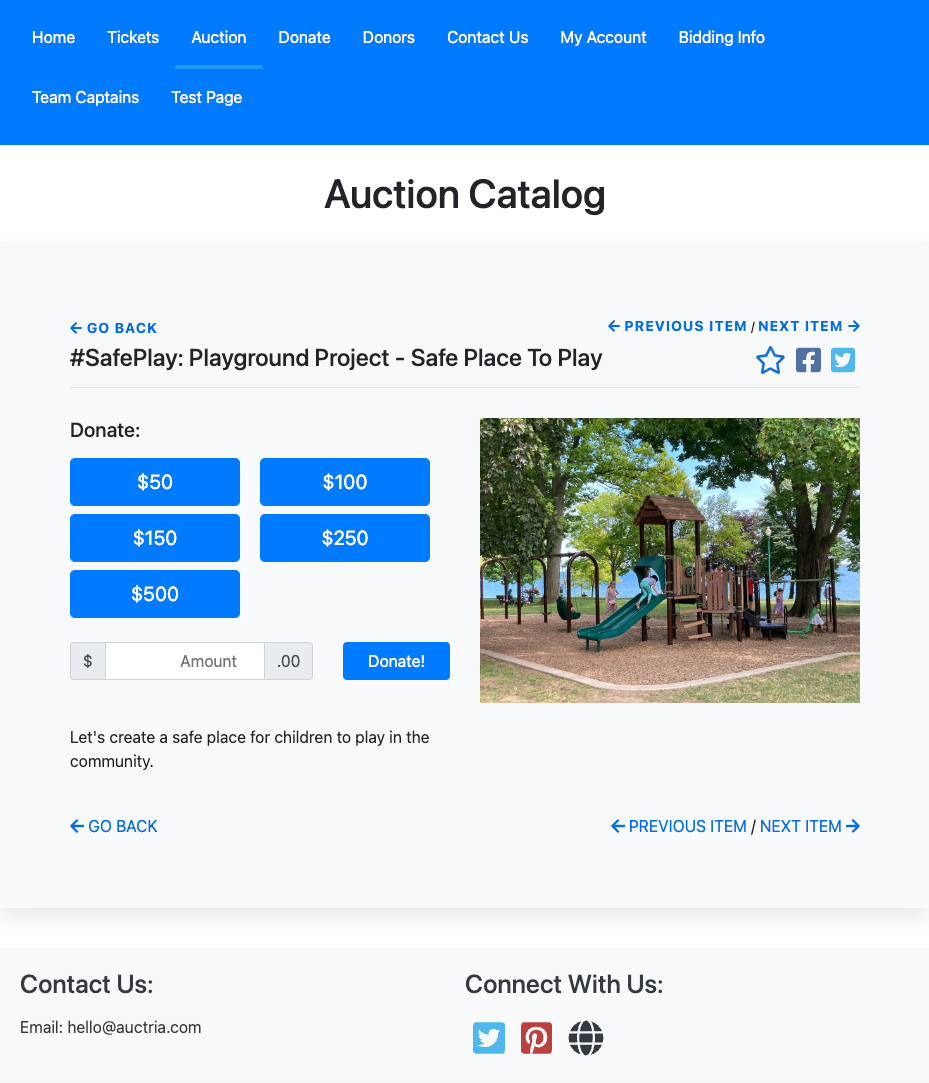
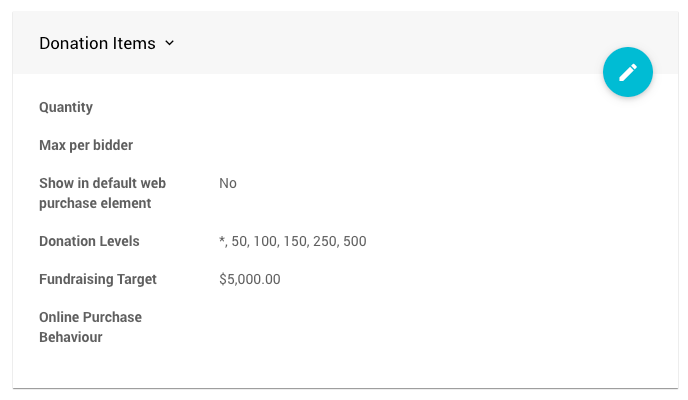
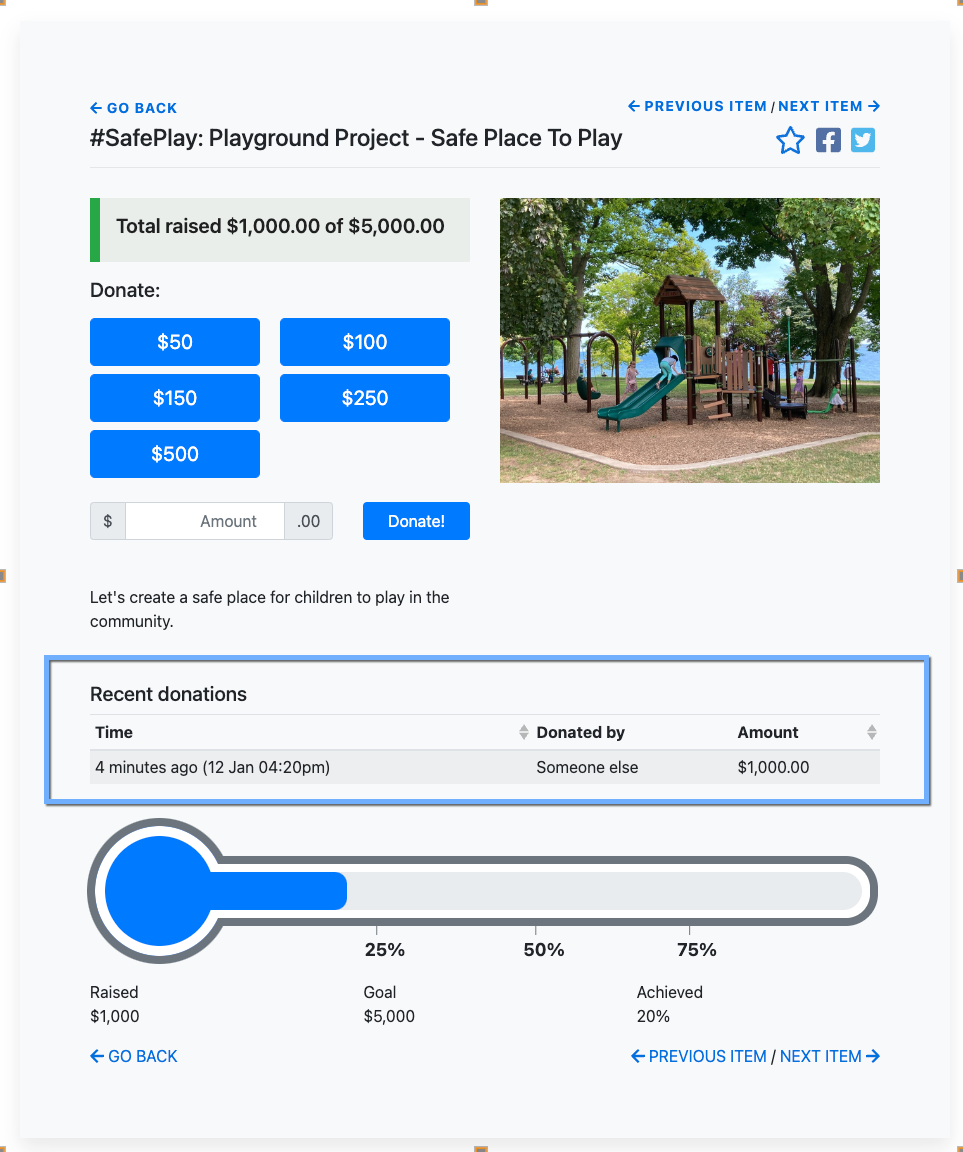
For online Fund-a-Need, create a single Donation Item with multiple donation levels defined. Each level will display as a button on your auction website. Add * to include an open amount field so guests can enter any amount they choose.
You can display the item on your website using either the Item Catalog element:
Or directly using the Item Details element:
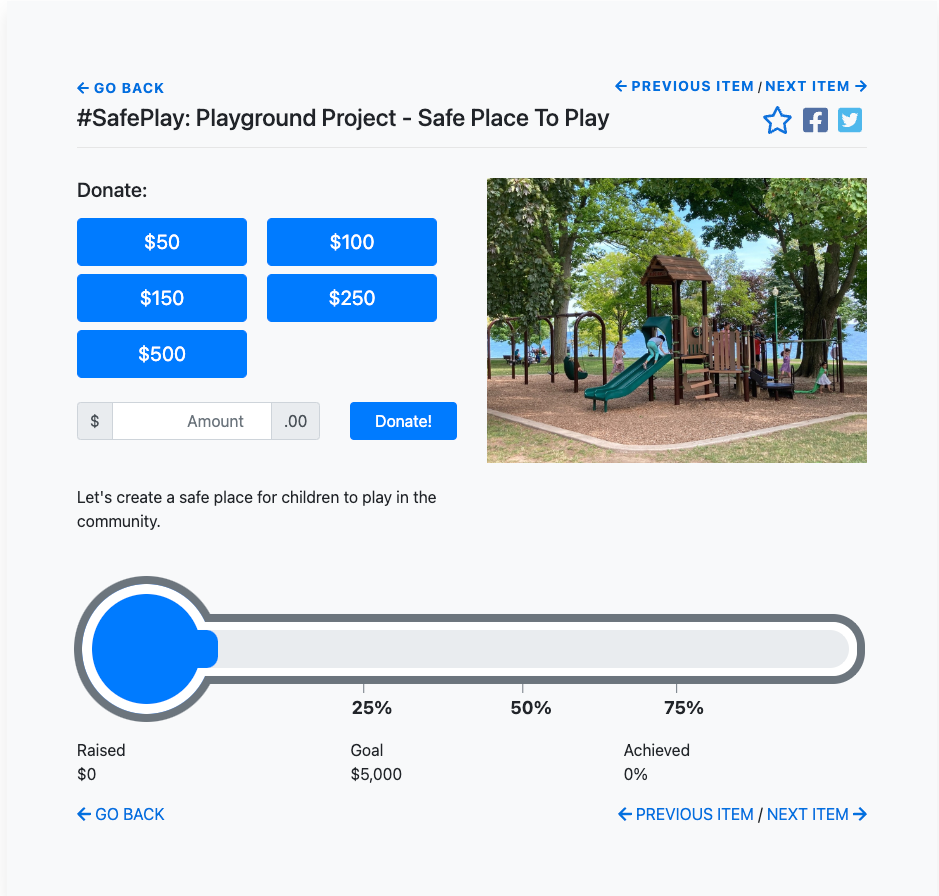
Adding a Fundraising Thermometer
Setting a Fundraising Target on the Donation Item will add a thermometer progress tracker to the item's display, showing guests how close you are to your goal.
Showing Recent Donation Activity
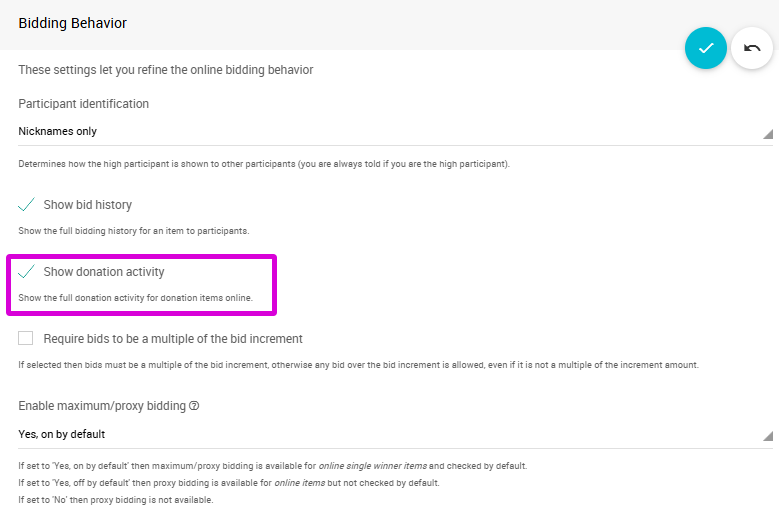
To display a Recent Donations table on the Donation Item's details page, enable the Bidding Behavior option for the event and set it to Yes.
You can find the Bidding Behavior settings by clicking Settings (left sidebar, Set Up) Online Bidding.
Donor Anonymity
By default, donors are listed anonymously in the Donated by column. You can change this using the Bidder identification setting under Bidding Behavior.