
Learn what guests can see and do from their My Account page on the event website, including reviewing their activity, paying online, and updating their details.
The My Account page gives guests an overview of their account, including their Account Summary, Account Details, and Transactions. From here, guests can pay their outstanding balance, view their tickets, update their contact details, and sign out.
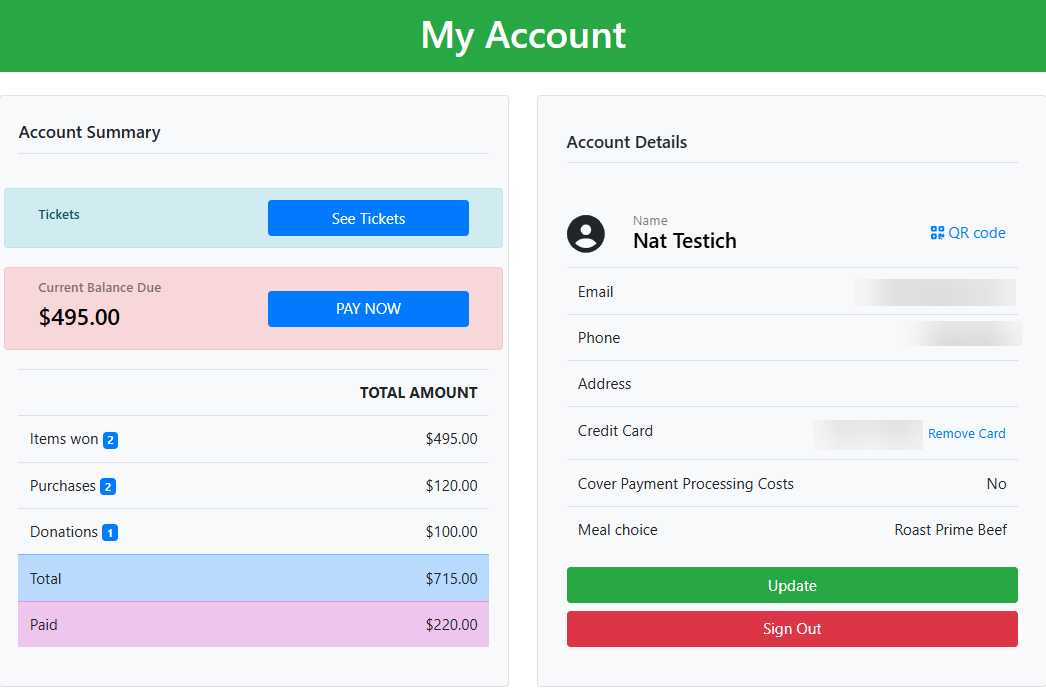
An example taken from a demonstration event.
Account Summary
The Account Summary section shows the account totals. If credit card integration is enabled, a Pay Now button appears here.
Paying Online
To pay online, guests click the Pay Now button or the Shopping Cart icon after signing in to the event.
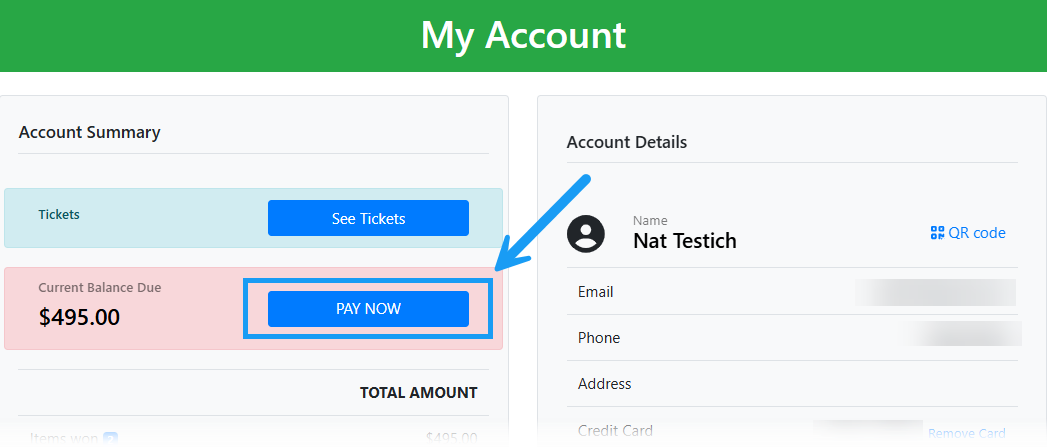
This opens the Shopping Cart, showing the guest's current statement and outstanding balance.
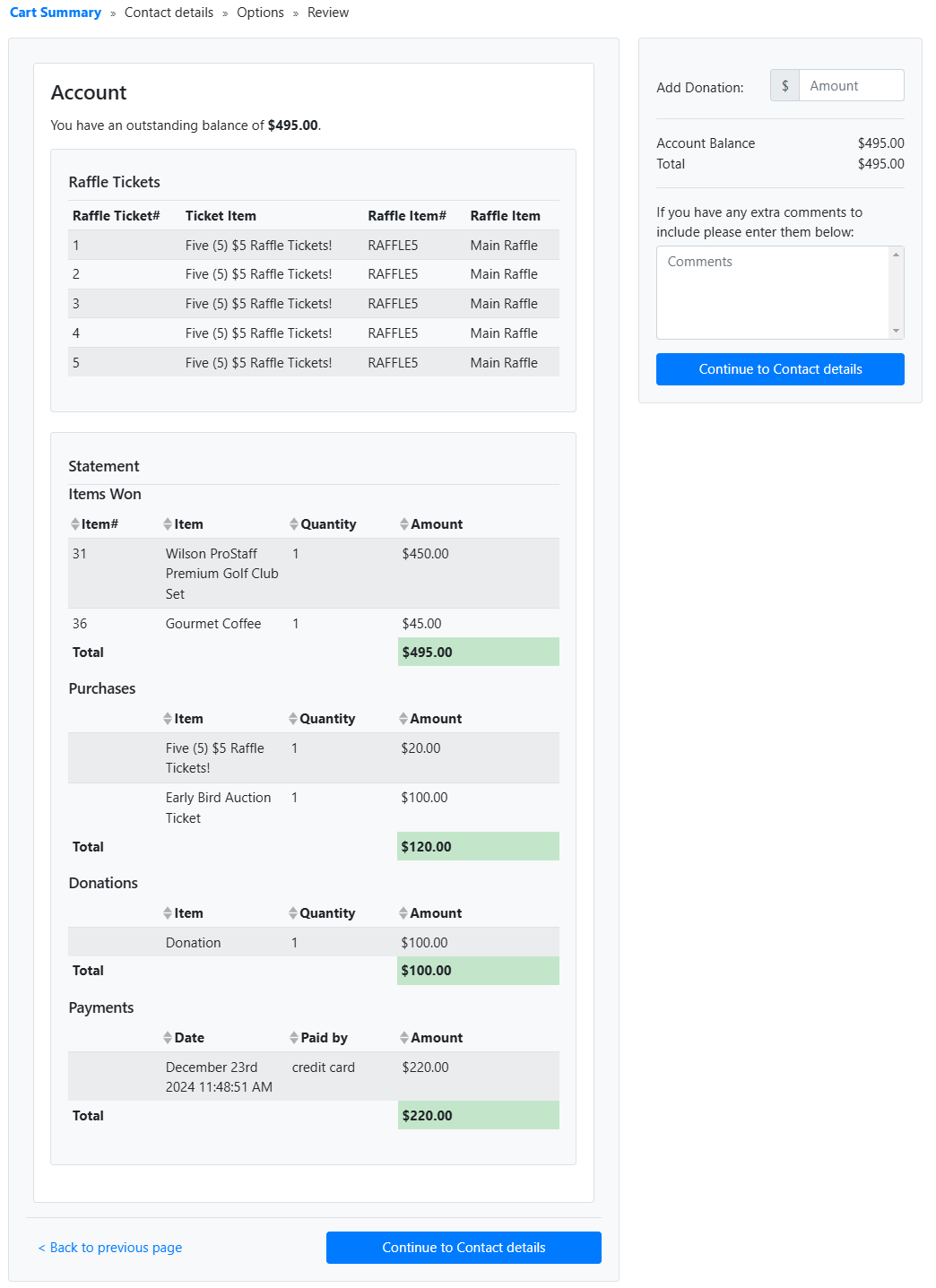
The checkout process follows the same steps as a standard purchase. See Customize Shopping Cart Text for details.
Removing a donation
If a donation has not yet been paid for, a Remove button is available so the guest can remove it before checking out.
See Tickets
Clicking See Tickets opens the Auctria Ticket Hub, where guests can manage their purchased tickets — including updating contact details and meal choices.
See Ticket Hub for more information.
Account Details
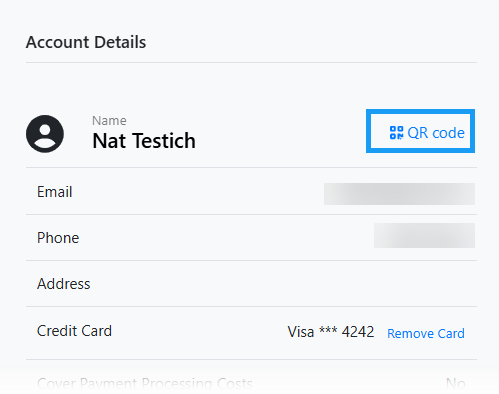
The Account Details section shows the guest's current contact information, including their registered credit card (if any) and meal choice (if applicable). Guests can update most of this information using the Update button, and can sign out using the Sign Out button.
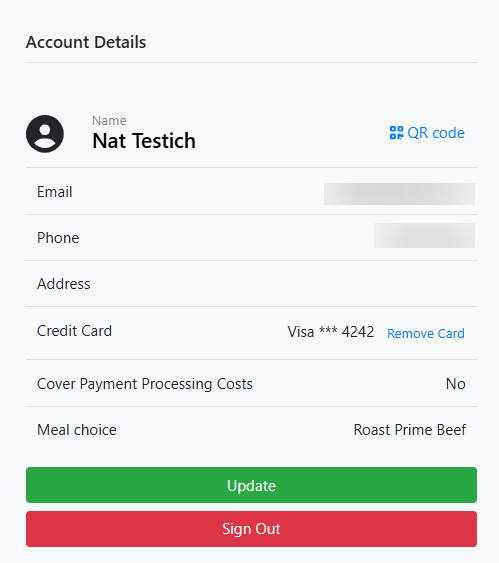
An example from a demonstration event.
QR Code
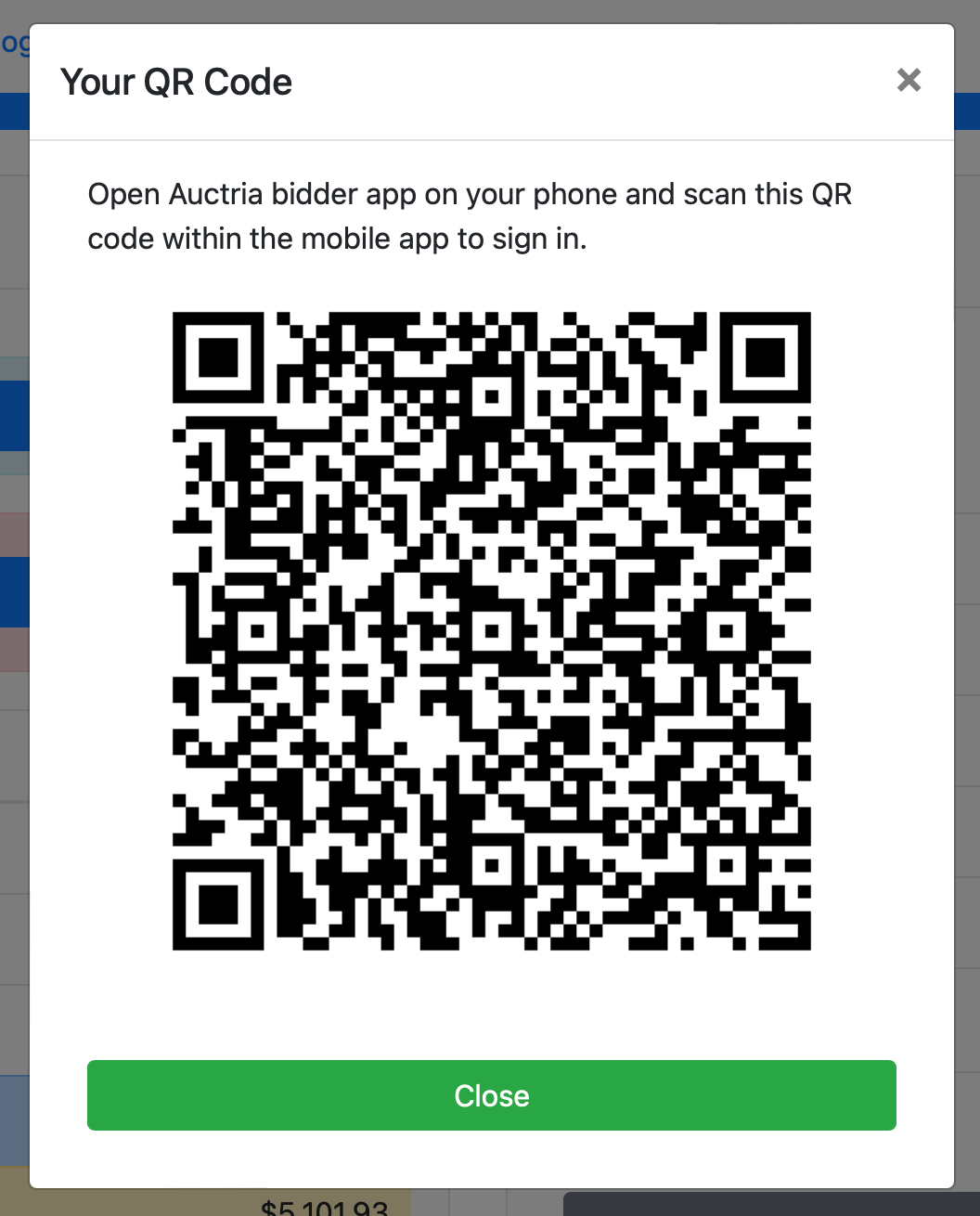
Guests can click the QR Code link beside their name to open a scannable QR code for signing in to the Auctria Mobile App.
Update
Clicking Update opens the Update Details window, where guests can update their address and other contact details.
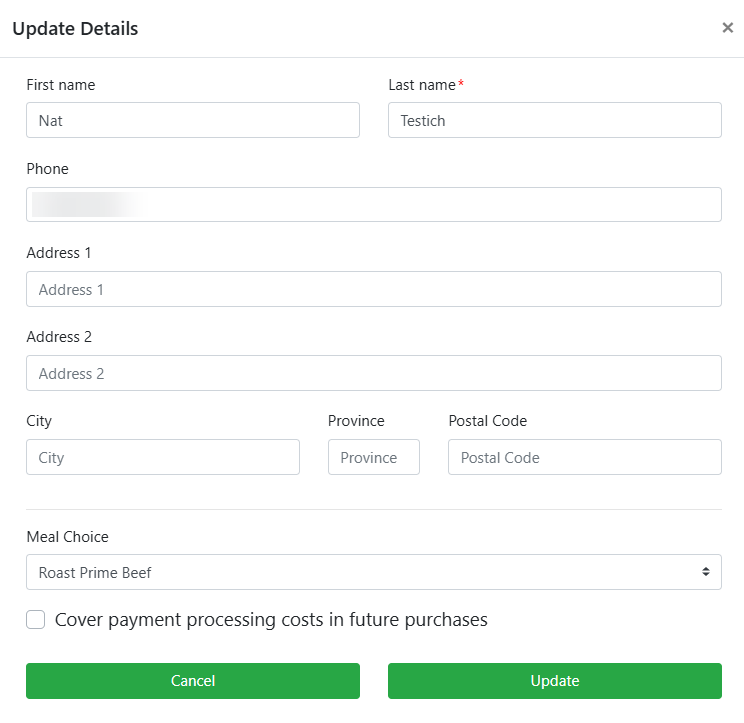
An example account address (and optional meal choice) editing window.
Cover Payment Processing Costs
If Fee Handling is set to Optional, the Account Details section also shows the guest's choice to cover credit card processing fees. Guests can update this by checking the box in their Account Details.
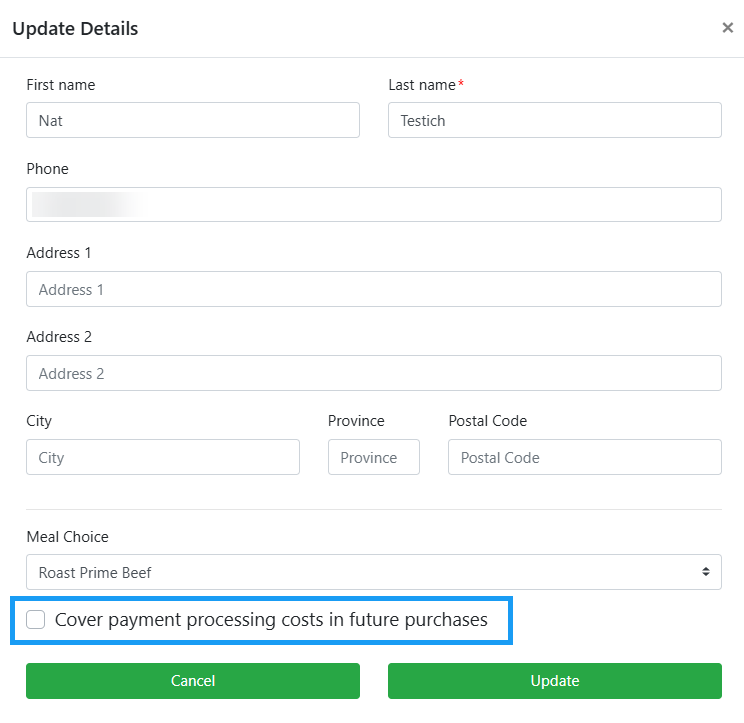
An example from a demonstration event.
Credit Card
Add Credit Card
If no credit card is on file, guests can click Register Credit Card to open the Register Credit Card window.
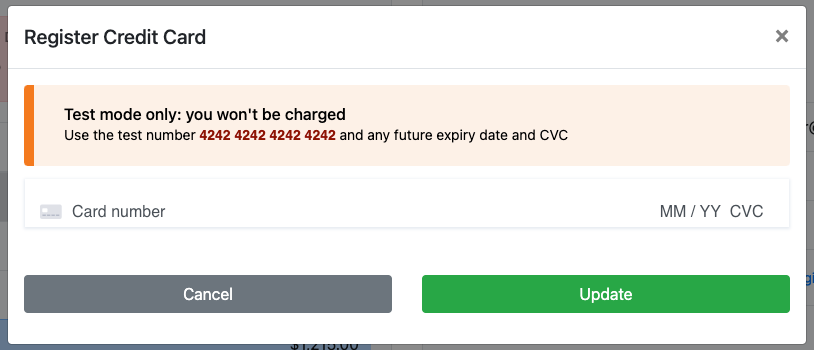
An example showing the window when the event is in test mode.
Remove Credit Card
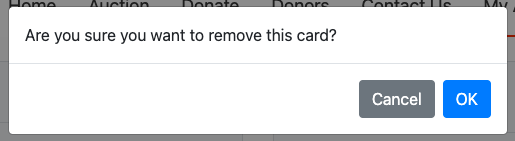
Clicking Remove Card clears the registered credit card. A confirmation window appears before the card is removed.
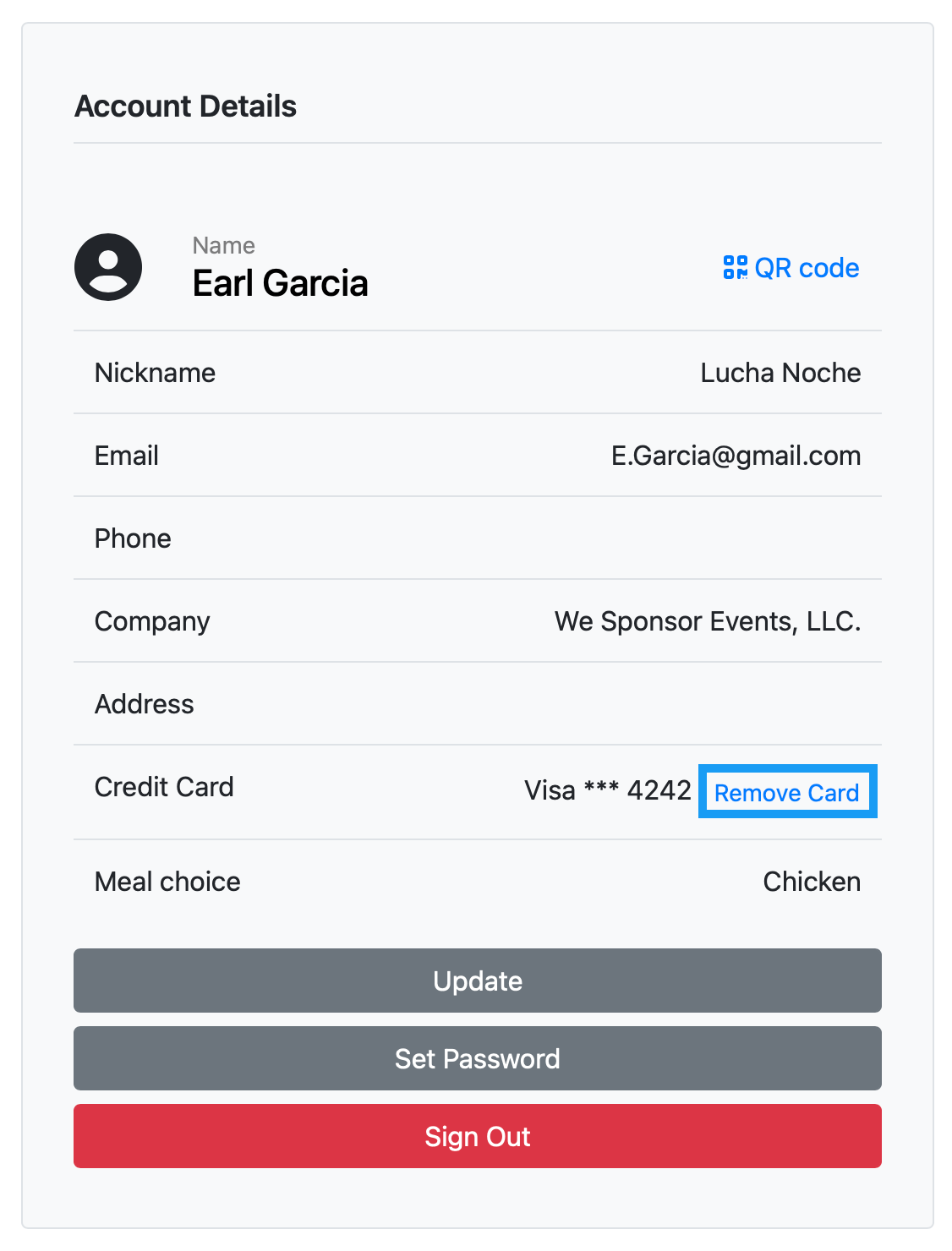
An example based on a test mode credit card number.
Transactions
The Transactions section at the bottom of the page shows a statement-format view of all activity on the account — items won, purchases, and donations. This is the same information displayed when the guest clicks Pay Now or the Shopping Cart icon.
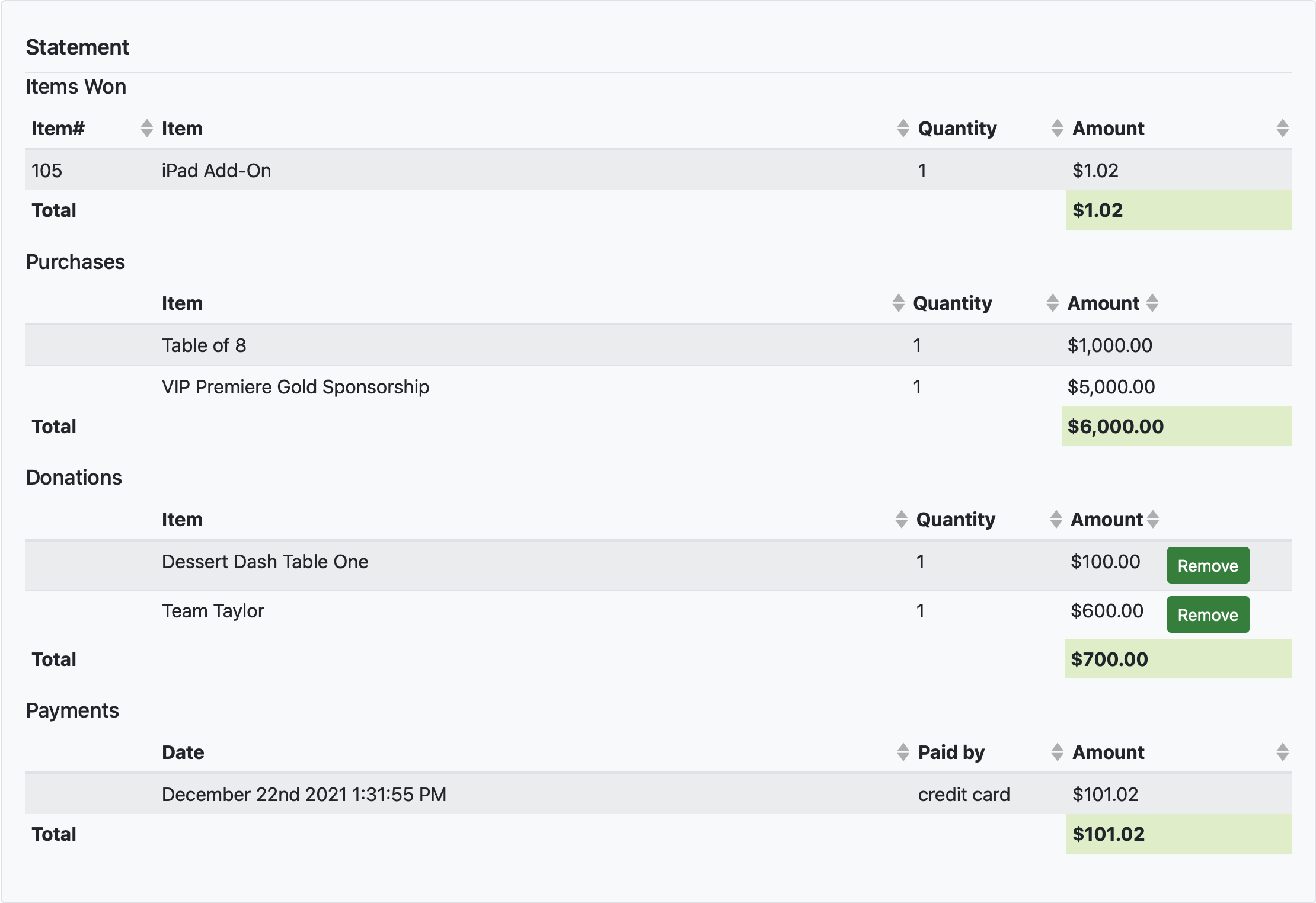
An example showing Items Won, Purchases, and Donations.