
Reference for the Admission Ticket Settings page.
On the Tickets Dashboard, there are a number of ticket options. From the main Auctria Dashboard, click Tickets to reach the Tickets Dashboard.
Click Ticket Settings to open the Admission Ticket Settings page.
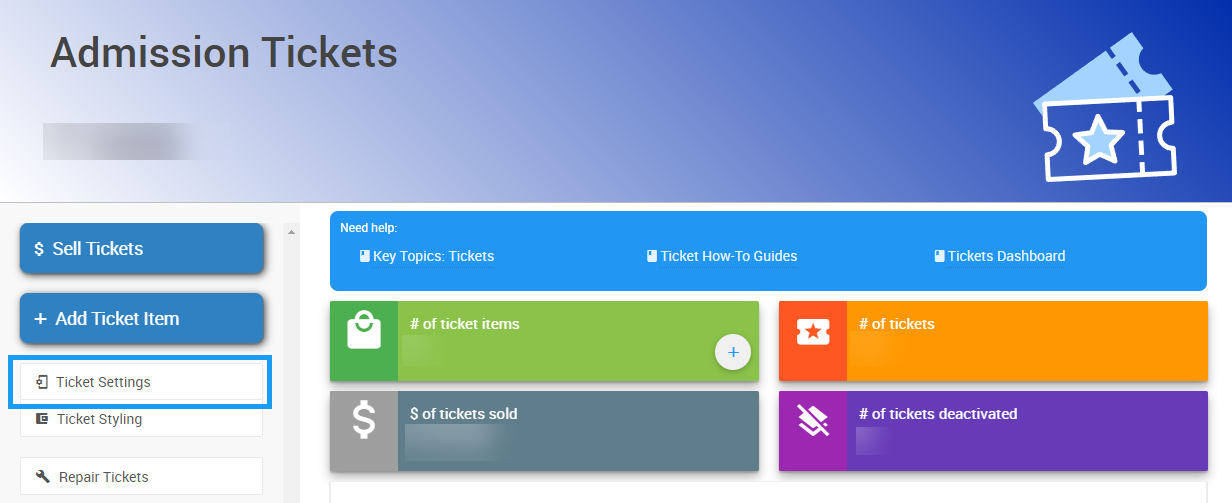
An example from a demonstration event.
This page covers the settings available on the Admission Ticket Settings page, grouped into the following sections:
- Ticket Options
- Meal Choices
- Ticket Checkout Options
- Online Registration
- Event Details
- Custom Questions
- Registration Contact Options
- Registration Guest Contact Options
- Paddle# Assignment
Ticket Options
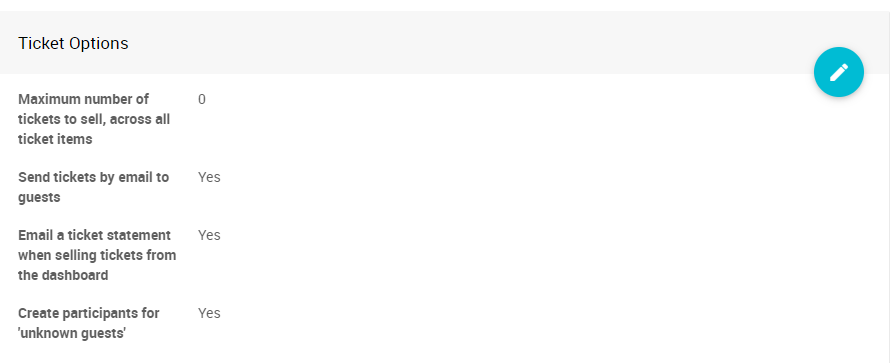
An example Ticket Options section from a demonstration event.
| Field | Description |
|---|---|
| Maximum number of tickets to sell, across all ticket items | The total number of tickets that can be sold across all ticket items, or 0 for unlimited. Individual item quantities are still enforced. |
| Send tickets by email to guests | When a ticket is purchased and the guest's email address is entered, sends them an E-Ticket by email. |
| Email a ticket statement when selling tickets from the dashboard | When tickets are sold via the Sell Tickets page, emails a ticket statement to the purchaser. |
| Create participants for 'unknown guests' | When a participant purchases a ticket but doesn't provide guest information for all the tickets, creates placeholder participants labeled "Guest of..." for the extra guests. |
| Minimum tickets required to claim admission tickets | Sets the minimum number of tickets a participant must purchase before the ticket claim feature is enabled. |
| Tickets transfer cut-off | A time after which participants can no longer transfer tickets. |
| Admission tickets sales end | A global end time for all admission ticket sales. Individual ticket items can override this with their own online bidding end time. |
Meal Choices
| Field | Description |
|---|---|
| Meal choices | A comma-separated list of meal choices, e.g., Beef,Fish,Vegetarian. |
| Require meal choice | If meal choices are defined, requires that a meal choice is entered for each guest. |
| Allow participants to specify dietary restrictions | — |
| Meal change cut-off | A time after which participants can no longer change their meal choices or dietary restrictions. |
Ticket Checkout Options
These options affect what's shown during a checkout that includes admission tickets.
| Field | Description |
|---|---|
| Ask if a ticket purchaser will be attending with their partner when multiple tickets are purchased | — |
| Ticket quantity at which to ask if they are buying on behalf of a company | When purchasing tickets, asks if the purchaser is buying on behalf of a company if they're purchasing at least this number of tickets. |
Online Registration
| Field | Description |
|---|---|
| Allow participant registration without a purchase/donation | Controls whether participants can register for your event without making a purchase or donation. |
| Prompt participants to set up accounts | Controls whether participants are prompted to set up an account when checking out or registering online. |
| Additional text for the required terms of use participants must agree to checkout/register | Text shown alongside the standard terms of use link guests must agree to. |
| Text to show participants to ask them for an 'opt-in' permission | If set, guests are presented with this text during online checkout/registration so they can opt in to email updates and similar communications. |
| Send a welcome text on a successful registration | — |
Event Details
These details are shown when a guest adds an E-Ticket to their mobile wallet.
| Field | Description |
|---|---|
| Event date | The date the event is taking place. If there isn't a single day, use the start date. |
| Event start time | The time your event starts, in your organization's timezone. Only used for in-person events. |
| Event location | The event address, shown on tickets as entered. |
Custom Questions
See Custom Questions and Fields for more on setting up custom questions.
Contact Details
Contact form questions are asked during registration and checkout for the purchaser or bidder. Answers to these questions are stored on the Participant table.
Ticket Holder
Ticket holder questions are asked for each ticket purchased and are stored with the guest record. Answers to these questions are stored on the Participant table.
Registration Contact Options
| Field | Description |
|---|---|
| Ask for participant's address | — |
| Require participant's address | — |
| Ask for participant's phone# | — |
| Require participant's phone# | — |
| Ask for participant's website | — |
| Ask for participant's company | — |
| Ask for reference number from participant | — |
| Ask for participant's seating preference | — |
Registration Guest Contact Options
Consider your guest count before enabling these
If you're selling tables or sponsorships with many included tickets, we strongly recommend leaving these options off. Forcing the purchaser to enter information for many guests often results in them entering their own information multiple times, or typing invalid information just to move past the step — both worse outcomes than collecting no guest information at all.
| Field | Description |
|---|---|
| Require guests' name | — |
| Require guests' email | — |
| Ask for guests' address | — |
| Require guests' address | — |
| Require guests' phone# | — |
Paddle# Assignment
| Field | Description |
|---|---|
| Next assigned paddle# | The system attempts to use this number as the next paddle#. |
| Show the participant their paddle# | Shows participants their paddle# on the My Account page, and includes it in the email sent when they register. Participants typically don't need to know their paddle# for an online event. |
Automatically assign paddle#'s
Controls when paddle#'s are automatically assigned if not specified:
- Always assign a paddle# when not specified.
- Never automatically assign a paddle#.
- Only automatically assign a paddle# on ticket sales.