
A reference for the Ticket Details page.
To access the Ticket Details page, click the # of tickets block on the Tickets Dashboard.
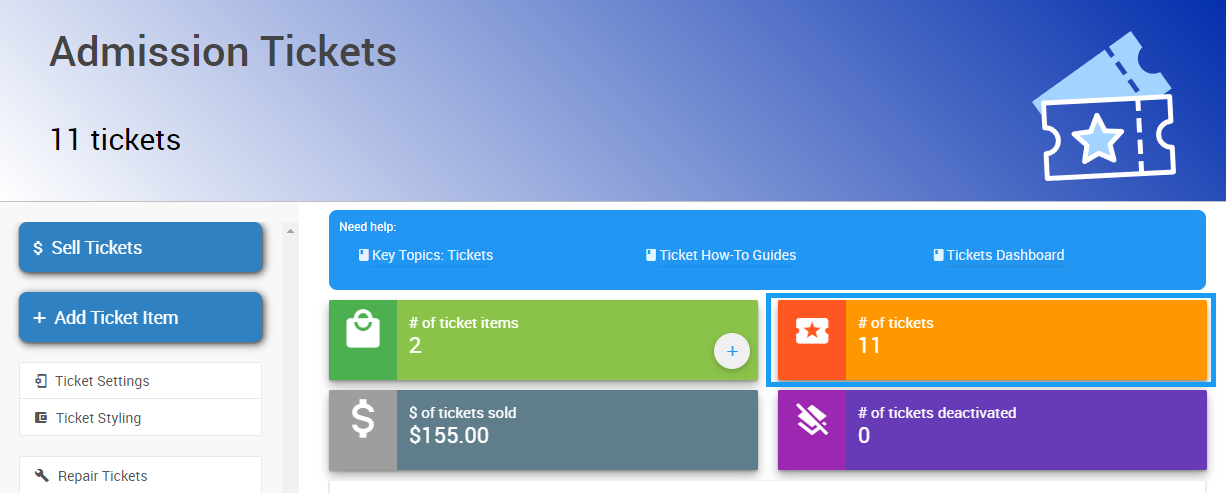
An example Tickets Sold report from a demonstration event.
This opens the Tickets Sold report, where you can click the ticket you want to review.
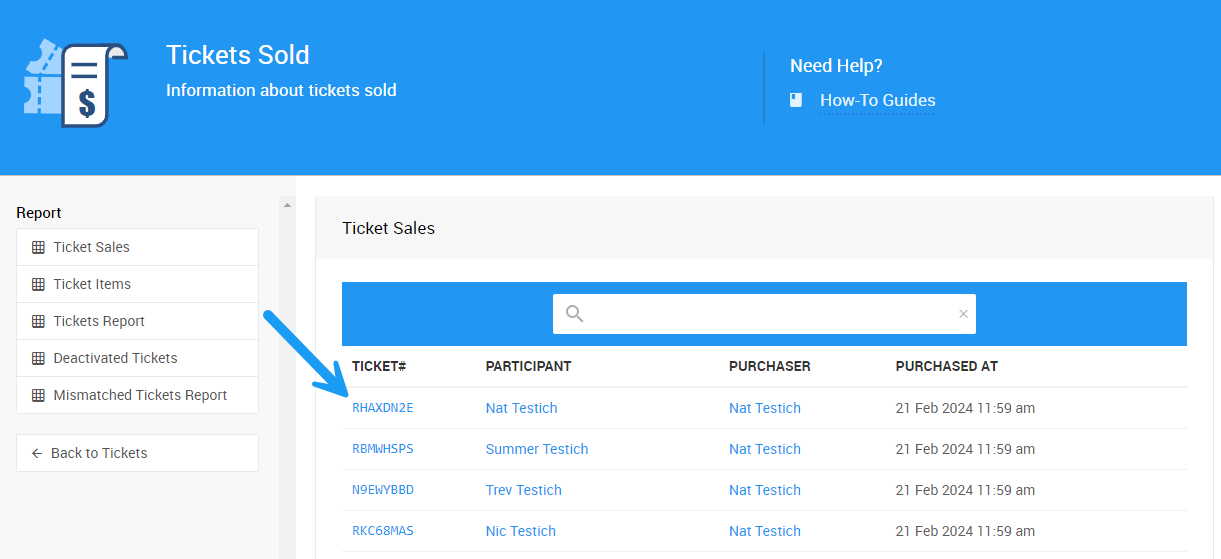
An example from a demonstration event.
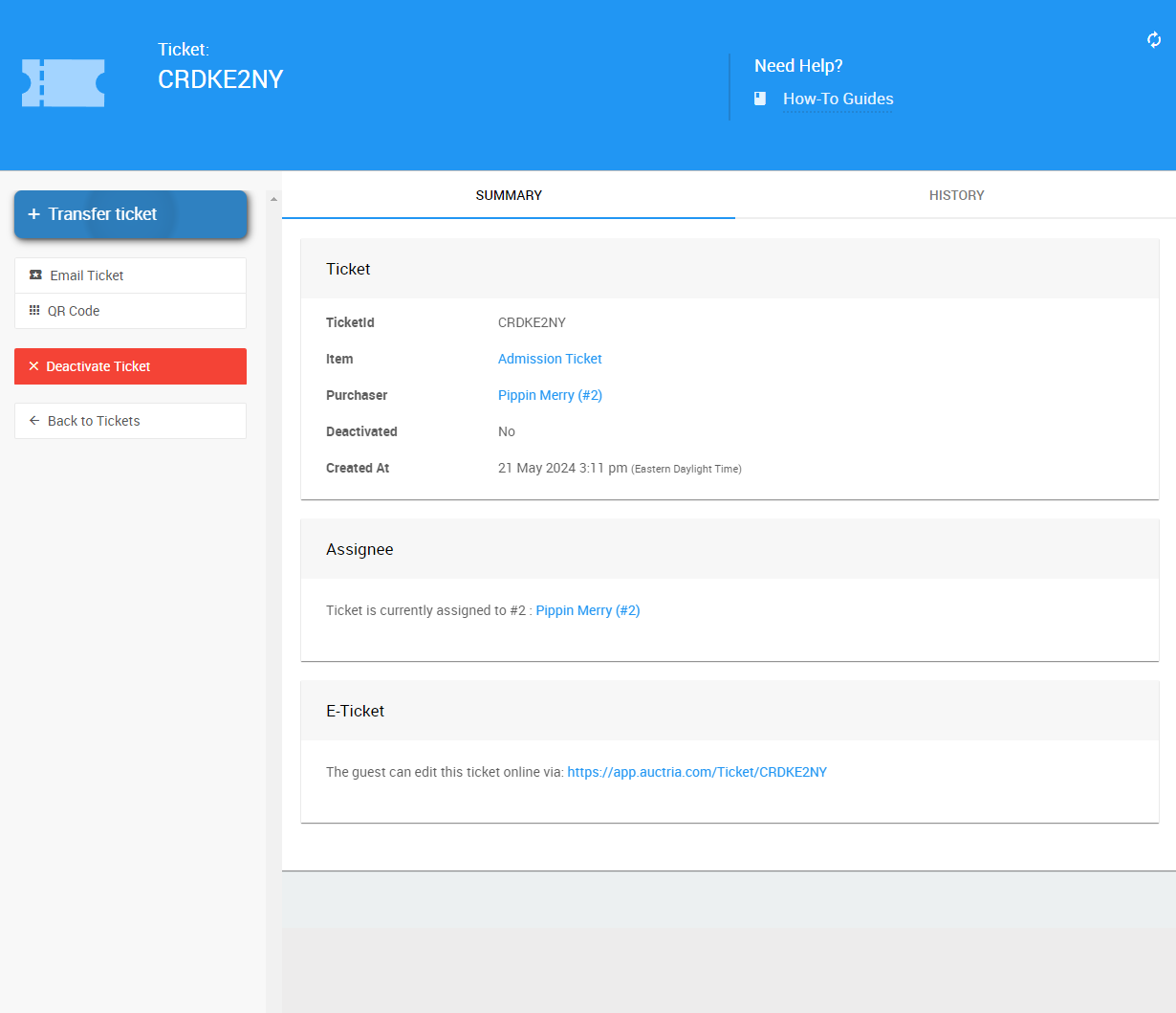
An example from a demonstration event.
Summary
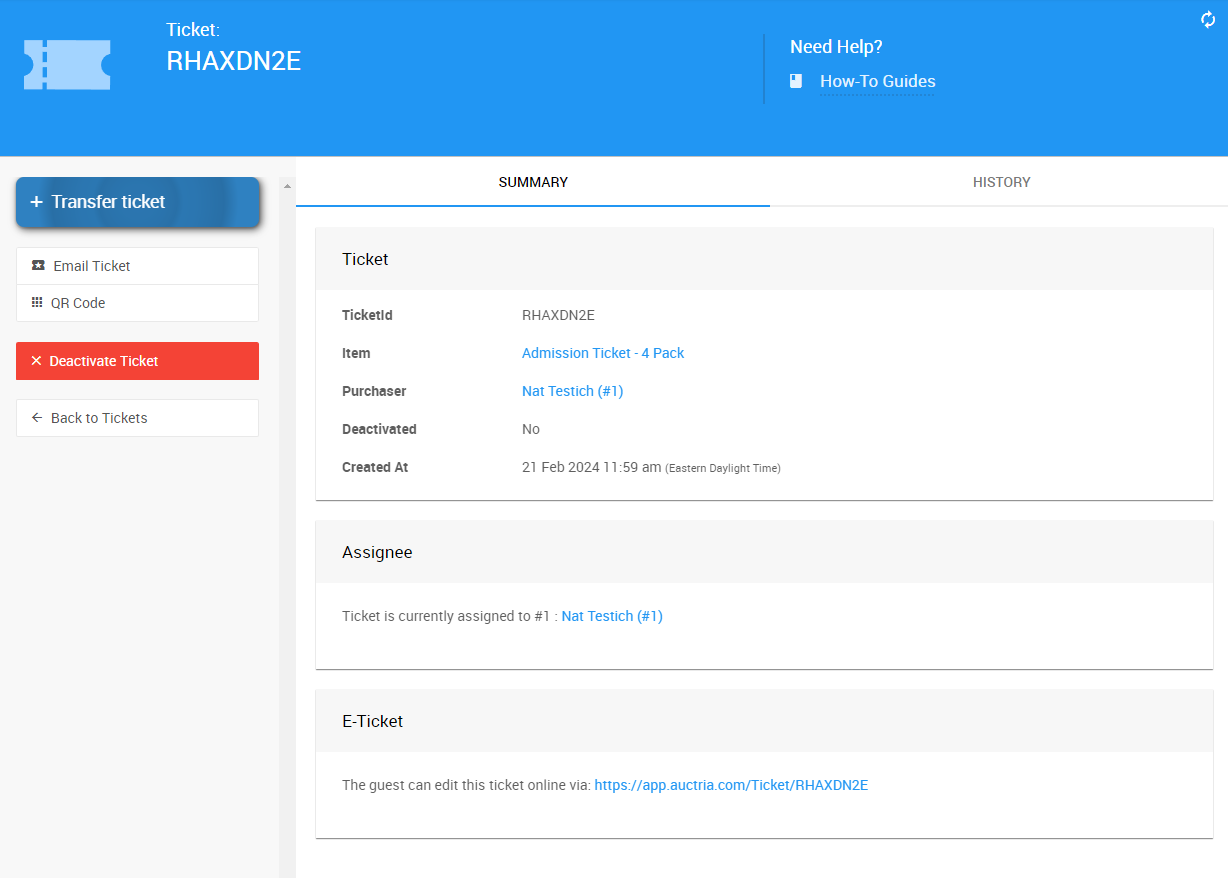
An example Summary tab from a demonstration event.
The ticket Summary tab has sections for the Ticket, Assignee, and E-Ticket.
| Section | Field | Description |
|---|---|---|
| Ticket | TicketId | The individual ticket's Ticket#. |
| Ticket | Item | The ticket Item# used in the sale of the ticket. |
| Ticket | Purchaser | The participant who purchased the ticket, linking to their Participant Details page. |
| Ticket | Created At | The system timestamp for when the ticket was created — often a good reference for when it was purchased. |
| Assignee | — | The event participant the ticket is currently assigned to. |
| E-Ticket | — | A link to the E-Ticket that can be copied and pasted into emails, text messages, and more. |
History
The ticket History tab shows any changes made to the ticket.
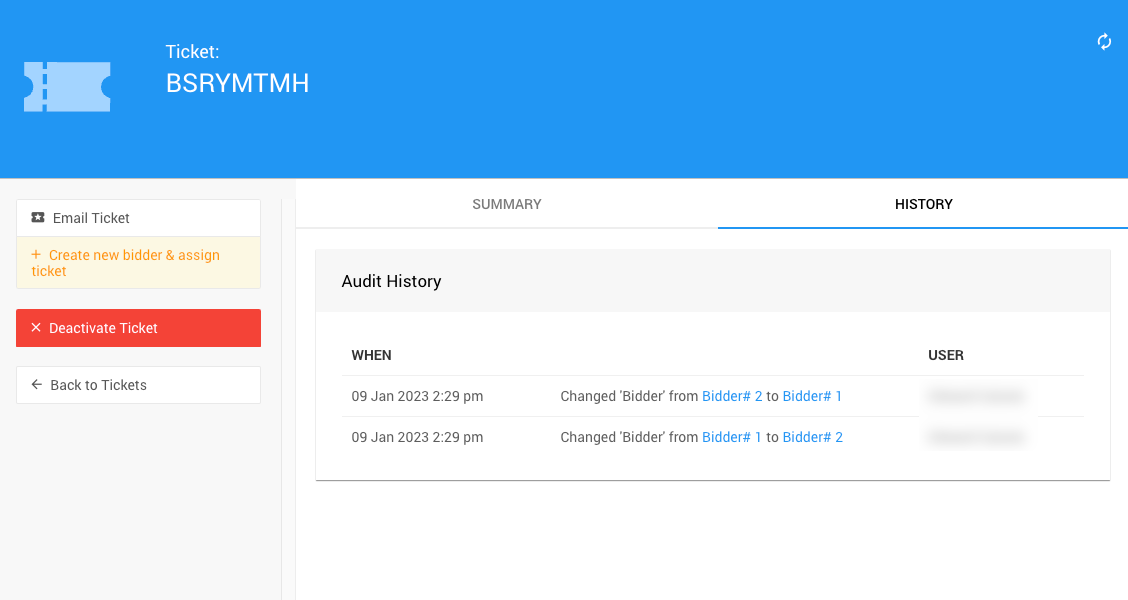
An example History tab from a demonstration event.
Actions
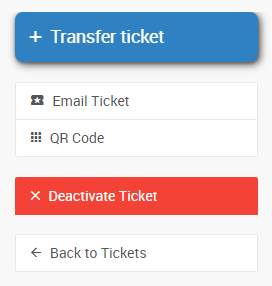
An example Actions section from a demonstration event.
| Action | Description |
|---|---|
| Transfer Ticket | Opens the Transfer Ticket window, where you can transfer the ticket to a new or existing participant. |
| Email Ticket | Opens a confirmation window to email the ticket to the Assignee's email address. |
| QR Code | Opens the QR code associated with the ticket, which can be copied and shared with the participant. |
| Deactivate Ticket | Opens a confirmation window with a warning. See Activating & Deactivating Tickets for more information. |
Note
See How To Issue A Credit Card Refund In Full and How To Delete A Purchase With A Payment for more details on issuing refunds or deleting a purchase with a payment attached.