
Learn how to export, import, and restore your Auctria event website using backup files and website history.
Auctria gives you two ways to protect and reuse your event website: Export/Import for copying a website between events, and Website History for restoring a previous version of your current website.
Export Your Website
Exporting your website saves a snapshot of your current event website as a .dat file that you can download and store on your computer. Use this to back up your website or copy it to another event.
Pre-requisites for exporting websites
An Event Website must be created before you can export it. See How To Create A New Event Website if you haven't set one up yet.
To export your website:
- From your Auctria dashboard, click Website in the left sidebar.
- Click Export Website.
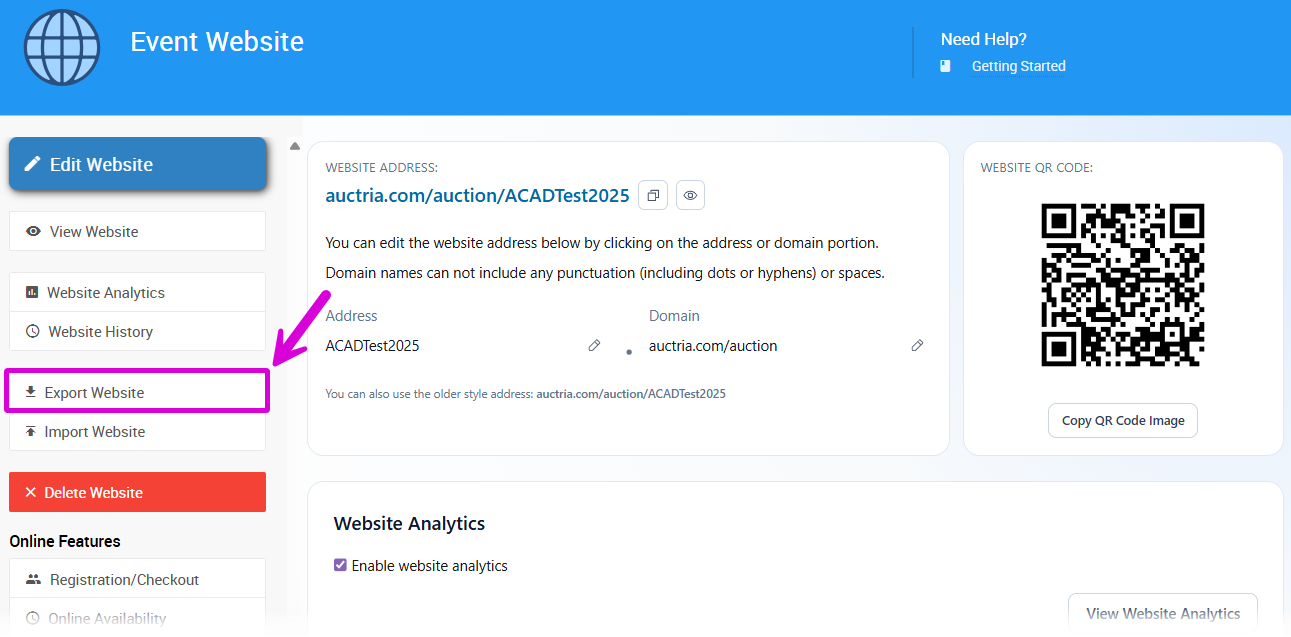
An example from a demonstration event.
The export begins immediately — no confirmation step. A .dat file is generated and downloaded to your browser's downloads folder automatically. The file name includes a timestamp, for example: website_export_2022-03-07T19_25_44Z.dat.
Import Your Website
Importing applies a previously exported .dat file to an event, replacing that event's current website with the saved version.
Importing overwrites your website immediately
The Import Website function does not have a confirmation step. It will immediately replace the current event's website with the imported file. Make sure you are on the correct event before importing.
To import a website:
- Navigate to the event you want to apply the website to.
- From the Website page, click Import Website.
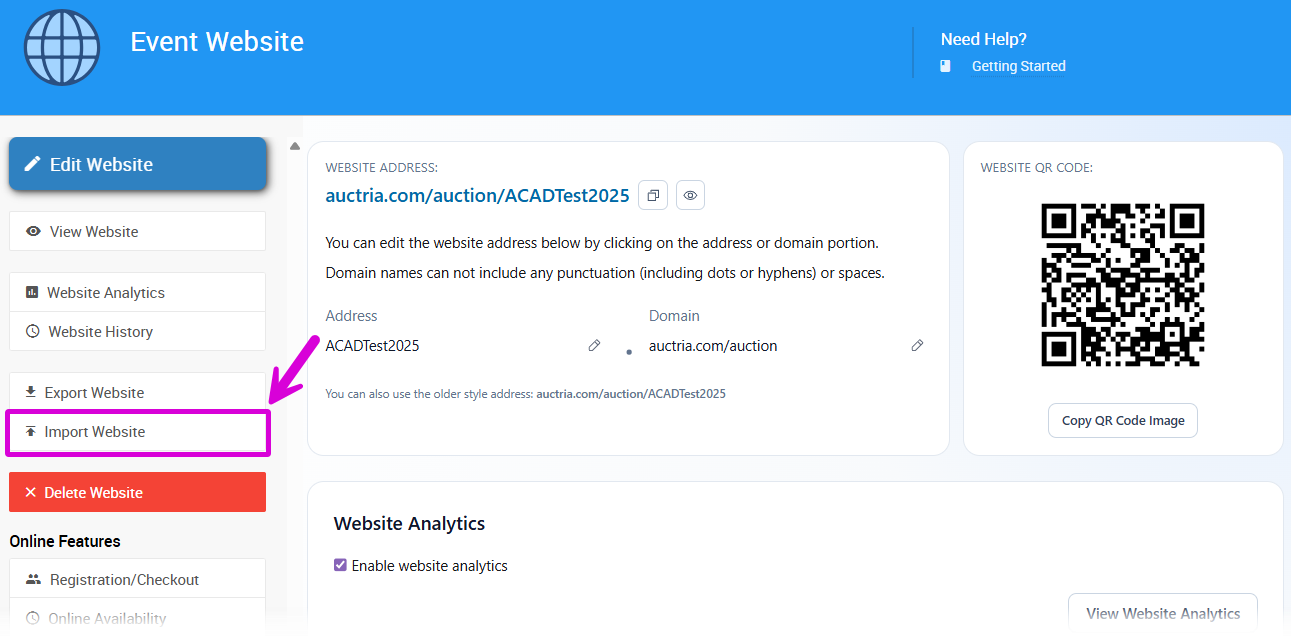
An example from a demonstration event.
- A file selector will open. Click Choose File, navigate to your exported
.datfile, and select it.
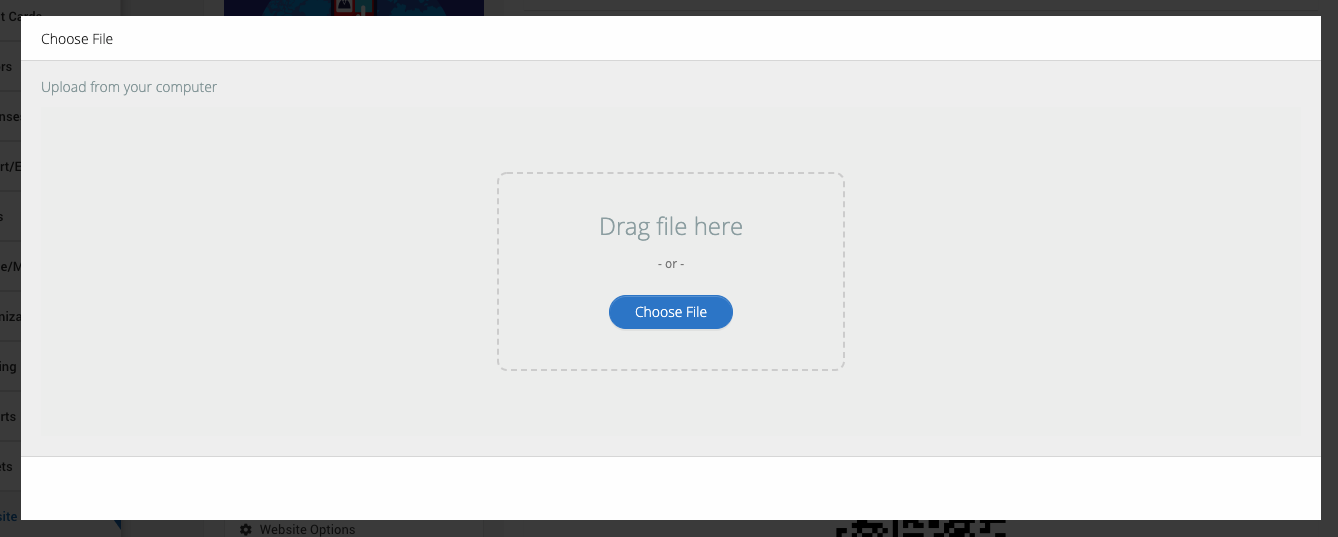
An example from a demonstration event.
The file will be uploaded and processed. The page refreshes automatically once the import is complete, and the imported website is now active for this event.
Update Your Website Address After Importing
After importing, the website address from the original event may carry over. To set a new address, click the Address field in the Website Address section and type your preferred URL. Use the Domain dropdown to select a domain relevant to your organization, if needed.
Website address character restrictions
Website addresses should only use letters, numbers, and hyphens (-). Special characters or punctuation could make your event website unreachable.
See Updating Your Website Address for step-by-step instructions.
Copying a website when creating a new event
If you haven't created your new event yet, you can copy the website as part of the event creation process. Use the Copy event web site option under Copy Event — Settings.
Website History
Website History keeps automatic snapshots of your event website over time, so you can review, revisit, or roll back to any previous version at any time.
To access Website History:
- Click Website in the left sidebar of your Auctria dashboard.
- Click Website History on the left side of the page.
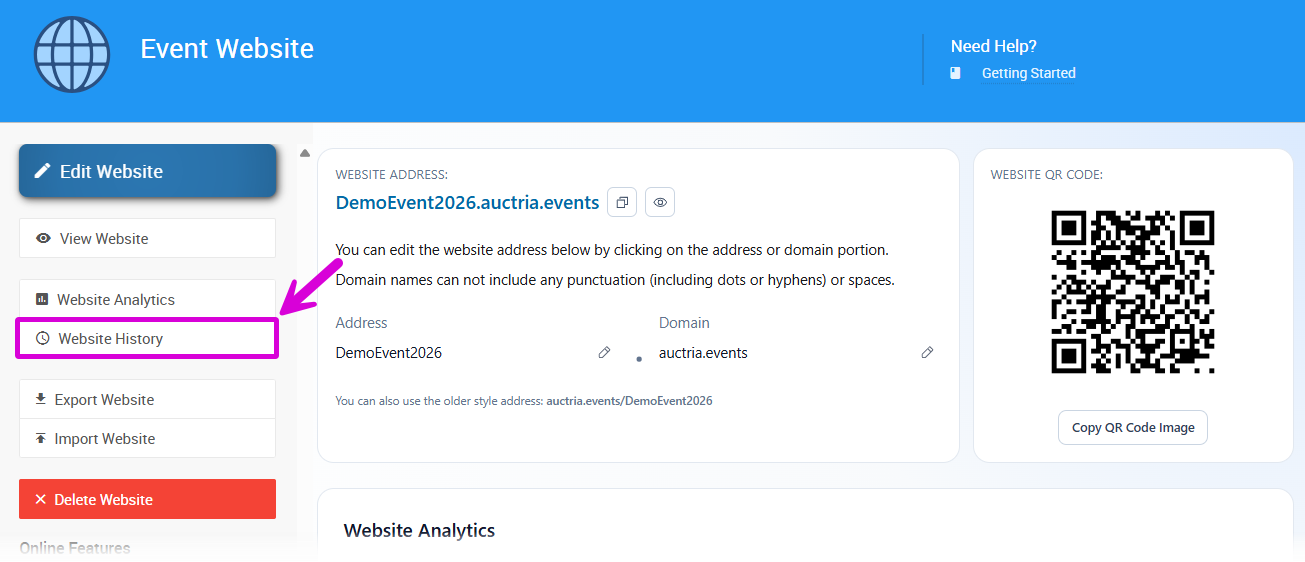
An example from a demonstration event.
Your saved snapshots are listed in chronological order in the Timestamp section. For each entry, you have three options:
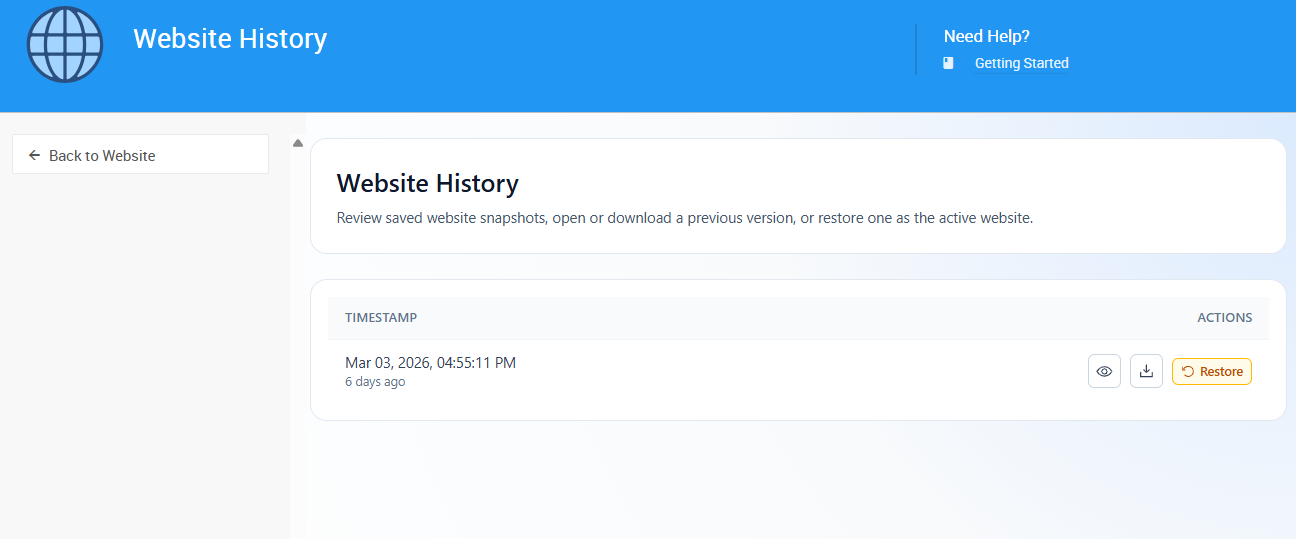
An example from a demonstration event.
| Action | Description |
|---|---|
| View (eye icon) | Opens a preview of that version of your event website. |
| Download | Downloads that version of your website as a .dat file to your device. |
| Restore | Sets that version as your currently active event website. |
Restoring replaces your active website
Restoring a snapshot will immediately replace your current website with the selected version. Preview the snapshot first to make sure it's the version you want.