
Learn how to email only the guests who have tickets.
Sometimes you only want to email the bidders who purchased Tickets or have been assigned a ticket. For example, a guest of someone who bought multiple Tickets has a ticket without having purchased one. You can do this using the filter options in the Recipients list.
Step 1: Choose Your Email
Choose one of your Custom Emails, or create a new Custom Email to send to your ticket holders.
Step 2: Click Send
When your email is ready to go, click the Send link to start the process. See How To Send Custom Emails for more about sending Custom Emails.
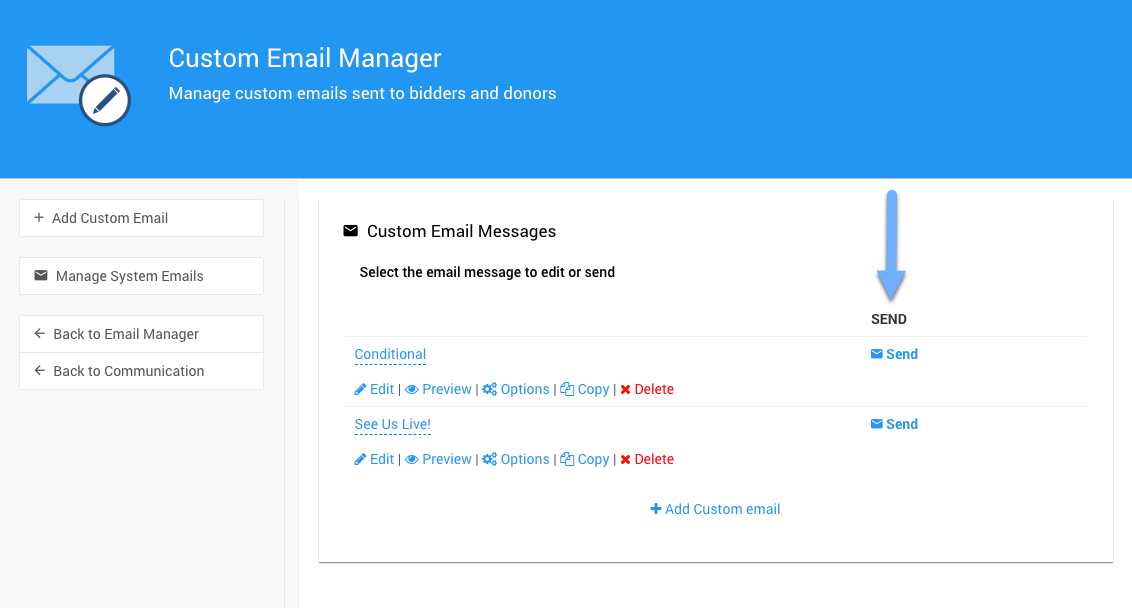
The Send link on the Custom Email Manager page from a demonstration event.
Step 3: Filter the Recipients
Clicking Send opens the Send Email... Recipients list, which shows all bidders by default. See Choose Participants Filters for more information.
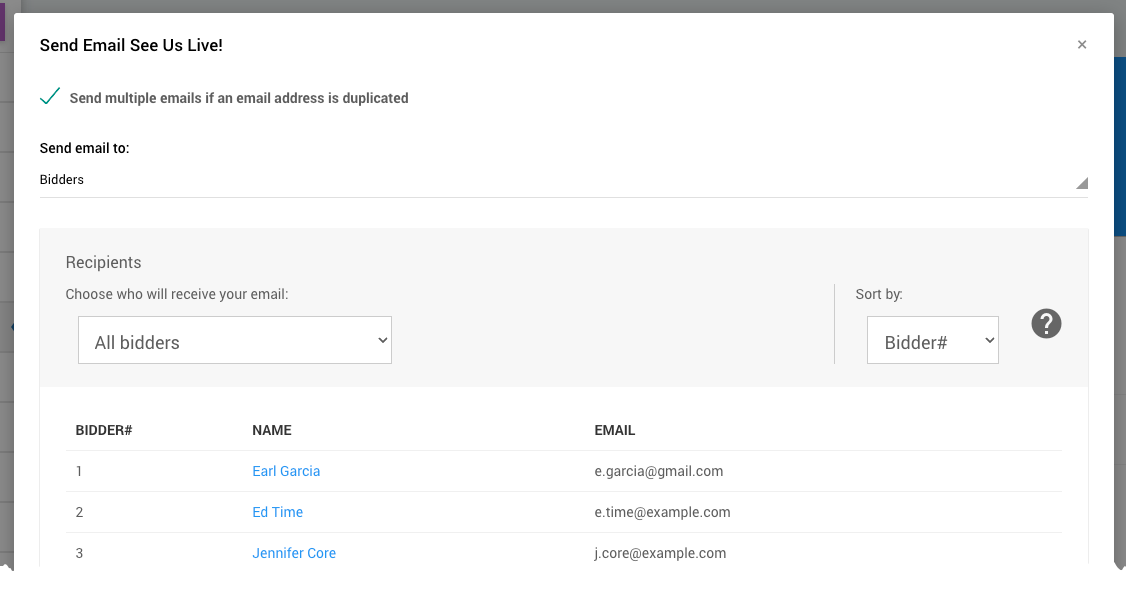
The Recipients list from a demonstration event.
Click the drop-down selector and choose Bidders With A Ticket or Bidders Who Purchased A Ticket. These are the two most common choices.
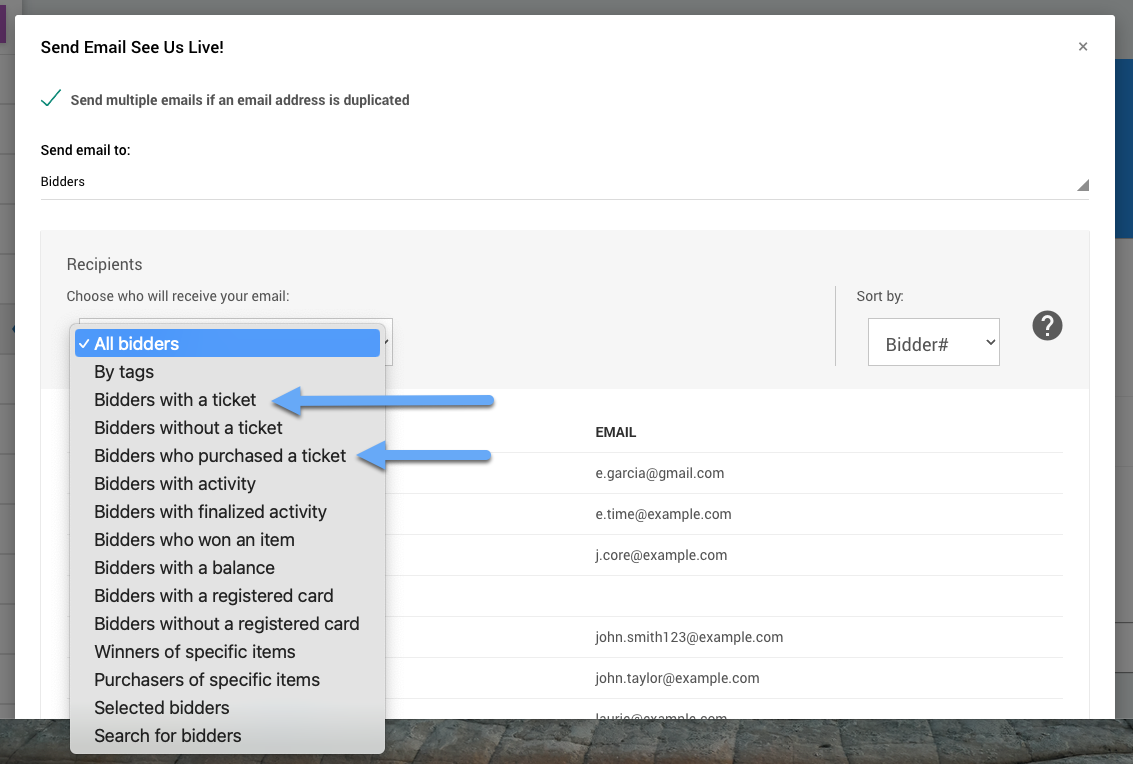
The ticket filters in the Recipients drop-down selector.
Bidders With A Ticket
The Bidders With A Ticket filter sets the Recipients list to all ticket holders.
Bidders Who Purchased A Ticket
The Bidders Who Purchased A Ticket filter sets the Recipients list to only the people who purchased tickets. For example, if a person purchased a table of eight tickets, they would be the only person to receive the email, and their guests would not.
This filter also includes people who purchased tickets but did not assign one to themselves.