
Learn how to make an image element clickable on your event website.
To make a Image element clickable, assign a Click behavior to it using the Add Behavior button in the Website Editor sidebar.
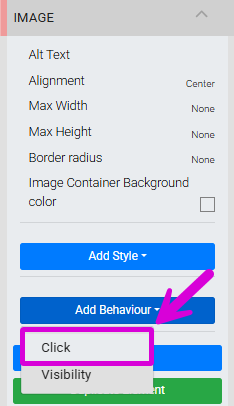
An example of adding Click behavior to an Image element in the Editor sidebar.
Steps
- Select the Image element on your website page.
- In the Editor sidebar, click Add Behavior.
- Click Click to add the Click property to the element.
- Click the Click property to open the Target Type dropdown.
- Choose a target type and configure it as needed.
Target Types
Page — Links to a page on your event website. A second dropdown appears listing all available pages. Custom pages appear first, followed by system pages. Click the dropdown again to change the selection.
Web Address — Links to an external URL. Enter the full web address in the field that appears. Check Open in a new window to have the link open in a new browser tab instead of navigating away from the current page.
See Click Behavior for more details on Click behavior options.