
Understanding and switching between Test and Live modes for credit card processing.
Auctria offers two modes for credit card processing to help you test your setup before processing real payments.
Understanding the Two Modes
Test Mode
- Use fake credit card numbers to practice
- No real money is charged
- Perfect for training staff or testing your event setup
Live Mode
- Process real credit card transactions
- Actual charges are made to participant cards
- Use for your actual event
Running Multiple Events
You can have one event in Test mode for practice while another event runs in Live mode. This works if your Auctria license supports multiple events, or you can use separate organizations with Explorer licenses.
Learn more: Auctria Licenses
Checking Your Current Mode
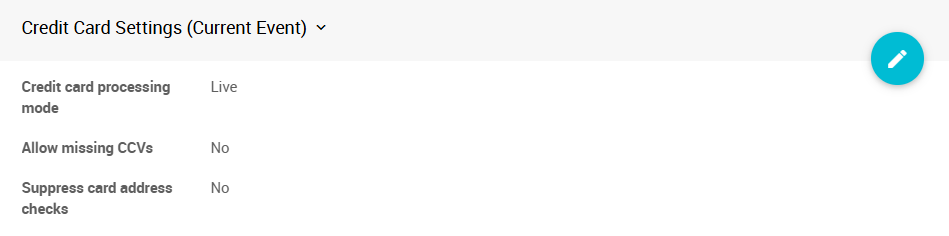
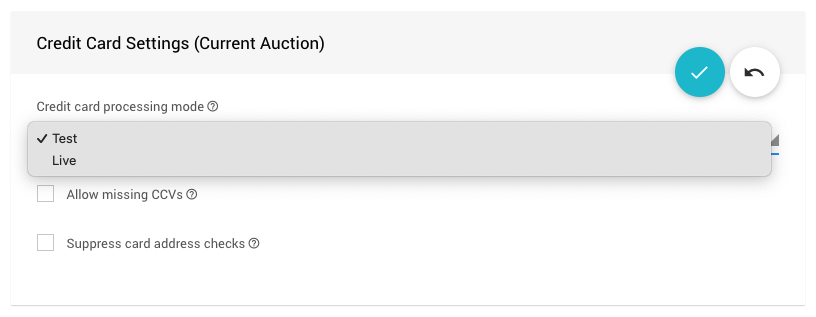
Find your current processing mode under Credit Cards (left sidebar, Set Up) in the Credit Card Settings section:
Important: Refunds Must Match Original Mode
Refunds must be issued in the same mode as the original charge:
- Test charges can only be refunded when the event is in Test mode
- Live charges can only be refunded when the event is in Live mode
Using Test Mode
When your event is in Test mode, you'll see a notification on credit card screens with a sample test card number you can use:
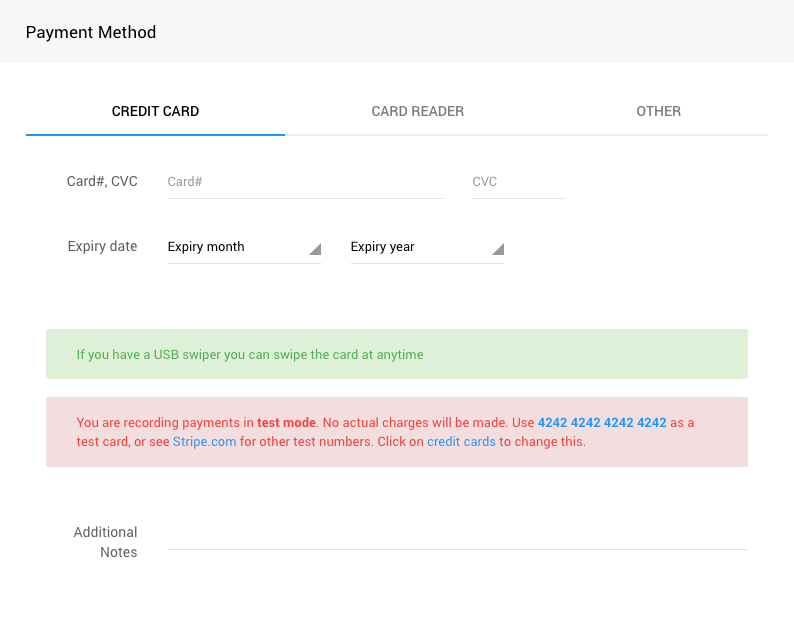
Benefits of Test mode:
- Practice processing payments without risk
- Train staff on checkout procedures
- Test your event setup end-to-end
- Delete test charges directly without processing refunds
Double-Check Your Event
Before switching to Test mode, make sure you've selected the correct event—you don't want to accidentally change your live event's settings!
Stripe Test Mode Only Connection
If you connected Stripe in "Test Mode Only," you'll see a banner on your Stripe Details page:
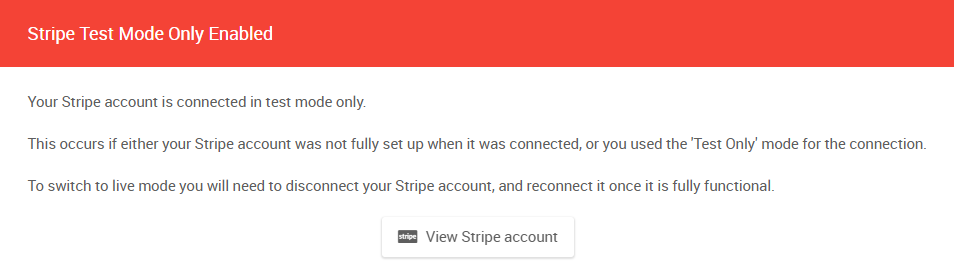
This means:
- You cannot process Live transactions, even if you change the setting in Auctria
- Your Stripe account may not be fully activated
- You'll need to reconnect Stripe to enable Live processing
To fix this:
- Go to Credit Cards (left sidebar, Set Up)
- Click Stripe.com connection (on the left, Connections)
- Click Unlink Your Account
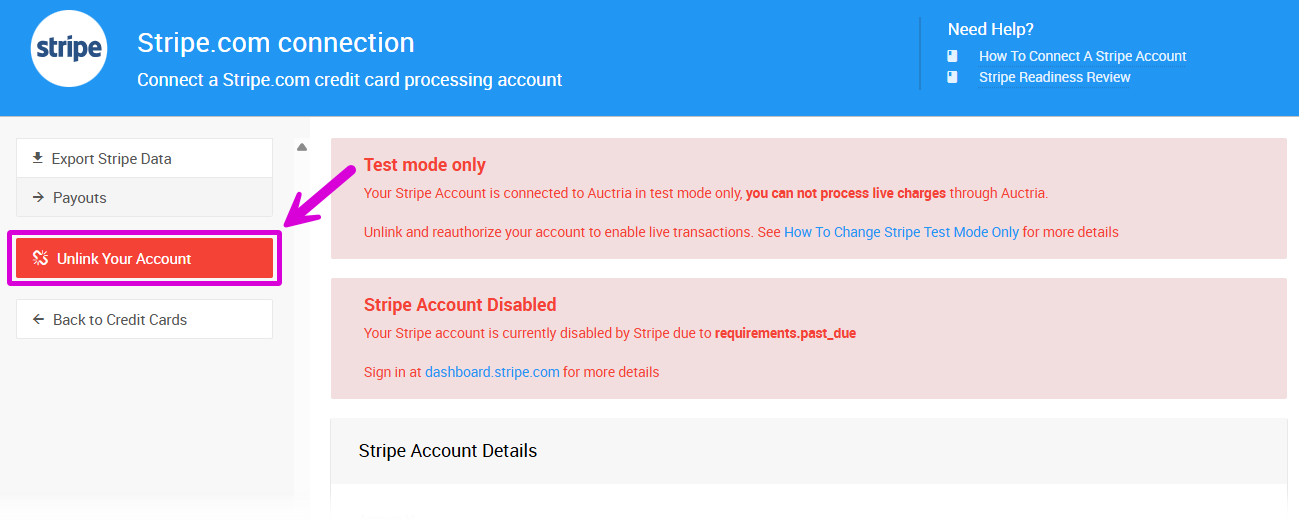
- Follow the Stripe connection guide to reconnect
Important
Do NOT select "Test mode only" during reconnection.
Using Live Mode
When you're ready to process real payments, switch to Live mode.
Switching from Test to Live
For Stripe accounts (NOT in Test Mode Only):
- Go to Financials Credit Cards
- Find the Credit Card Settings section
- Change Credit card processing mode to Live
For Stripe accounts connected in Test Mode Only:
You must disconnect and reconnect your Stripe account as described in the section above. Simply changing the setting won't work.
Before Going Live
Make sure your Stripe account is fully activated and verified on the Stripe website before attempting to process live transactions.
Learn more: How to Change Stripe to Test Mode
Quick Reference
| Need to... | Do this... |
|---|---|
| Practice without real charges | Use Test mode |
| Process real payments | Use Live mode |
| Refund a test charge | Switch to Test mode first |
| Refund a live charge | Switch to Live mode first |
| Enable Live mode for first time | Disconnect and reconnect Stripe (not in Test Mode Only) |